TR7600 SIII_Hardware_en_v_2_0_4.pdf - 第24页
Test Research, Inc . 14 TR7600 SIII Series Us er Guide – Ha rdware 3.5 Settings Figure 16: VPLC/ Setting s In-line Loader: Enable this function and t he machine will open t he f ront door onl y after the machine has re…
Test Research, Inc.
TR7600 SIII Series User Guide – Hardware 13
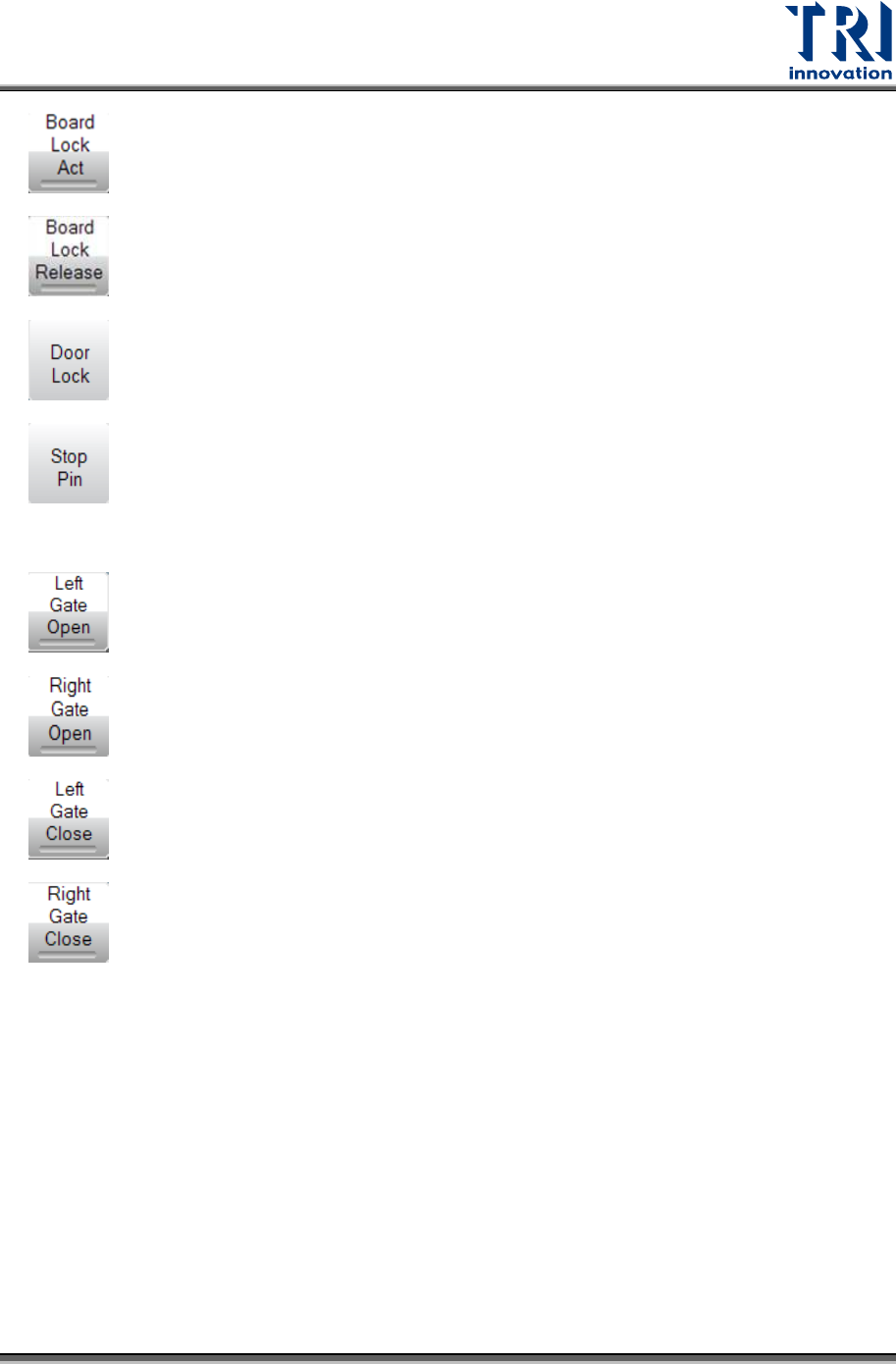
: Use the board holder equipment to clip the tested board.
: Use the board holder equipment to release the tested board.
: Lock the front and back doors.
: Make the Stop Pin stretch out. This function is not applied to TR7600LL SIII,
TR7600XLL SII, TR7600LL SII, TR7680 and TR7600M SII. This function is only used in
some specific types of machines that have a Stop Pin.
: Open the left gate.
: Open the right gate.
: Close the left gate.
: Close the right gate.
Test Research, Inc.
14 TR7600 SIII Series User Guide – Hardware
3.5 Settings
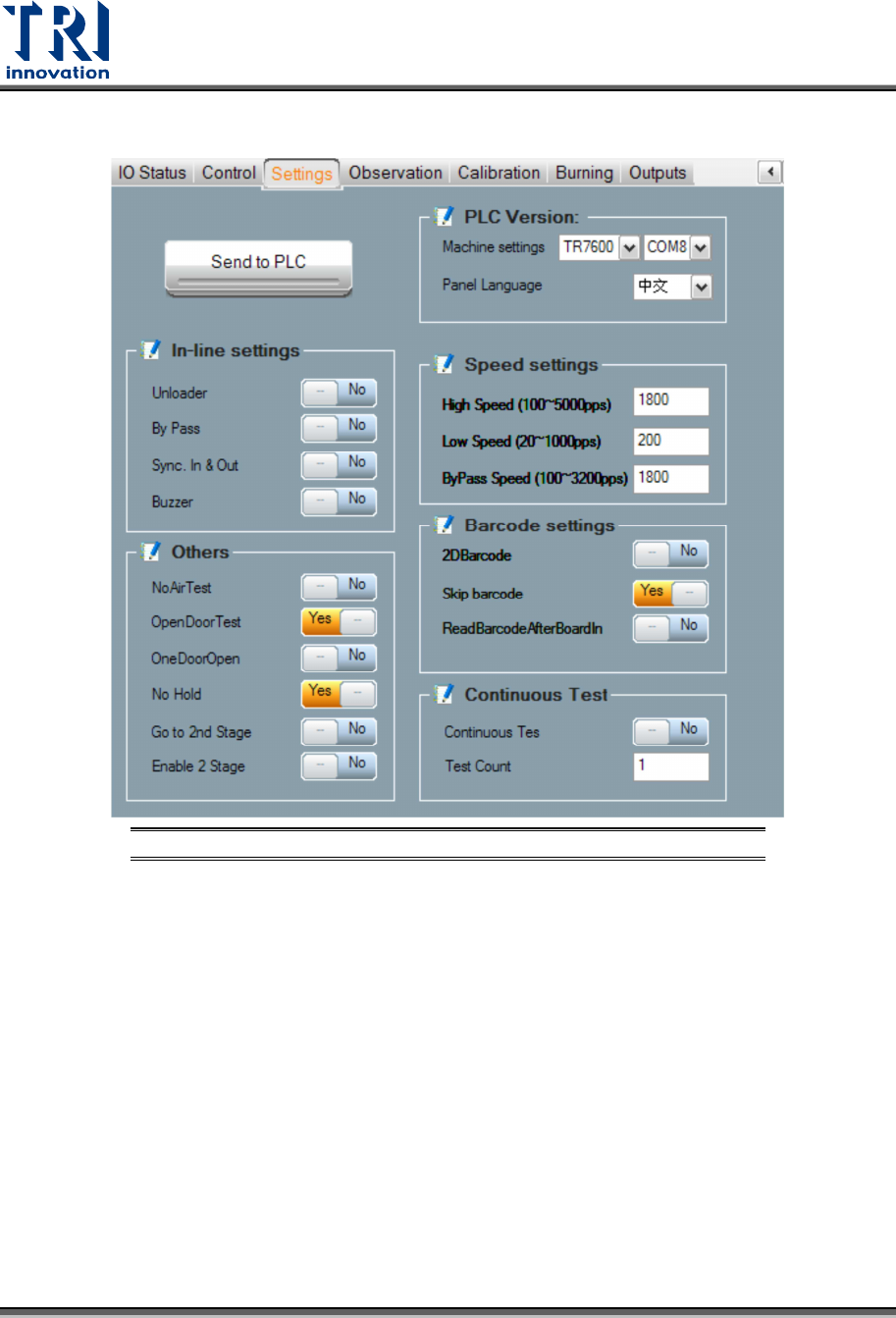
Figure 16: VPLC/ Settings
In-line
Loader: Enable this function and the machine will open the front door only after the
machine has received the [Board Is Ready] signal from the upstream.
Unloader: Tick [Unloader] if there is an unloader. In the [Inline] mode, once a test is
completed and the unloader sends a READY signal, the board will be unloaded
automatically. If there is no loader, once the test is completed, the board will stop at the
exit and wait for manual removal before the machine processes the next board-in.
By Pass: If the system is malfunctioning or testing is not desired, click [Yes] and then the
board will not be tested and goes straight to the unloader.
Sync. In & Out: If the machine finishes the inspection, it sends the tested board out of the
machine and imports the next board into the machine simultaneously.
Buzzer: Tick [Buzzer] to activate the alarm buzzer that will sound if the unloader is not
ready and causes a board blockage at the loader.
Test Research, Inc.
TR7600 SIII Series User Guide – Hardware 15
Others
No Air Test: When there is no air supply, you can click [Yes] to simulate testing.
Open Door Test: When this function is enabled, the mechanism can move normally, but
the X-ray will not be turned on if the front or rear door is open. This function is usually
used for testing or maintenance.
One Door Open: If this function is enabled and system is set to [Left-In-Left-Out] or [Right
-In-Right-Out], the gate on the side which is not used will not move.
No Hold: Click [Yes] to make the conveyor release the board.
Go to 2nd Stage: After you enable 2-stage function, enable [Go to 2nd Stage] function for
second project to scan the images.
Enable 2 Stage: Open the 2-stage function.
PLC Version
Machine Settings: Choose which machine type and port to connect the PLC.
Panel Language: Choose Chinese or English to display.
Speed Settings
High Speed: This is the normal I/O speed. The speed range has the upper limit of
5000PPS and the lower limit of 100PPS.
Low Speed: This is the slow down speed. The speed range has the upper limit of
1000PPS and the lower limit of 20PPS.
Bypass Speed: This is the bypass speed. The speed range has the upper limit of
3200PPS and the lower limit of 100PPS.
Barcode Settings
2DBarCode: Click [Yes] if 2D Barcode is used.
Skip Barcode: Click [Yes] and then the machine won t wait for barcode and inspects
boards straightforward.
ReadBarCodeAfterBoardIn: Click [Yes] if the pre-scanning barcode function is enabled.
Trigger By Port: Click [Yes] to enable the barcode reader to read the barcode before the
board enters the gate.