TS560R-USER-GUIDE.pdf - 第10页
10 2. Press the “ BAR” icon to chang e pressure unit to BAR 3. Touch the X ico n to save and exit 5.2.3 Spray Ti me setting Note: A complete cyc le consists of Pr e-Spray, Spray an d Post-Spray. Pre-spray: Atomized air t…
24
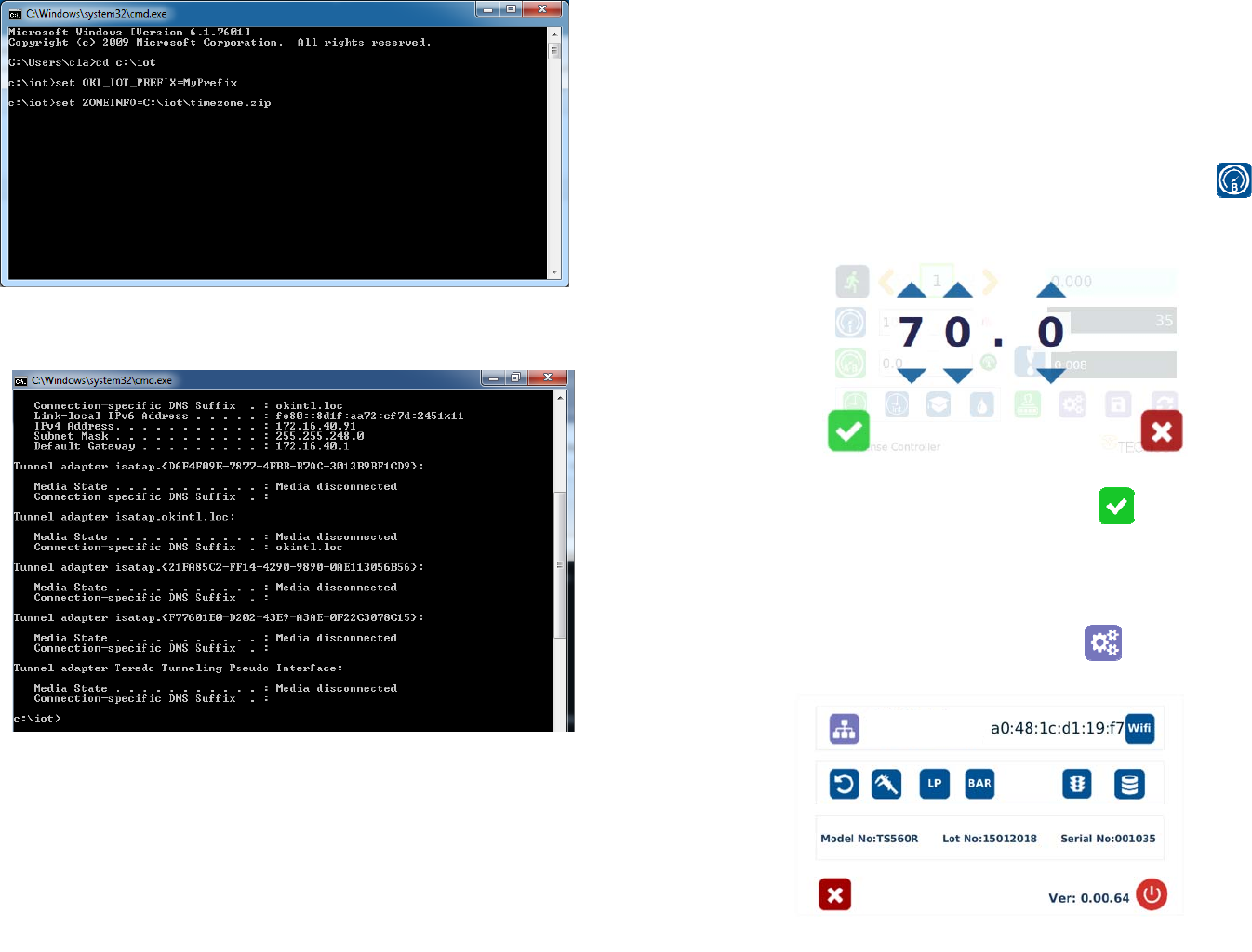
9. Type: “set ZONEINFO=C:\iot\timezone.zip” then press the “Enter” button
10. Type: “ipconfig” then press the “Enter” button
11. Record the Server IPv4 address show in the “IPv4 Address” line on the above
screen; For this example, the Server IP address is: 172.16.40.91
This address will be entered in the controller screen later.
12. Type: “.\portal” then press the Enter button
9
5.2 SPRAYING
5.2.1 Pressure Adjustment
Note: Pressure in Port A is not regulated. It delivers the same pressure as
the supplied inlet pressure. This pressure is to activate the valve. Make
sure the supplied pressure is at least 70 psi (4.8 bar)
Pressure in Port B is regulated. This pressure is to control the atomized air
spray. Adjust the pressure accordingly to achieve desired spray results.
1. Touch the “Pressure B” icon to enter the pressure setup screen
2. Touch the Up and Down arrows to set the desired atomized pressure
3. Touch the Check Mark icon to save and exit
5.2.2 To Change Pressure Unit Display
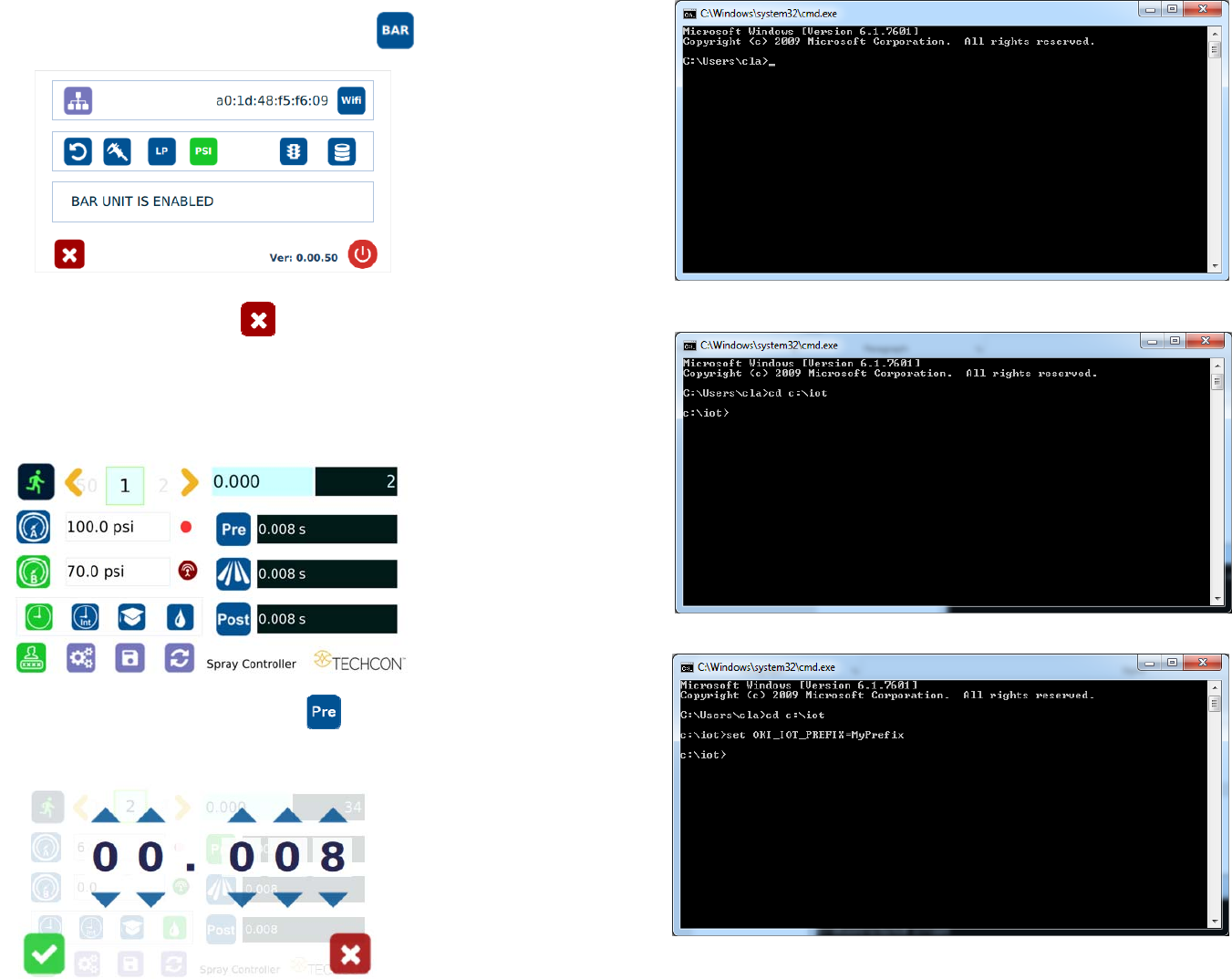
Note: The default pressure unit is PSI. To change pressure unit to BAR,
follow below instructions.
1. Touch the Setup icon to enter setup screen
10
2. Press the “BAR” icon to change pressure unit to BAR
3. Touch the X icon to save and exit
5.2.3 Spray Time setting
Note: A complete cycle consists of Pre-Spray, Spray and Post-Spray.
Pre-spray: Atomized air turned on before the valve is opened.
Post-spray: Atomized air stayed on after the valve is closed.
1. Touch the “Pre” icon to setup pre-spray time
2. Touch Up and Down arrows to set the desired pre-spray time
23
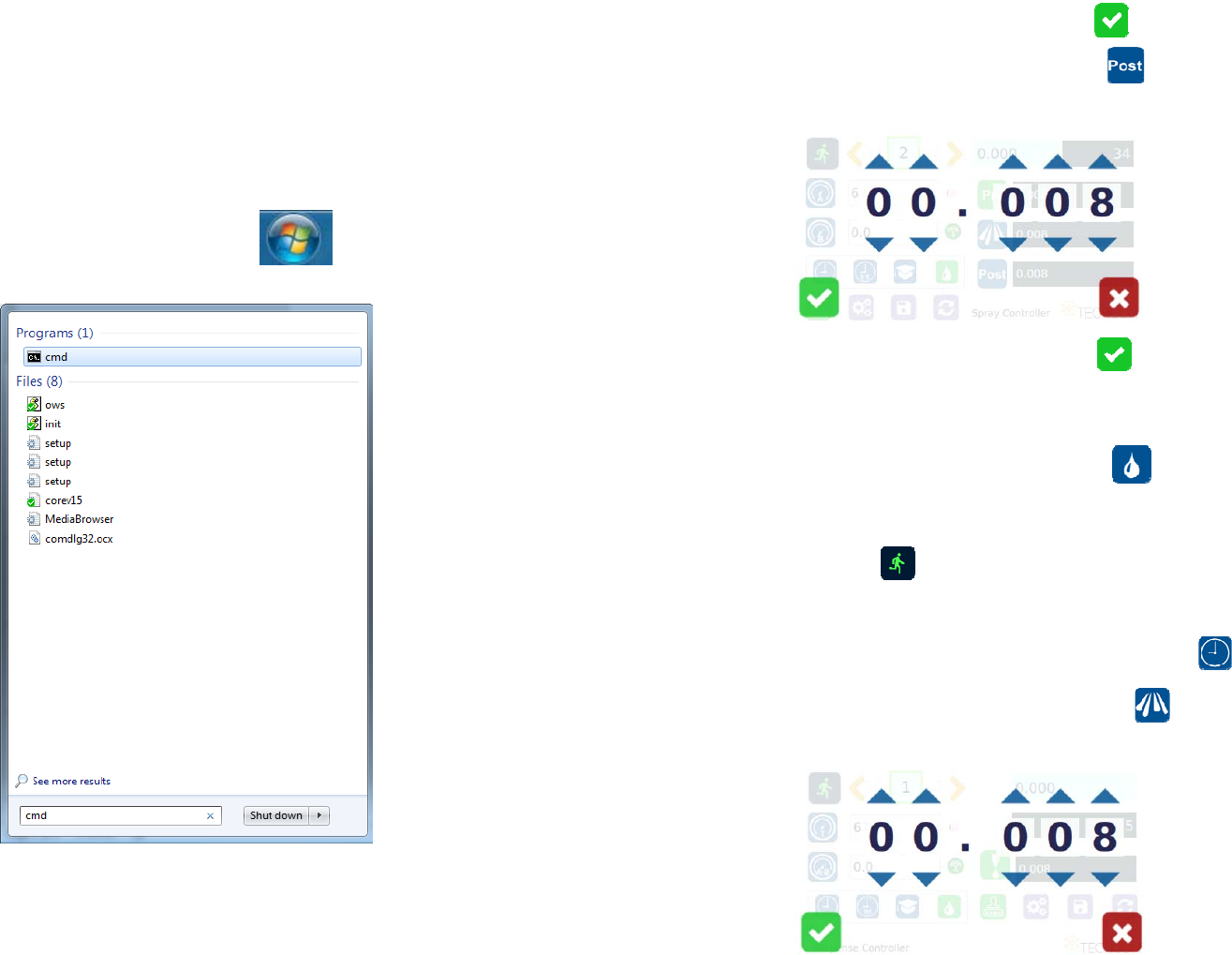
7. Type: “cd :\iot” then press the “Enter” button
8. Type: “set OKI_IOT_PREFIX=MyPrefix” then press the “Enter” button
22
6. INTERNET of Thing (IoT)
6.1 Setup webserver on the computer
1. Go to Techcon Website (www.techconsystems.com) and download the
following files to your computer:
a. The “portal.exe” file
b. The “timezone.zip” file
2. Create a new folder and name “IoT” or any desired name
3. Copy the “portal.exe” file and the “timezone.zip” file in the “IoT” folder
4. Click on the “Windows” start icon
5. Type: “cmd” in the box (as show below)
6. Press the “Enter” button
The screen should appear as shown below
11
3. Touch the Check Mark icon to save and exit
4. Touch the “Post” icon to setup post-spray time
5. Touch Up and Down arrows to set the desired post-spray time
6. Touch the Check Mark icon to save and exit
5.2.4 Manual/Purge Cycle Setting
1. Touch the Purge icon to select the purge cycle.
The Purge icon will turn to green color.
2. Press and hold down the foot switch to activate the purge cycle.
Alternately, touch and hold the Run icon on the display to activate the
purge cycle.
5.2.5 Automatic Spray Cycle Setting
1. Touch the “Timed” mode icon to set the spray cycle time.
The icon will turn to green color.
2. Touch the “Spray” icon to enter the setup screen
3. Touch the Up and Down arrows to set the desired spray time
Note: The minimum activation is 0.008 second