TS560R-USER-GUIDE.pdf - 第14页
14 5.3 Low Pressure Alarm Setting Note: This controller is equipped with an ad justable “Low Pressure” alarm function. If the set pressure dropped below the “Low Pressure” setting, the controller will not activate. The “…
20
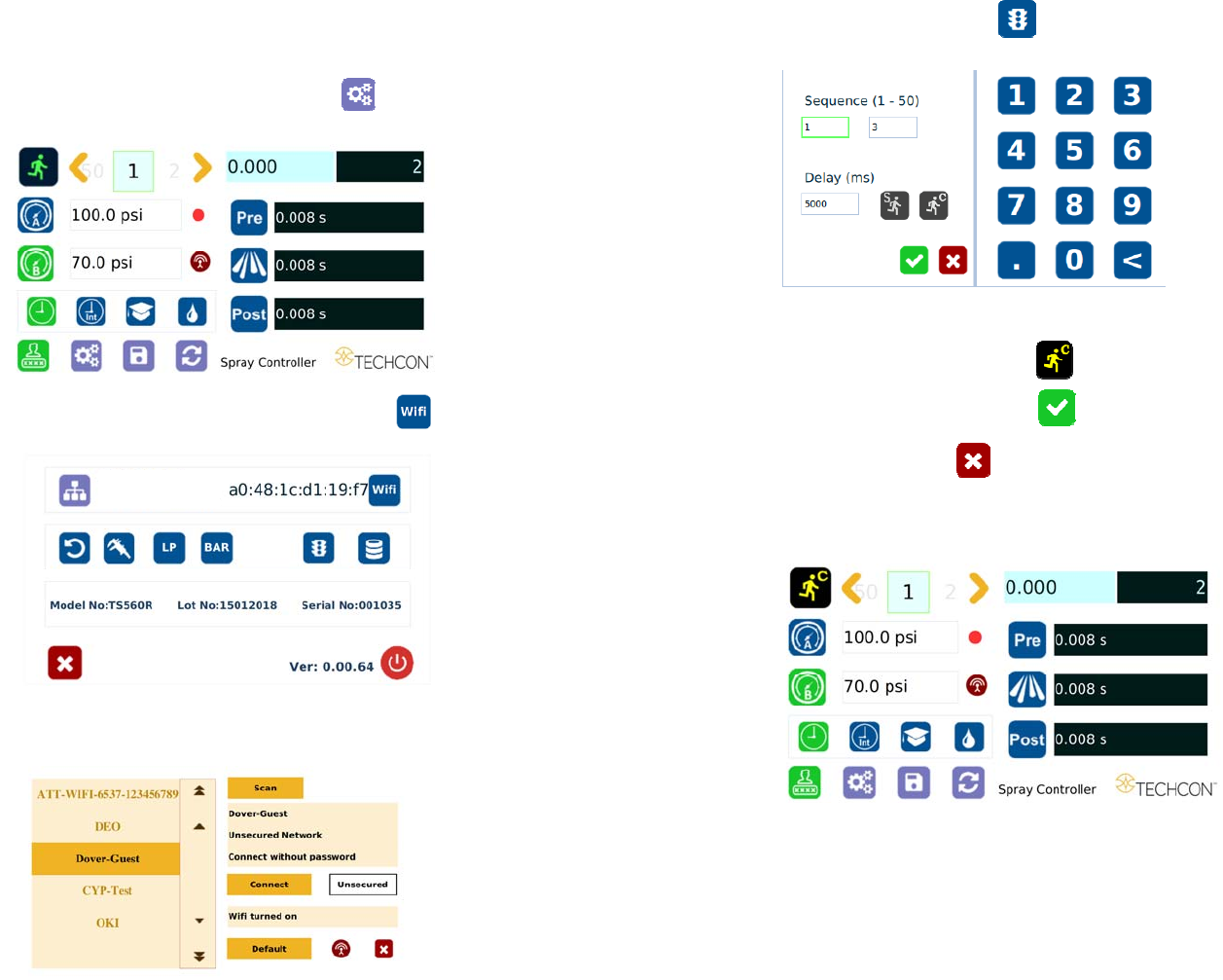
5.7 To Connect to Wi-Fi network.
1. Connect the antenna to the Wi-Fi connector located in the back of the unit
2. Touch the Setup icon to enter the setup screen
3. Touch the Wi-Fi icon to enter the network setup screen
4. Touch the “Scan” tab to scan for all available networks
13
2. Touch the “Run Method” icon
3. Enter the delay time (ex. 5000 ms)
4. Touch the “Countinous Run” icon
5. Touch the Check Mark icon to save
6. Touch the X icon to exit
The screen will look similarly to the screen below:
Note: If the controller is set to activate memory cell 1 and the delay time is
set at 5000 ms, the controller will activate memory 1 continuously with
5000 ms delay between each activation.
14
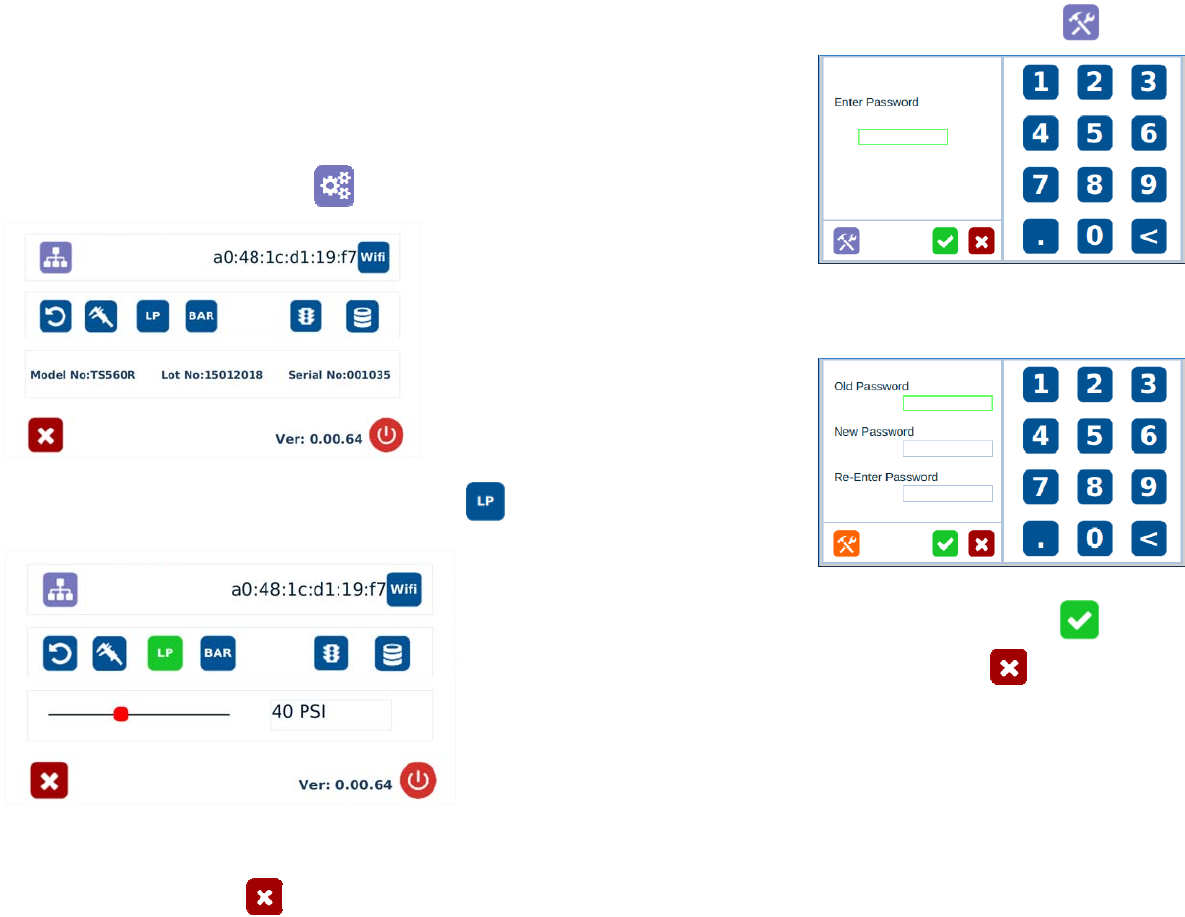
5.3 Low Pressure Alarm Setting
Note: This controller is equipped with an adjustable “Low Pressure” alarm
function. If the set pressure dropped below the “Low Pressure” setting, the
controller will not activate. The “Low Pressure” setting is pre-set at the factory
to 70 Psi (4.8 bars). When the supplied pressure drops below 70 Psi (4.8 bars)
the unit will not function. The “Low Pressure” setting can be adjusted. Follow
the instructions below.
1. Touch the Setup icon to enter setup screen
2. Touch the Low Pressure (LP) icon to set the desired low pressure
3. Slide the pressure scale to set the desired low pressure threashold
4. Press the X icon to save and exit
19
2. Touch the change “Password” icon
3. Enter the old password, then enter the new password
4. Touch the Check Mark icon to save
5. Touch the X icon to exit
18
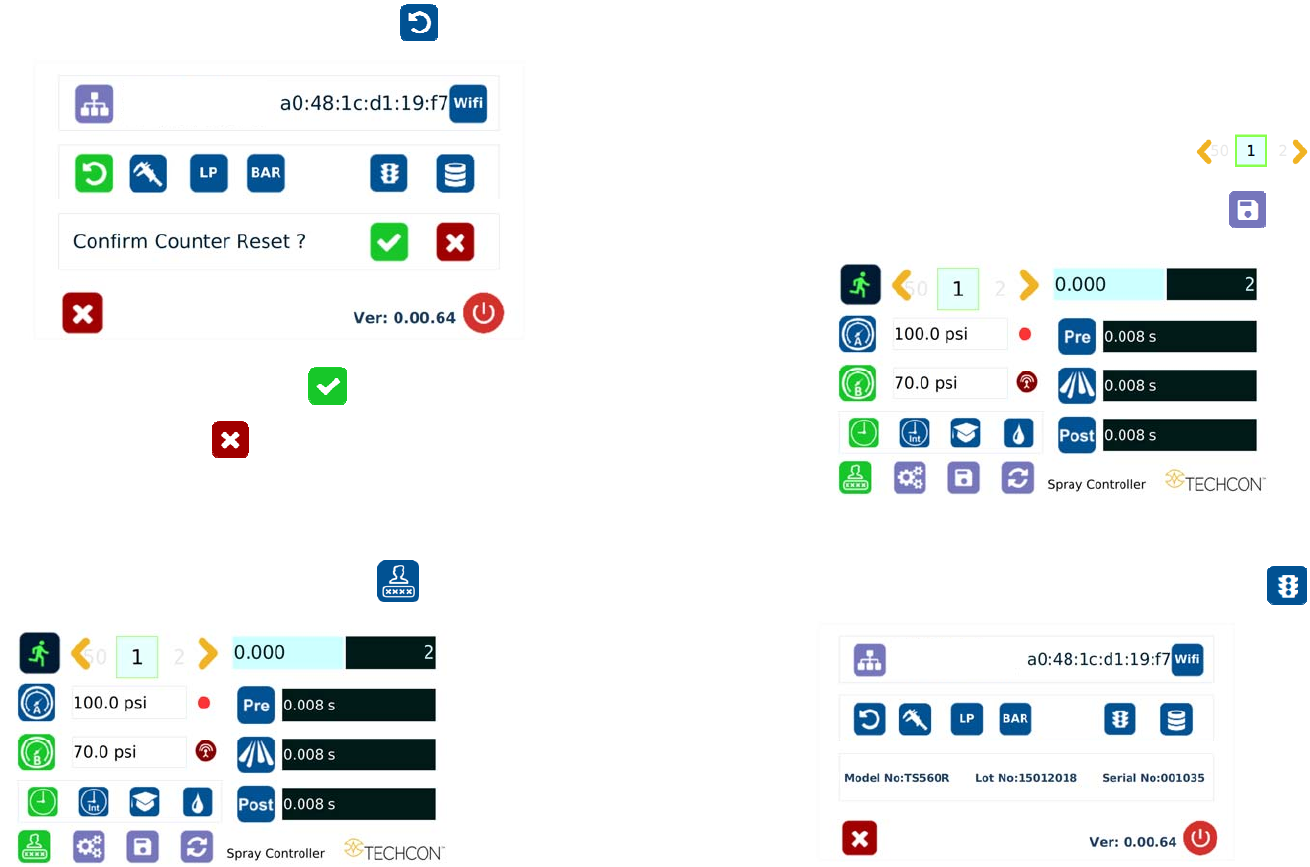
2. Touch the Counter Reset icon to reset the counter
3. Press the check mark icon to confirm
4. Touch the X icon to exit
5.6 To Change Password
Note: The default password is “0000”. To change password, follow the
instructions below.
1. Touch the Login icon to enter the login screen
15
5.4 Stored Program in Memory cell
The unit has 50 memory cells to store all parameters. The controller can activate
all memory cells in sequence mode.
5.4.1 To store dispense parameters
1. Touch the forward or backward arrow to select the
desired memory cell.
2. Enter all the desired parameters then touch the “Save”
icon to save the data
5.4.2 To run in Single Sequence Mode
1. Touch the “Run Method” icon to enter sequence mode setup