TS560R-USER-GUIDE.pdf - 第7页
26 18. Go to the setup screen of the controller and touch the “Rem ote Server” icon 19. Enter the Server IPv4 address recorded in step #11 into Remote IP address box 20. Touch the green check mark icon to save 21. The co…
6
TS560R
1
5
2
3
6
4
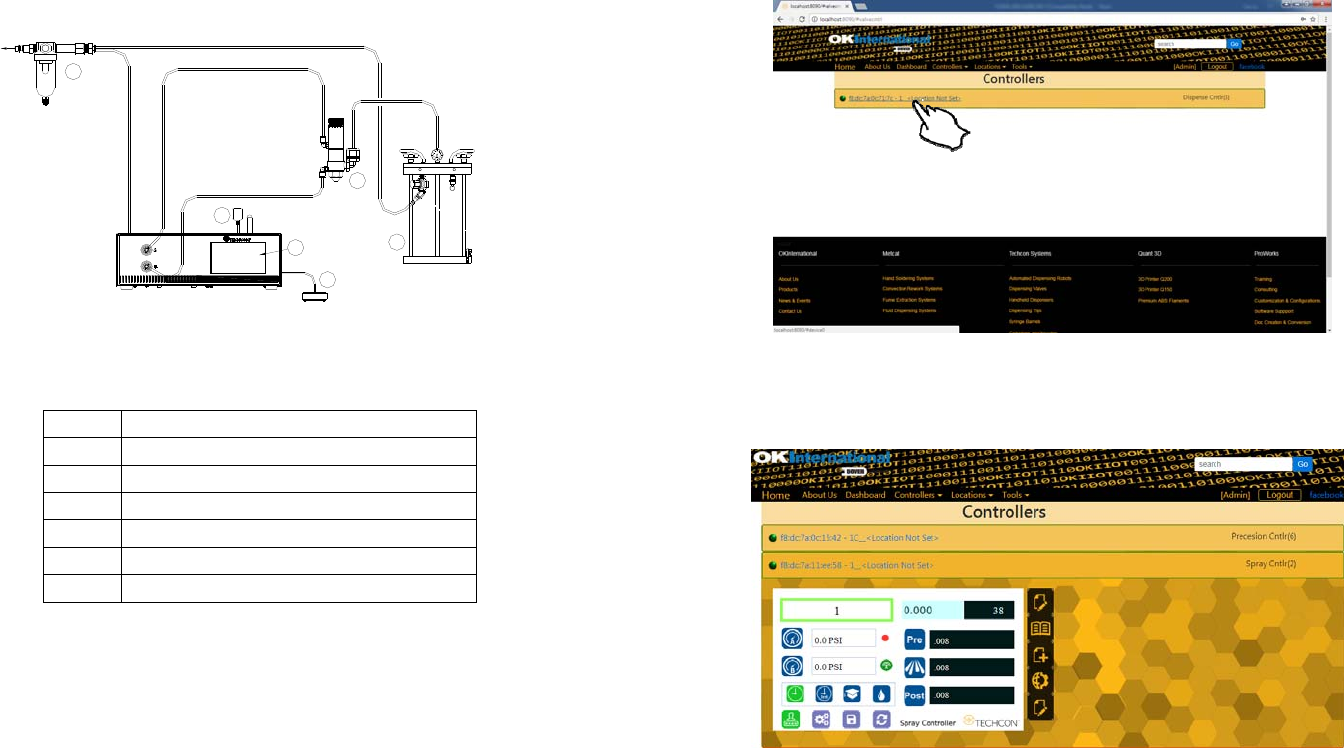
VALVE AIR HOSE
ATOMIZED AIR HOSE
TO AIR SOURCE
5. TO CONTROL SPRAY VALVE
CAUTION: A 5-micron filter (TSD800-6) must be installed with the unit to ensure proper
air filtration.
Figure 2.0
5.1 Connecting the Unit: (Refer to Figure 1.0 and 2.0)
1. Connect the power cord, foot switch to the back of the unit.
2. Connect Valve air hose to Port A (Not Regulated)
3. Connect Atomized air hose to Port B (Regulated)
4. Press the Power switch to turn on the unit.
Items Description
1 Air Filter
2 Valve (not included)
3 Pressure Pot (not included)
4 Display
5 Power Adapter
6 Foot Switch
27
6.2 Making Parameters Adjustment from the webserver
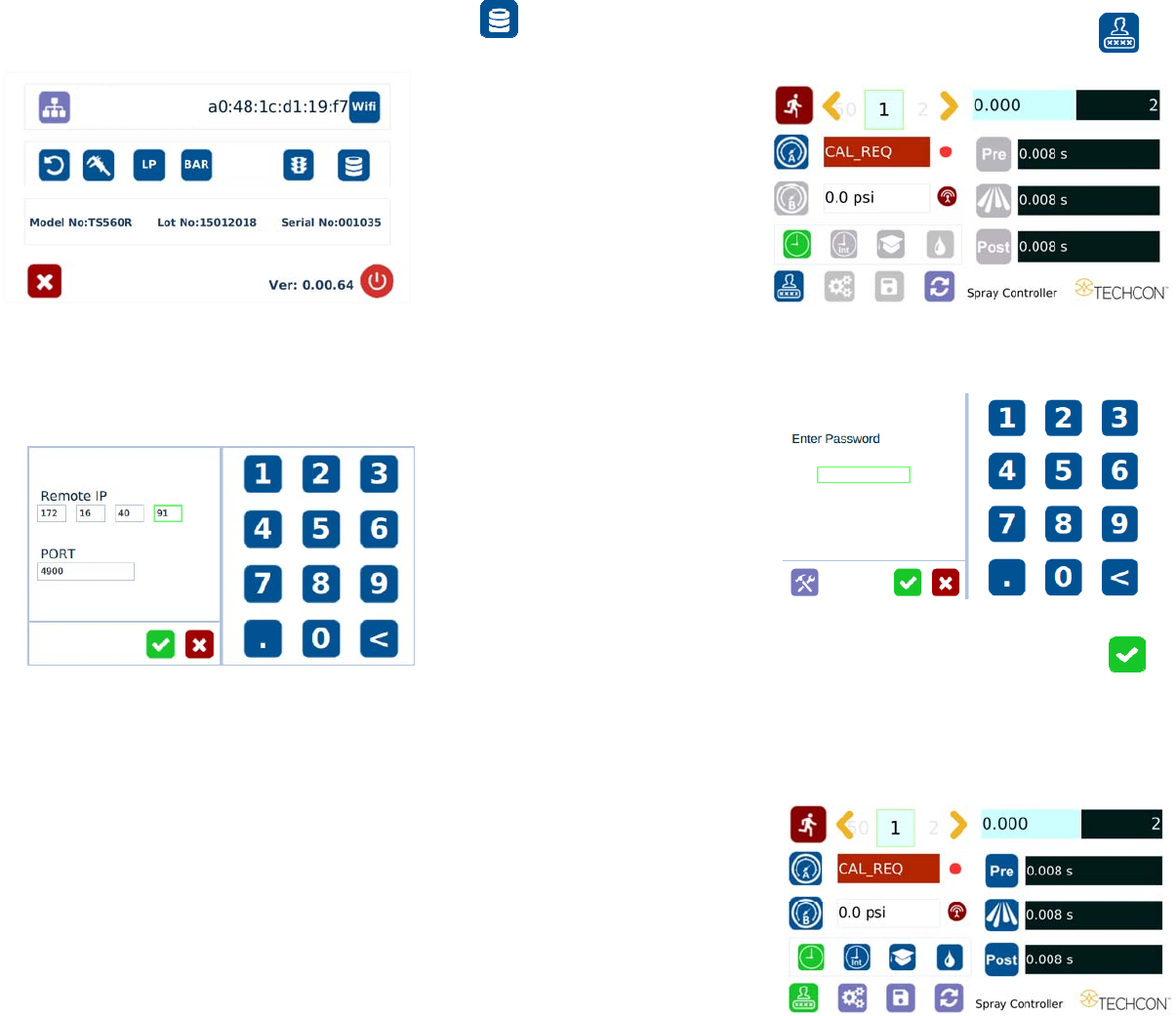
Go back to the webserver site and click on the “Controllers” menu
Click on the active controller link
The controller screen will be displayed in the webserver as shown below.
The controller parameters such as pressure and dispense time can be adjusted
from the webserver.
Click on the “Edit” icon
The parameter screen will appear as shown below:
26
18. Go to the setup screen of the controller and touch the “Remote Server”
icon
19. Enter the Server IPv4 address recorded in step #11 into Remote IP address box
20. Touch the green check mark icon to save
21. The controller is now connected to the webserver site.
7
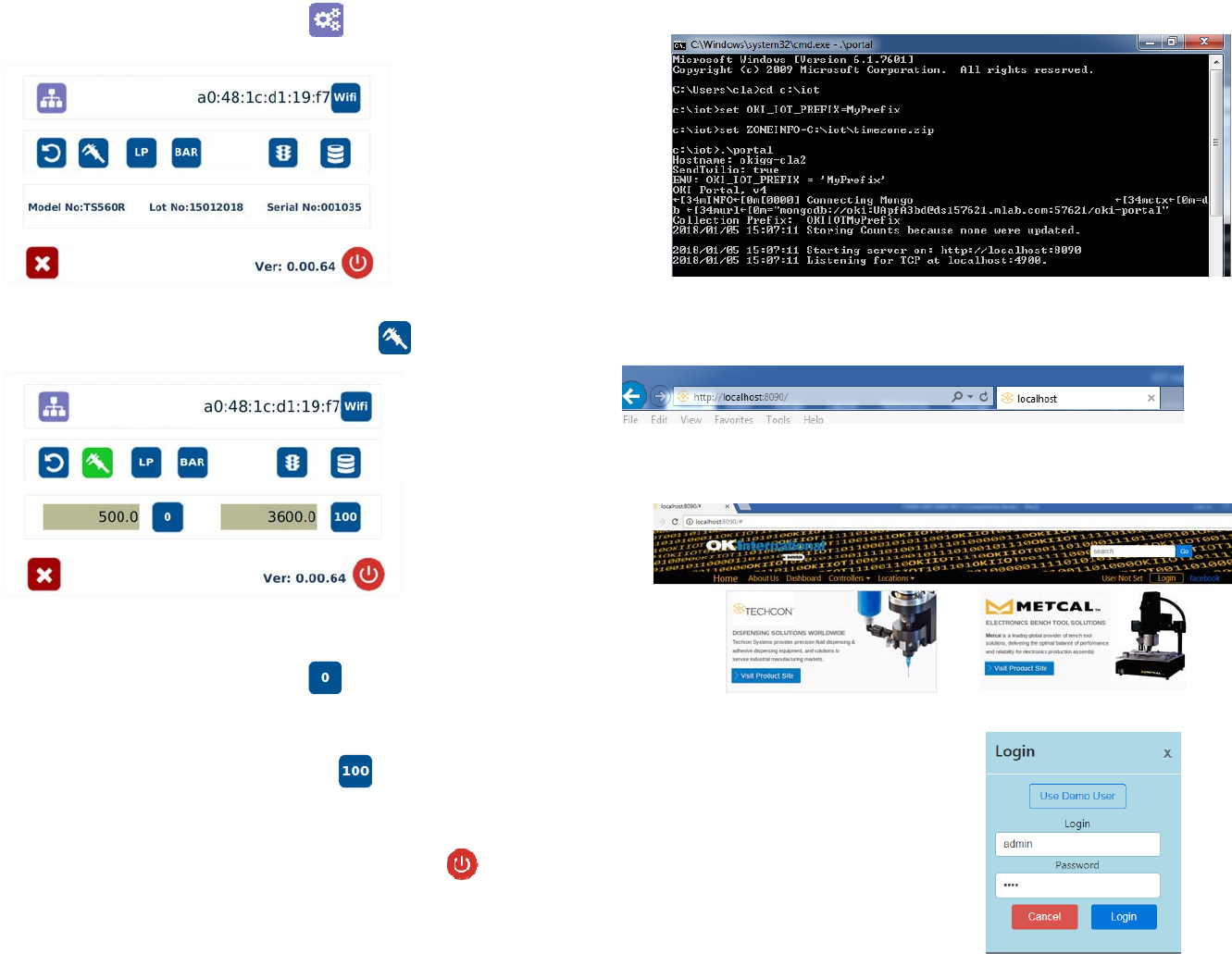
5.1.1 Login
1. Touch the Login Icon to enter login screen
2. Enter “0000” in Password window
3. Touch the Check Mark icon to save and exit
5.1.2 Pressure Calibration
Note: Pressure calibration must be performed when the unit is activated for
the first time.
8
4. Touch the Setup icon to enter setup screen
5. Touch the Calibration icon to enter calibration screen
Note: Make sure the air pressure line is not connected to the unit at this time.
6. Touch the “0” icon to set the pressure to 0
7. Now connect the supplied air pressure line to the back of the unit and
turn up input air pressure to 100 psi
8. Touch the “100” icon to set the pressure to 100
Note: The digital values shown at “0” and “100” icons are for reference only.
The actual calibrated values will be different.
9. Touch the Reboot icon to save the settings and reboot the system
10. Wait until the system completes the rebooting sequence and the home
screen is displayed
The unit is now calibrated and ready to operate
25
13. Go to any computer and open any web browser
14. Type in:
http://localhost:8090/ then press the enter button
You are now in the webserver site. The screen below will be displayed
15. Click the “Login” button
16. Enter “admin” in the Login box
17. Enter “1001” in the Password box