00197382-03_IM_SetupCenter6.3SP2_EN.pdf - 第21页
Setup Center Application Installation General Settings Installation Manual SIPLACE Setup Center 6.3 SP2 21 ► Click Print to print the License Agreement on the default printer of the P C. Step 4 ► Enter your User Name and…
Setup Center Application Installation
General Settings
20 Installation Manual SIPLACE Setup Center 6.3 SP2
Step 2
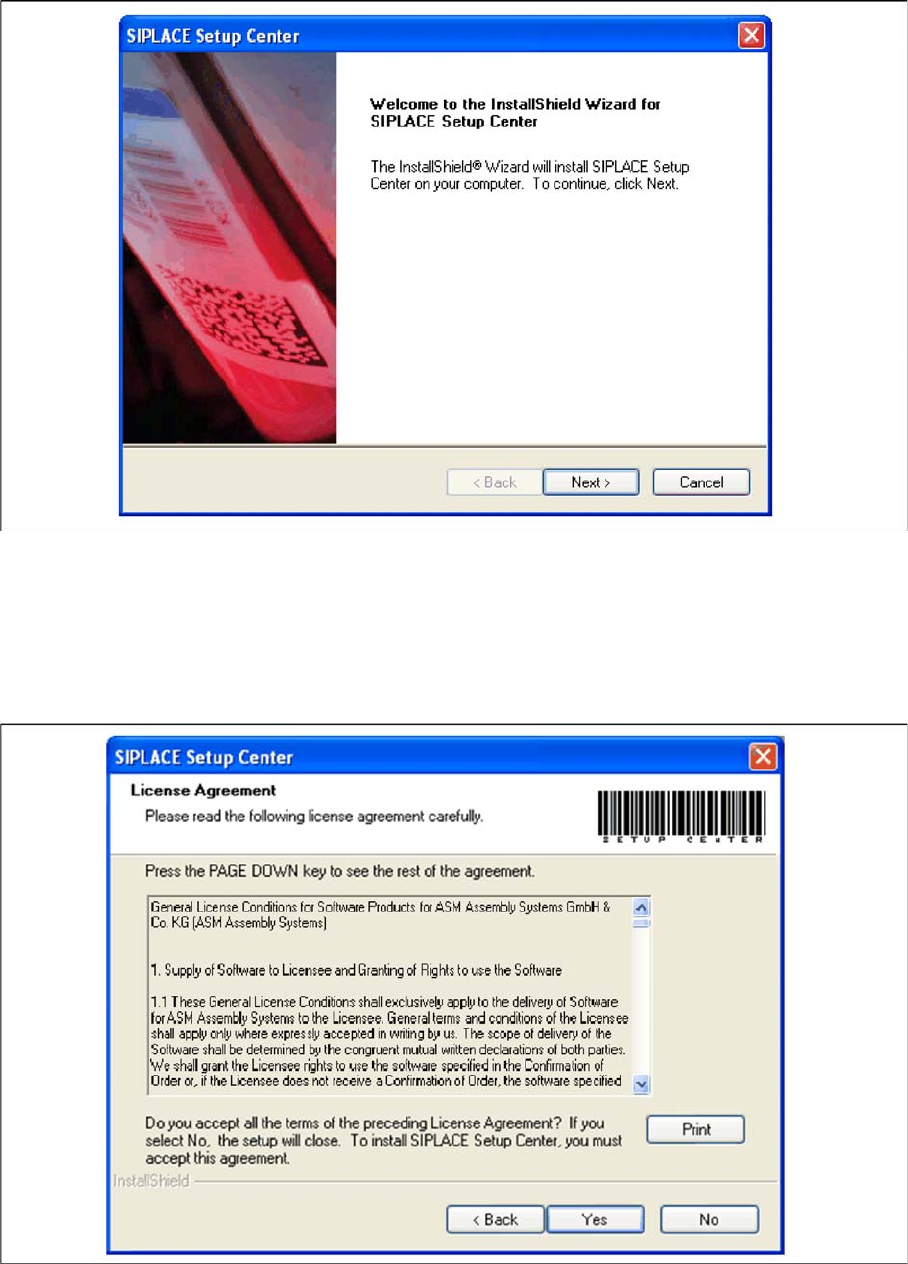
► The Installation Wizard will guide you through the program setup process.
InstallShield Wizard box for SIPLACE Setup Center
► Click Next.
Step 3
► Read the license agreement of ASM Assembly Systems GmbH & Co. KG relating to use of this soft-
ware.
"Software License Agreement" dialog box
► The installation routine continues if you click the Yes button to accept the license agreement.
► Click No to cancel the installation.
Setup Center Application Installation
General Settings
Installation Manual SIPLACE Setup Center 6.3 SP2 21
► Click Print to print the License Agreement on the default printer of the PC.
Step 4
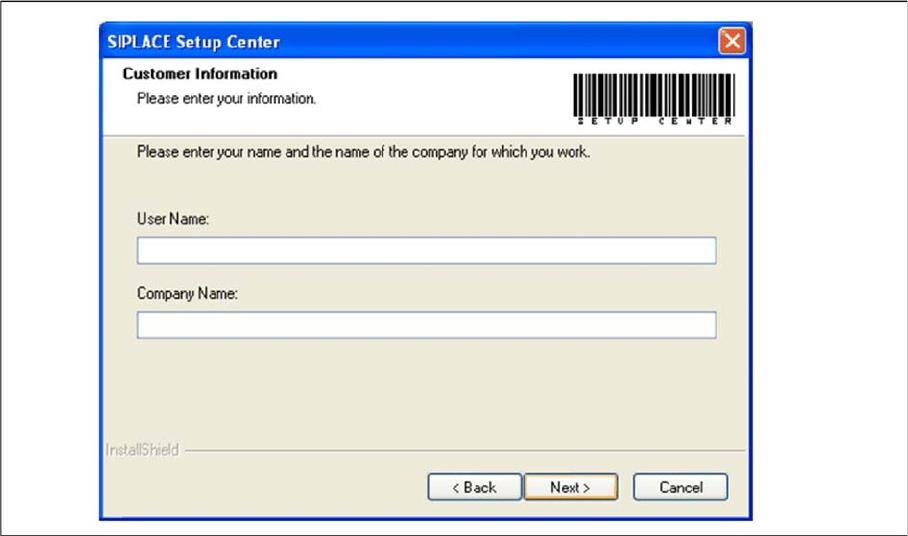
► Enter your User Name and Company Name in the Customer Information dialog box. Both boxes
must be filled in before the installation process can be continued.
"Customer Information" dialog box
► Click Next.
Step 5
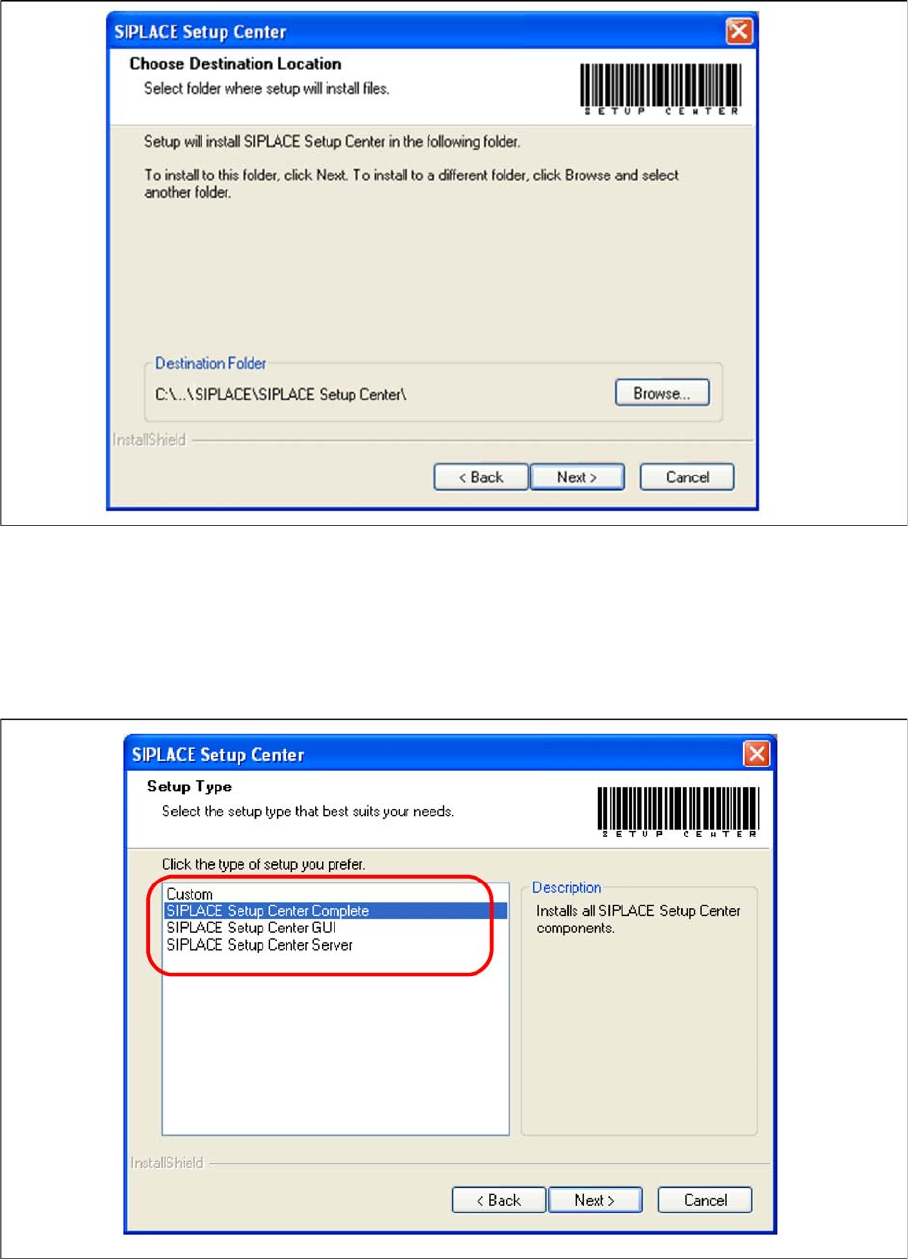
► The Choose Destination Location dialog box prompts you to enter the name of the folder in which
SIPLACE Setup Center should be installed. The system suggests a default destination folder for you.
► However, you can click the Browse button to open a dialog box in which you can enter or select the
path you want to use. If the folder you specify does not exist, it is created after having accepted a
confirmation dialog.
Setup Center Application Installation
General Settings
22 Installation Manual SIPLACE Setup Center 6.3 SP2
"Choose Destination Location" dialog box
► Click Next.
Step 6
► The Setup Type dialog box displays the SIPLACE Setup Center components you could choose for
installation.
"Setup Type" dialog box
► Select the setup type you want to install in the Setup Type dialog box.
► Click Next.