00197382-03_IM_SetupCenter6.3SP2_EN.pdf - 第44页
Setup Center Application Installation Setup Verification and Traceability Activation 5.3.1 Installing 44 Installation Manual SIPLACE Setup Center 6.3 SP2 5.3.1 5 . 3 . 1 I n s t a llin g Installing The dialog boxes shown…
Setup Center Application Installation
5.2.4 Setup Type - Custom Setup Verification and Traceability Activation
Installation Manual SIPLACE Setup Center 6.3 SP2 43
Step 2
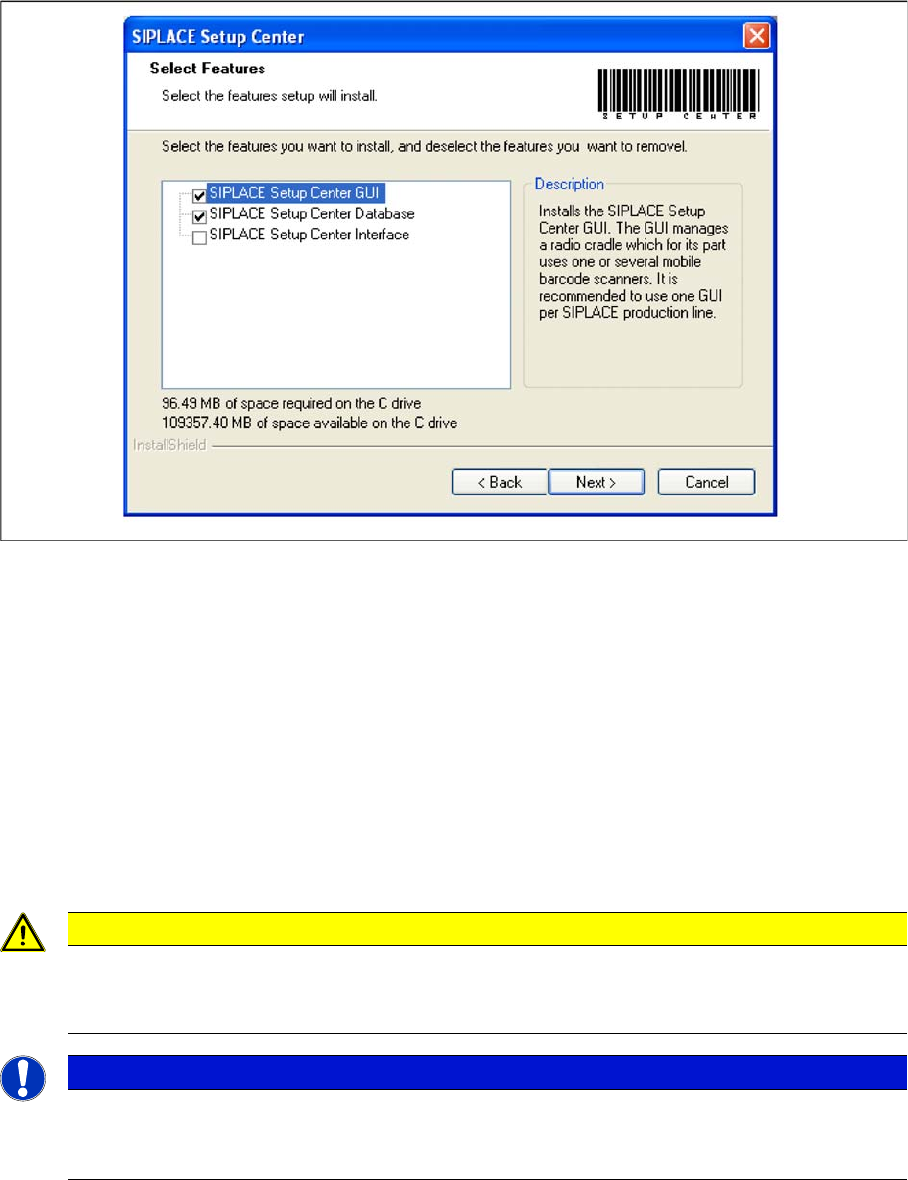
► Choose the checkbox in the Select features dialog box.
► The Description field displays detailed information to the selected feature.
► Select the features you want to install, and deselect the features you want to removel.
► Click Next and perform the respective Steps from the following dialog boxes.
5.3
5.3 Setup Verification and Traceability Activation
Setup Verification and Traceability Activation
The software CD "SIPLACE Setup Center" contains the activation of Splice Detection, Component Level
Indicator and Traceability.
The following settings can be configured during the installation at the SIPLACE station:
▪ Configuration of the Splice detection (If not X-machine)
▪ Deactivation of Fill Level Control for “empty running tracks” and Activation for "Filling level correction"
▪ Activation of locked tracks without scanning
▪ Traceability data creation
CAUTION
Activation for unforced setup verification
For unforced setup verification, the activation using the activation CD is mandatory for station
software versions 407.05 Hotfix 9 and 505.05 SP2 Hotfix 3.
NOTICE
Activation of forced setup verification and the component level indicator at the station software
70x is set by SIPLACE Pro.
► It is not necessary to activate using the activation CD.
Setup Center Application Installation
Setup Verification and Traceability Activation 5.3.1 Installing
44 Installation Manual SIPLACE Setup Center 6.3 SP2
5.3.1
5.3.1 Installing
Installing
The dialog boxes shown below will be displayed during the installation procedure.
Step 1
► Insert the SIPLACE Setup Center installation CD into the CD-ROM drive. The installation routine
starts automatically.
► You can also start the installation by running the Autorun.cmd program located in the root directory
on the installation CD.
► This starts the user-controlled installation of SIPLACE Setup Center; you are prompted to select the
installation language.
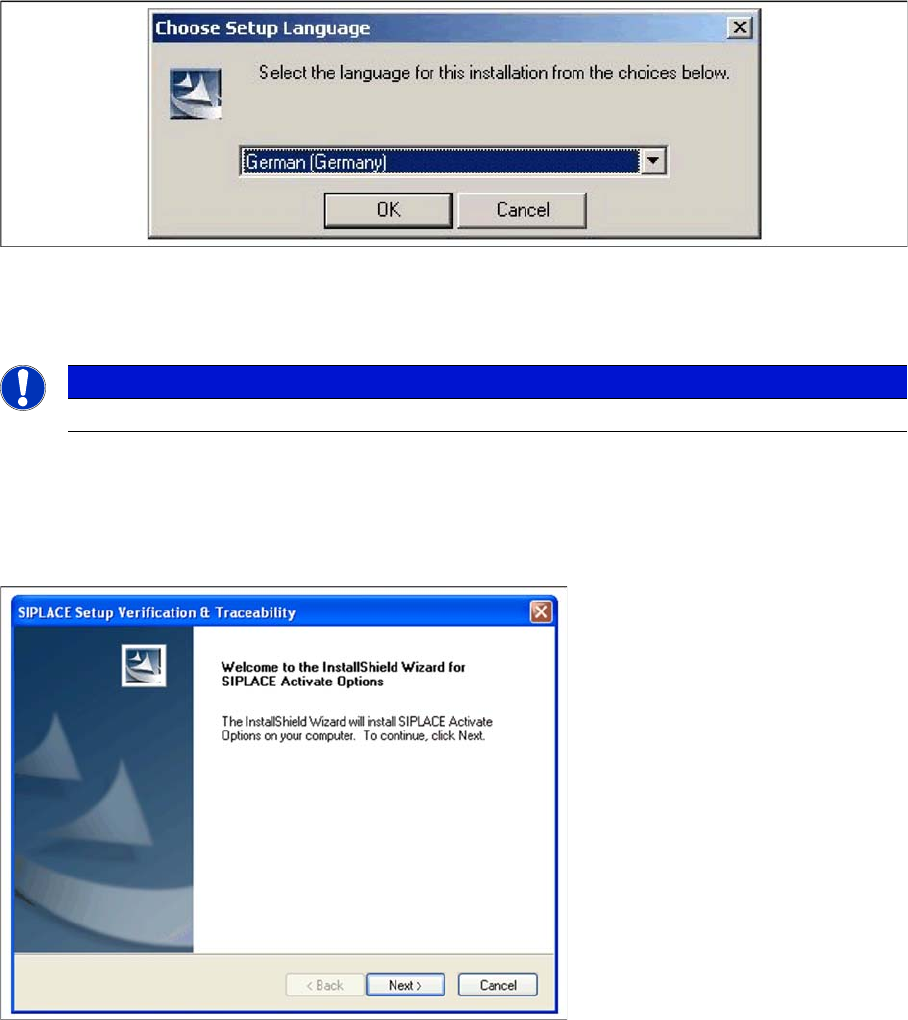
"Choose setup language" dialog box
► Select the language you want.
► Click OK.
Step 2 Welcome dialog
► Log on as administrator to the station PC.
► Place the product CD in your CD-ROM drive.
► The Start screen appears.
NOTICE
This decision only relates to the language used during the installation routine!
Setup Center Application Installation
5.3.1 Installing Setup Verification and Traceability Activation
Installation Manual SIPLACE Setup Center 6.3 SP2 45
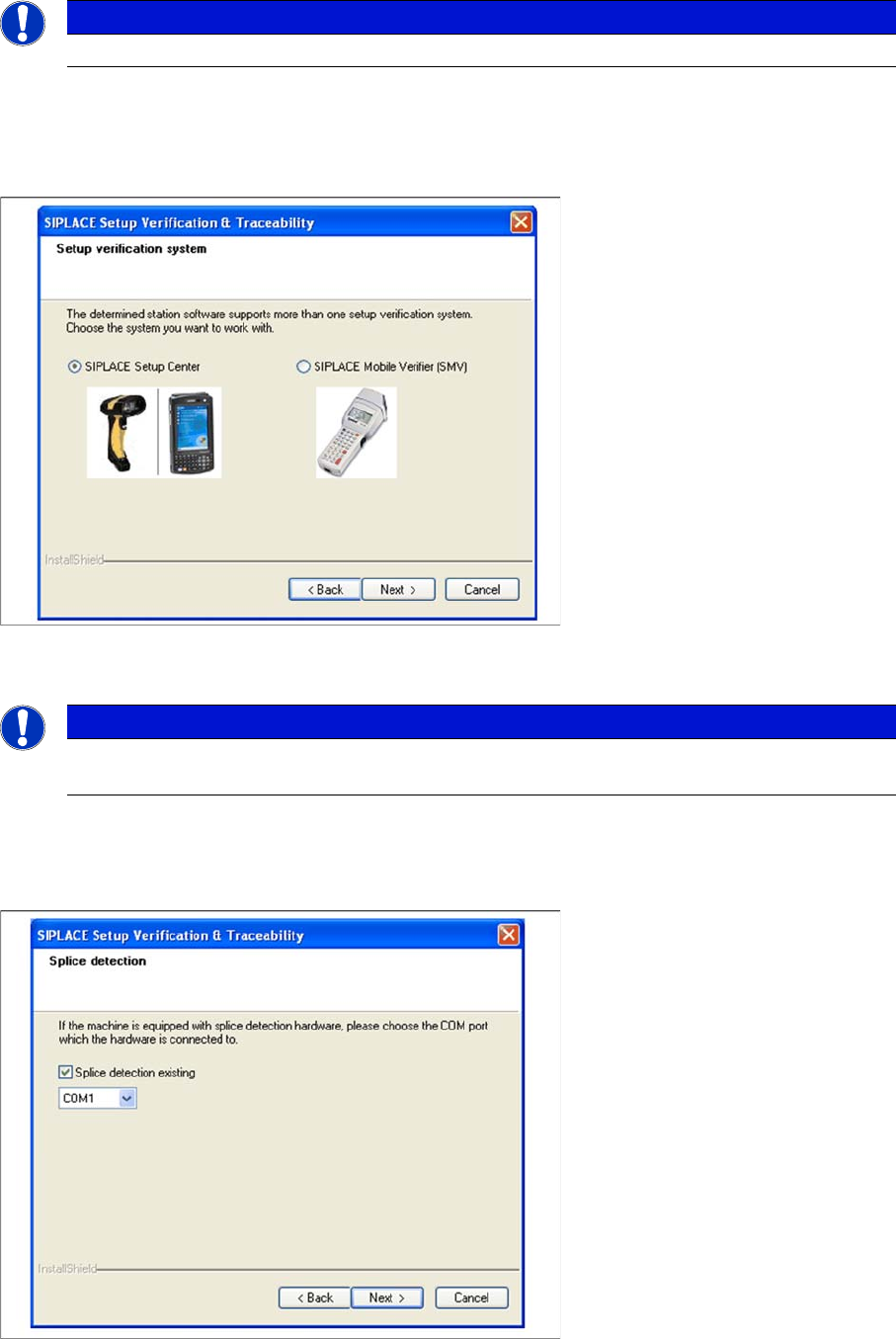
Step 3 Setup verification system
► The station software version 407 and 505 offers two different interfaces to the Setup verification sys-
tem. By choosing the corresponding Setup verification system the interface will be configured in the
station-software accordingly.
► Click Next to continue.
Step 4 Configuration of the Splice detection
► Select the checkbox Splice detection existing, if a splice detection is available.
► Enter the COM Port where Splice detection is plugged in or leave empty the entry field.
► Click Next to continue.
NOTICE
This Dialog will only appear for the machine with the station-software version 407 and 505!
NOTICE
This dialog will not appear for X-serie machines since the splice interface is always integrated
into the X feeders and is not available for S feeders at these machines!