00197382-03_IM_SetupCenter6.3SP2_EN.pdf - 第62页
Barcode-Scanner Installation Datalogic Scanner 6.2.4 Datalogic Scanner Configuration 62 Installation Manual SIPLACE Setup Center 6.3 SP2 ► Open the folde r where the firmwa re version 1.1.0- 00_ b00 f or th e Datalogic D…
Barcode-Scanner Installation
6.2.4 Datalogic Scanner Configuration Datalogic Scanner
Installation Manual SIPLACE Setup Center 6.3 SP2 61
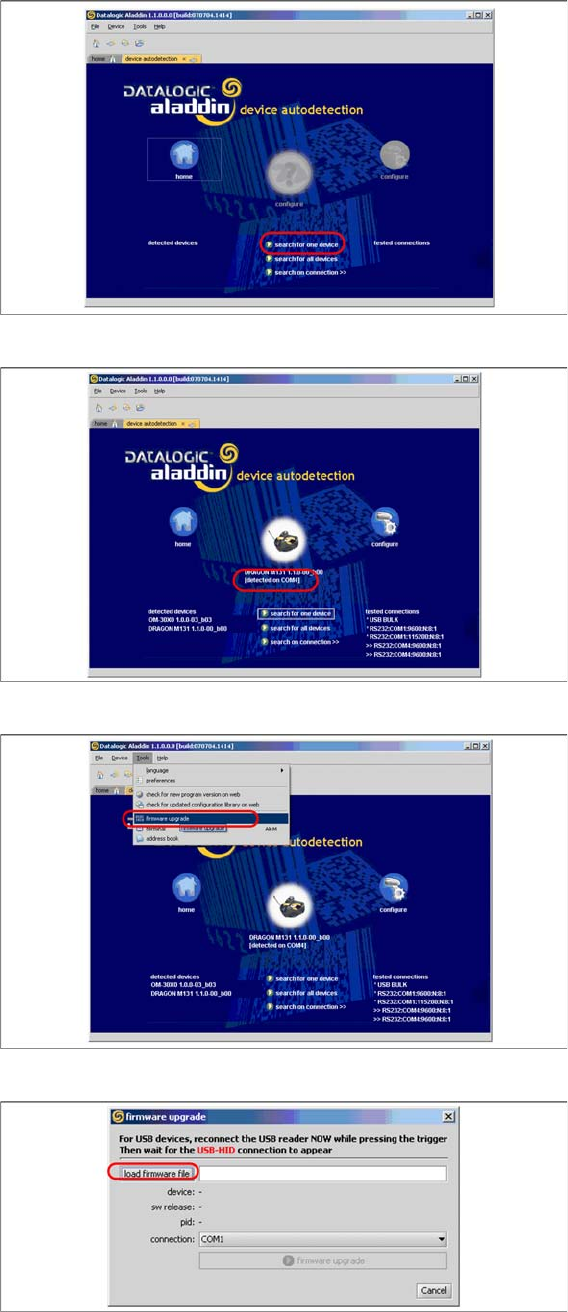
► Select "Search for one device" to start the search.
► The cradle is now detected.
► Select "firmware upgrade" from the menu "Tools".
► Select "load firmware file" in the dialog box.
Barcode-Scanner Installation
Datalogic Scanner 6.2.4 Datalogic Scanner Configuration
62 Installation Manual SIPLACE Setup Center 6.3 SP2
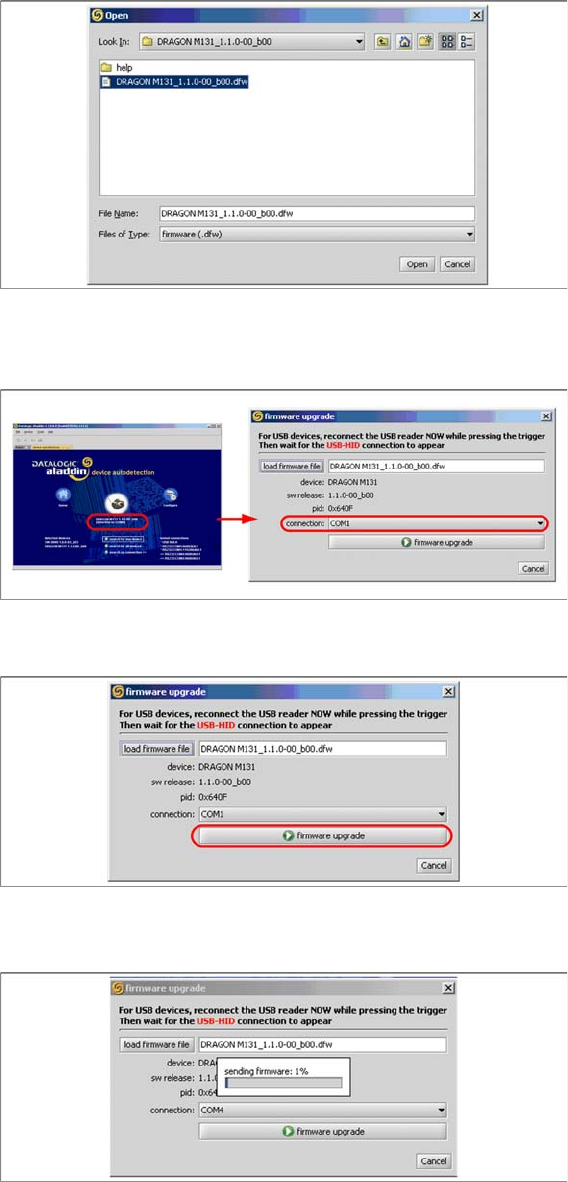
► Open the folder where the firmware version 1.1.0-00_ b00 for the Datalogic Dragon M131 is stored
(standard path "C:\Program Files\Datalogic\Aladdin\resource\ConfigRepository\DRAGON
M131_1.1.0 00_ b00").
► Choose the right COM port at which the cradle is connected. This was already found out automati-
cally at the beginning.
► Activate the scanner by pushing the laser trigger.
► Then select "firmware upgrade" to start the transfer of the new firmware version to the scanner.
► Exit the "Datalogic Aladdin", if the transfer is completed.
Barcode-Scanner Installation
6.2.5 Datalogic Scanner Connection Datalogic Scanner
Installation Manual SIPLACE Setup Center 6.3 SP2 63
6.2.5
6.2.5 Datalogic Scanner Connection
Datalogic Scanner Connection
New scanners and scanner base stations require the setup once before the first use.
This doesn’t necessarily need to happen after the Installation of SIPLACE Setup Center, but it is recom-
mended. The Scanner configuration is independent from the software installation.
For detailed information, please refer to User Guide SIPLACE Setup Center.
See also
6.2.6 Installation of the USB-COM driver [ ➙ 63]
6.2.6
6.2.6 Installation of the USB-COM driver
Installation of the USB-COM driver
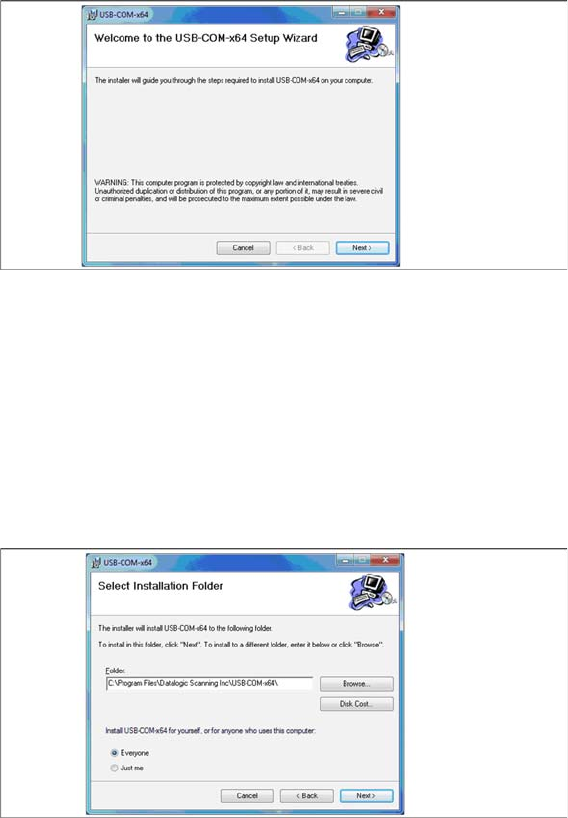
Step 1
The installation packages for 32 bit and 64 bit operating systems are located in the “\3rdparty install-
er\Datalogic\USB-COM Driver” directory of the Setup Center installation CD.
► Choose the appropriate installation package for your operating system.
Step 2
► Click Next.
Step 3
► The Select Installation Folder dialog box prompts you to enter the name of the folder in which the
software should be installed. The system suggests a default destination folder for you.
► However, you can click the Browse button to open a dialog box in which you can enter or select the
path you want to use. If the folder you specify does not exist, it is created after having accepted a
confirmation dialog.
► Select the option Everyone.
► Click Next.