OCP-02502-G.pdf - 第14页
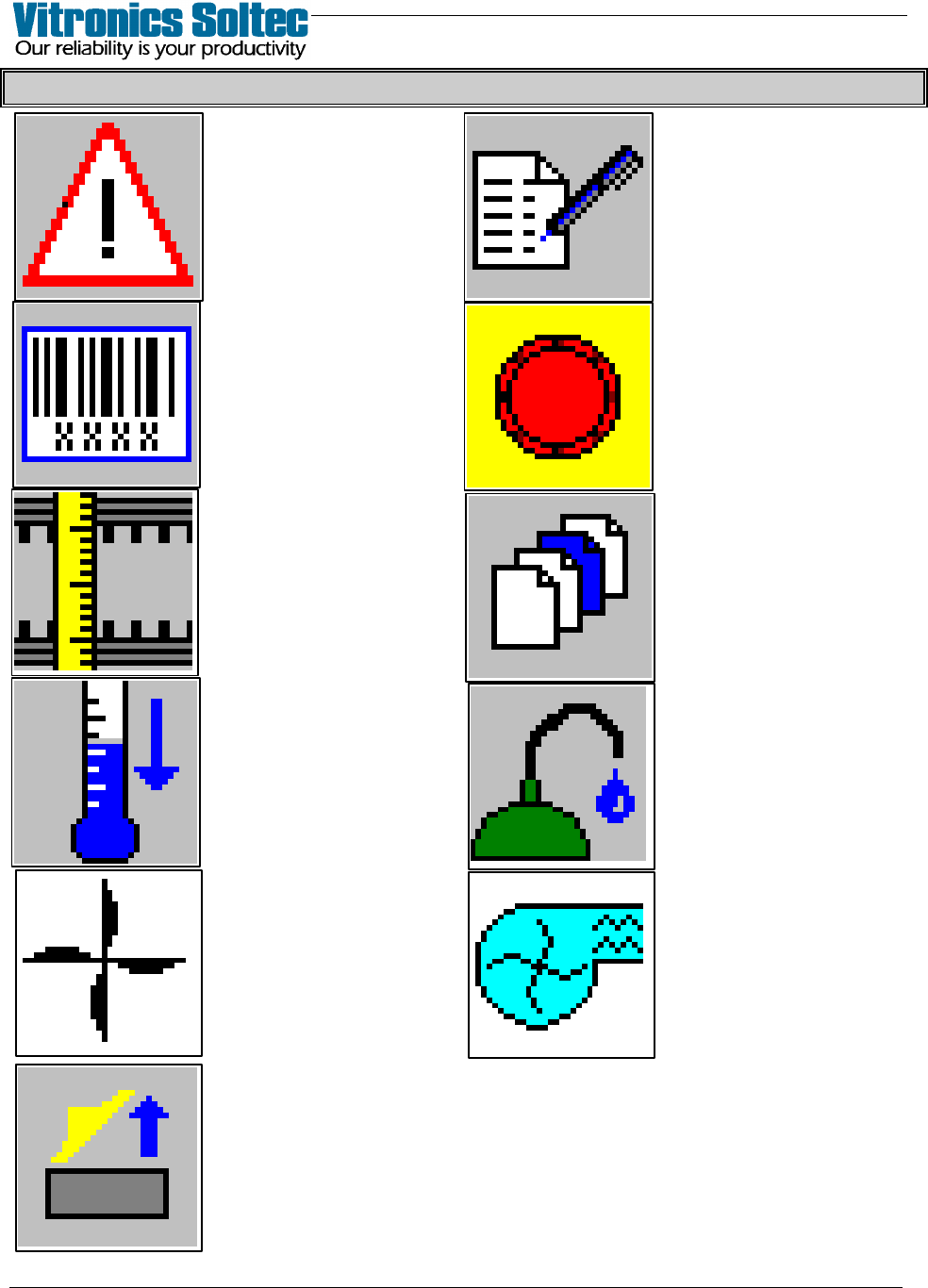
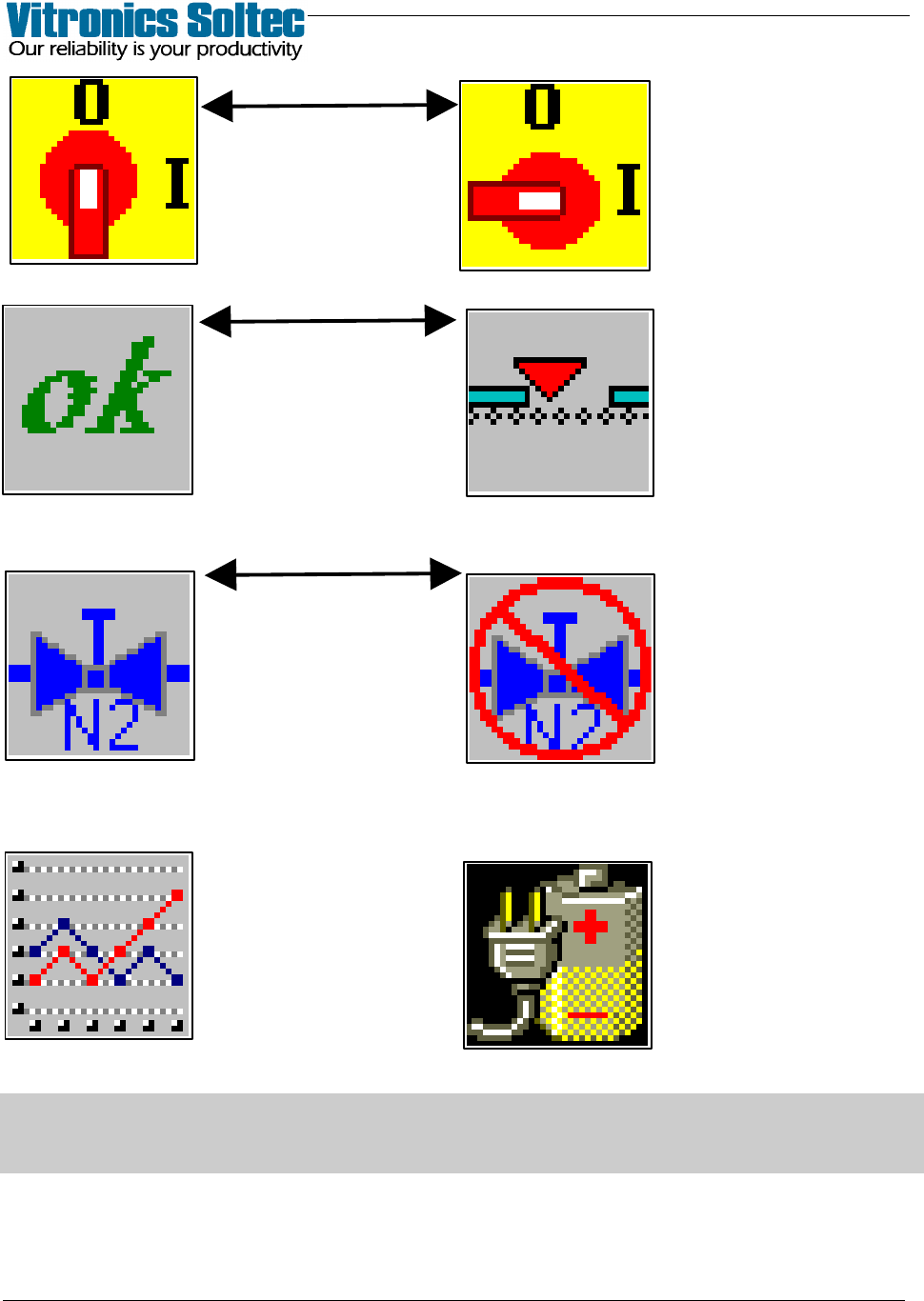
VITRONICS REFLOW SOLDERING SYSTEMS EM 02502- G 15-Nov-00 (c) PAGE Operator’s Manual 13 SOME “ ICONS ” MAY NOT BE DISPLAYED DEPENDING ON OVEN CONFIGURATION INDICATES “POWER ON” SELECT TO TURN POWER OFF. INDICATES “POWER O…
VITRONICS REFLOW SOLDERING SYSTEMS
EM 02502-G 15-Nov-00 (c) PAGE Operator’s Manual
12
ICONS (Screen Graphics Symbols)
SELECT TO EDIT
RECIPE WHILE
RUNNING
SELECT TO VIEW ALL
CURRENT ALARMS
E-STOP IS ACTIVATED
BARCODE
MODE
OPERATIONAL
SELECT TO DISPLAY
RAIL WIDTH
DIALOQUE BOX
SELECT PRODUCT
or
RECIPE
SELECT FOR
LUBRICATION
SYSTEM STATUS
SELECT TO
ACTIVATE “QUICK
COOL-DOWN”
INDICATES WHEN
OVEN EXHAUST
OPERATING
IS “ON”
INDICATES WHEN
CELL FANS
ARE “ON”
(CONTROLLED)
INDICATES WHEN
HOOD IS
“OPEN”
VITRONICS REFLOW SOLDERING SYSTEMS
EM 02502-G 15-Nov-00 (c) PAGE Operator’s Manual
13
SOME “ ICONS ” MAY NOT BE DISPLAYED
DEPENDING ON OVEN CONFIGURATION
INDICATES
“POWER ON”
SELECT TO TURN
POWER OFF.
INDICATES
“POWER OFF”
SELECT TO TURN
POWER ON.
SYSTEM
“PROCESS NOT
READY”
(NOT O.K.-BLOCKED)
SYSTEM
“PROCESS READY”
NITROGEN IS “OFF”
SELECT TO TURN
NITROGEN “ON”
NITROGEN IS “ON”
SELECT TO TURN
NITROGEN “OFF”
SELECT FOR
UPS BACKUP
SYSTEM
ON / OFF
SELECT TO VIEW
ON-LINE TRENDING
PARAMETERS
OR
OR
OR
VITRONICS REFLOW SOLDERING SYSTEMS
EM 02502-G 15-Nov-00 (c) PAGE Operator’s Manual
14
PRINTING
The Vitronics Oven Control Program will print to a Color Ink-Jet or a Laser printer if the
corresponding printer drivers have been installed.
To install other Printer Drivers: First, it is necessary to select “Tools”, then “Add/View
Printers”, then follow directions install Printer drivers from the MicroSoft Windows™ CD.
Printing is possible at several places in the software for record keeping purposes.
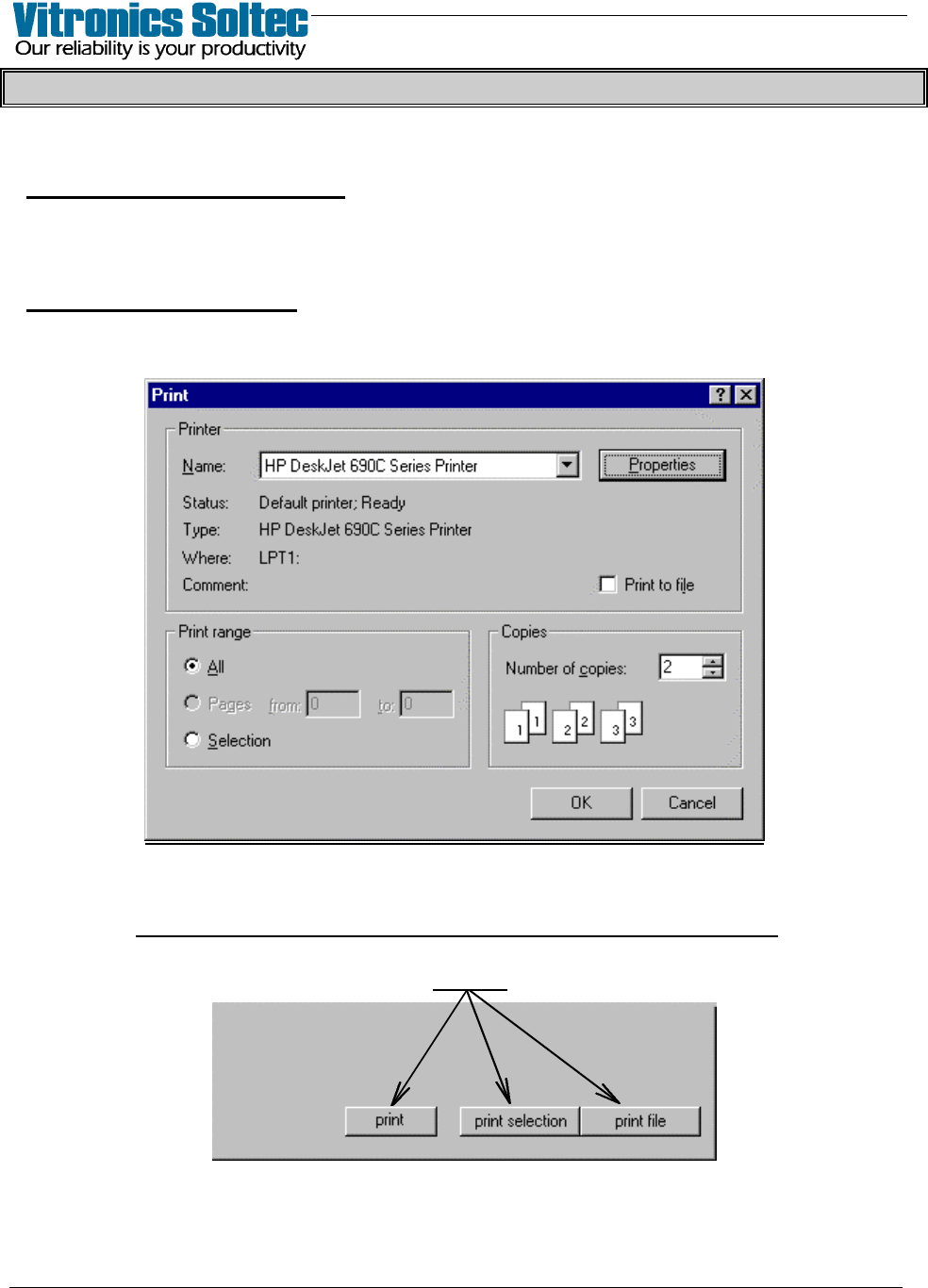
First, Set-up the printer: At the “Pull-down Menu, select “File”, then “Printer
Setup” to display the “Print Dialogue Box”. Depending on the Windows ™ default
printer, the “Print Dialogue Box” shown may not be the same as the one illustrated here.
The “Print Dialogue Box” is used to select the printer, image quality, paper size, copy
quantity , color/no color and other characteristics of the printer output.
It is NOT possible to “print” from this “Print Dialogue Box” .
Printing is available in recipe, product, alarm, trending, and other dialogue boxes.
Printing is done by selecting one of the “buttons” shown below wherever they appear.
(The nature and quantity of the printer output will depend on
“set-up” selections made in the “Print Dialogue Box”)