WPC4 services manual.pdf - 第92页
SITEST for WPC4 SITEST Lifting Axis Settings Zero Point Correction 92 Service Manual SIPLACE WPC4 Menu field: Travel range Reference bero: Moves the selected axis t o the refe rence pr oximity switch so that the positi…
SITEST for WPC4
Zero Point Correction SITEST Lifting Axis Settings
Service Manual SIPLACE WPC4
91
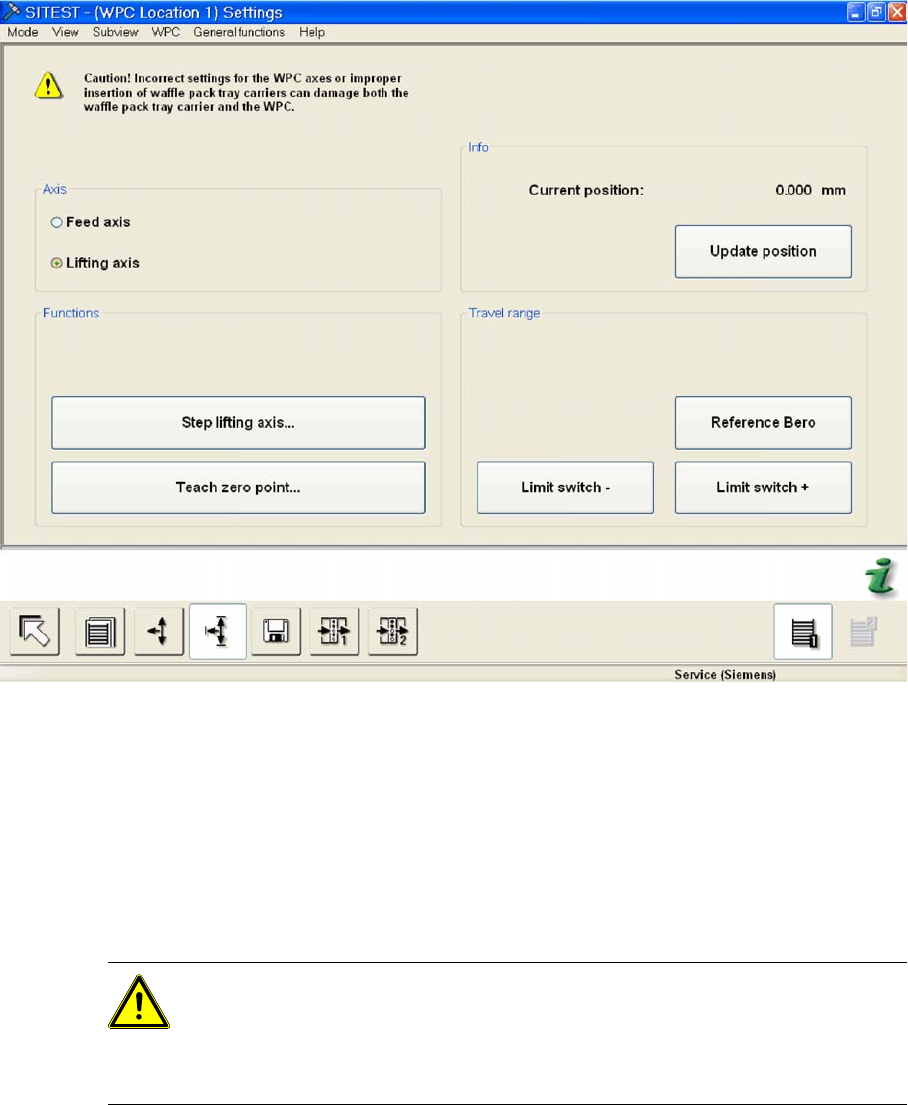
5.9 SITEST Lifting Axis Settings
Menu field: Axis,
This where you can select the WPC axis to be checked or set.
Feed axis: Performs the selected functions for the feed axis.
Lifting axis: Performs the selected functions for the lifting axis.
Menu field: Functions
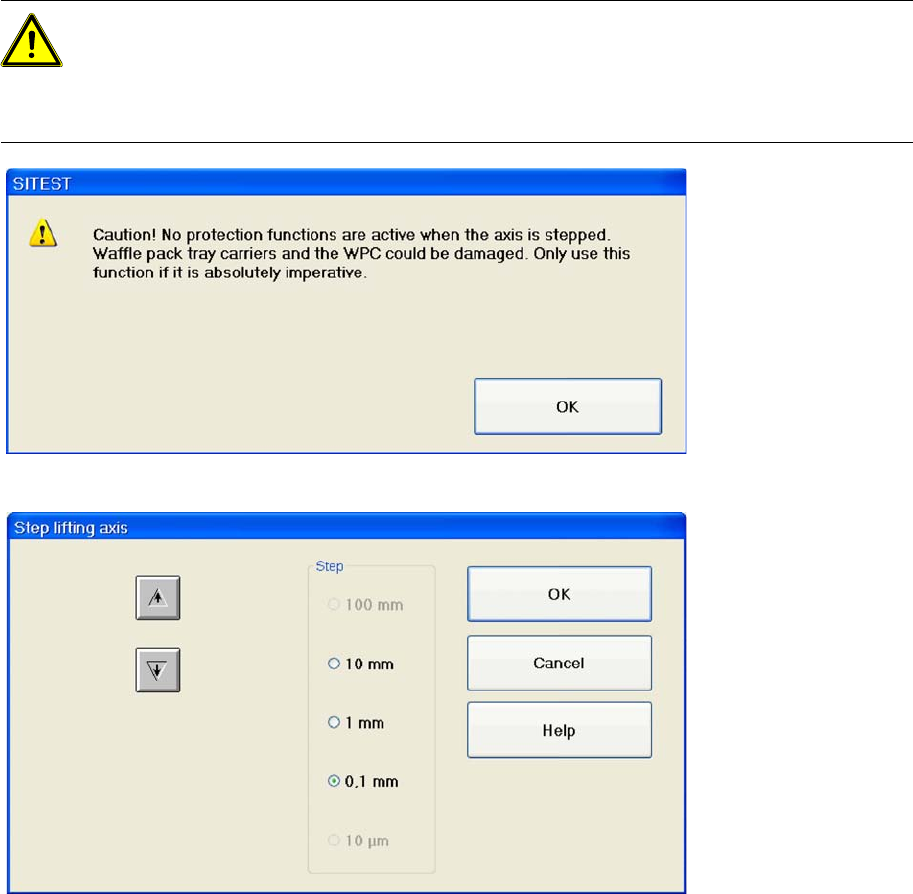
Step lifting axis... Opens a dialog box with a warning. Acknowledge this with
OK
and a dialog box
will open with which you can move the lifting axis stepwise.
Teach zero point... Opens a dialog box with a warning. Acknowledge this with
OK
and a dialog box
will open in which you can correct (teach) the zero point.
Menu field: Info
Current position: Shows the current position of the activated axis in mm.
Update position: Updates the position shown for the activated axis.
ATTENTION: This function can damage the WPC and waffle pack tray carrier.
The function
Step lifting axis
is only available if you are logged in as a Service
(Siemens) user.
This function may only be used if a mechanical error prevents normal movement
of the lifting axis!
SITEST for WPC4
SITEST Lifting Axis Settings Zero Point Correction
92 Service Manual SIPLACE WPC4
Menu field: Travel range
Reference bero: Moves the selected axis to the reference proximity switch so that the position of
the proximity switch can be redetermined. The position determined is then shown in a dialog box.
Select
OK
and another dialog box will open in which you can select
OK
to start a reference run of
the axis.
Limit switch -: Moves the selected axis to the limit switch so that the minimum approach position
can be redetermined. The position determined is then shown in a dialog box. Select
OK
and another
dialog box will open in which you can select
OK
to start a reference run of the axis.
Limit switch +: Moves the selected axis to the limit switch so that the maximum approach position
can be redetermined. The position determined is then shown in a dialog box. Select
OK
and another
dialog box will open in which you can select
OK
to start a reference run of the axis.
SITEST for WPC4
Stepping the Lifting Axis SITEST Lifting Axis Settings
Service Manual SIPLACE WPC4
93
5.9.1 Stepping the Lifting Axis
Acknowledge this with
OK
to open the following dialog box.
Arrow pointing upwards: Each time you click on this button, the lifting axis will be moved one step
of the selected step size upwards.
Arrow pointing downwards: Each time you click on this button, the lifting axis will be moved one
step of the selected step size downwards.
Step: This is where you can set the required step size for moving the lifting axis.
OK : Closes the dialog box. The lifting axis remains in the position it has moved to.
Cancel: Closes the dialog box. The procedure is terminated.
ATTENTION: Only use the function "Step lifting axis" if it is absolutely imperative.
For example, if a waffle pack tray carrier has jammed in the WPC, you will no longer be able to
move the lifting axis. With the help of the buttons in this dialog box, the lifting axis can be moved
stepwise up or down, until the error can be fixed. The lifting axis does not need to be referenced
for this.