00195987-03_VB_SWS_Software_3.0_DE_EN.pdf - 第34页
SIPLACE SWS Software 3. 0 / Versionsbeschreibung / Ve rsion Description Ausgabe 12/2014 Edition 34 14.2 Manual Setting => Vacuum S ystem The Vacuum System view allow s you to check the vacuum system for air-tightness.…
SIPLACE SWS Software 3.0 /
Versionsbeschreibung / Version Description Ausgabe 12/2014 Edition
33
14 SWS Software 3.0 Features
The SWS software 3.0 includes all functions from the SWS software 2.0 and 2.1. The following
section describes the main new features in version 3.0 of the SWS software.
NOTE
For details about the individual functions, please refer to the software manual for
the "SIPLACE SWS Software 3.0 [item no.: 00195986-03].
14.1 New Main Functions – Messages
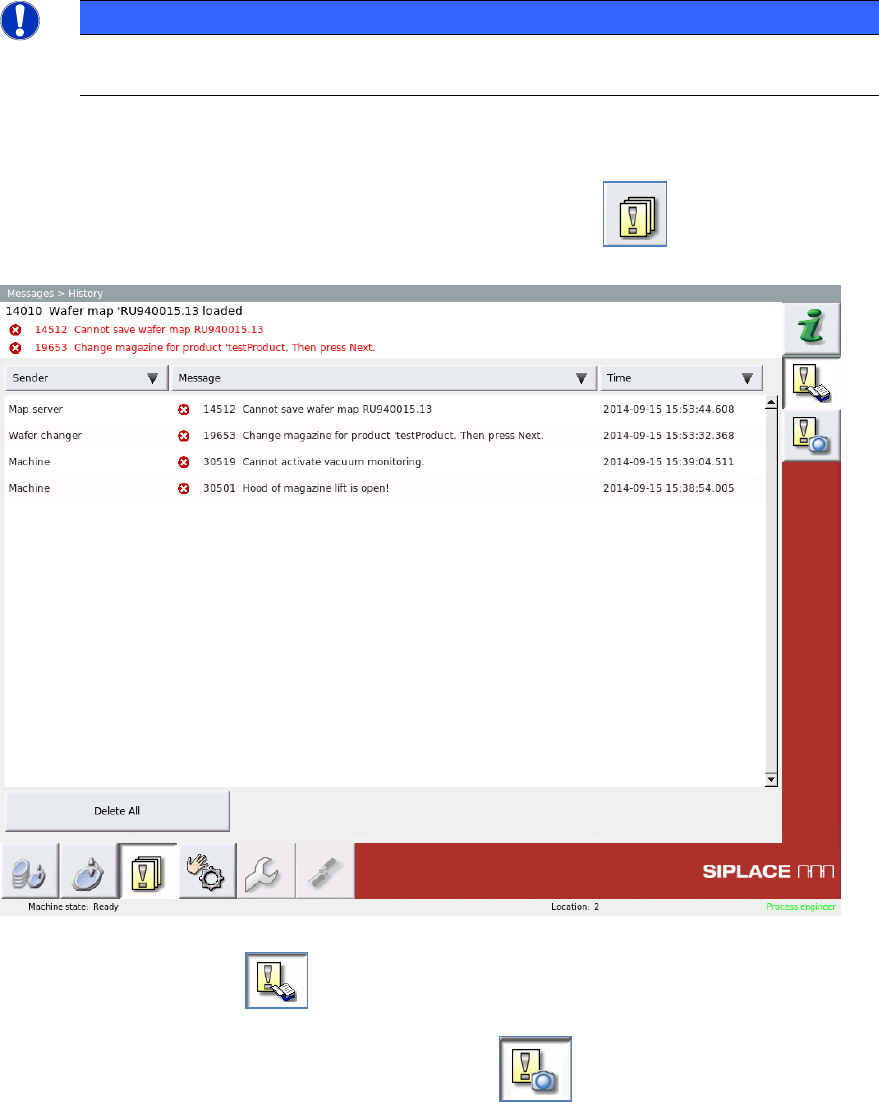
In the views toolbar, click on the Messages button.
The Messages => History view shows all information, warnings and error messages which
have been issued.
The Messages => Saved SIPLACE Vision dump files enables you to open and view the
saved SIPLACE Vision dump files. In earlier versions, this function could be found at Manual
Setting => Image viewer.
SIPLACE SWS Software 3.0 /
Versionsbeschreibung / Version Description Ausgabe 12/2014 Edition
34
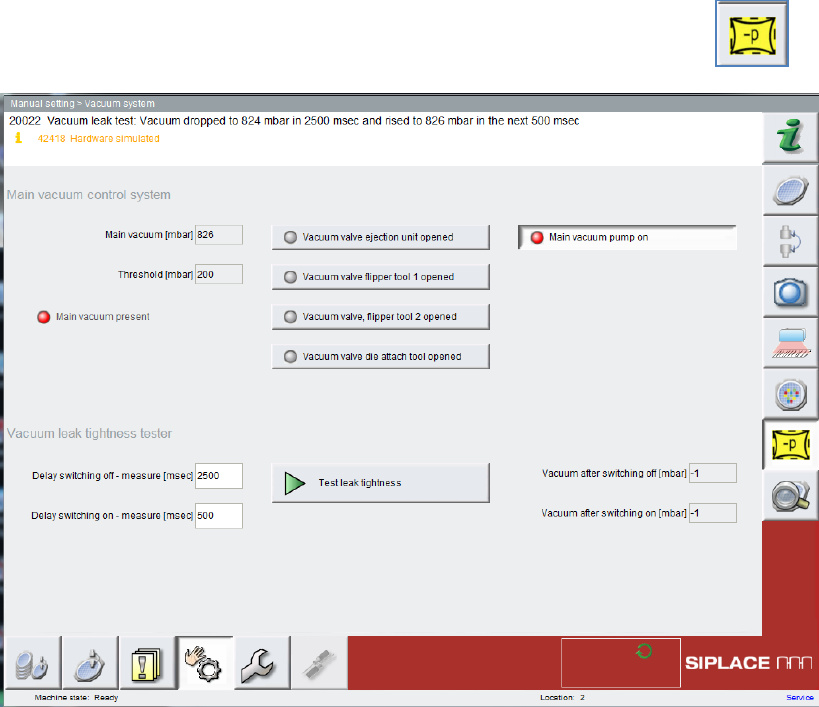
14.2 Manual Setting => Vacuum System
The Vacuum System view allows you to check the vacuum system for air-tightness.
Select Manual Setting and click on the Vacuum System button.
14.3 Improving Die Recognition Teaching
The teaching procedure at Process -> Die recognition -> tab: Die or Reference die has been
improved. The definition of the teaching and search areas has been simplified. The rotation
calibration is now performed automatically.
Automatic referencing is now also performed for the Plain Wafer.
14.4 Automatic Referencing for Plain Wafer
Automatic referencing is now also performed for the Plain Wafer.
Plain wafers can now also be referenced without specifying a start die in advance. This can also be
applied to partially processed wafers.
SIPLACE SWS Software 3.0 /
Versionsbeschreibung / Version Description Ausgabe 12/2014 Edition
35
15 Restrictions
15.1 GUI Does Not React
Sometimes, the GUI may cease to react when used. This occurs sporadically when switching
windows on which camera images are shown.
Solution:
Press the ESC button to refresh the window.