00193871-06.pdf - 第20页
Installation Manual for Windows XP (unattended setup) for SIPLACE Computers 01/2005 US+DE 6.9 Network settings for communication partners Here the communication partners of the station computer will be detected. You have…
Installation Manual for Windows XP (unattended setup) for SIPLACE Computers 01/2005 US+DE
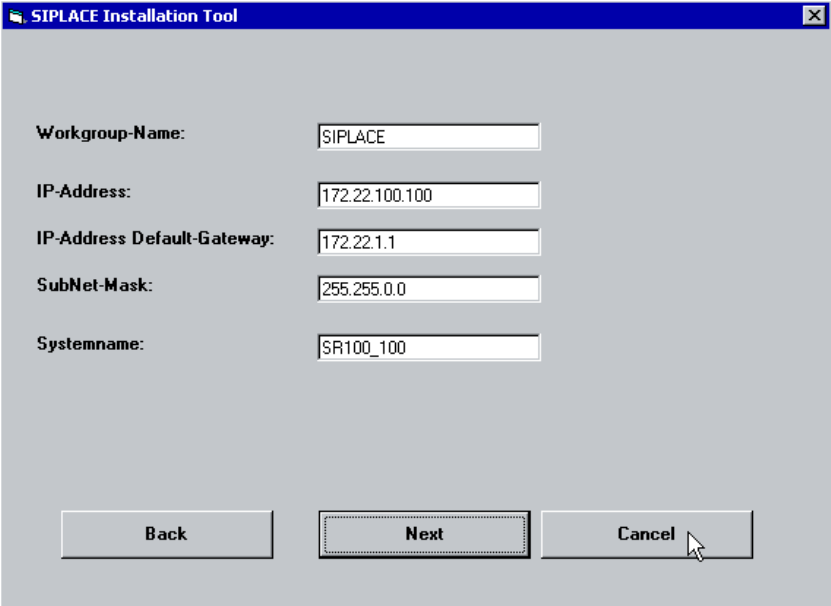
6.8 Windows XP network settings
Within this dialog, general network parameters of the computer will be configured. The following data
are required:
• Workgroup Name: SIPLACE
You can enter any name you want, except the name of the station computer.
• IP address: not fixed
For the station computers use a unique station IP address number (172.x.x.x)
• IP address Gateway: not fixed
• Sub net mask: not fixed
Please use the default data for the station computer
.
• System name: should be well defined in the network.
Fig. 6-8: Network settings
→ Please enter the data.
→ Click the Next button.
19
Installation Manual for Windows XP (unattended setup) for SIPLACE Computers 01/2005 US+DE
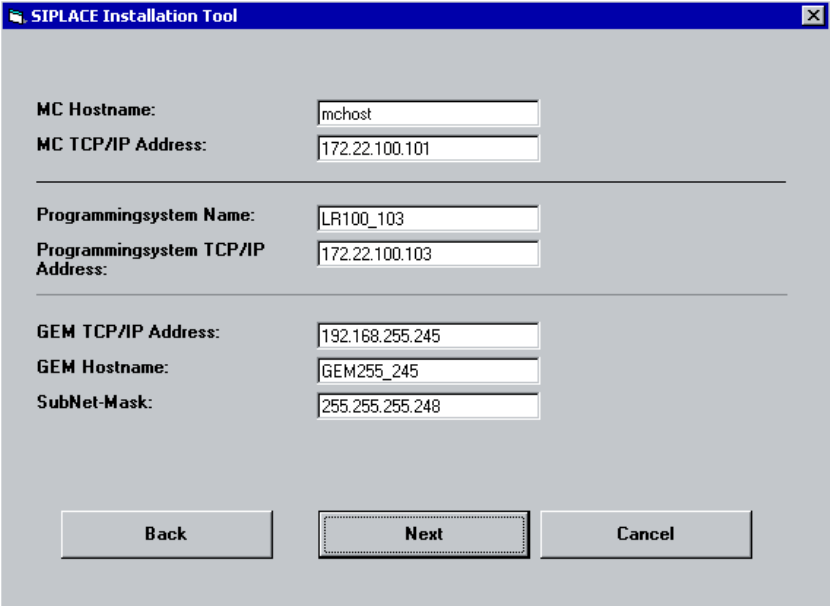
6.9 Network settings for communication partners
Here the communication partners of the station computer will be detected. You have to enter the
following data:
• MC Host name: mchost
• MC TCP/IP address: not fixed
Please use an address from the same network segment as the station computer.
• Programming system name (SIPLACE C Pro): Sipro01s01
• SIPLACE C Pro TCP/IP address: not fixed
Please use an address from the same network segment as the station computer.
• GEM Host name: gemhost
• GEM TCP/IP address: not fixed
Don’t change the default data if no GEM option installed
• GEM Sub net mask: not fixed
Don’t change the default data if no GEM option installed
Fig. 6-9: Network settings
→ Please enter the data.
→ Click the Next button.
20
Installation Manual for Windows XP (unattended setup) for SIPLACE Computers 01/2005 US+DE
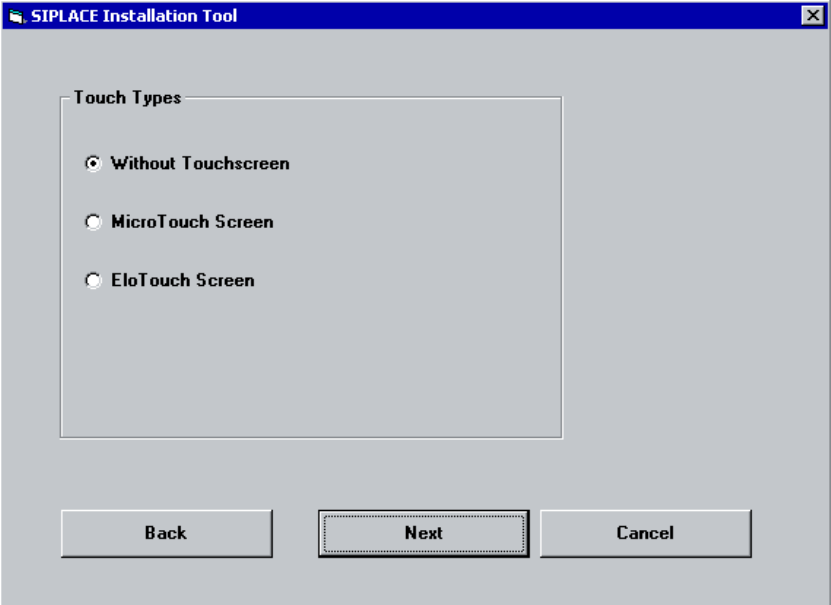
6.10 Touch screen type selection
If you selected the installation for the SIPLACE Product “station computer” you have to configure the
Touch Screen.
Fig. 6-10: Touch screen types
→ Select the correct Type.
→ Click the Next button.
21