Install_EN_00196423-01.pdf - 第105页
In stal la tion an d Co nfig ura tio n G uide SIP LAC E E xpl ore r 5 Un in stall at ion Edi tio n 05/200 9 E N 105 5 Uninst allation SIPL ACE Expl orer V2.6 has a modify dial og for uninstallation purposes . This can be…
4 Configuration Installation and Configuration Guide SIPLACE Explorer
4.3 Database Settings Edition 05/2009 EN
104
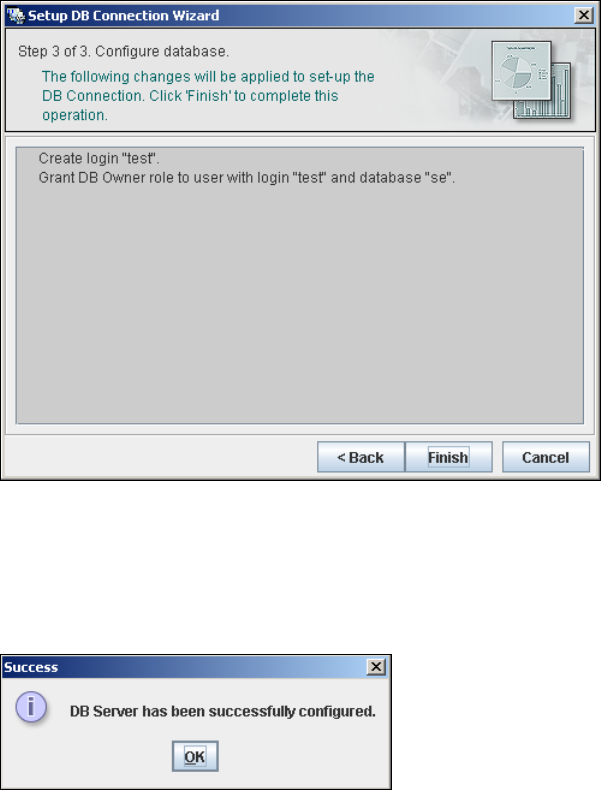
– Step 3- Configure Database
→ Step 3 takes your modifications from Step 2 and uses them to configure the database
connection.
4
Fig. 4 - 60 Step 3 database connection wizard
→ Click on Finish and the wizard will carry out the required configuration. The DB settings are
now correctly specified for your project. and the database and set user will be created.
→ You will receive a success message.
4
Fig. 4 - 61 Step 3 database connection wizard
→ Click OK. You can now configure your system database.
4
4

Installation and Configuration Guide SIPLACE Explorer 5 Uninstallation
Edition 05/2009 EN
105
5 Uninstallation
SIPLACE Explorer V2.6 has a modify dialog for uninstallation purposes. This can be started from
the Windows menu. There will then be three uninstallation procedures at your disposal: 5
– Modify
Use this function if you want to add individual features to the current SIPLACE Explorer
V2.6 or if you want remove installed features from the current SIPLACE Explorer V2.6.
(see page 107)
–Repair
Use this function if the current installation of SIPLACE Explorer V2.6 no longer functions
properly or if individual features have been unintentionally removed. This option recovers
the previous setup.
(see page 109)
–Remove
Use this function if you want to completely remove SIPLACE Explorer V2.6 from your
computer.
(see page 111)
5 Uninstallation Installation and Configuration Guide SIPLACE Explorer
5.1 Start Modify Dialog Edition 05/2009 EN
106
5.1 Start Modify Dialog
→ Open the SIPLACE Explorer 2.6 - InstallShield Wizard via the Windows menu
Start → Programs → SIPLACE Explorer 2.6 → Modify-Uninstall.
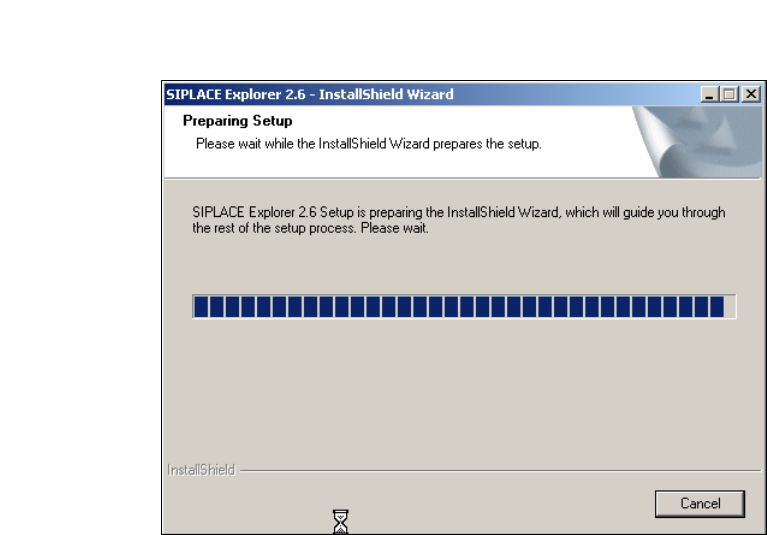
→ The SIPLACE Explorer 2.6 InstallShield Wizard will be prepared.
5
Fig. 5 - 1 SIPLACE Explorer 2.6 - install shield wizard
→ The welcome screen will appear. Select the process you wish to perform.