Install_EN_00196423-01.pdf - 第54页
3 In st alli ng SIPLA CE Expl ore r Ins ta llat i on and Con fi gur ati on Gu id e SI PLA CE Exp lo rer 3. 5 Tom cat Conf igu rat ion Editi on 05/2 009 EN 54 3 F ig. 3 - 3 6 W indo ws f ire wal l - exc ept ions → Now rel…
Installation and Configuration Guide SIPLACE Explorer 3 Installing SIPLACE Explorer
Edition 05/2009 EN 3.5 Tomcat Configuration
53
3
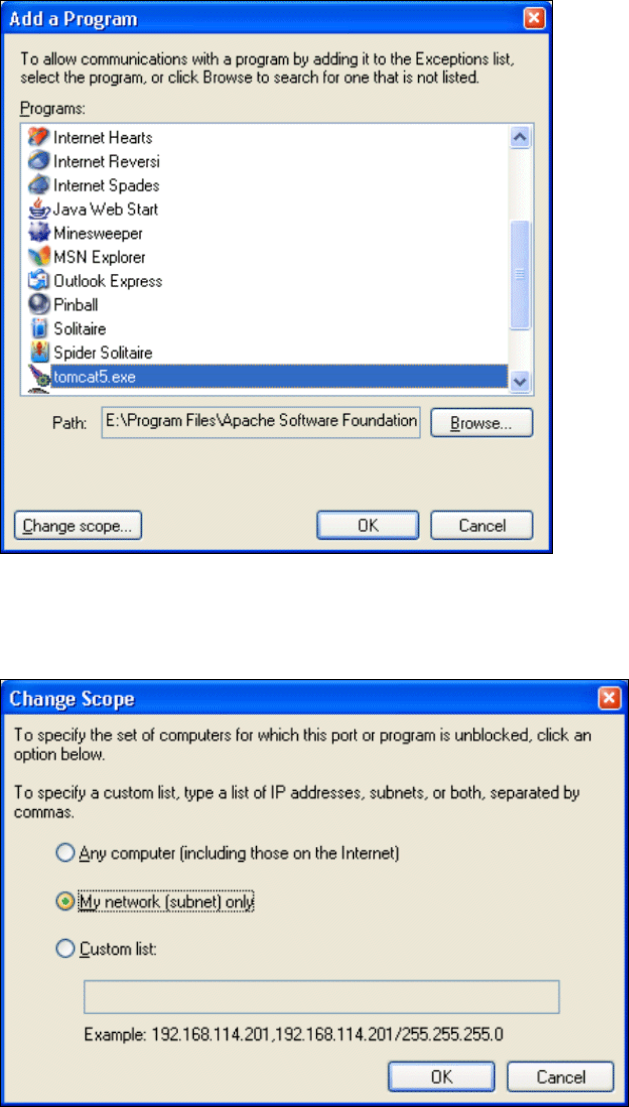
Fig. 3 - 34 Add a program
→ Select the entry tomcat5.exe from the Programs menu and click on the Change Scope
button.
3
Fig. 3 - 35 Change scope
→ Enable the My network option and confirm with OK. You have now released the port for
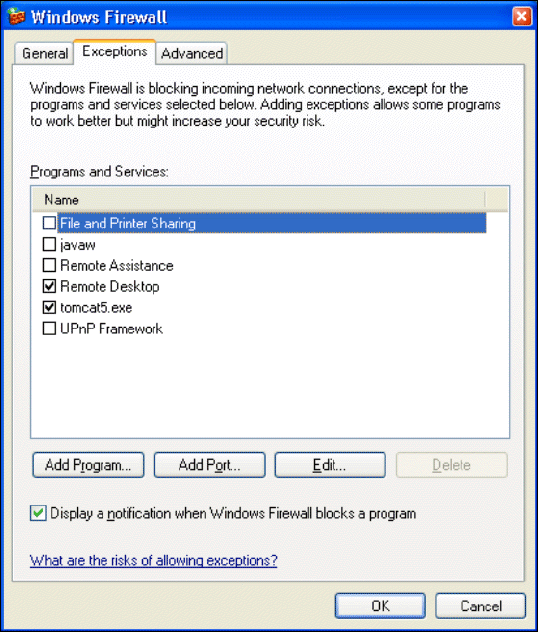
Tomcat. This can be checked in the Windows Firewall - Exceptions
dialog box.
3 Installing SIPLACE Explorer Installation and Configuration Guide SIPLACE Explorer
3.5 Tomcat Configuration Edition 05/2009 EN
54
3
Fig. 3 - 36 Windows firewall - exceptions
→ Now release the port for SIPLACE Explorer V2.6. Proceed as described for Tomcat 5.5.
Installation and Configuration Guide SIPLACE Explorer 3 Installing SIPLACE Explorer
Edition 05/2009 EN 3.5 Tomcat Configuration
55
3.5.3 Port Configuration after Changing Tomcat Port Number
NOTE
By default, Tomcat is installed on port 8080. This means that your users will access your website
as follows: http://yourServerName:8080/yourWebsite. 3
The Tomcat port number needs to be changed (as described below) in the following cases: 3
– When the port is changed to generate a website e.g. via line configuration.
– If the default port number 8080 is already otherwise occupied and you do not want to
additionally use it for this purpose (access to the websites).
→ To change the port number, find the following lines in the file
<Tomcat-location>\conf\server.xml
→ Change the port number and change 8080 to your choice of port number as shown below:
<!-- Define a non-SSL Coyote HTTP/1.1 connector on the port specified 3
during installation --> 3
<Connector port="8080" maxThreads="150" minSpareThreads="25" maxSpare-
Threads="75" enableLookups="false" redirectPort="8443" accept-
Count="100" debug="0" connectionTimeout="20000"
disableUploadTimeout="true" /> 3
3
→ Change the specified port number 8080 (Connector port="8080") to the required port
number (Connector port="YourPort"). For further information about the port number,
please contact your system administrator.
→ To make Tomcat your default web server, set the port number to 8080.
NOTE
The port number specified in this xml file needs to be added to the URL address each time you
generate a website: http://yourServerName:yourPort/yourWebsite. 3
3
3