Install_EN_00196423-01.pdf - 第111页
In stal la tion an d Co nfig ura tio n G uide SIP LAC E E xpl ore r 5 Un in stall at ion Edi tio n 05/200 9 E N 5.4 R emov e 111 5. 4 Re mov e 5 Fig. 5 - 9 S I PLA CE Ex pl ore r 2.6 - ins tal l shi eld w izar d → Cl i c…
5 Uninstallation Installation and Configuration Guide SIPLACE Explorer
5.3 Repair Edition 05/2009 EN
110
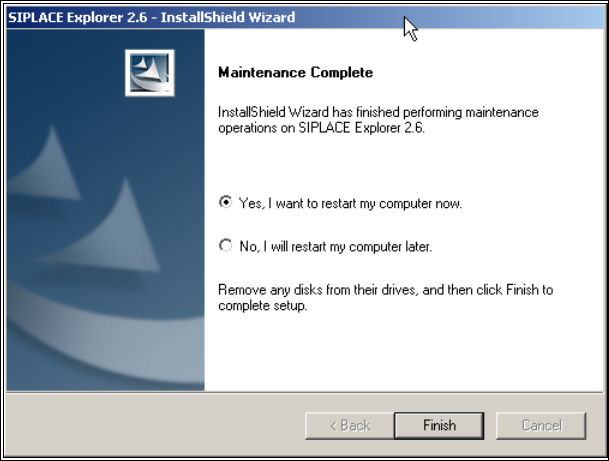
→ SIPLACE Explorer 2.6 recovery has been completed.
5
Fig. 5 - 8 Repair completed
→ Click on Finish to close the SIPLACE Explorer 2.6 - InstallShield Wizard.
Installation and Configuration Guide SIPLACE Explorer 5 Uninstallation
Edition 05/2009 EN 5.4 Remove
111
5.4 Remove
5
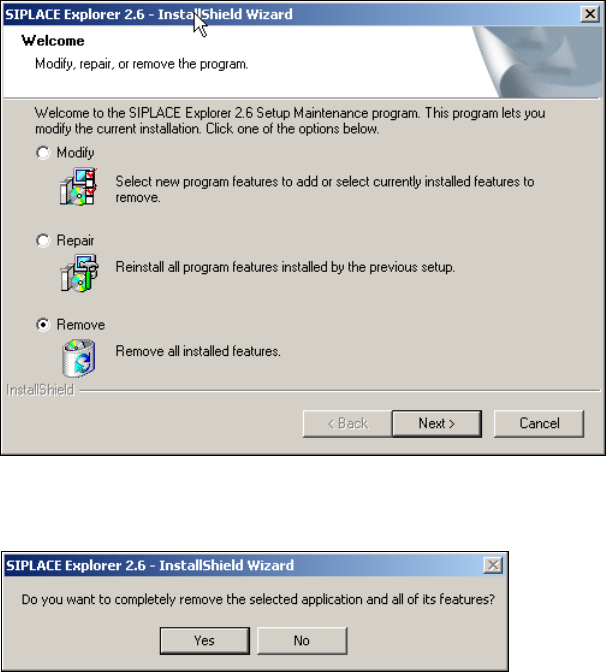
Fig. 5 - 9 SIPLACE Explorer 2.6 - install shield wizard
→ Click on Remove and then on Next to continue.
5
Fig. 5 - 10 Uninstallation query: confirm deletion of file
→ Confirm deletion with Yes.
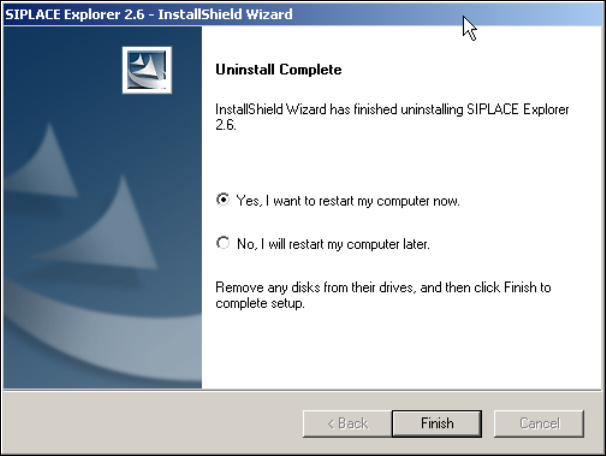
The uninstallation process will be performed. SIPLACE Explorer V2.6 uninstallation has been
completed. 5
5 Uninstallation Installation and Configuration Guide SIPLACE Explorer
5.4 Remove Edition 05/2009 EN
112
5
Fig. 5 - 11 Uninstallation completed
→ Click on Finish to close the SIPLACE Explorer 2.6 - InstallShield Wizard.
→ After you have rebooted your computer, SIPLACE Explorer 2.6 will no longer be available.