Install_EN_00196423-01.pdf - 第47页
In stal la tion an d Conf ig ura tion Gui de SIP LACE Ex pl orer 3 I ns talli ng SIP LACE Ex pl orer Edi tio n 05/200 9 E N 3.5 Tom cat Conf igu rat ion 47 3 Fig. 3 - 27 Inter ne t Opt io ns → Specify the URL or the web …
3 Installing SIPLACE Explorer Installation and Configuration Guide SIPLACE Explorer
3.5 Tomcat Configuration Edition 05/2009 EN
46
3.5 Tomcat Configuration
3.5.1 Using Windows 2003 Server
If you have installed Windows 2003 Server as your operating system, you will need to reconfigure
the web server (Tomcat) before using SIPLACE Explorer V2.6. This configuration will be done via
Internet Explorer. 3
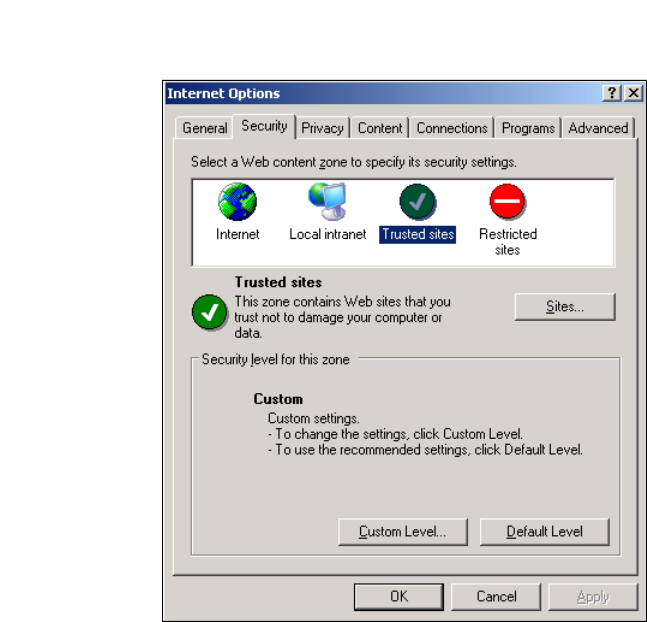
→ Select the menu Tools → Options.
→ The Internet Options dialog box will open:
3
Fig. 3 - 26 Internet Options
→ Select the Security tab.
→ Click on the Trusted Sites icon and click on Sites.
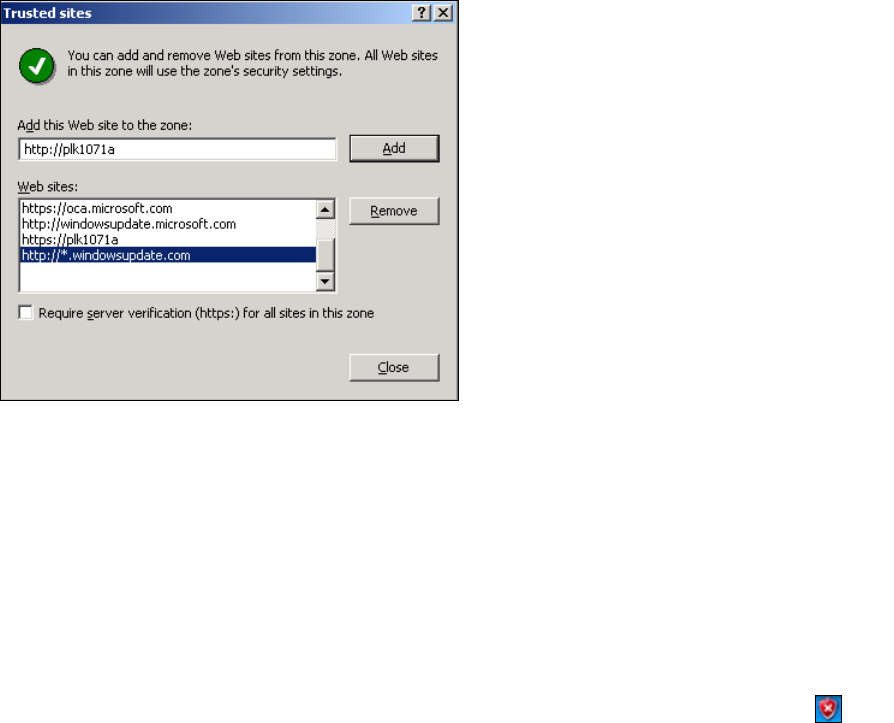
→ The Trusted Sites dialog box will open:
Installation and Configuration Guide SIPLACE Explorer 3 Installing SIPLACE Explorer
Edition 05/2009 EN 3.5 Tomcat Configuration
47
3
Fig. 3 - 27 Internet Options
→ Specify the URL or the web server (Tomcat) name. Confirm with Add.
→ Close the Trusted Sites dialog box with Close.
3.5.2 Using Windows XP Professional with SP2
If you have installed Windows XP Professional with SP2 as your operating system, you will need
to reconfigure the XP firewalls before using SIPLACE Explorer V2.6. This involves releasing the
ports Tomcat 5.5 and SIPLACE Explorer V2.6. 3
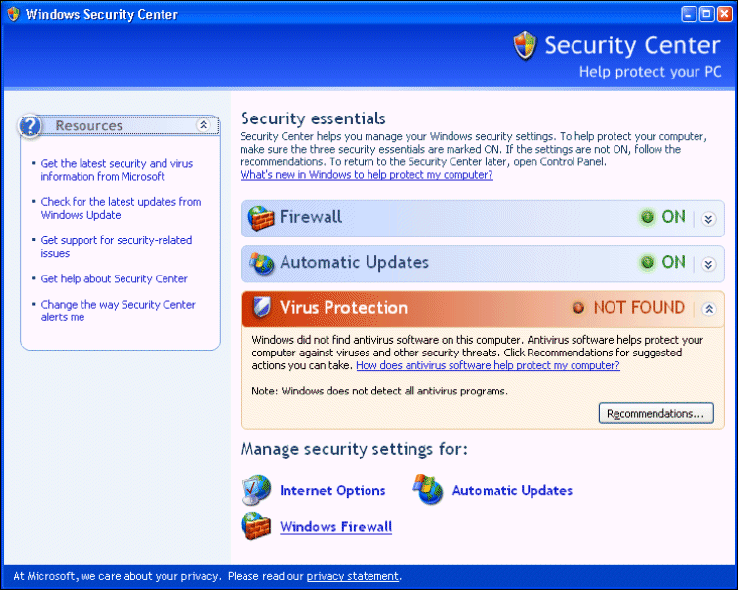
→ Start the Windows Security Center by double-clicking on the Windows Security Alerts
icon in the console.
→ The Windows Security Center dialog box will open:
3 Installing SIPLACE Explorer Installation and Configuration Guide SIPLACE Explorer
3.5 Tomcat Configuration Edition 05/2009 EN
48
3
Fig. 3 - 28 Windows Security Center
→ Proceed to Manage security settings for and select the option Windows Firewall.