SIPLACE S-23 HM User Manual.pdf - 第12页
12 User Interfa ce Main View - Layout and Exp lanation of the Symbols Main View - Submenus a Indicates the current menu k Error message li ne s Menu line wi th pull-down m enus l Status disp lay d Buttons for user action…
11
Menu control of the machine
The menu control and the user interface of the machine are based on the
Microsoft Windows standard. You can initiate actions in the individual
menus by using
– function keys F1 to F12 on the keyboard,
– the trackball and the left-hand mouse button or
– the touchscreen.
– You can open pull-downs and their submenus by pressing the Alt-key in
combination with a ’hot key.
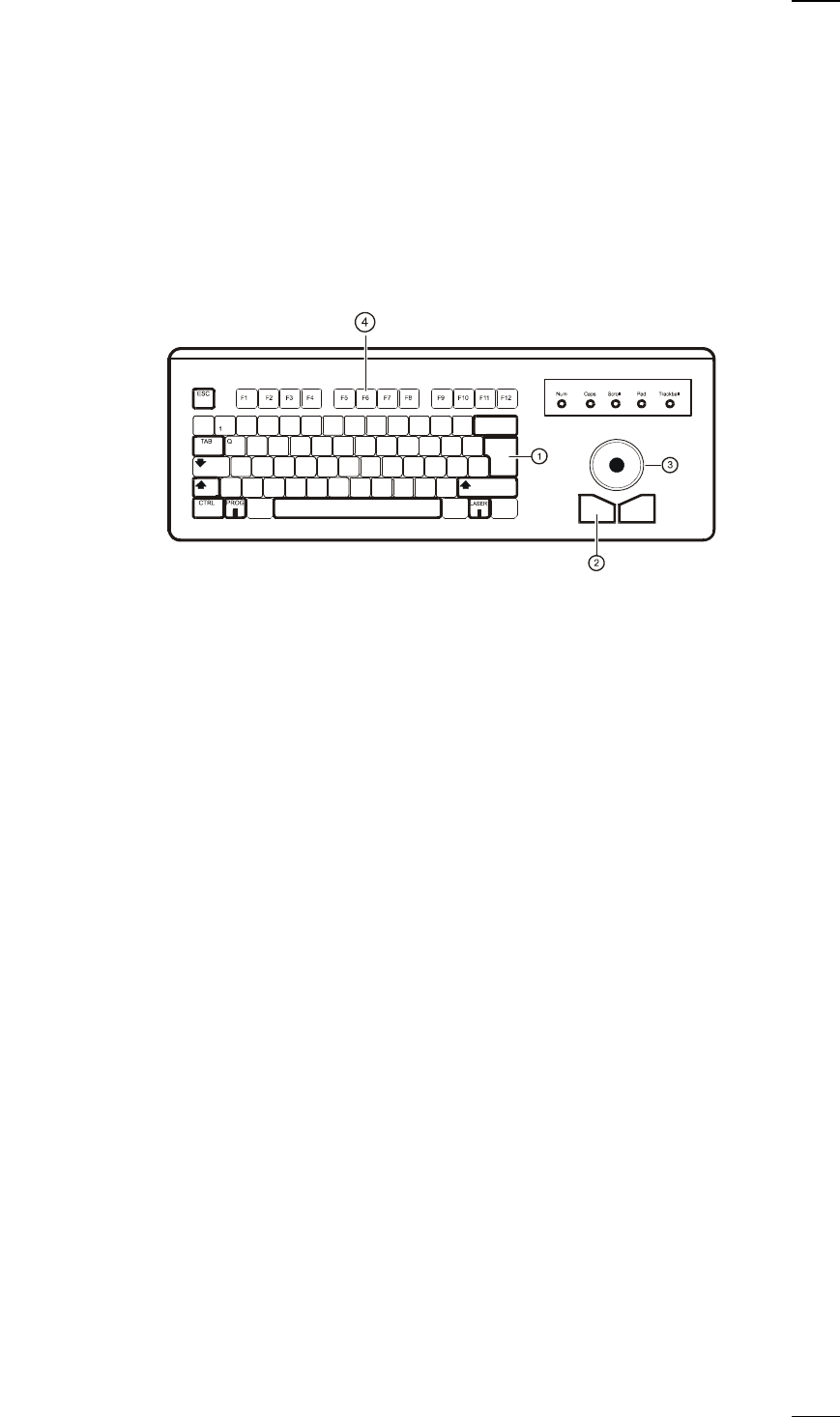
Keyboard with integrated mouse (trackball)
IBM-compatible
keyboard with
German
character set
a
Return key
s
Left-hand mouse button
d
Trackball
f
Function keys F1 to F12
Touchscreen
As an alternative to the trackball you can position the mouse pointer on
the screen and operate it by touching the screen with your finger.
12
User Interface
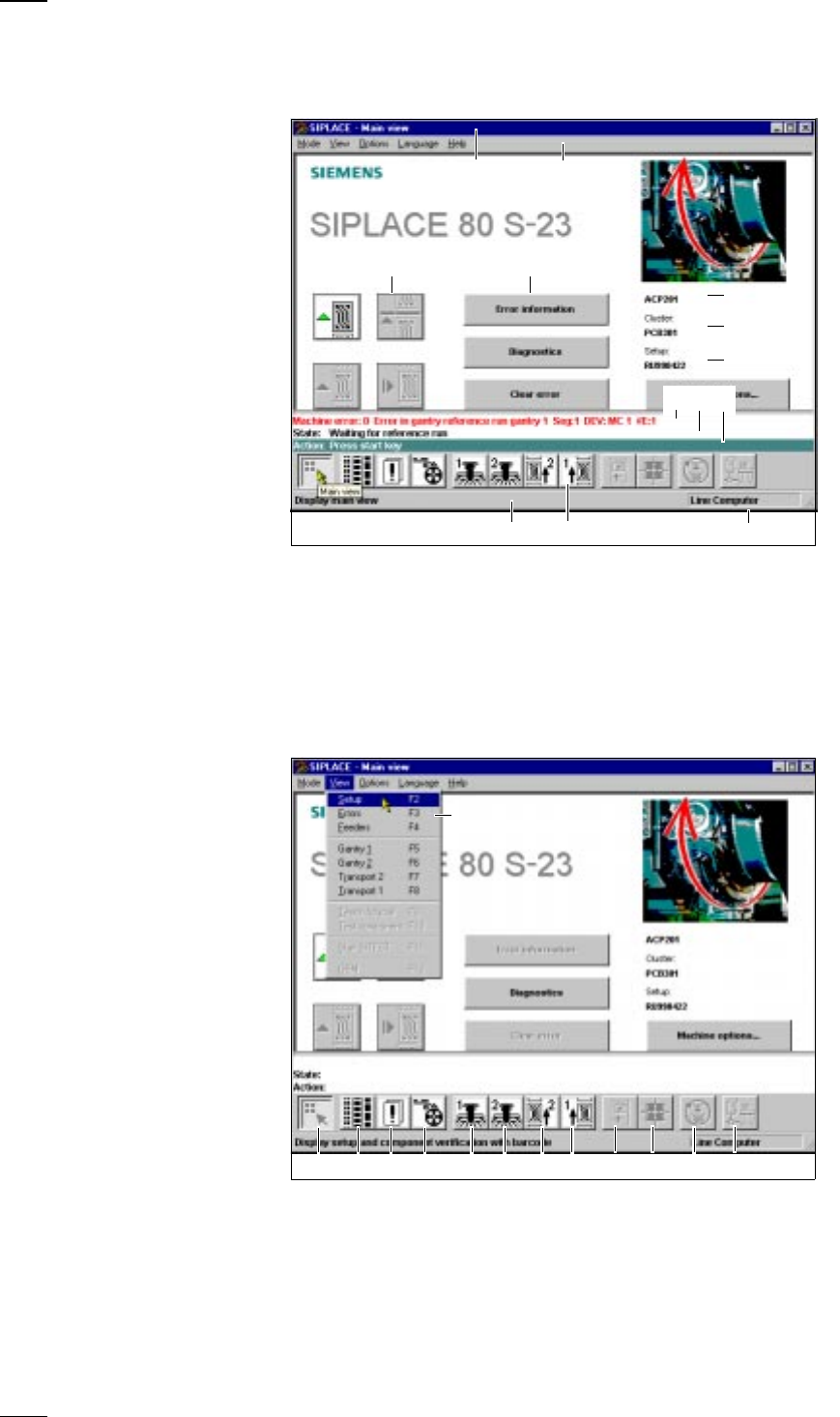
Main View - Layout and Explanation of the Symbols
Main View - Submenus
a Indicates the current menu k Error message line
s Menu line with pull-down menus l Status display
d Buttons for user actions ; Operator actions
f Button for calling submenus A Information line for menus
g Job name S Icons with bubble help text
h File name of loaded cluster D Machine operating mode
j File name of loaded setup
a Main View (F1) k SF PCB transport 1 (F8)
s Display setup (F2) l Teach and test PCB fiducial (F9)
d Display errors (F3) ; Measure cmp and change GF data (F10)
f Component feeder systems (F4) A SITEST(F11)
g SF gantry 1 (F5) S GEM status (F12), option
h SF gantry 2 (F6) D Pull-down menu
j SF PCB transport 2 (F7), option
s
df
g
j
A D
a
S
h
kl;
a sdf gh jk l ; AS
D
13
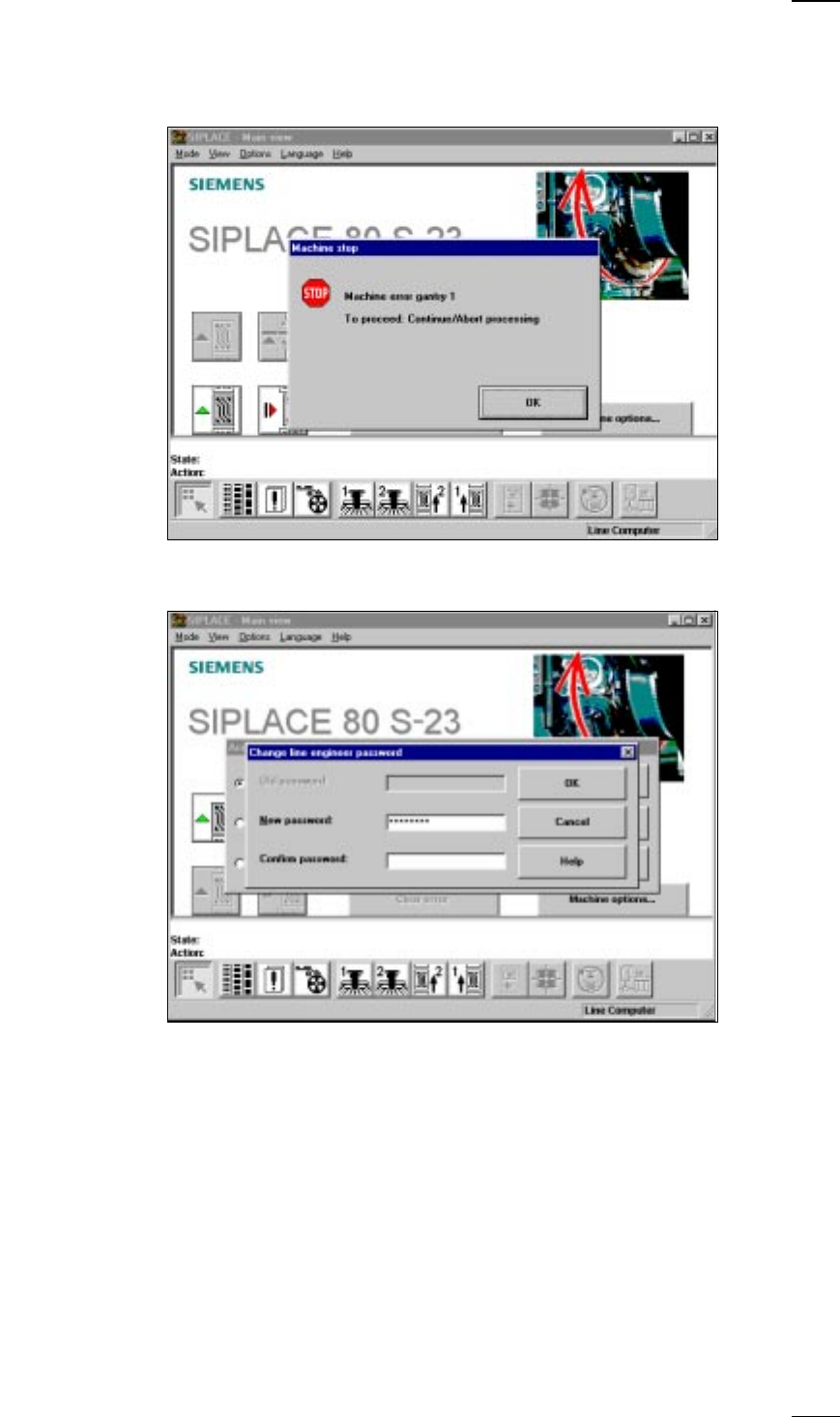
On-screen displays - warning and message boxes
Warning and message boxes notify the user of faults or errors which have
occured in the machine; they also request the user to perform various
actions.
On-screen displays - input box
● Enter the desired information into the input field and click on the OK button
to finish your input. Click on the Cancel button, if you want to discard your
input. The Help button provides access to on-line help.