SIPLACE S-23 HM User Manual.pdf - 第32页
32 T roubleshooting ↑ UM 4.2 If errors oc curs at the pla cement m achine, such as – track errors – machine er rors – transport e rrors – fiducial erro rs – nozzle con figuration errors or – PCB bar co de readi ng errors…
31
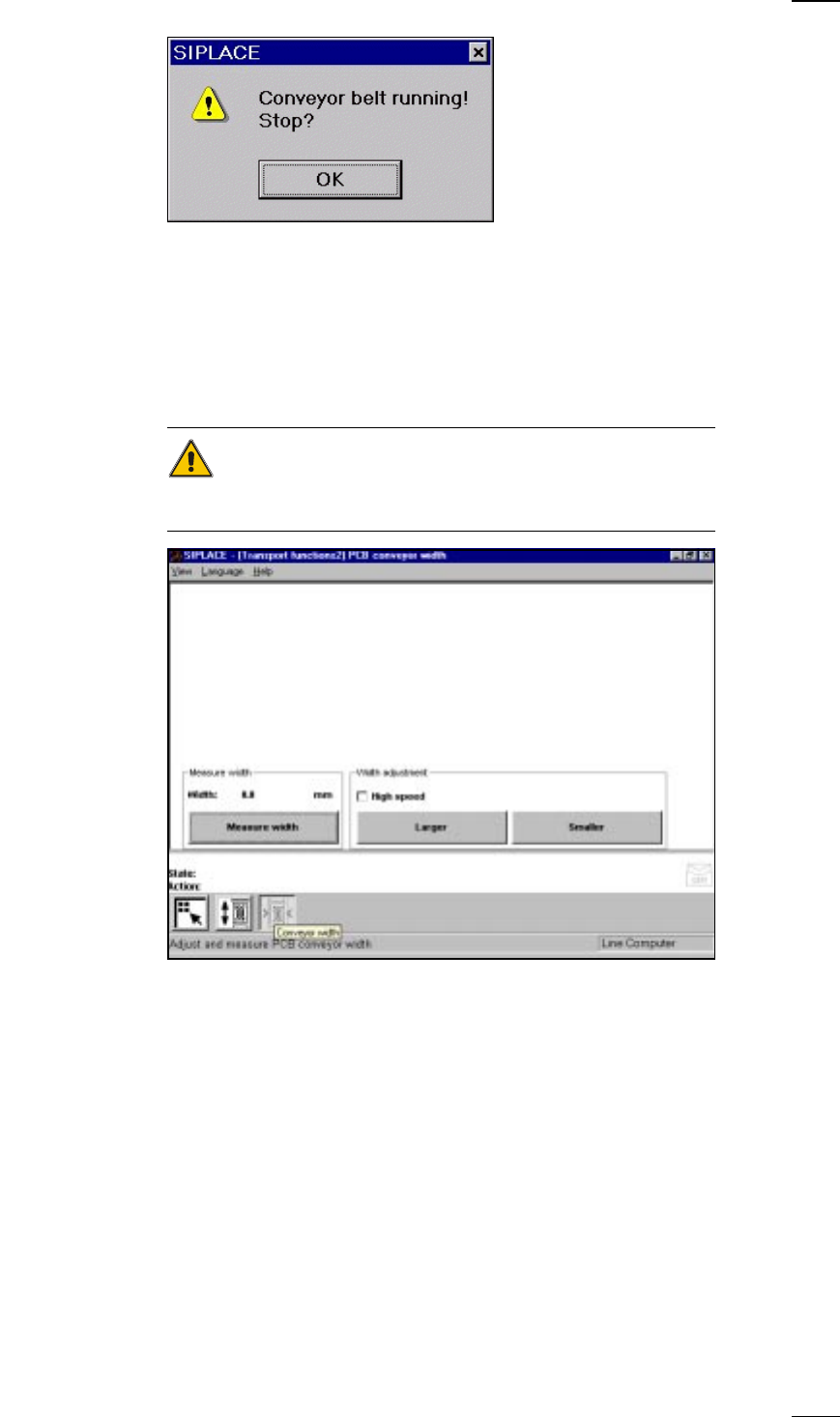
● Click on OK in the dialog box to cancel the procedure.
’PCB conveyor width’ menu
↑ UM 5.3.2 This menu is used for measuring and adjusting the conveyor belt width.
CAUTION
Make sure there are no boards on the conveyor belts when you adjust the
conveyor belt width.
Measure width Press this button to display, measure and save the width of the PCB trans-
port.
Width adjustment With this menu item you can adjust the width of the PCB conveyor at a
higher or lower speed as you like. If you have changed the width when
you quit the Single functions menu, the conveyor width will be measured
with the left-hand gantry and updated. Access this menu once again to
see the current width.
32
Troubleshooting
↑ UM 4.2 If errors occurs at the placement machine, such as
– track errors
– machine errors
– transport errors
– fiducial errors
– nozzle configuration errors or
– PCB bar code reading errors
it will be stopped and the warning box is displayed on the screen with a
message such as ’Track empty error ...’ and so on.
● You should comply with the instructions in the warning box and carry out
the actions requested.
WARNING
Only personnel with the corresponding training and qualifications are per-
mitted to carry out actions requiring Line engineer authorization since
improper treatment of the machine may result in serious physical injury
and considerable damage to property.
NOTE
Close the protective covers before attempting to move the axes.
If you wish to carry out head functions with the cover open, this will only be
possible with the key-operated switch in position "I".
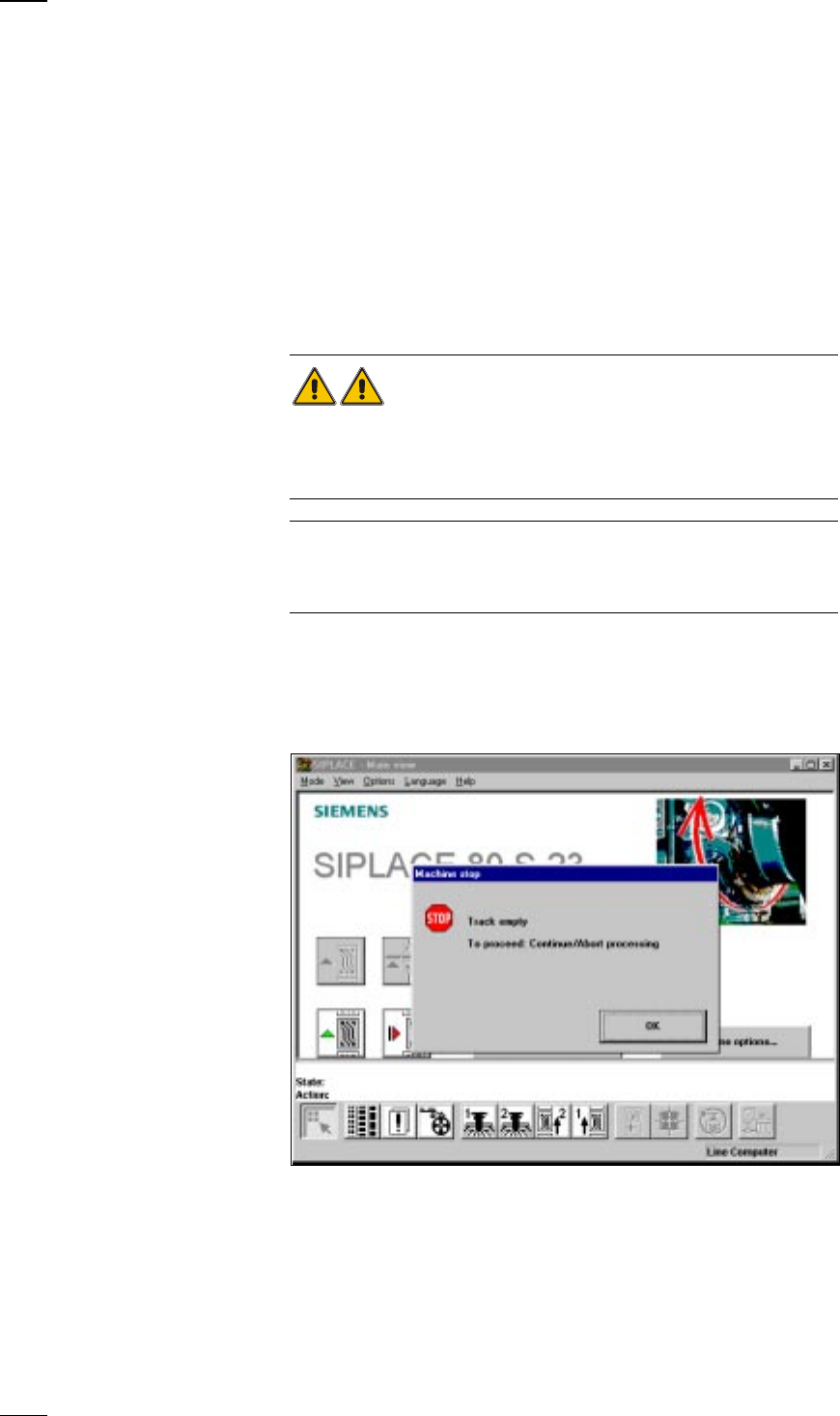
Empty track errors
↑ UM 4.2.2 Placement of a board will continue until there is none left of all of the com-
ponents which are to be inserted. In this situation the machine will stop
and the error message Track empty will appear on the screen.
● Click on OK to acknowledge and then select from the functions displayed:
Abort processing When you select Abort processing the board will be transported onto the
output conveyor and the components in the placement head dropped into
the rejects container. After this the gantries return to their waiting posi-
tions.
33
Continue processing Refill the components which have run out, set the refilled tracks to Full and
click on Continue processing. Placement will now continue until the board
is finished.
Display errors menu With this menu you can display a list of the errors which have occurred on
the screen.
Feeders menu This menu is used for dealing with empty tracks and track errors.
Single functions Errors caused by the gantry are corrected with the aid of this menu.
Gantry 1/2 menu
Machine errors
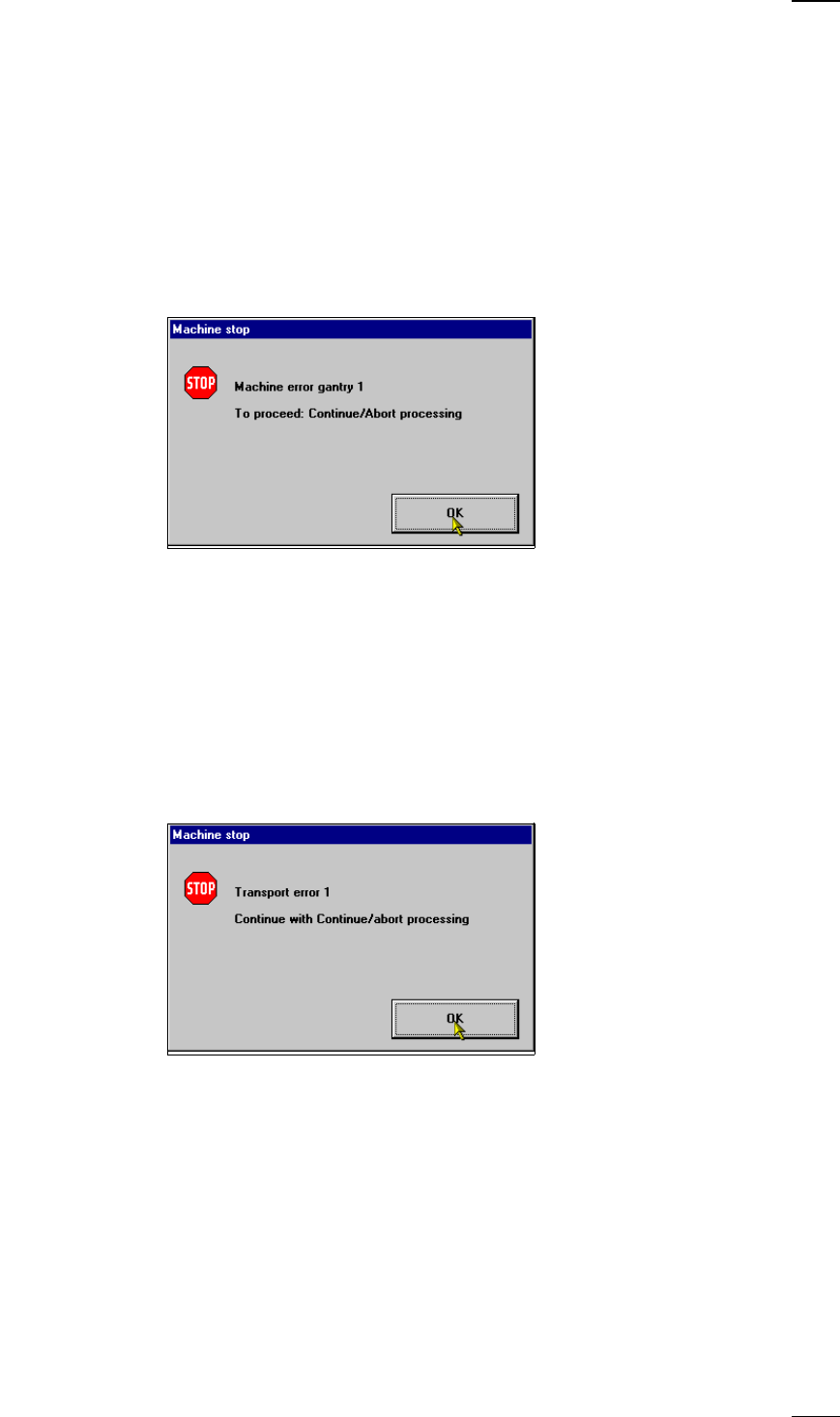
↑ UM 4.2.3 When machine errors occur such as axis errors, for example, the machine
will stop.
● Click on OK to acknowledge and then select from the functions displayed:
Abort processing With this function you can abort processing.
Continue processing With this function you can continue processing.
Display errors menu With this function you can display the machine errors which have occured
on the screen.
SF Gantries 1/2 menuSelect this menu to correct the error.
Transport errors
↑ UM 4.2.4 If boards are not being clamped, placement will be interrupted and the fol-
lowing warning box displayed on the screen:
● Click on OK to acknowledge and then select from the functions displayed:
Abort processing With this function you can abort processing.
Continue processing With this function you can continue processing.
Display errors menu With this function you can display on the screen the transport errors which
have occured.
SF Transport 1/2 Select this menu to correct the error.
menu