SIPLACE S-23 HM User Manual.pdf - 第14页
14 On-screen dis play - control box In the contr ol box you can activate o r deactiva te options. Ac tivated options are indicate d by cro sses in the ch eck boxe s. Y ou can activa te or deacti- vate option s by clic ki…
13
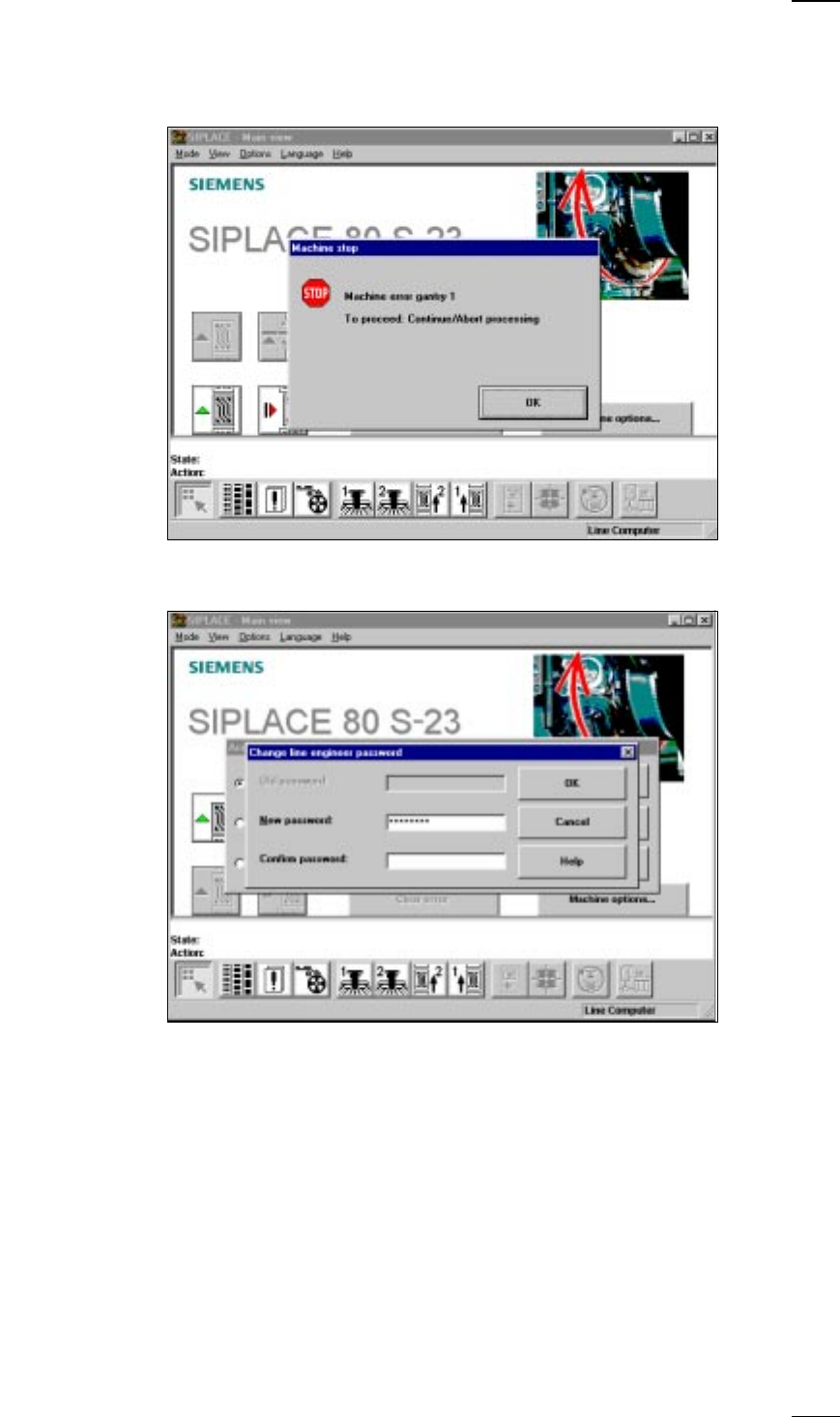
On-screen displays - warning and message boxes
Warning and message boxes notify the user of faults or errors which have
occured in the machine; they also request the user to perform various
actions.
On-screen displays - input box
● Enter the desired information into the input field and click on the OK button
to finish your input. Click on the Cancel button, if you want to discard your
input. The Help button provides access to on-line help.
14
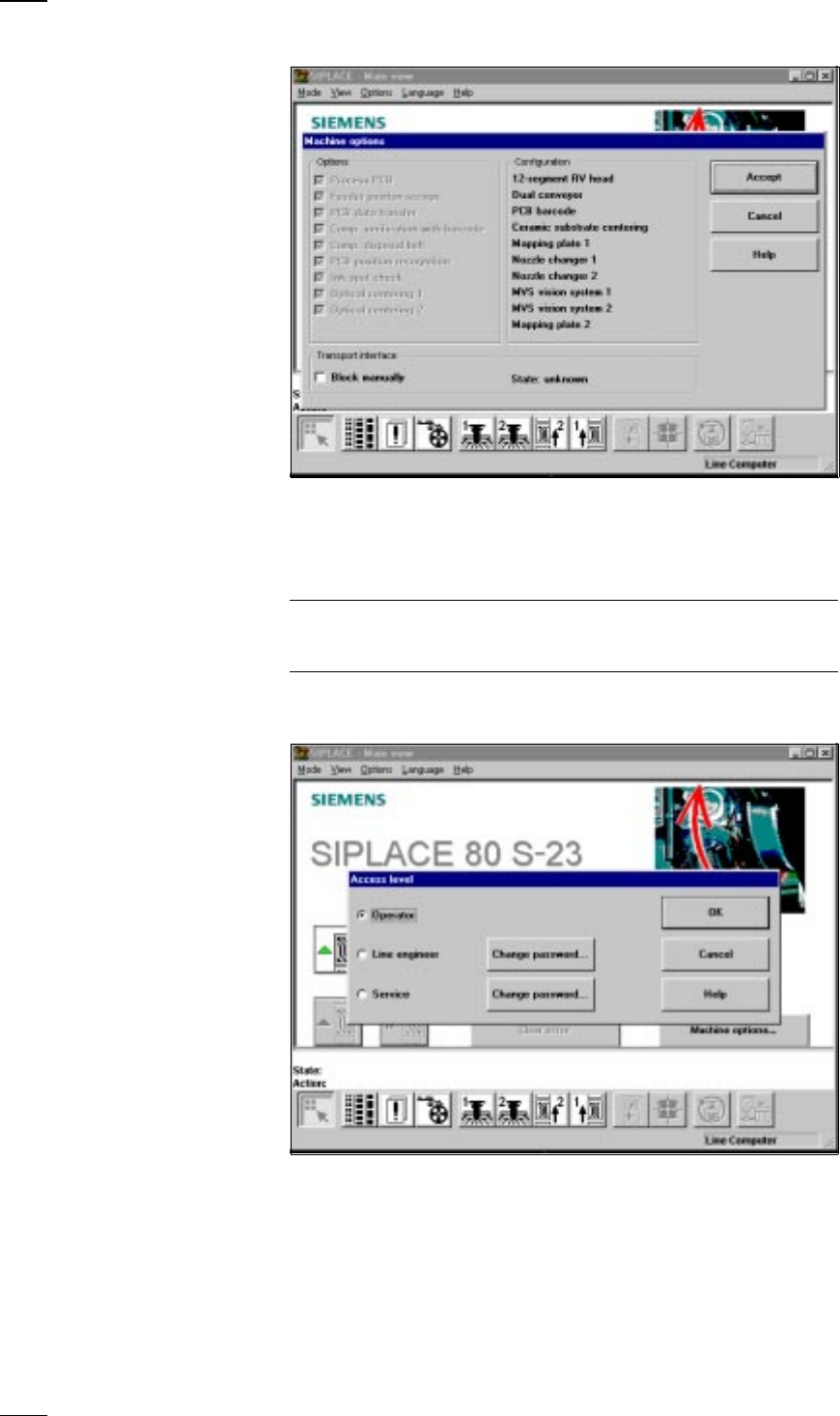
On-screen display - control box
In the control box you can activate or deactivate options. Activated options
are indicated by crosses in the check boxes. You can activate or deacti-
vate options by clicking on the check box with the mouse pointer. Click on
Accept to save the settings you have selected or discard them by pressing
Cancel. Click on the Help button to activate on-line help.
Please note, that you will need the line engineer access authorization for
certain options and that these options can only be activated or deactivated
by persons with that authorization.
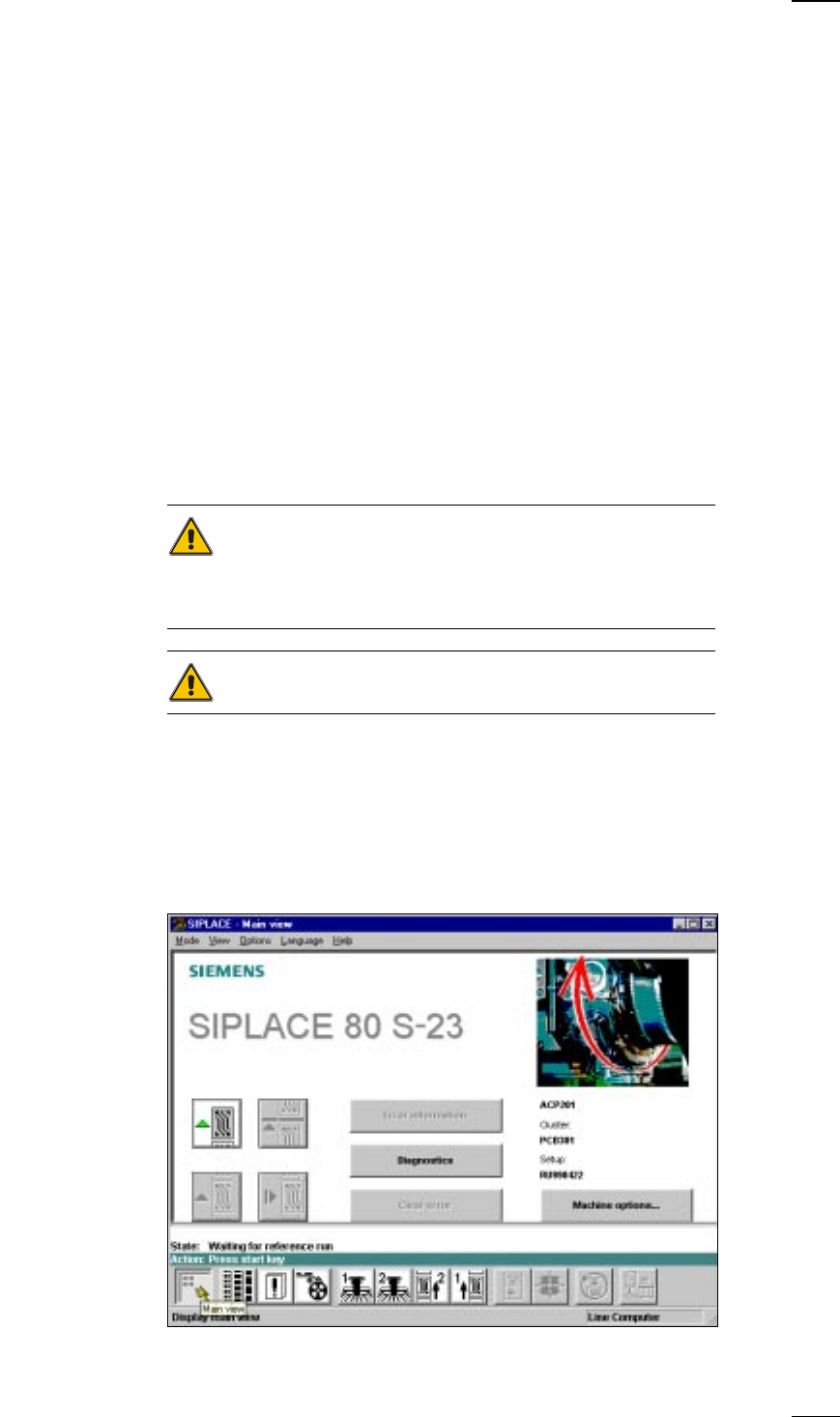
On-screen display - selection box
● Click on the option you want and confirm your choice by pressing OK. You
can discard your choice by clicking on Cancel. Click on the Help button to
activate on-line help.
15
Switching on the SIPLACE line
Switching on the line computer
● Switch on the uninterruptible power supply (UPS).
The line computer software is uploaded.
The login dialog window appears on the screen after approximately 2 min-
utes.
● Enter
plr
in the "login" box and confirm your entry by pressing the
RETURN key.
● Enter the password in the "Password" box and press the RETURN key. If
no password is required, then just press the RETURN key.
The desktop (starting window) will appear on screen after approximately 3
minutes with the overlying login box.
● Enter the user name defined for your user account in the "User" box, and
enter the corresponding password in the "Password" box.
● Click on Ok to confirm. The functions of the line computer program can
now be executed according to your access rights.
Starting the stations
ATTENTION
Do not switch on the stations and peripherals until the Desktop menu is
displayed on the monitor of the line computer. Failure to observe this may
result in communications problems.
Before you switch on the machine ...
● Carry out a visual inspection of the machine. In particular make sure that
there are no obstacles within the range of movement of the gantries.
● Make sure that the z axes of all heads are in their top end positions.
● Check that the power and compressed air supplies are connected.
● Switch on the machine at the main switch. With the line computer con-
nected and provided there are no communication problems the main
menu for the user class Operator will appear.