SOM-1747-003.pdf - 第15页
14 Tg0969-PM-SO 0310-001 5.1 "Save / Load" T ab (4) Press the [SA VE AS >>] button. The following "Confirmation" dialog box opens. Fig. 8 "Confirmation" Dialog Box for Confirmation to …
13 Tg0969-PM-SO0310-001
5.1 "Save / Load" Tab
• How to save the data files (stored in the hard disk of the ma-
chine) on a floppy disk
Save Operation
(1) Insert a 3.5-inch floppy disk (formatted) into the drive of the front
service panel.
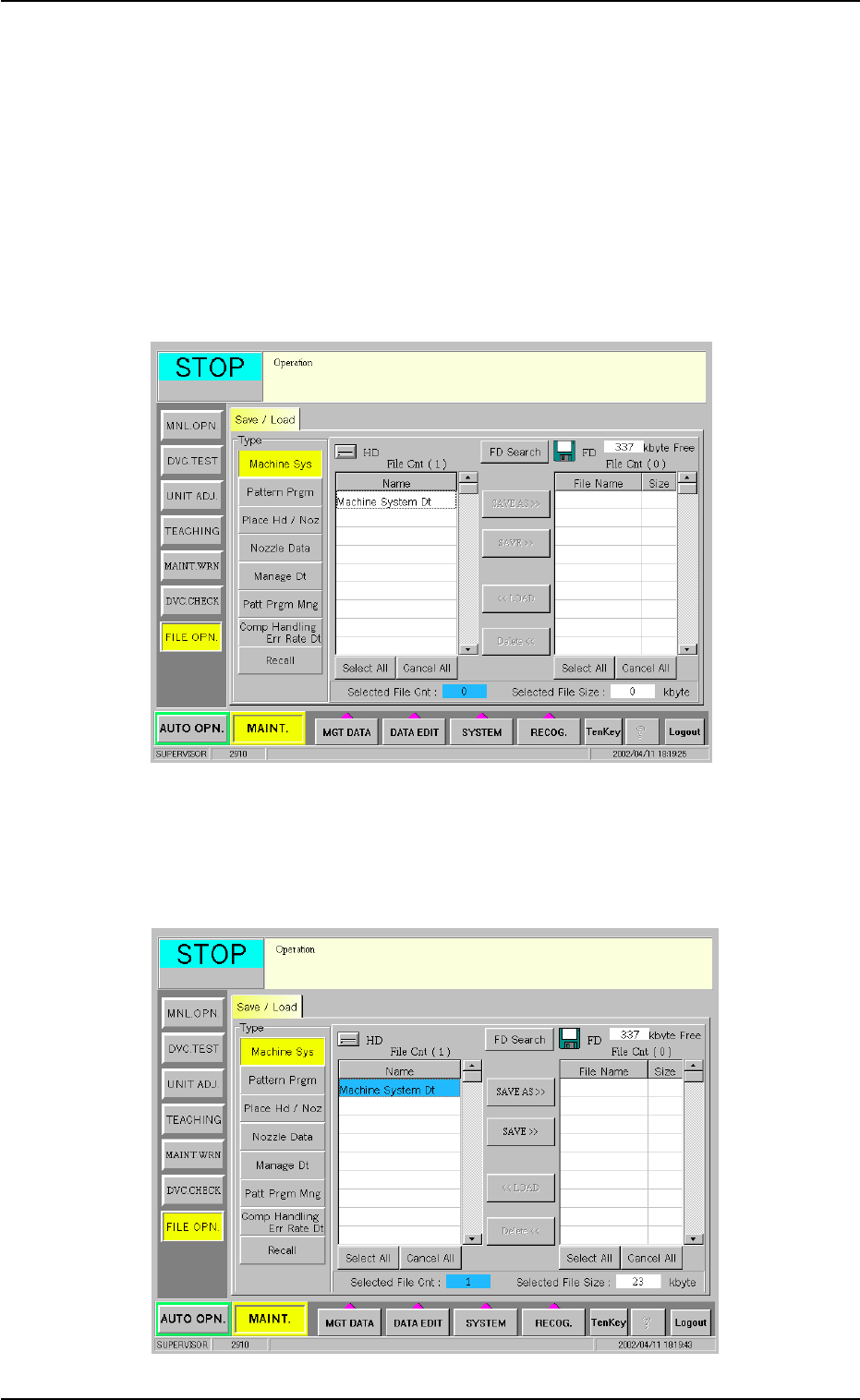
(2) Press the desired data type button to specify the type of the data to
be loaded.
The data files of the selected type (stored in the hard disk of the
machine) are displayed in the "List of Files on Hard Disk" pane.
Fig. 6 Selection of Data Type
(3) Select the data files to be saved on the floppy disk from the "List of
Files on Hard Disk" pane.
The selected lines of files turn sky blue.
Fig. 7 Selection of Files Saved
14 Tg0969-PM-SO0310-001
5.1 "Save / Load" Tab
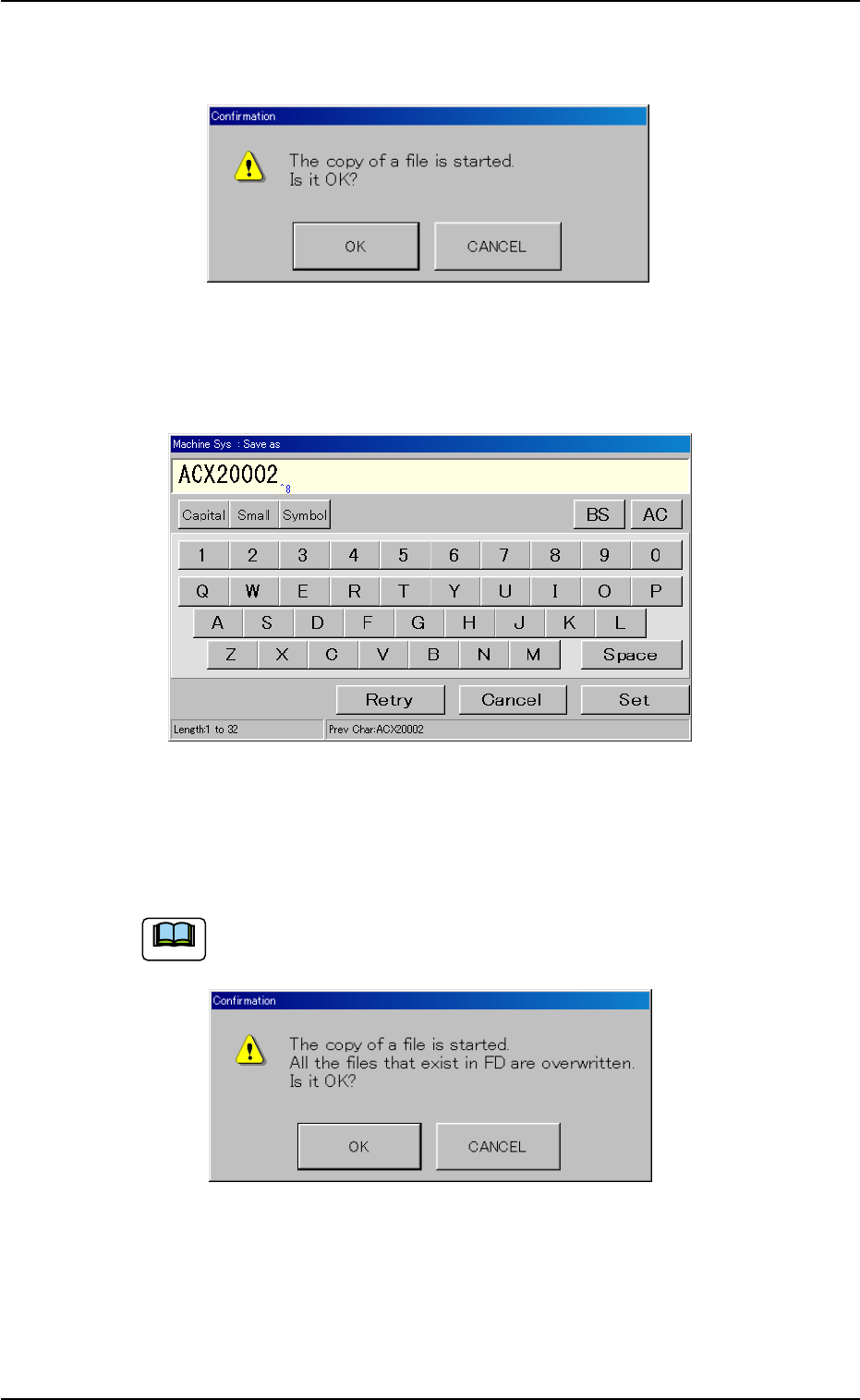
(4) Press the [SAVE AS >>] button.
The following "Confirmation" dialog box opens.
Fig. 8 "Confirmation" Dialog Box for Confirmation to Data Saving
(5) Press the [OK] button.
"Machine Sys : Save as" edit window opens.
Fig. 9 "Machine Sys : Save as" Edit Window
(6) Enter a file name and press the [Set] button.
The data is saved.
When the [SAVE >>] button is pressed in Step (3), the following
"Confirmation" dialog box opens.
Fig. 10 "Confirmation" Dialog Box for Confirmation to Overwriting
When the [OK] button is pressed, the file having the same name on
the floppy disk is replaced with the newly saved one.
Note
15 Tg0969-PM-SO0310-001
5.1 "Save / Load" Tab
• How to load the data from the floppy disk to the hard disk of the
machine
Loading Procedure
(1) Insert the floppy disk (the disk where the data is saved) into the
drive of the front service panel.
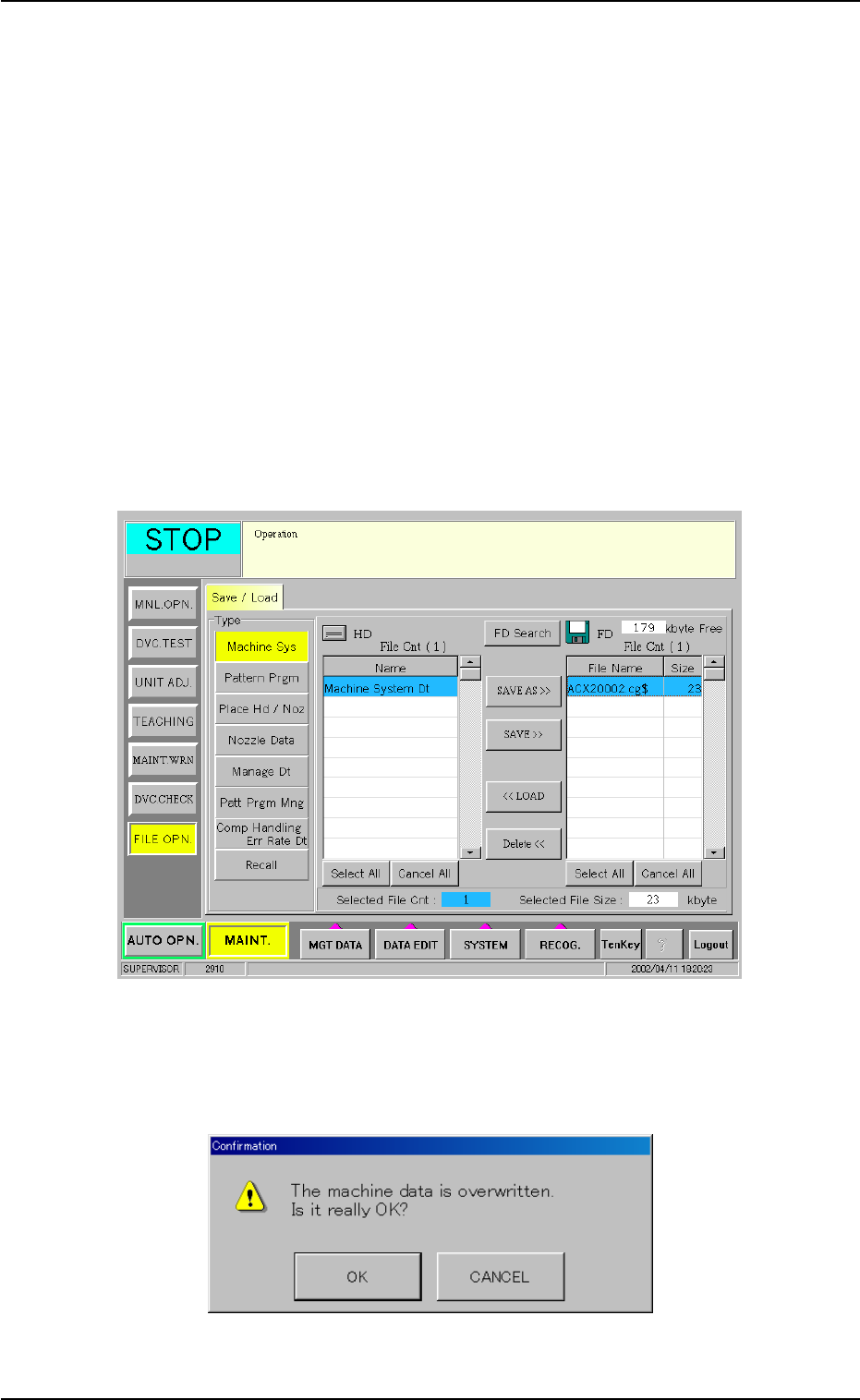
(2) Press the desired data type button and select the files to be loaded.
(3) Press the [FD Search] button.
The names of the selected files are displayed in the "List of Files on
Floppy Disk" pane.
(4) Select the files of data to be loaded to the hard disk of the machine.
The selected lines of files turn sky blue.
Fig. 11 Selection of Data (to be loaded to the hard disk of the machine)
(5) When the [<< LOAD] button is pressed, the following "Confirma-
tion" dialog box opens.
Fig. 12 "Confirmation" Dialog Box for Confirmation to Loading