00197185-02_IM_Required_Steps_before_using_Support_Media_EN.pdf - 第14页
Required Steps bef ore us ing Su pport Me dia 07/2013 E dit ion 14 Figure 3-9 : Summarized changes – before reboot ► Click the Close b utton. The Oper ating S ystem now reques ts a r estart. Figure 3- 10 : OS requests re…
Required Steps before using Support Media 07/2013 Edition
13
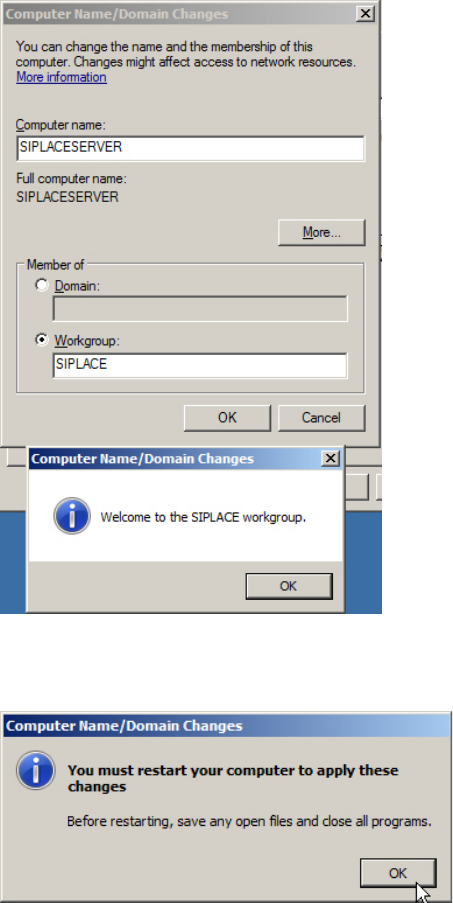
If you changed the Workgroup, a welcome message like the following will appear.
Figure 3-7: Workgroup welcome message
After changing the settings, the Operating System will request a reboot.
Figure 3-8: OS requests restart after changing settings
► Click the OK button.
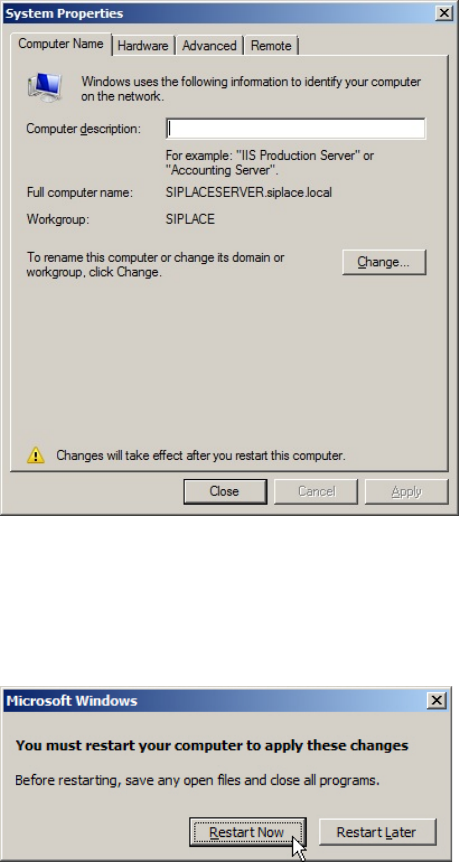
Your changes will be summarized.
Required Steps before using Support Media 07/2013 Edition
14
Figure 3-9: Summarized changes – before reboot
► Click the Close button.
The Operating System now requests a restart.
Figure 3-10: OS requests restart
► Click Restart Now to restart the computer.
Required Steps before using Support Media 07/2013 Edition
15
4 Verify/Rename LAN Connections
For better transparency, it is strongly recommended to rename the LAN Connections of the system
to indicate their use.
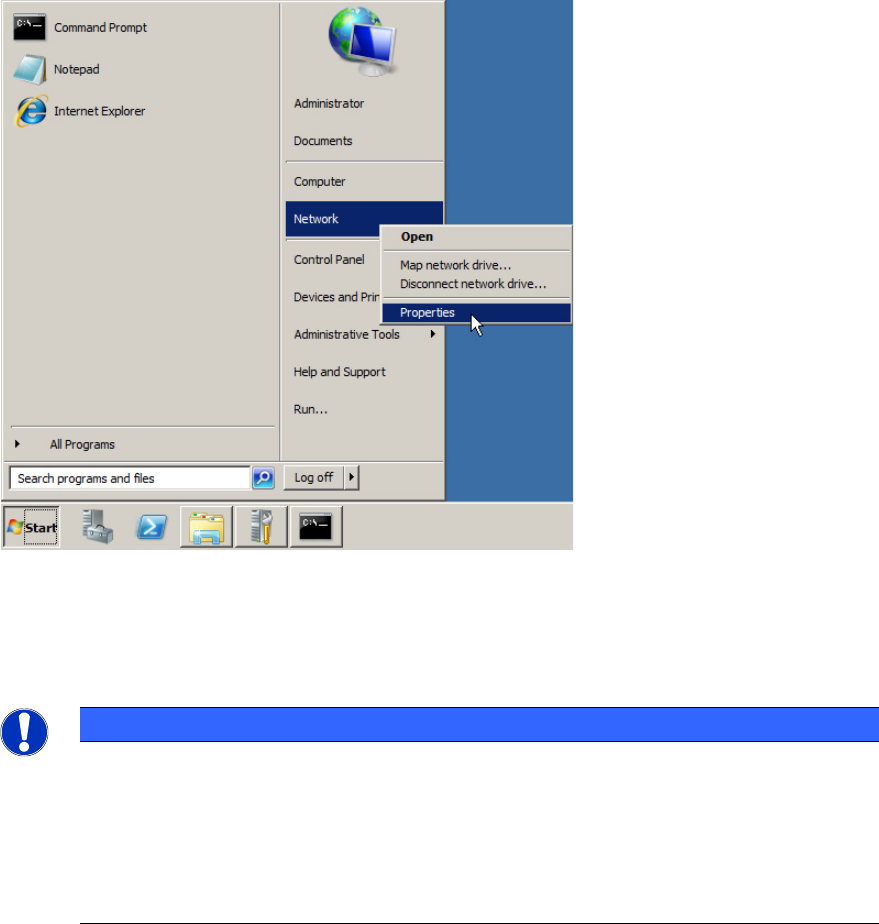
Figure 4-1: Opening Network Settings
► Click on Start.
► Right-click on Network and select Properties.
NOTICE
Alternative Ways to Network Settings
On Operating Systems newer than Windows Server 2003, if you can’t find the Network
entry, click on Control Panel instead and browse to Network and Internet – Network and
Sharing Center.
On older Operating Systems, if you don’t have such an entry, search for the My Network
Places icon on the Desktop instead, right-click on it and select Properties.