00197185-02_IM_Required_Steps_before_using_Support_Media_EN.pdf - 第15页
Required Steps bef ore us ing Su pport Me dia 07/2013 E dit ion 15 4 Ver ify/R ename LA N Connection s For better transpar enc y, it is strongl y recomm ended to renam e the LAN C onnec tions of the s ystem to indica te …
Required Steps before using Support Media 07/2013 Edition
14
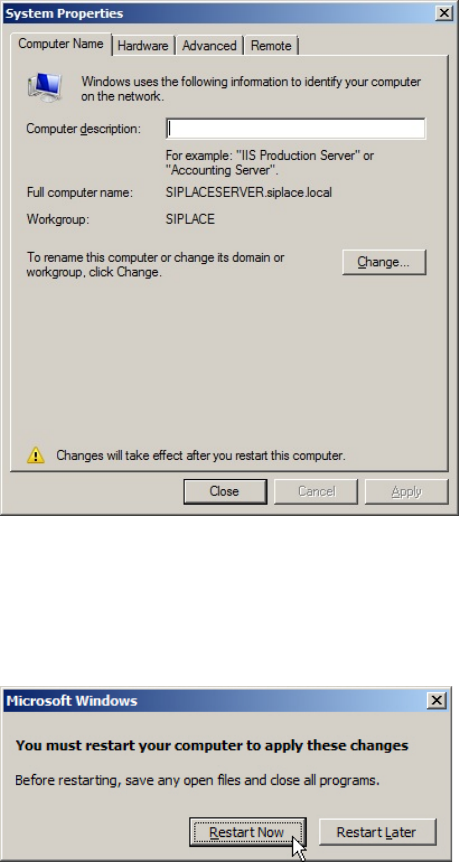
Figure 3-9: Summarized changes – before reboot
► Click the Close button.
The Operating System now requests a restart.
Figure 3-10: OS requests restart
► Click Restart Now to restart the computer.
Required Steps before using Support Media 07/2013 Edition
15
4 Verify/Rename LAN Connections
For better transparency, it is strongly recommended to rename the LAN Connections of the system
to indicate their use.
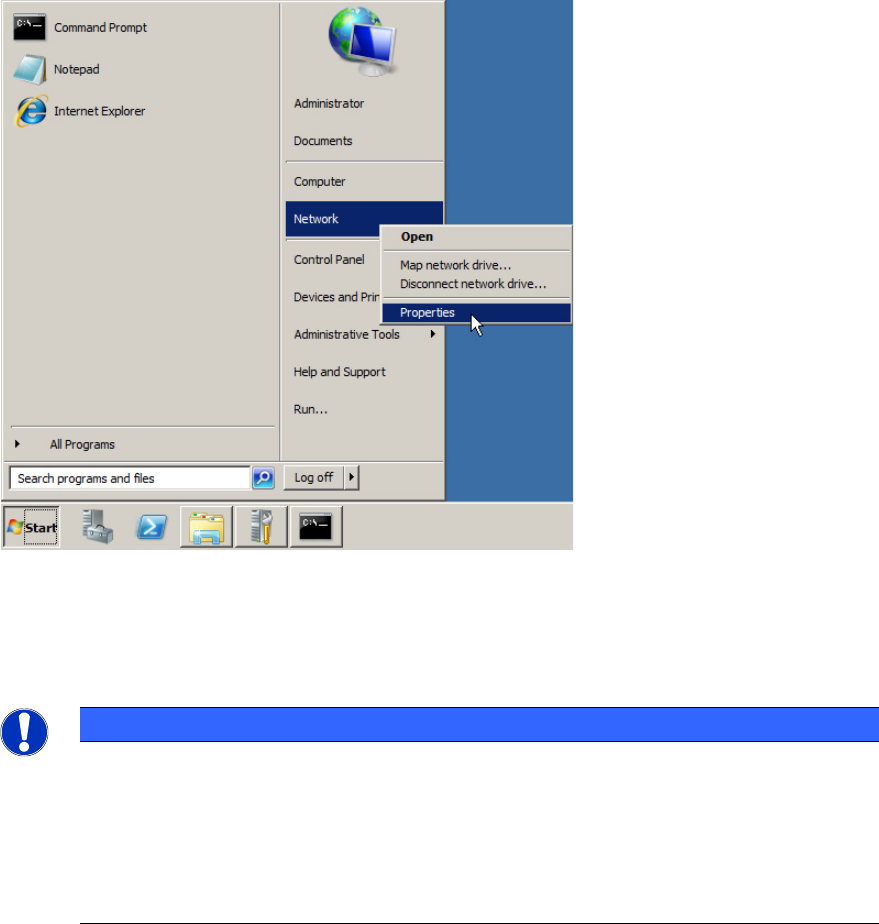
Figure 4-1: Opening Network Settings
► Click on Start.
► Right-click on Network and select Properties.
NOTICE
Alternative Ways to Network Settings
On Operating Systems newer than Windows Server 2003, if you can’t find the Network
entry, click on Control Panel instead and browse to Network and Internet – Network and
Sharing Center.
On older Operating Systems, if you don’t have such an entry, search for the My Network
Places icon on the Desktop instead, right-click on it and select Properties.
Required Steps before using Support Media 07/2013 Edition
16
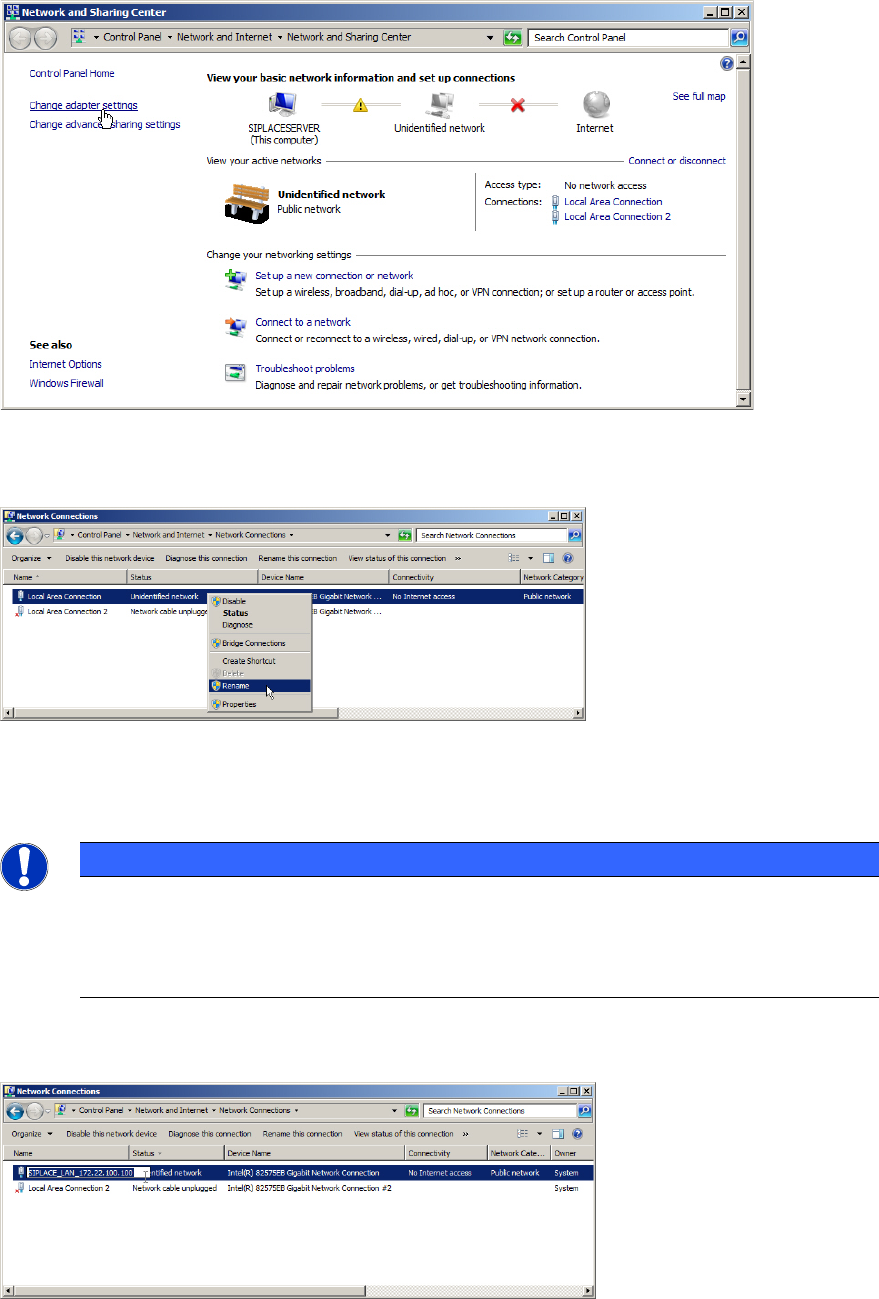
On newer Operating Systems, the following window appears.
Figure 4-2: Network and Sharing Center – clicking Change adapter settings
► Click on Change adapter settings to view the network adapters.
Figure 4-3: Renaming Connection step 1
► Select the appropriate adapter entry.
NOTICE
Identifying each Adapter
If you need help in identifying each adapter, you may try only connecting the network
cable to one adapter at once and verifying the status of each adapter to identify the
connected one.
► Right-click the appropriate entry and select Rename.
Figure 4-4: Renaming Connection step 2
► Use an appropriate name for the connection, e.g. SIPLACE_LAN_<IP-Address>.