00197185-02_IM_Required_Steps_before_using_Support_Media_EN.pdf - 第24页
Required Steps bef ore us ing Su pport Me dia 07/2013 E dit ion 24 ► Enter the appropr iate p assword f or the account m eeti ng the d efined com plexit y. Ple ase ref er to the technic al inf orm ation TI2008 - 04V 08 f…
Required Steps before using Support Media 07/2013 Edition
23
NOTICE
Computer Management on older Operating Systems
If you can’t find the Computer entry in the start menu, you may use the Icon My
Computer on the Desktop instead.
The Computer Management / Server Manager window opens.
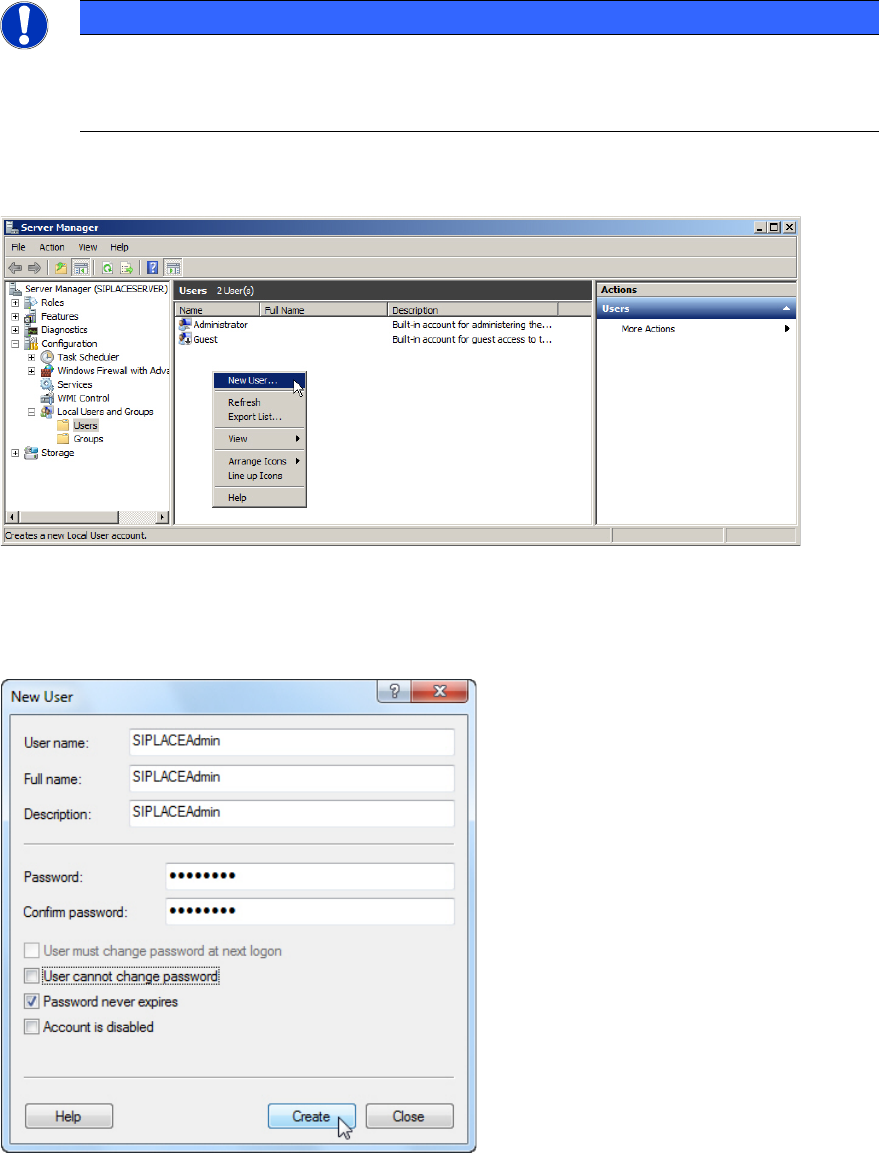
Figure 6-7: Creating SIPLACEAdmin account
► Navigate through Configuration (or System) – Local Users and Groups – Users.
► Right-click on an empty space in the list of accounts and select New User…
Figure 6-8: Creating SIPLACEAdmin account
► Enter SIPLACEAdmin for the User name, Full name and Description.
► Uncheck the checkbox besides User must change password at next logon.
► Ensure that the checkbox besides Password never expires is selected.
Required Steps before using Support Media 07/2013 Edition
24
► Enter the appropriate password for the account meeting the defined complexity. Please refer to
the technical information TI2008-04V08 for service technicians to determine the password to be
set for the SIPLACEAdmin account.
► Click on Create.
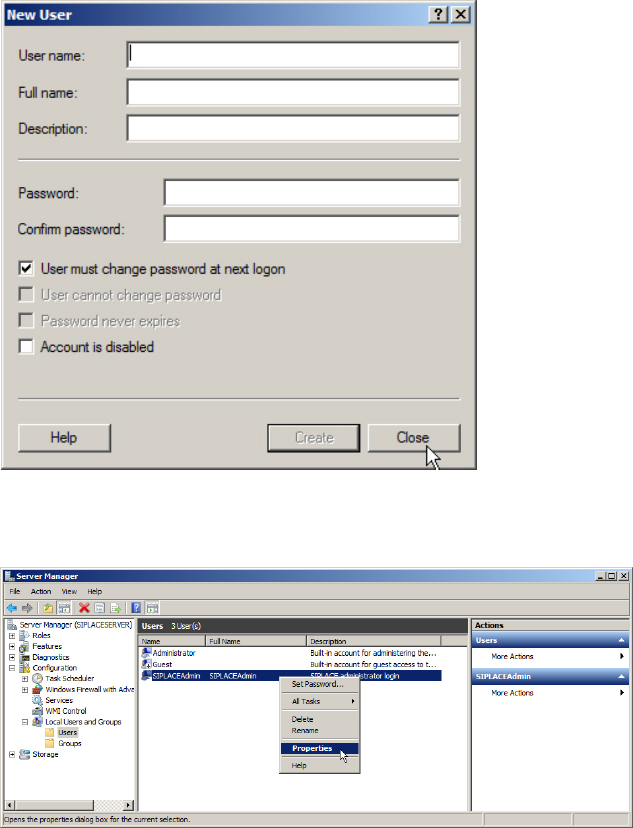
Figure 6-9: New window for account creation
► Close the account creation window by clicking on Close.
Figure 6-10: Server Manager – Selecting Properties of SIPLACEAdmin account
► In the Server Manager / Computer Management, select the SIPLACEAdmin account, right-
click on it and select Properties.
Required Steps before using Support Media 07/2013 Edition
25
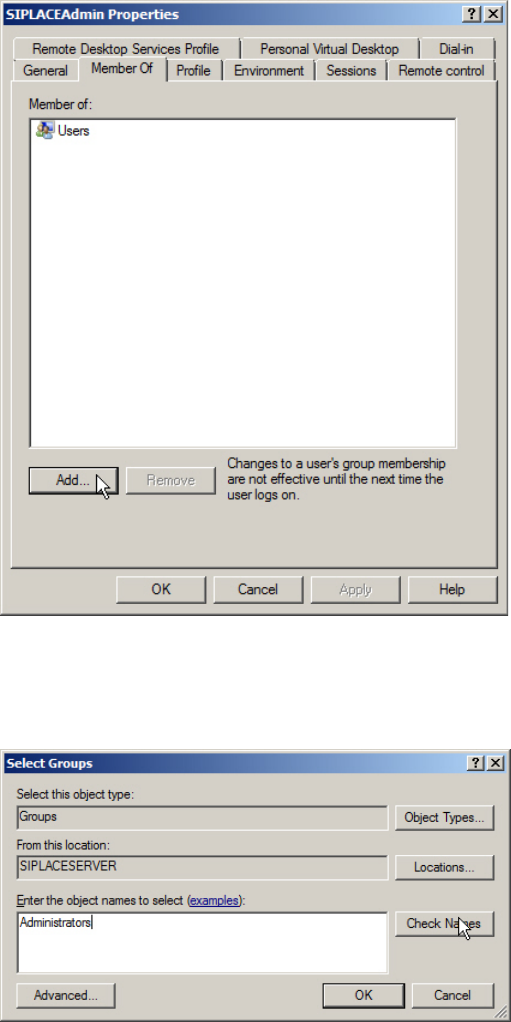
Figure 6-11: SIPLACEAdmin account properties – Member Of tab
► Switch to the Member Of tab.
► Click Add….
Figure 6-12: Adding Administrators group
► In the Select Groups window, enter the name of the Administrators group and click Check
Names.