00197185-02_IM_Required_Steps_before_using_Support_Media_EN.pdf - 第22页
Required Steps bef ore us ing Su pport Me dia 07/2013 E dit ion 22 ► Enter the pass wo rd a s econd t im e for c onfirmation a nd click the OK button . Figure 6-5 : Pas swo rd se t su cces sfully ► Click the OK button. 6…
Required Steps before using Support Media 07/2013 Edition
21
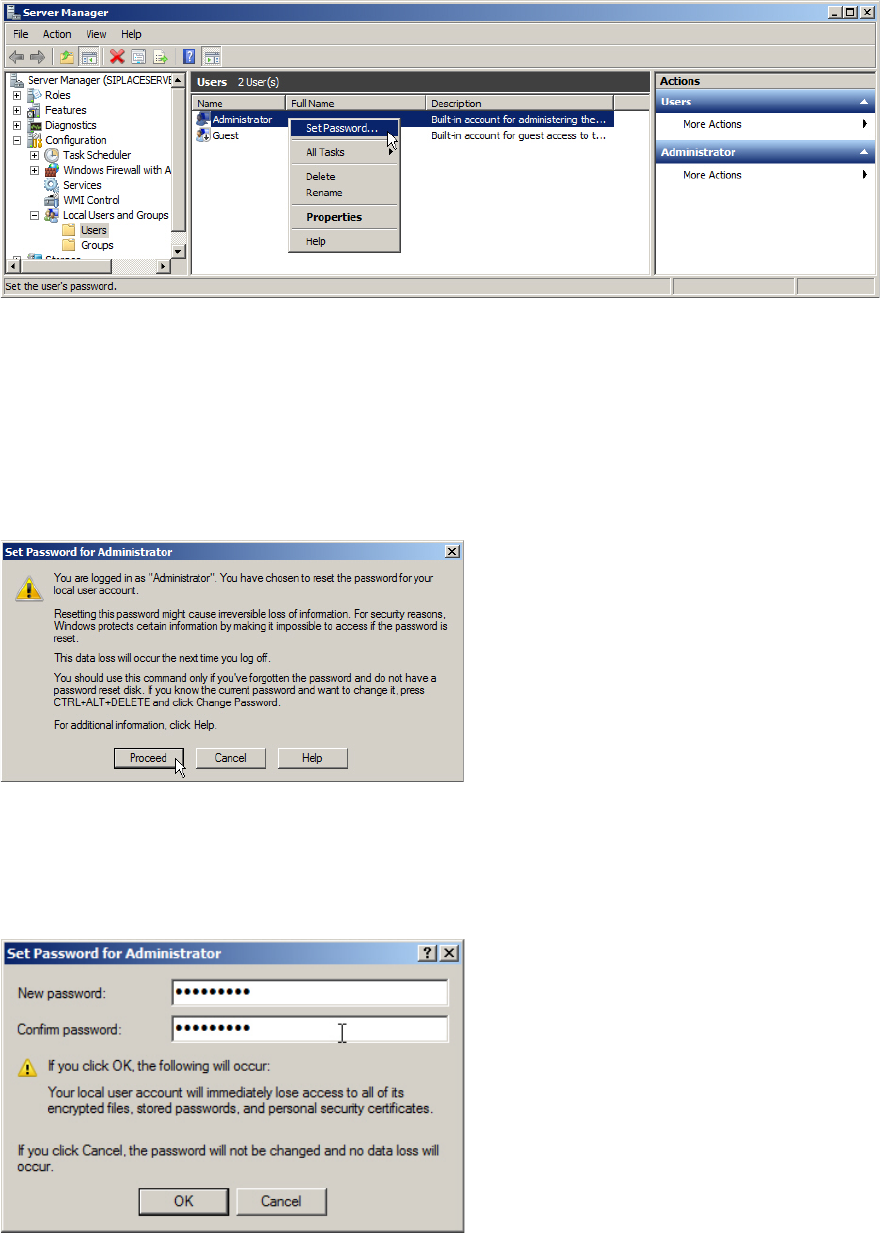
The Computer Management / Server Manager window opens.
Figure 6-2: Server Manager – resetting Administrator password
► Navigate through Configuration (or System) – Local Users and Groups – Users.
► Select the Administrator account.
► Right-click on it and select Set Password….
A warning message will appear.
Figure 6-3: Reset password warning
This message warns you for the case you have files encrypted with that account. These files won’t
be readable anymore if you reset the password.
► Click the Proceed button.
Figure 6-4: Set Password window
► Enter the proper password for the Administrator account. It depends on the password
complexity being set (see the chapter before). Please refer to the technical information TI2008-
04V08 for service technicians to determine the password to be set for the Administrator
account.
Required Steps before using Support Media 07/2013 Edition
22
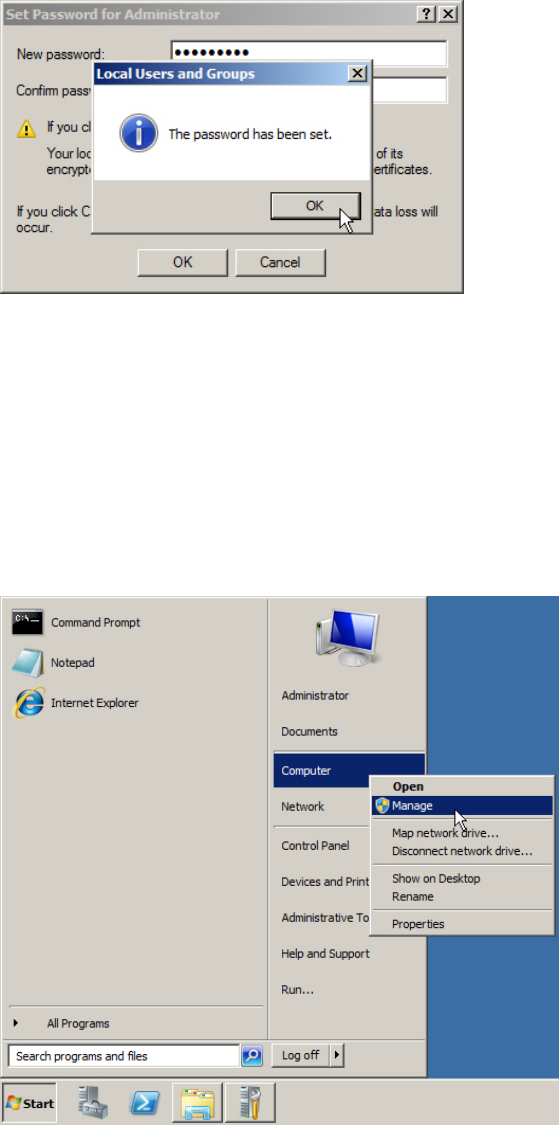
► Enter the password a second time for confirmation and click the OK button.
Figure 6-5: Password set successfully
► Click the OK button.
6.2 Create/Verify SIPLACEAdmin Account and Password
This chapter describes how to create the SIPLACEAdmin account. If you only require to set its
password, the basic steps are the same as already described for the Administrator account in the
previous chapter.
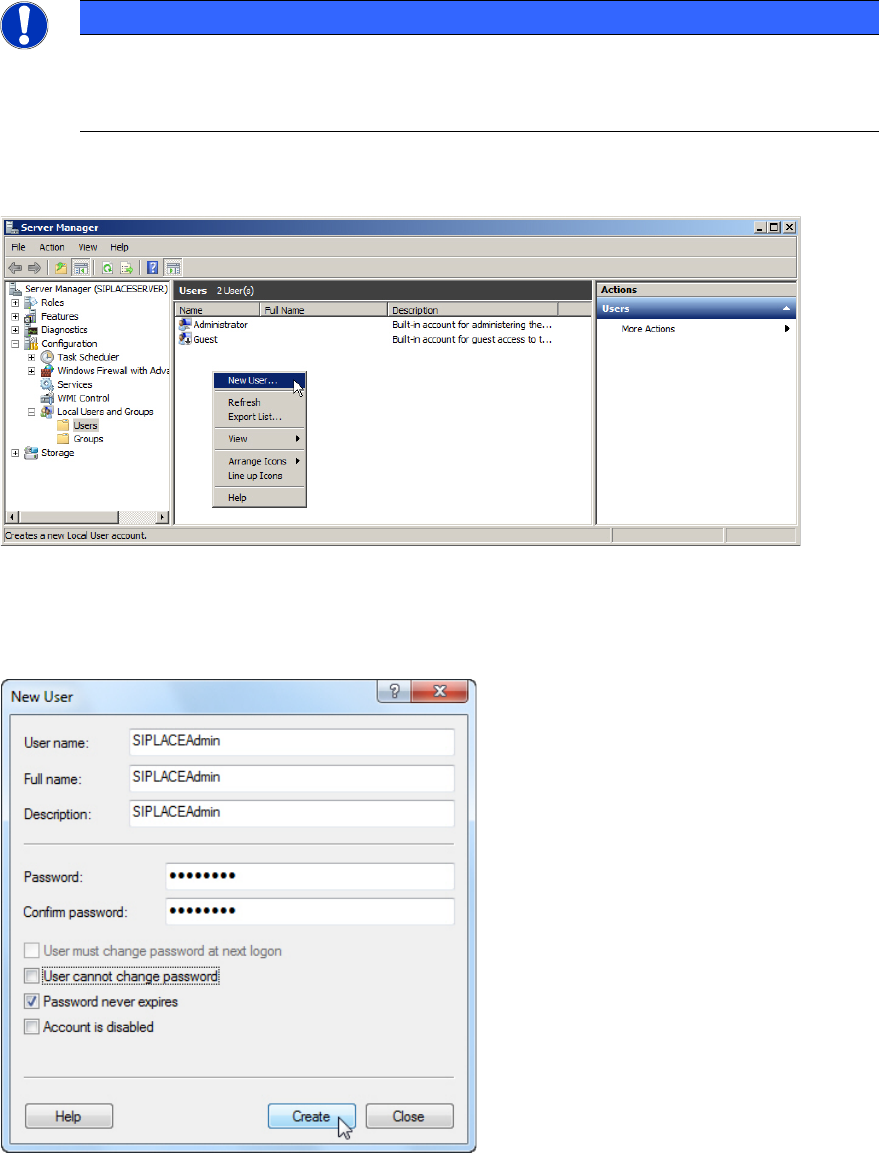
Figure 6-6: Starting Computer Management
► Click on Start.
► Right-click on Computer and select Manage.
Required Steps before using Support Media 07/2013 Edition
23
NOTICE
Computer Management on older Operating Systems
If you can’t find the Computer entry in the start menu, you may use the Icon My
Computer on the Desktop instead.
The Computer Management / Server Manager window opens.
Figure 6-7: Creating SIPLACEAdmin account
► Navigate through Configuration (or System) – Local Users and Groups – Users.
► Right-click on an empty space in the list of accounts and select New User…
Figure 6-8: Creating SIPLACEAdmin account
► Enter SIPLACEAdmin for the User name, Full name and Description.
► Uncheck the checkbox besides User must change password at next logon.
► Ensure that the checkbox besides Password never expires is selected.