00197185-02_IM_Required_Steps_before_using_Support_Media_EN.pdf - 第6页
Required Steps bef ore us ing Su pport Me dia 07/2013 E dit ion 6 2 General Notes 2.1 Ad ministrativ e Log in This doc um ent assum es you are logged in with a dminis trative perm iss ions and th eref ore are allowed to …

Required Steps before using Support Media 07/2013 Edition
5
1 Purpose
This manual describes the steps required right after Operating System installation of the SIPLACE
Line Computer.
CAUTION
The described Steps are required
Please ensure you’ve executed all the described steps immediately after Operating
System installation before proceeding with Support Media or other installations!
Required Steps before using Support Media 07/2013 Edition
6
2 General Notes
2.1 Administrative Login
This document assumes you are logged in with administrative permissions and therefore are
allowed to perform the changes described.
2.2 User Account Control on Vista and higher OS
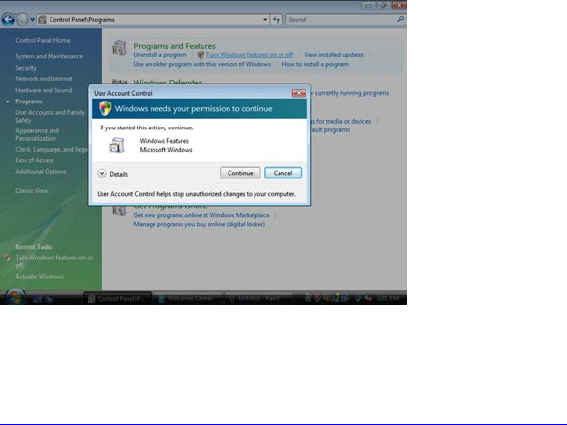
With Windows Vista there is a new feature called User Account Control introduced, which controls
access to functions that require permissions above the default user. If you see warning messages
between the described steps you have to acknowledge them before proceeding.
Figure 2-1: Vista User Account Control
More information on this feature:
http://technet.microsoft.com/en-us/windowsvista/aa905108.aspx
2.3 Differences between Windows Versions
For this documentation, Windows Server 2008 R2 / Windows 7 are used. In most cases, the basic
steps are very similar compared to other Windows versions. If a setting differs too much, we hint
you where to find it in other Windows versions.
2.3.1 Hints for the new UI in Windows 8 / Windows Server 2012
With Windows 8 and Windows Server 2012, Microsoft removed the Windows Start Menu button
and instead replaced it with a new designed tile view.
Required Steps before using Support Media 07/2013 Edition
7
This view can be reached by either pressing the Windows key or moving the mouse to the lower
left corner and clicking.
In general, the new looking tiles screen behaves similar to the previously known Windows Start
Menu:
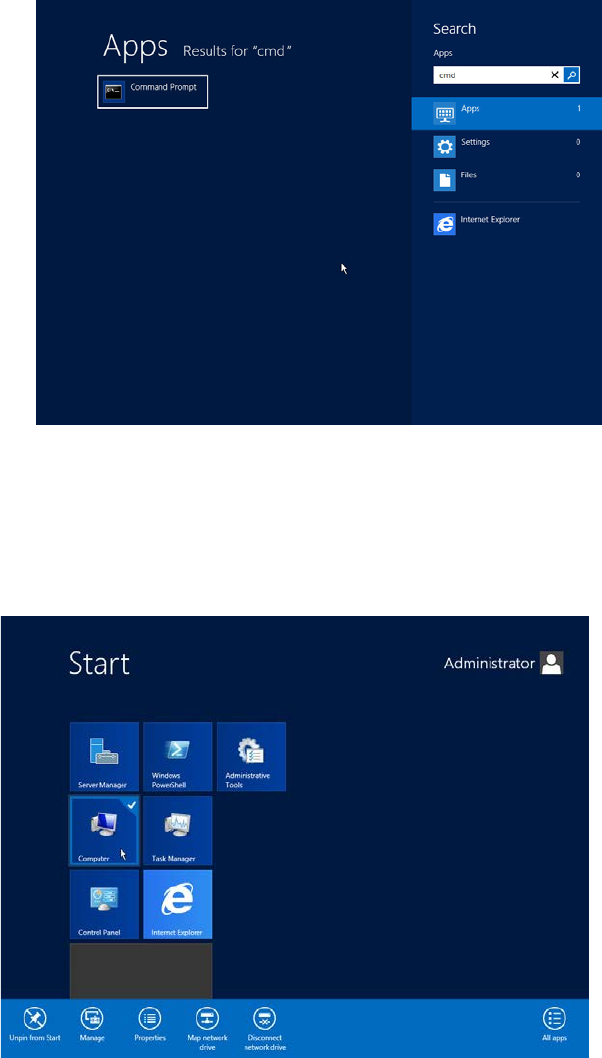
- If you begin entering words to search for, you will get a result view which is similar to
Windows 7.
- If you want a command to execute, enter it and hit ENTER or CTRL + SHIFT + ENTER to
execute the command either with normal or administrative permissions – similar to
Windows 7.
Figure 2-2: Example of entering a command to execute directly in the tiles view
- Some tiles also support context menu entries. If you right- click at them you will get a list of
options in the lower part of the screen. For example, you can still right- click at the
Computer tile and click “Properties” to see the System Settings Window.
Figure 2-3: Example of context menu entries of the Computer tile