00197185-02_IM_Required_Steps_before_using_Support_Media_EN.pdf - 第32页
Required Steps bef ore us ing Su pport Me dia 07/2013 E dit ion 32 Figure 8-1 : Calling Properti es of SIPLACE Pro directory ► Open a new W indows Explor er window and bro wse to your SIPLACE Pr o i nstall ation fold er …

Required Steps before using Support Media 07/2013 Edition
31
8 Hints and Troubleshooting
This chapter contains some important hints and troubleshooting tips.
NOTICE
Subject to change
This chapter may describe SIPLACE product-/version-specific behaviour which might
change in future versions.
8.1 Hints for Default SIPLACE Installations
For computers installed with SIPLACE-delivered default settings:
– The account to be used for administrative Tasks including installations is SIPLACEAdmin.
– When asked by SIPLACE Pro Setup, the account to be used for COM+Services is
SIPLACEServices.
– The non-administrative default account to be used is plr when using simple passwords or
siplace when using complex passwords.
– The default passwords for SIPLACE-created accounts are documented in the technical
information TI2008-04V08.
8.1.1 SIPLACE Pro Share Permissions
By default, SIPLACE Pro Setup creates a share in the folder where it has been installed (default:
%ProgramFiles%\SIPLACE\SIPLACE Pro). This share is required for the Client Installation to be
performed. Due to security restrictions (especially in domain environments), SIPLACE Pro Setup
doesn’t automatically set permissions to this share.
For default SIPLACE installations, we recommend adding the SIPLACEAdmin account to the share
permissions as described in this chapter. Also refer to the installation documentation of SIPLACE
Pro.
Required Steps before using Support Media 07/2013 Edition
32
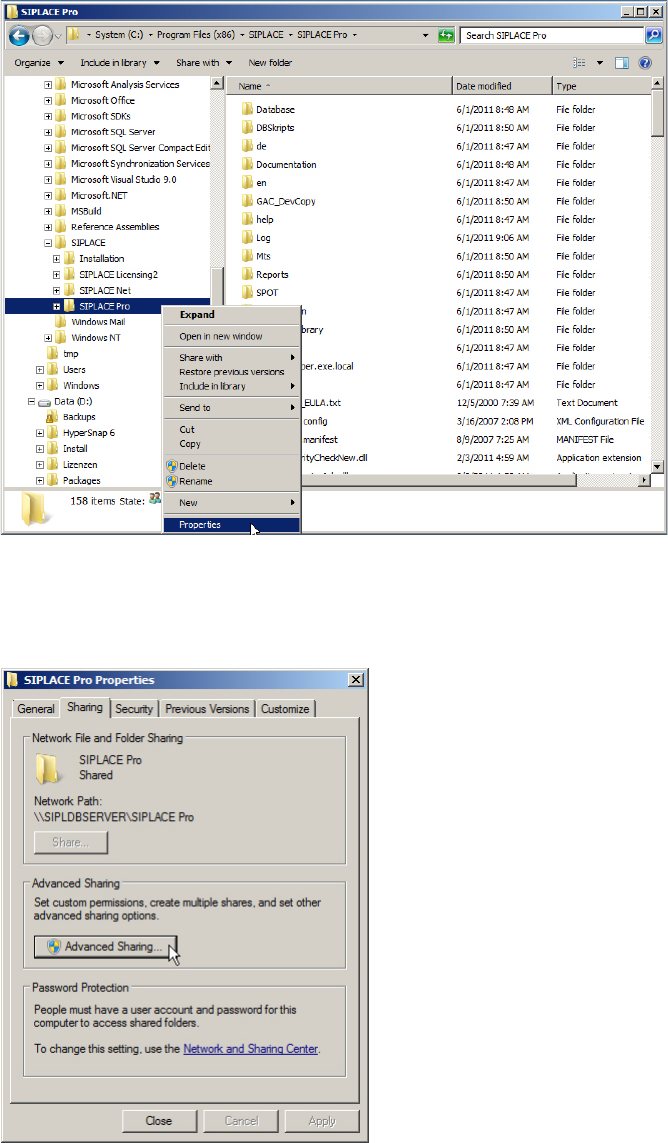
Figure 8-1: Calling Properties of SIPLACE Pro directory
► Open a new Windows Explorer window and browse to your SIPLACE Pro installation folder
► Right-click the SIPLACE Pro folder and select Properties.
Figure 8-2: Sharing Properties of SIPLACE Pro folder
► Select the Sharing tab.
► On newer Operating Systems, you may have to click at Advanced Sharing… to access the
share permissions.
Required Steps before using Support Media 07/2013 Edition
33
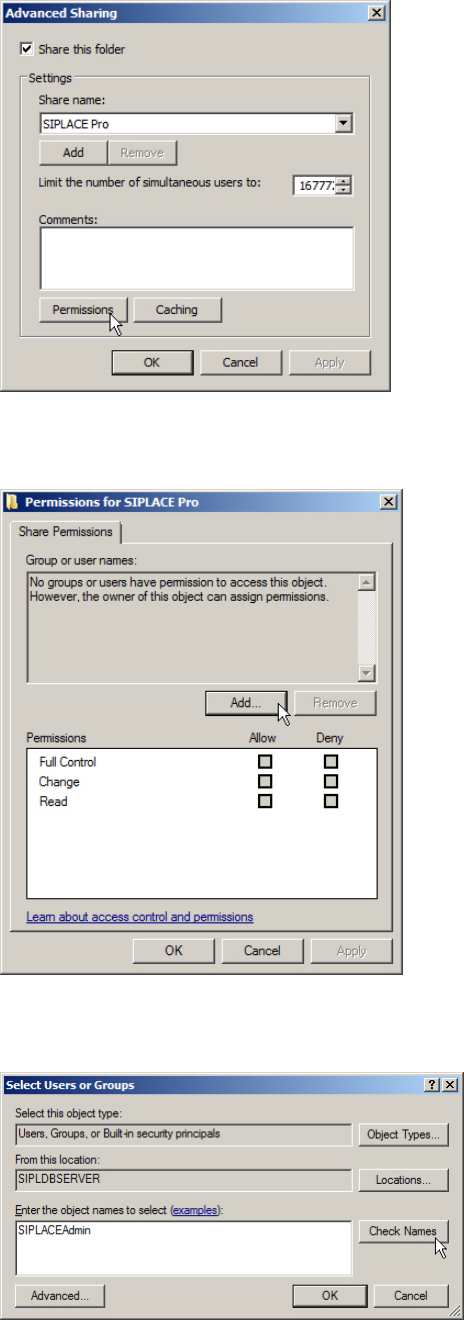
Figure 8-3: Calling SIPLACE Pro Share Permissions
► Click the Permissions button to access share permissions.
Figure 8-4: Adding Share permissions
► Click the Add… button.
Figure 8-5: Adding SIPLACEAdmin account permissions
► Enter the SIPLACEAdmin account.
► Click on Check Names.