00197185-02_IM_Required_Steps_before_using_Support_Media_EN.pdf - 第38页
Required Steps bef ore us ing Su pport Me dia 07/2013 E dit ion 38 The wind ow sho uld look like the followin g. Figure 8- 10 : Network Connections window wi th ALT key pressed and “Advanced” selected ► Click the item Ad…
Required Steps before using Support Media 07/2013 Edition
37
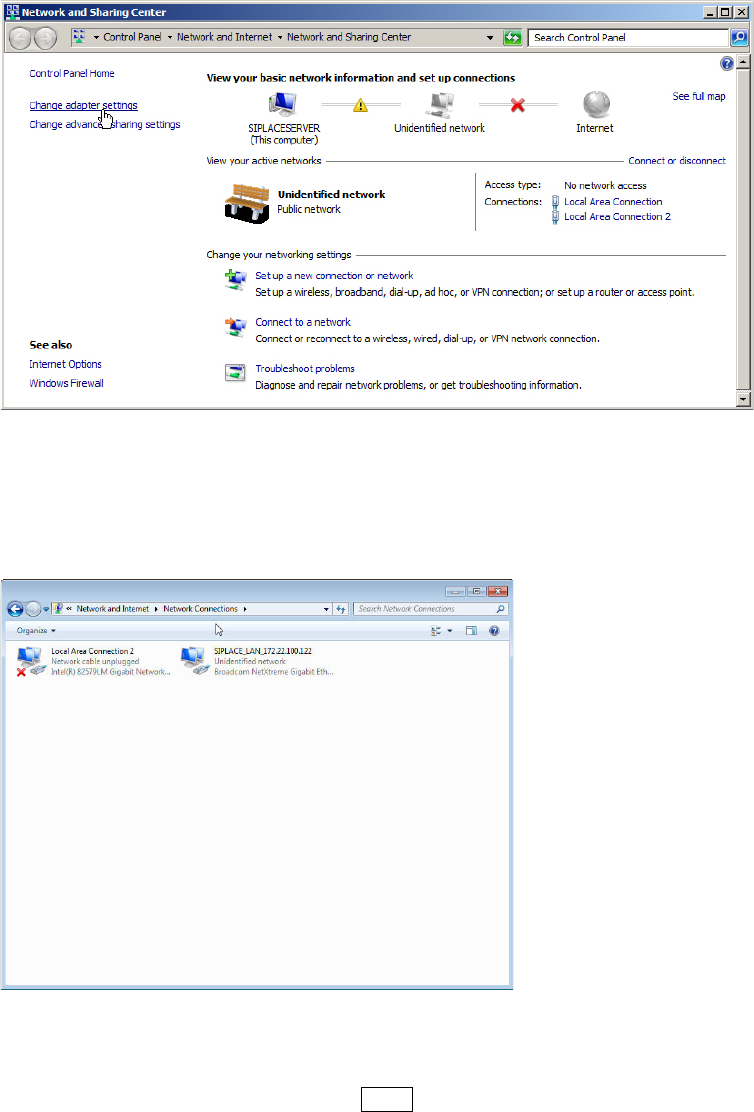
On newer Operating Systems, the following window appears.
Figure 8-8: Network and Sharing Center – clicking Change adapter settings
► Click on Change adapter settings to view the network adapters.
The following window appears.
Figure 8-9: Network Connections window
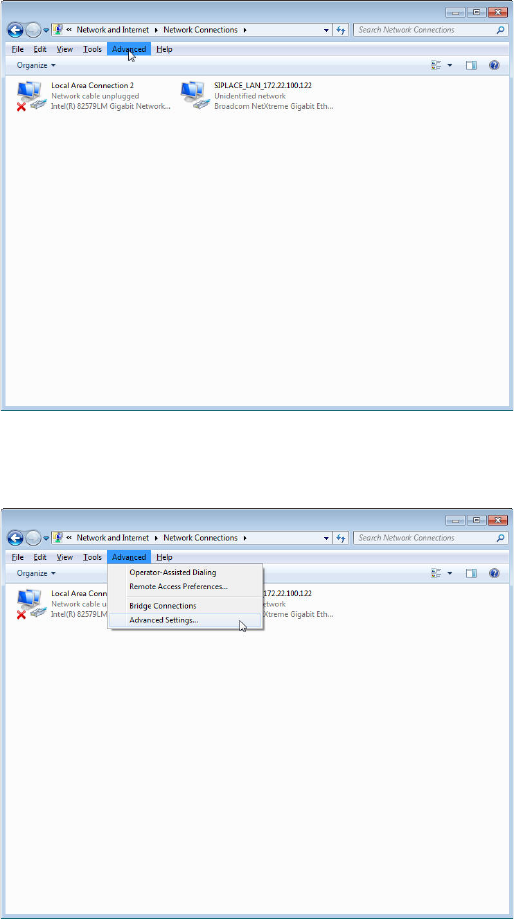
On newer Operating Systems, the menu bar with options like File, Edit, etc. is missing.
► If the menu bar is missing, press the ALT key to display it again.
Required Steps before using Support Media 07/2013 Edition
38
The window should look like the following.
Figure 8-10: Network Connections window with ALT key pressed and “Advanced” selected
► Click the item Advanced in the menu bar.
Figure 8-11: Selecting Advanced Settings from Network Connections
► Click the Advanced Settings… option.
Required Steps before using Support Media 07/2013 Edition
39
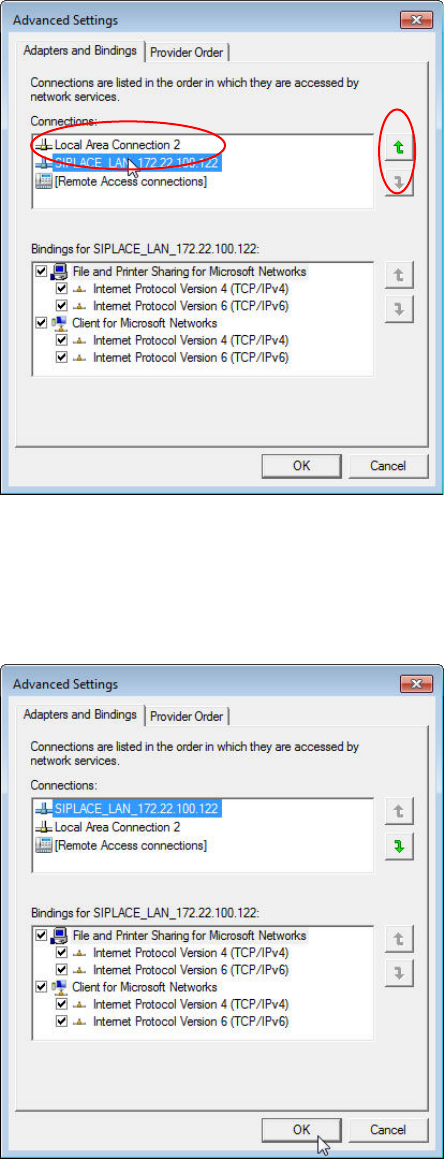
A window similar to the following opens.
Figure 8-12: Advanced Network Settings with SIPLACE_LAN network connection selected
► In the upper area, select the network connection for which you want to change the order.
► Click the appropriate arrow button to move the connection up/down in the order.
Figure 8-13: Advanced Network Settings with Network Connections order changed
► After you’ve changed the order complying with your wishes, click the OK button to apply the
setting.