00197185-02_IM_Required_Steps_before_using_Support_Media_EN.pdf - 第8页
Required Steps bef ore us ing Su pport Me dia 07/2013 E dit ion 8 Some addi tiona l tips to handle t he new interf ace: - Right - click in an em pt y area on the tiles sc reen to s how the “ All a pps” entr y. If you cho…
Required Steps before using Support Media 07/2013 Edition
7
This view can be reached by either pressing the Windows key or moving the mouse to the lower
left corner and clicking.
In general, the new looking tiles screen behaves similar to the previously known Windows Start
Menu:
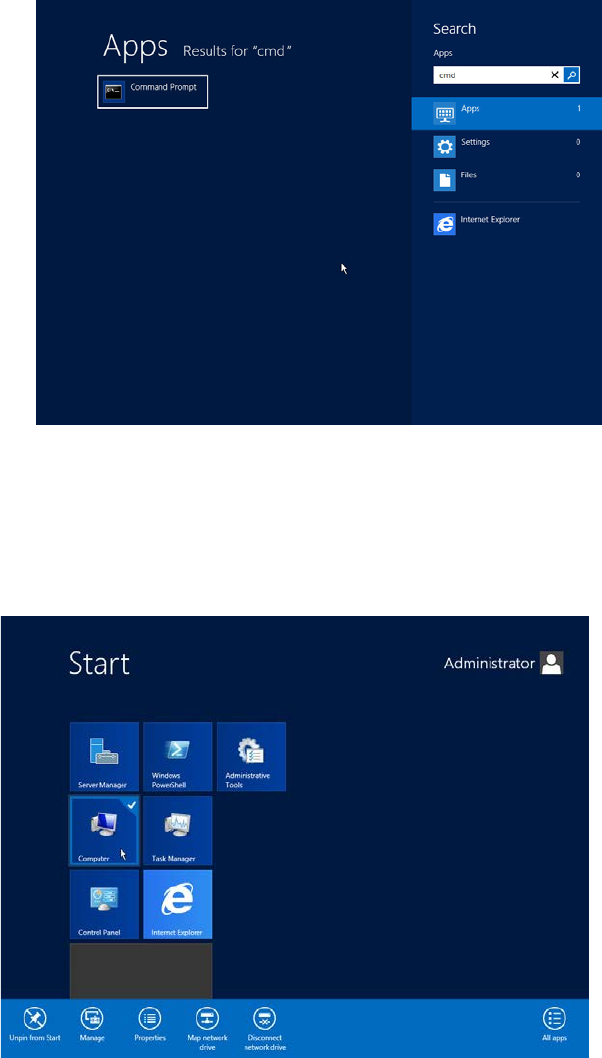
- If you begin entering words to search for, you will get a result view which is similar to
Windows 7.
- If you want a command to execute, enter it and hit ENTER or CTRL + SHIFT + ENTER to
execute the command either with normal or administrative permissions – similar to
Windows 7.
Figure 2-2: Example of entering a command to execute directly in the tiles view
- Some tiles also support context menu entries. If you right- click at them you will get a list of
options in the lower part of the screen. For example, you can still right- click at the
Computer tile and click “Properties” to see the System Settings Window.
Figure 2-3: Example of context menu entries of the Computer tile
Required Steps before using Support Media 07/2013 Edition
8
Some additional tips to handle the new interface:
- Right- click in an empty area on the tiles screen to show the “All apps” entry. If you choose
it, you will get all the Start Menu entries shown which in fact is very similar to the classic
Start Menu.
- To switch to the Windows Desktop, either click the appropriate tile or hit Windows + D.
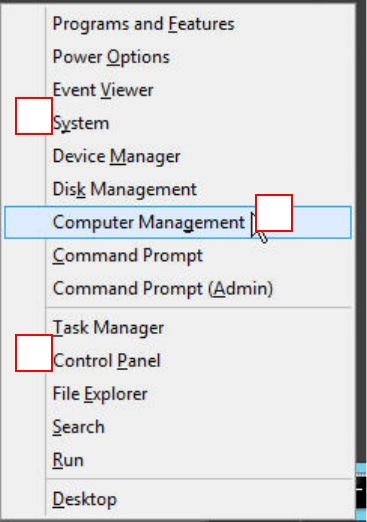
- Hit Windows + X to open a small menu with shortcuts to often needed options (Computer
Management, Control Panel, System Settings).
Figure 2-4: Menu on Windows Server 2012 after hitting Windows + X
1) Opens Computer Management (allows user account management, disk storage
management, stc.)
2) Opens the System Settings window. Entry point for global settings and shortcuts like
Device Manager, Computer Name and Workgroup configuration, etc.
3) Shortcut to the Control Panel
1
2
3
Required Steps before using Support Media 07/2013 Edition
9
3 Verify/Change Computer Name and Workgroup
Before installation of any additional products, it is required to check the Computer name and the
Workgroup setting of the Line Computer.
CAUTION
Renaming Computer Name causes Errors
Some products, like Microsoft SQL Server, depend strictly on the Computer Name.
Renaming the Computer Name after installation of SQL Server causes it to stop working
correctly if you don’t fix the dependent entries. Therefore, we recommend deciding for
the final Computer Name before installing SQL Server and other products.
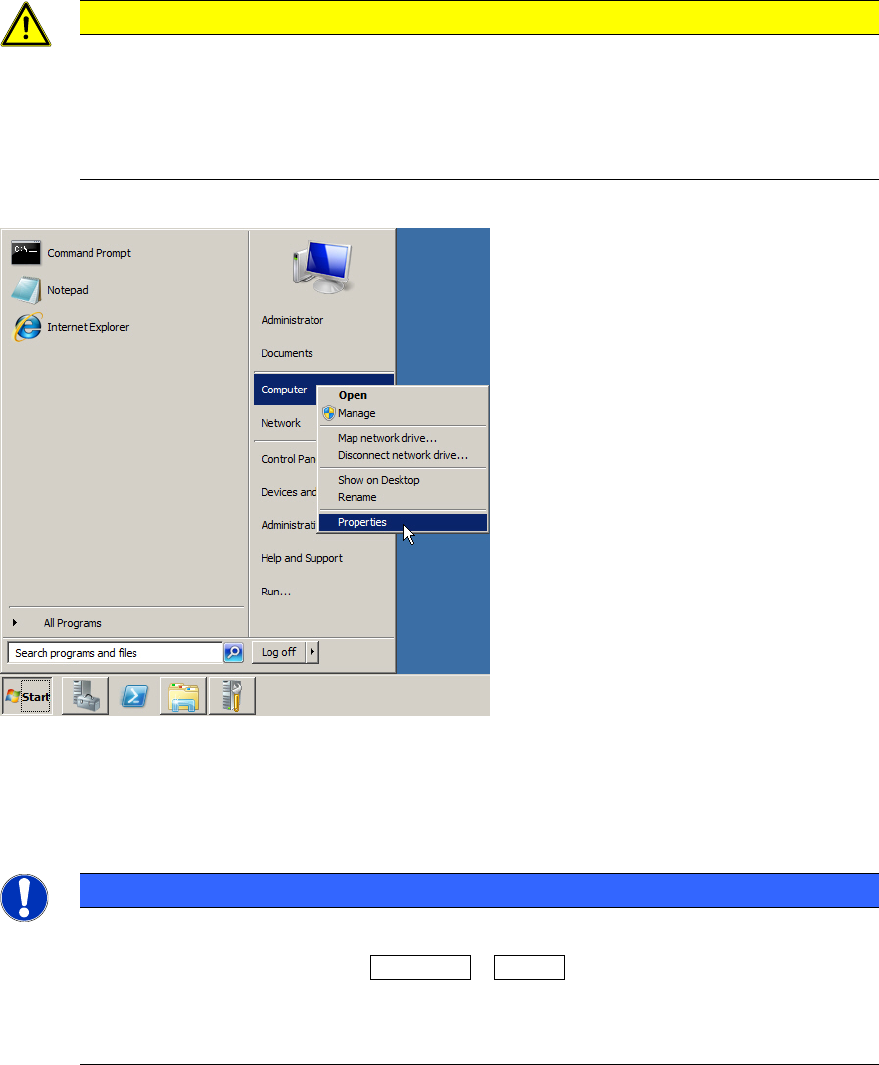
Figure 3-1: Starting System Settings
► Click on Start.
► Right-click on Computer and select Properties.
NOTICE
Alternative Ways to System Settings
As alternative, you may use the Windows + Pause key combination to call the same
dialog. This works on all currently known Windows versions.
If you don’t have a keyboard with the Windows key and can’t find the Computer entry in
the start menu, have a look for the My Computer icon on the Desktop instead.