00196737-04_IM_eWinXP_SSW70x_DE_EN.pdf - 第13页
Windows XP Embedded SP2 / Installation Manual Ausgabe 05/2011 Edition The following window is di splayed: Figure 4-2: Window SIPLACE XP embedded C onfigurator ► Enter the station IP-address for SIPLACE Pro LAN (required …
Windows XP Embedded SP2 / Installation Manual Ausgabe 05/2011 Edition
4.3.2 Choosing the computer configuration
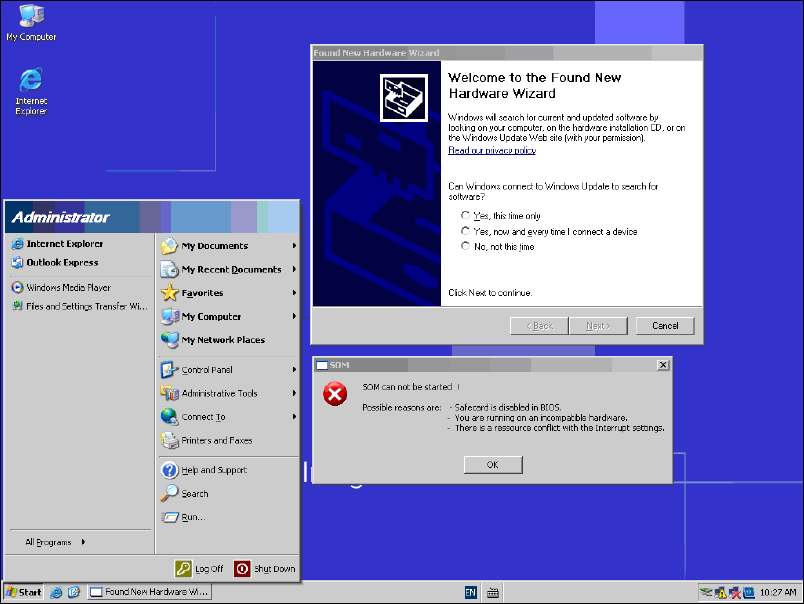
After the reboot dialogs are displayed for hardware that has not been installed:
Figure 4-1: Not installed hardware
► Ignore these messages!
► Open Windows Explorer (e.g. via "My Computer" on the desktop) and navigate to the DVD
drive.
► Double-click on the XPeConfigurator.hta file from the software CD to start the "SIPLACE XP
embedded Configurator".
12
Windows XP Embedded SP2 / Installation Manual Ausgabe 05/2011 Edition
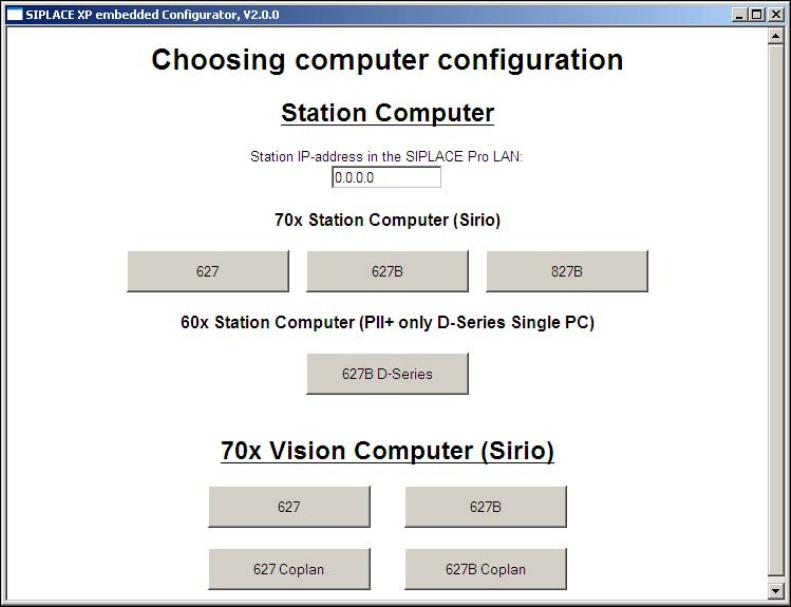
The following window is displayed:
Figure 4-2: Window SIPLACE XP embedded Configurator
► Enter the station IP-address for SIPLACE Pro LAN (required for a station computer only) and
choose the suitable computer configuration.
The SIPLACE settings are automatically performed and the computer reboots.
After the reboot, you are logged on as Operator.
► Remove the software CD from the DVD drive.
13
Windows XP Embedded SP2 / Installation Manual Ausgabe 05/2011 Edition
5 Calibrating the touch screen
Now the touch screen has to be calibrated (station computer only).
► Log on as Administrator and enter a password.
► Calibrate the touch screen as described in the installation manual for the station software.
If you have installed Windows XP Embedded in one-computer operation or on a machine
computer in two-computer operation, the installation is completed now.
► Install the SIPLACE machine software as described in the installation manual for the station
software.
If you have installed Windows XP Embedded on a Vision computer in two-computer operation:
► Perform the steps in chapter 6.
14