M20_Ope_E.pdf - 第397页
Chapter 13 Utility Menus 13-7 13-3 System Backup Menu: System>SystemBackup This menu allows you to back up the system programs (the MMI program and the controller program) to the backup storage directory on the hard d…

Chapter 13 Utility Menus
13-6
13-2-2 Restoring Data
Menu: System>AutomaticBackup>Restore
This menu allows you to restore data backed up by the automatic backup.
Window:
What to Restore: Check item(s) to restore.
Backup Date: Date when the last backup was performed.
<Execute> button: Clicking <Execute> button executes the restore operation.
Chapter 13 Utility Menus
13-7
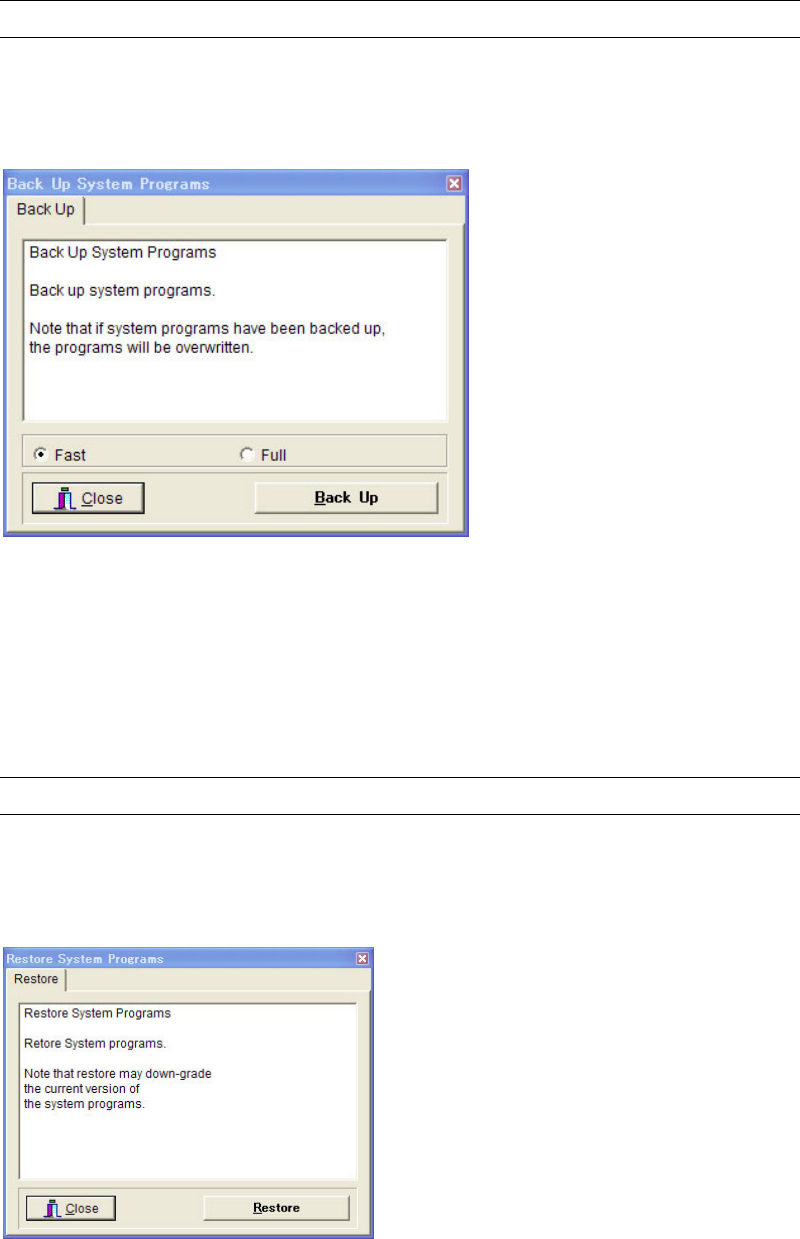
13-3 System Backup
Menu: System>SystemBackup
This menu allows you to back up the system programs (the MMI program and the controller
program) to the backup storage directory on the hard disk.
Window:
Fast: Only the updated programs from the last time backup are taken as
backup.
Full: All system programs are taken as backup.
Note: After the software has been upgraded, it is recommended to execute the system backup.
13-4 System Restore
Menu: System>SystemRestore
This menu allows you to restore the system programs (the MMI program and the controller
program) that have been backed up.

Chapter 13 Utility Menus
13-8
13-4-1 System restore under abnormal MMI conditions
Restore the system programs(the MMI program and the controller program) that have been
backed up.
Follow the procedure below when System>System Restore is not available such as upgrading
work failure.
Action:
① Click the mounter icon (iMS-Task) shown in the bottom right of the screen. The following
“Information” window appears.
② Left click the “Information” window to make it active.
③ Press RESTORE on the keyboard. There is no change on the screen.
④ Move the mouse pointer to the monitor part of the mounter, and right click.
“Are you sure to restore MMI system?” message appears. Click <OK> to restore the
system.