00196742-01 - Install Guide SIPLACE Explorer 2.7_de.pdf - 第28页
3 In st al lati o n de s SIP LACE Ex plor e r Inst al l atio ns - und Ko nfi gu rat io ns an le itun g S IPL AC E Exp lo rer 3. 1 E rst inst all atio n vo n S IPLA CE E xplo rer 2.7 Au sga be 03 /201 0 DE 28 HINWEIS Be v…

Installations- und Konfigurationsanleitung SIPLACE Explorer 3 Installation des SIPLACE Explorer
Ausgabe 03/2010 DE 3.1 Erstinstallation von SIPLACE Explorer 2.7
27
– SQL Server 2008 Express Edition
– Microsoft Internet Explorer 6.0 SP2 oder 7.0
Um die Websiten ansehen und bearbeiten zu können, benötigen Sie Microsoft Internet
Explorer. Microsoft Internet Explorer 6.0 SP2 ist auf der Support Media DVD enthalten,
Version 7.0 wird bei der Installation von Windows Vista mitinstalliert. 3
– Adobe Reader 7.0
Diese Komponente benötigen Sie, um die Dokumentation zu SIPLACE Explorer V.2.7 lesen
zu können. Adobe Reader 7.0 ist auf der Support Media DVD enthalten. 3
3
Eine detaillierte Beschreibung zu den angegebenen Installationen entnehmen Sie dem
Dokument “Navigation Guide for the Installation Procedure of SIPLACE Software Systems”
(Art.-Nr. 00195050-xx). 3
3
Beachten Sie vor Beginn der Installation nachfolgende Hinweise: 3
HINWEIS
Bevor Sie Tomcat 5.5 installieren können, müssen Sie alle Versionen < 5.5 von Tomcat
unbedingt deinstallieren. Verwenden Sie dazu das Deinstallationsprogramm von Apache
Tomcat. Starten Sie dieses über das Windows-Menü
Start → Programs → Apache Tomcat 5.5 → Uninstall Tomcat. 3
HINWEIS
Bei der Installation von Tomcat 5.5 müssen Sie folgende Informationen angeben:
- Portnummer für Tomcat: Standardmäßig wird Tomcat auf Port 8080 installiert. D.h., die
Benutzer greifen über folgende Adresse auf die Website zu:
http://yourServerName:8080/yourWebsite/index.jsp.
- Zugangsdaten für den Tomcat-Administrator:
User Name: admin
Passwort-Policy: entsprechend der ausgewählten Passwort-Policy, müssen Sie ein
Passwort angeben: MS128 oder Siplace.1
Dieses Passwort benötigen Sie für die Websiten-Generierung.
Dieser Login wird automatisch als Standardlogin bei Line Configuration - Schritt 7 "Website
Generation" verwendet. 3

3 Installation des SIPLACE Explorer Installations- und Konfigurationsanleitung SIPLACE Explorer
3.1 Erstinstallation von SIPLACE Explorer 2.7 Ausgabe 03/2010 DE
28
HINWEIS
Bevor Sie SIPLACE Explorer V2.7 installieren können, muss Java 1.6 auf Ihrem Computer
installiert sein. Diese Komponente installieren Sie über die Support Media DVD. 3
(3)Optionen zu SIPLACE Explorer V.2.7
Die Optionen SIPLACE Traceability Option V2.0 und SIPLACE Maintenance Manager V1.0
müssen Sie extra bestellen und installieren. Diese sind nicht im Leistungsumfang des
SIPLACE Explorer V2.7 enthalten. 3
3.1.1 Installationsvorgang SIPLACE Explorer 2.7 - Erstinstallation
HINWEIS
Sie müssen über Windows Administrator-Rechte verfügen, um die Installation ausführen zu
können. 3
→ Legen Sie die Support Media DVD in Ihr DVD-Laufwerk ein. Folgen Sie den Anweisungen aus
dem Dokument "Navigation Guide for the Installation Procedure of SIPLACE Software
Systems" (Art.-Nr. 00195050-xx).
Ihr System wird auf die nötigen Software-Komponenten und deren Versionen überprüft. Sie
erhalten entsprechende Meldungsfenster und können alle noch benötigten Software-
Komponenten installieren. 3
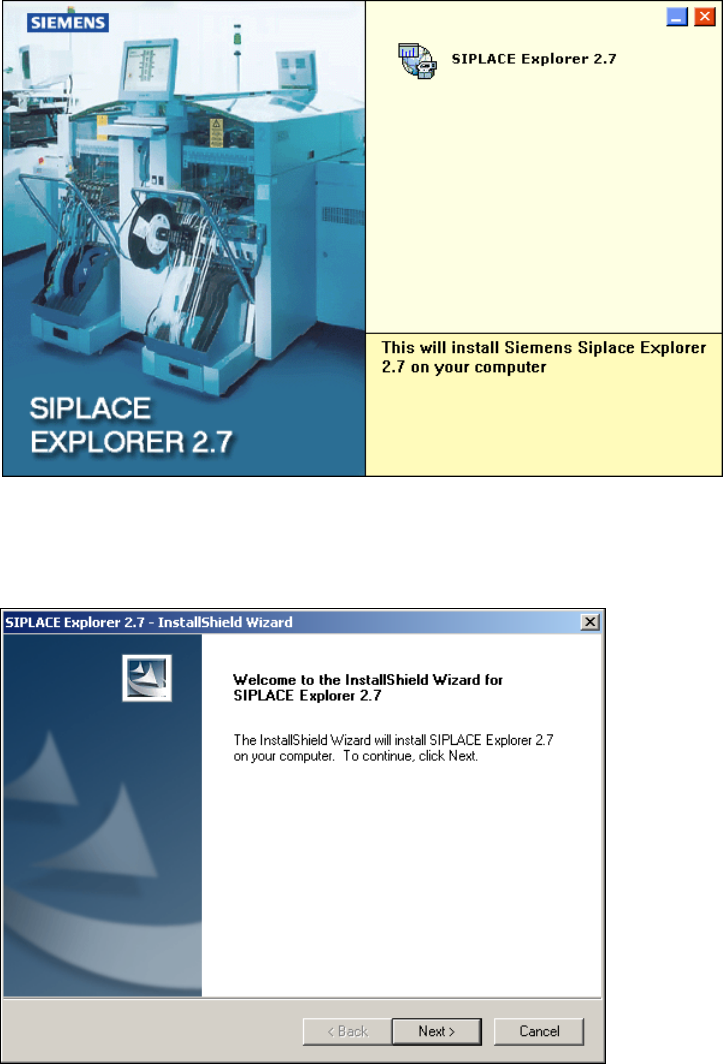
→ Legen Sie die SIPLACE Explorer CD in Ihr CD-Rom-Laufwerk ein. Es erscheint der Start
Screen.
Installations- und Konfigurationsanleitung SIPLACE Explorer 3 Installation des SIPLACE Explorer
Ausgabe 03/2010 DE 3.1 Erstinstallation von SIPLACE Explorer 2.7
29
3
Abb. 3 - 1 SIPLACE Explorer setup - Start Screen
→ Wählen Sie SIPLACE Explorer 2.7 aus.
→ Die benutzergeführte Installation von SIPLACE Explorer wird gestartet.
3
Abb. 3 - 2 SIPLACE Explorer setup - Willkommen im SIPLACE Explorer
→ Beenden Sie alle anderen Programme und klicken Sie auf Next (Weiter). Das Dialogfenster
License Agreement wird geöffnet.