00196742-01 - Install Guide SIPLACE Explorer 2.7_de.pdf - 第45页
In stal latio ns- und Ko nfig urat ions anl eitun g S IPL ACE Explo rer 3 I ns tall ati on d es SIP LAC E E xpl orer Au sgab e 03 /2 010 D E 3.4 Konf ig uratio n von MS S QL Ser ver 45 → S IPL ACE Exp lorer V . 2.7 Fac t…
3 Installation des SIPLACE Explorer Installations- und Konfigurationsanleitung SIPLACE Explorer
3.3 SIPLACE Explorer starten Ausgabe 03/2010 DE
44
– Website
Über dieses Menü können Sie die Websites oder auch die Werks-Website öffnen
– Language
–Exit
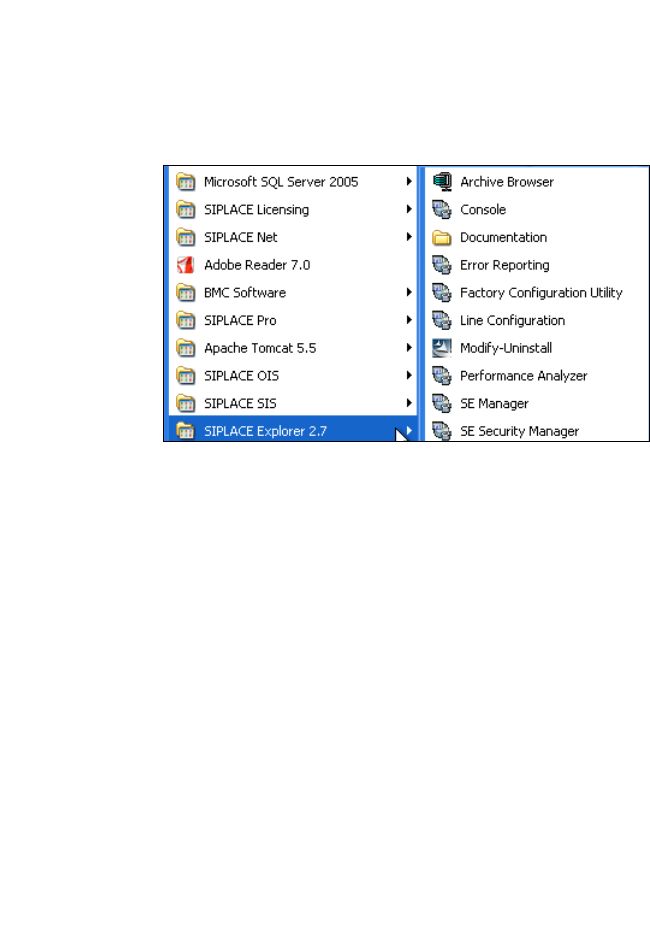
Sie können die weiteren Applikationen und Tools auch über das Windows-Menü Programme
→ SIPLACE Explorer 2.7 starten. 3
3
Abb. 3 - 23 RTE Windows Start Menü
Sie haben folgende Auswahlmöglichkeiten: 3
– Archive Browser
–Console
– Documentation
– Error Reporting
– Factory Configuration Utility
– Line Configuration
– Modify-Uninstall
– Performance Analyser
– SE Manager
– SE Security Manager
Installations- und Konfigurationsanleitung SIPLACE Explorer 3 Installation des SIPLACE Explorer
Ausgabe 03/2010 DE 3.4 Konfiguration von MS SQL Server
45
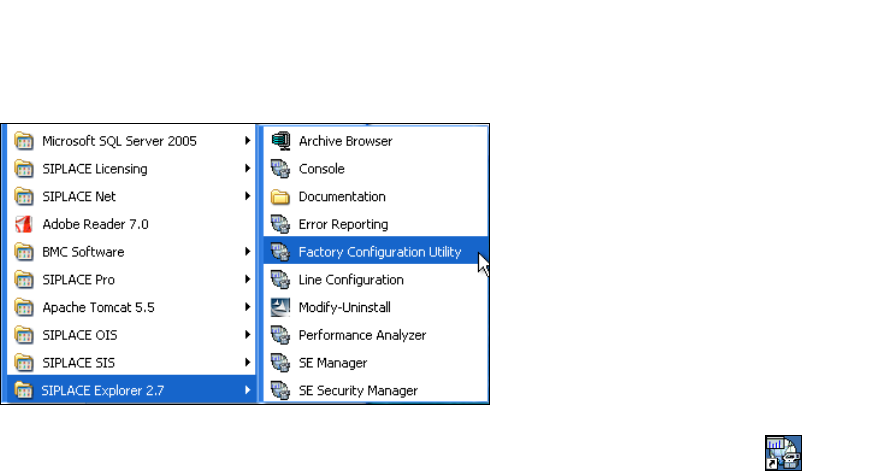
→ SIPLACE Explorer V.2.7 Factory Configuration Utility
Starten Sie Factory Configuration Utility über das Windows-Menü Programme → SIPLACE
Explorer 2.7 → Factory Configuration Utility. 3
3
Abb. 3 - 24 Factory Configuration Utility Windows Start Menü
→ Oder klicken Sie auf Ihrem Desktop auf das Symbol Factory Configuration Utility .
3.4 Konfiguration von MS SQL Server
Mit der Linien-Konfiguration können Sie die System-Datenbank konfigurieren. Siehe “Schritt 5 -
System-Datenbank konfigurieren” auf Seite 61. 3
Damit Sie die Wartung für die Systemdatenbank definieren können, müssen Sie den MS SQL
Server folgendermaßen konfigurieren: 3
→ Öffnen Sie MS SQL Server Management Studio.
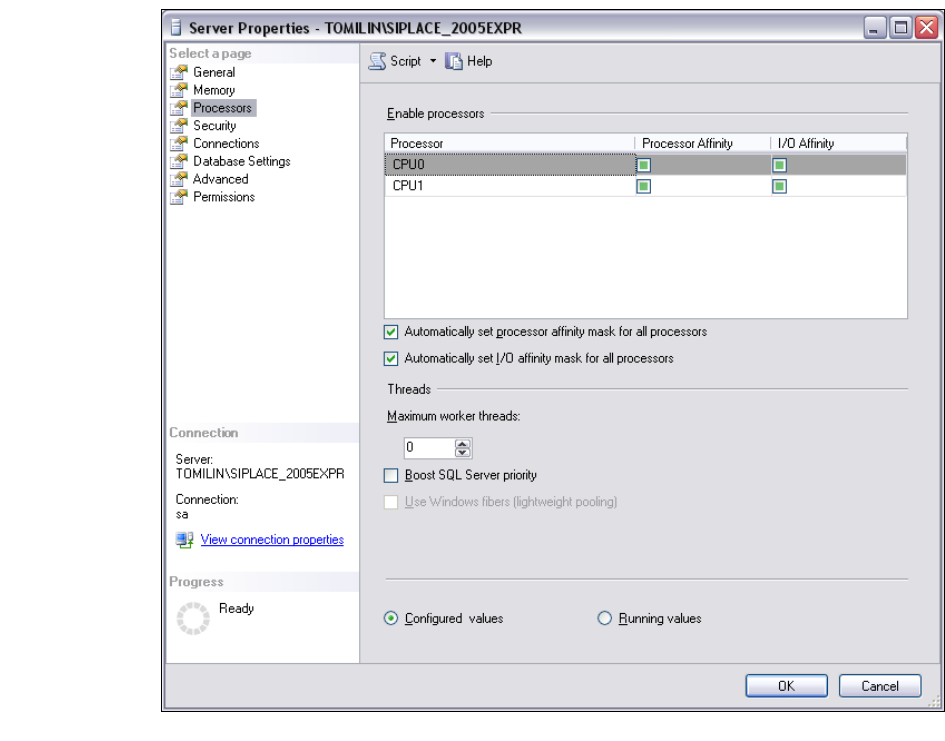
→ Öffnen Sie das Dialogfenster Server Properties. Wählen Sie die Server-Instanz, mit der
SIPLACE Explorer System-Datenbank aus. Wählen Sie aus dem Kontextmenü der rechten
Maustaste Properties. Das Dialogfenster Server Properties öffnet sich:
3 Installation des SIPLACE Explorer Installations- und Konfigurationsanleitung SIPLACE Explorer
3.4 Konfiguration von MS SQL Server Ausgabe 03/2010 DE
46
3
Abb. 3 - 25 MS SQL Server Properties
→ Wählen Sie Processors.
→ Aktivieren Sie folgende Checkboxen:
– Automatically set processor affinity mask for all processors
– Automatically set I/O affinity mask for all processors
→ Bestätigen Sie Ihre Eingaben mit OK.
→ Starten Sie den MS SQLServer erneut.