00196742-01 - Install Guide SIPLACE Explorer 2.7_de.pdf - 第44页
3 In st al lati o n de s SIP LACE Ex plor e r Inst al l atio ns - und Ko nfi gu rat io ns an le itun g S IPL AC E Exp lo rer 3. 3 S IPL ACE E xp lor er st art en Aus gabe 03/2 01 0 DE 44 – Website Über dieses Menü können…
Installations- und Konfigurationsanleitung SIPLACE Explorer 3 Installation des SIPLACE Explorer
Ausgabe 03/2010 DE 3.3 SIPLACE Explorer starten
43
HINWEIS
Nach der Installation von SIPLACE Explorer muss das System neu gebootet werden. Dies ist
notwendig, um sicherzustellen, dass der Port 1099 für die Java Runtime Environment verfügbar
ist. In seltenen Fällen wird der Port 1099 von einer anderen Applikation verwendet. Wird SIPLACE
Explorer ohne Neustart des Systems nach der Installation gestartet, so wird in solchen Fällen der
Fehler "SIPLACE Explorer 2.7 runtime not found" angezeigt. 3
3.3 SIPLACE Explorer starten
→ In Abhängigkeit der ausgewählten Installationsoptionen können Sie SIPLACE Explorer aus
dem Menü Programme → SIPLACE Explorer 2.7 in Windows starten.
→ SIPLACE Explorer V.2.7 Runtime Environment:
Runtime Environment wird bei jedem Neustart des Computers als Windows Service
automatisch gestartet. Sie sehen das Symbol in der Konsole. Mit dem rechten Mausklick
können Sie weitere Applikationen und Tools starten. 3
3
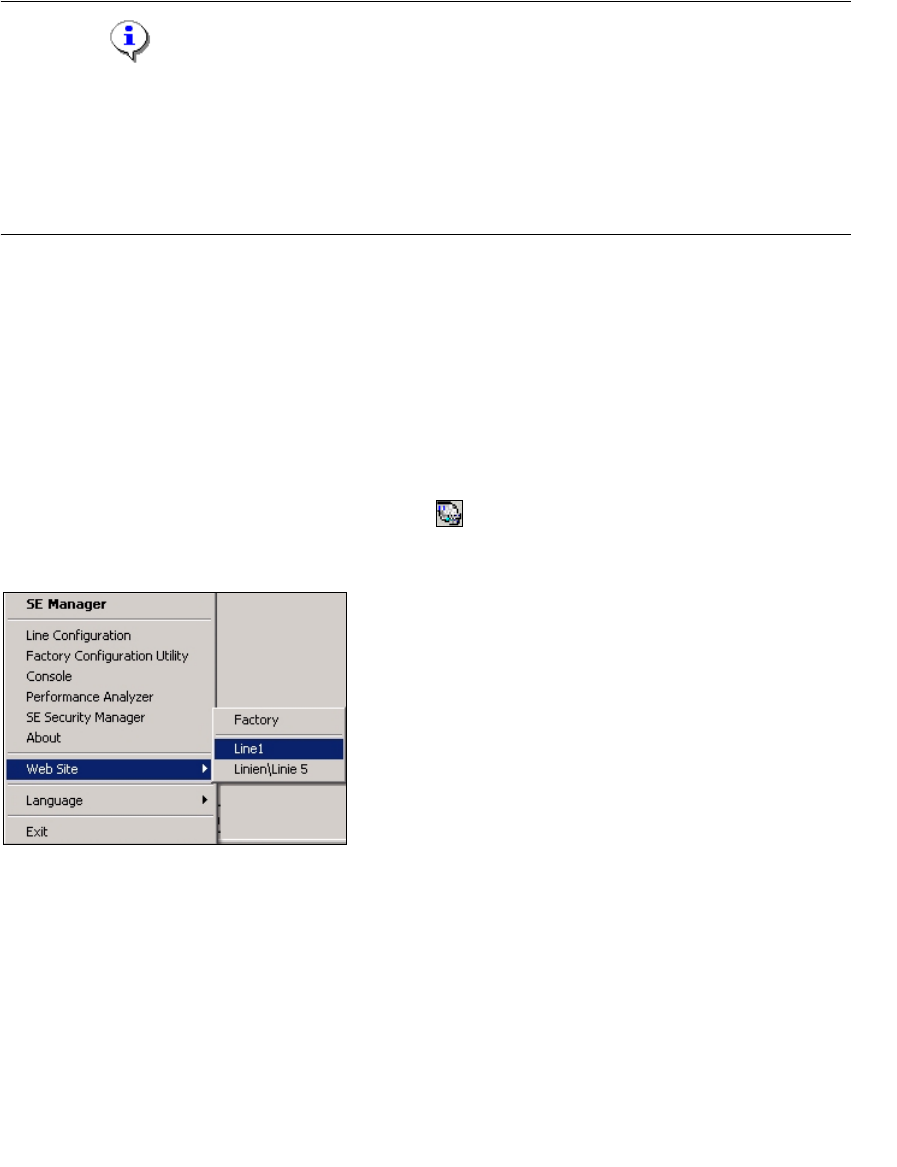
Abb. 3 - 22 RTE Windows Start Menü
Sie haben folgende Auswahlmöglichkeiten: 3
– SE Manager
– Line Configuration
– Factory Configuration Utility
–Console
– Performance Analyzer
– SE Security Manager
– About
3 Installation des SIPLACE Explorer Installations- und Konfigurationsanleitung SIPLACE Explorer
3.3 SIPLACE Explorer starten Ausgabe 03/2010 DE
44
– Website
Über dieses Menü können Sie die Websites oder auch die Werks-Website öffnen
– Language
–Exit
Sie können die weiteren Applikationen und Tools auch über das Windows-Menü Programme
→ SIPLACE Explorer 2.7 starten. 3
3
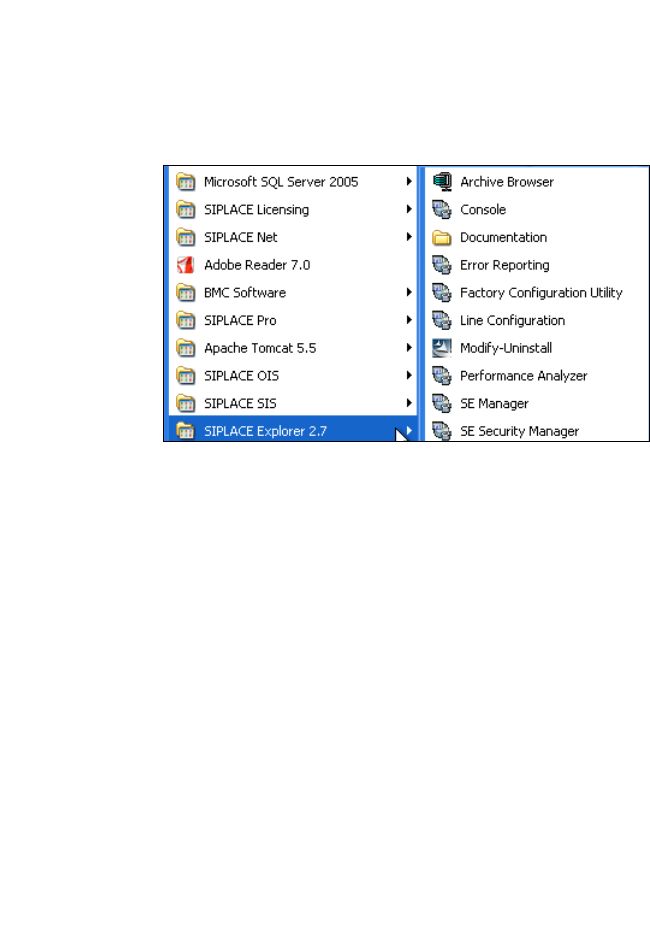
Abb. 3 - 23 RTE Windows Start Menü
Sie haben folgende Auswahlmöglichkeiten: 3
– Archive Browser
–Console
– Documentation
– Error Reporting
– Factory Configuration Utility
– Line Configuration
– Modify-Uninstall
– Performance Analyser
– SE Manager
– SE Security Manager
Installations- und Konfigurationsanleitung SIPLACE Explorer 3 Installation des SIPLACE Explorer
Ausgabe 03/2010 DE 3.4 Konfiguration von MS SQL Server
45
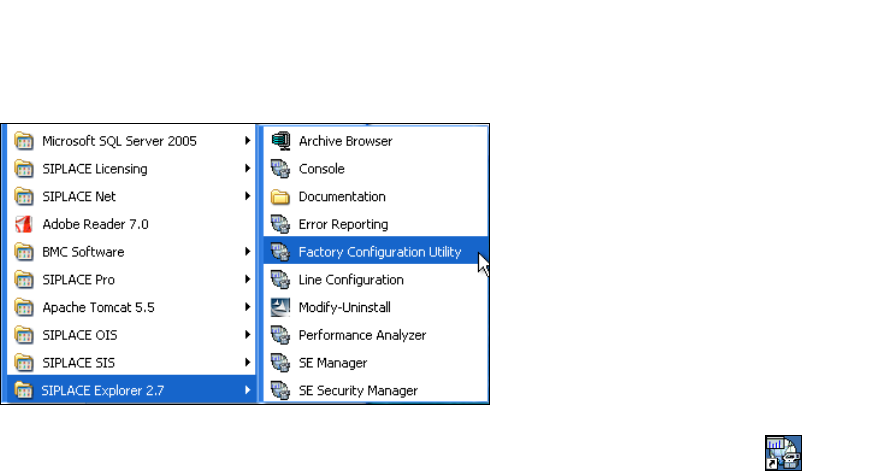
→ SIPLACE Explorer V.2.7 Factory Configuration Utility
Starten Sie Factory Configuration Utility über das Windows-Menü Programme → SIPLACE
Explorer 2.7 → Factory Configuration Utility. 3
3
Abb. 3 - 24 Factory Configuration Utility Windows Start Menü
→ Oder klicken Sie auf Ihrem Desktop auf das Symbol Factory Configuration Utility .
3.4 Konfiguration von MS SQL Server
Mit der Linien-Konfiguration können Sie die System-Datenbank konfigurieren. Siehe “Schritt 5 -
System-Datenbank konfigurieren” auf Seite 61. 3
Damit Sie die Wartung für die Systemdatenbank definieren können, müssen Sie den MS SQL
Server folgendermaßen konfigurieren: 3
→ Öffnen Sie MS SQL Server Management Studio.
→ Öffnen Sie das Dialogfenster Server Properties. Wählen Sie die Server-Instanz, mit der
SIPLACE Explorer System-Datenbank aus. Wählen Sie aus dem Kontextmenü der rechten
Maustaste Properties. Das Dialogfenster Server Properties öffnet sich: