00196742-01 - Install Guide SIPLACE Explorer 2.7_de.pdf - 第30页
3 In st al lati o n de s SIP LACE Ex plor e r Inst al l atio ns - und Ko nfi gu rat io ns an le itun g S IPL AC E Exp lo rer 3. 1 E rst inst all atio n vo n S IPLA CE E xplo rer 2.7 Au sga be 03 /201 0 DE 30 → Le sen Sie…
Installations- und Konfigurationsanleitung SIPLACE Explorer 3 Installation des SIPLACE Explorer
Ausgabe 03/2010 DE 3.1 Erstinstallation von SIPLACE Explorer 2.7
29
3
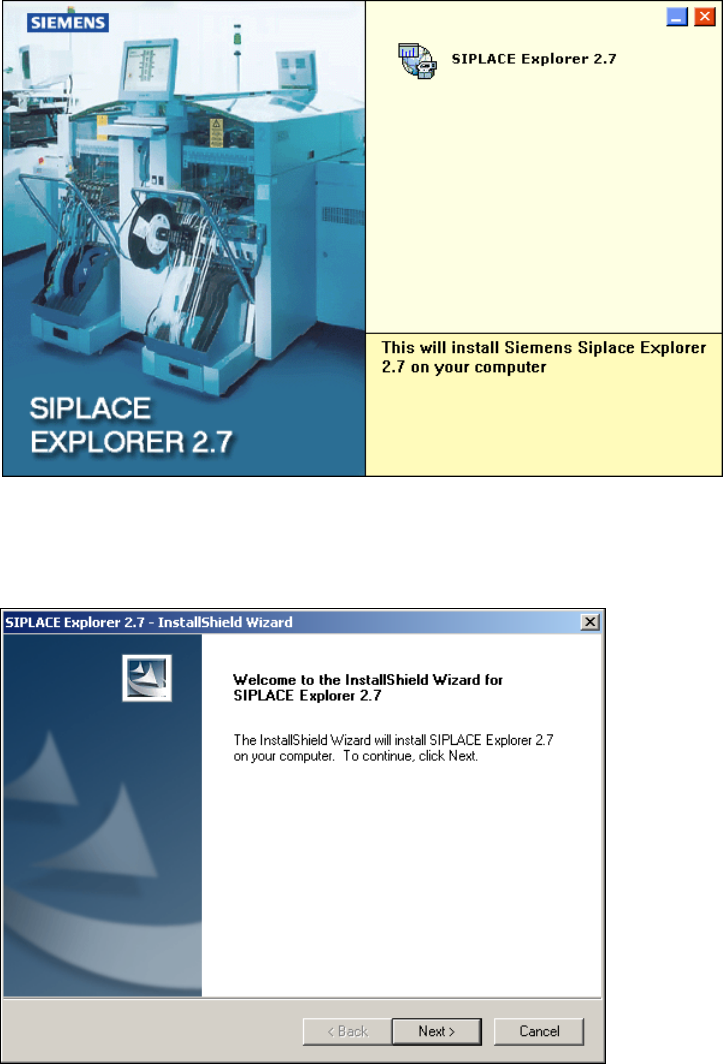
Abb. 3 - 1 SIPLACE Explorer setup - Start Screen
→ Wählen Sie SIPLACE Explorer 2.7 aus.
→ Die benutzergeführte Installation von SIPLACE Explorer wird gestartet.
3
Abb. 3 - 2 SIPLACE Explorer setup - Willkommen im SIPLACE Explorer
→ Beenden Sie alle anderen Programme und klicken Sie auf Next (Weiter). Das Dialogfenster
License Agreement wird geöffnet.
3 Installation des SIPLACE Explorer Installations- und Konfigurationsanleitung SIPLACE Explorer
3.1 Erstinstallation von SIPLACE Explorer 2.7 Ausgabe 03/2010 DE
30
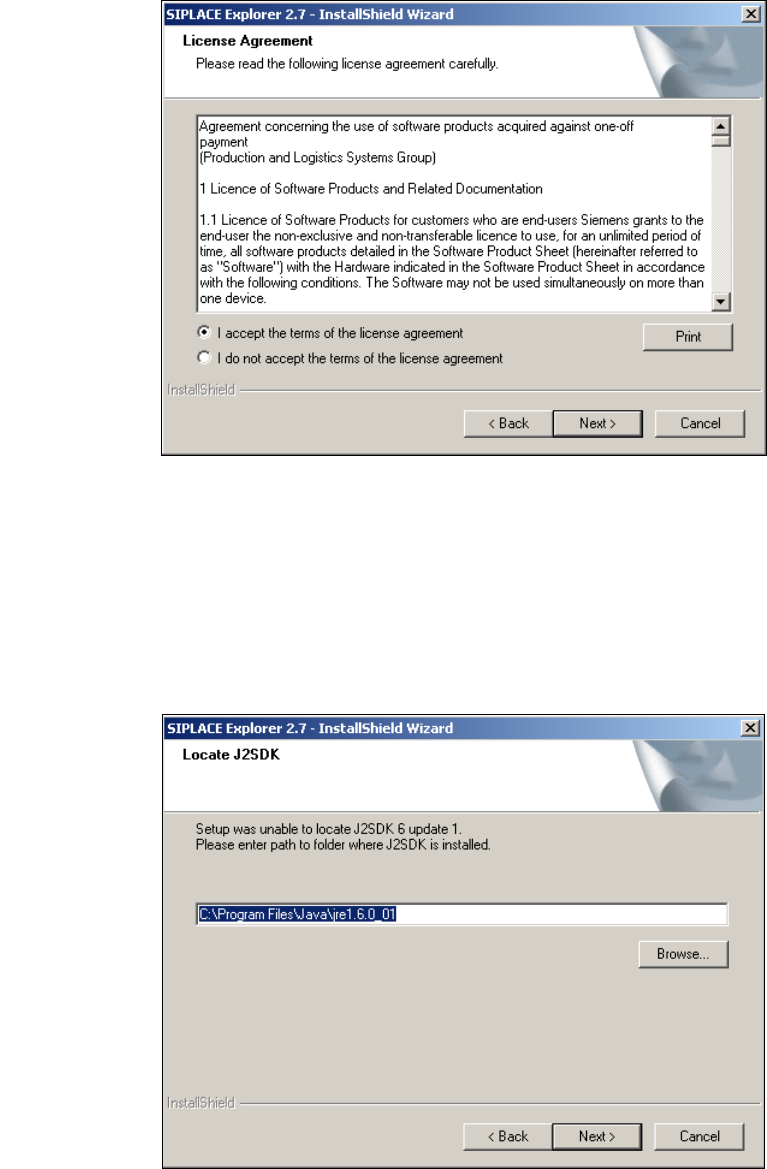
→ Lesen Sie die Lizenzbestimmungen. Wenn Sie zustimmen, I accept ... anklicken, ansonsten I
do not accept .... Wenn Sie I do not accept ... anklicken, wird die Installation beendet.
3
Abb. 3 - 3 SIPLACE Explorer Setup - Lizenzvereinbarungen
→ Bestätigen Sie Ihre Auswahl mit Next (Weiter).
→ Damit SIPLACE Explorer lauffähig ist, muss J2SE Runtime Environment 6 Update 1 oder
höher auf Ihrem PC installiert sein. Wenn es bereits installiert ist, läuft das SIPLACE Explorer
Setup-Programm weiter.
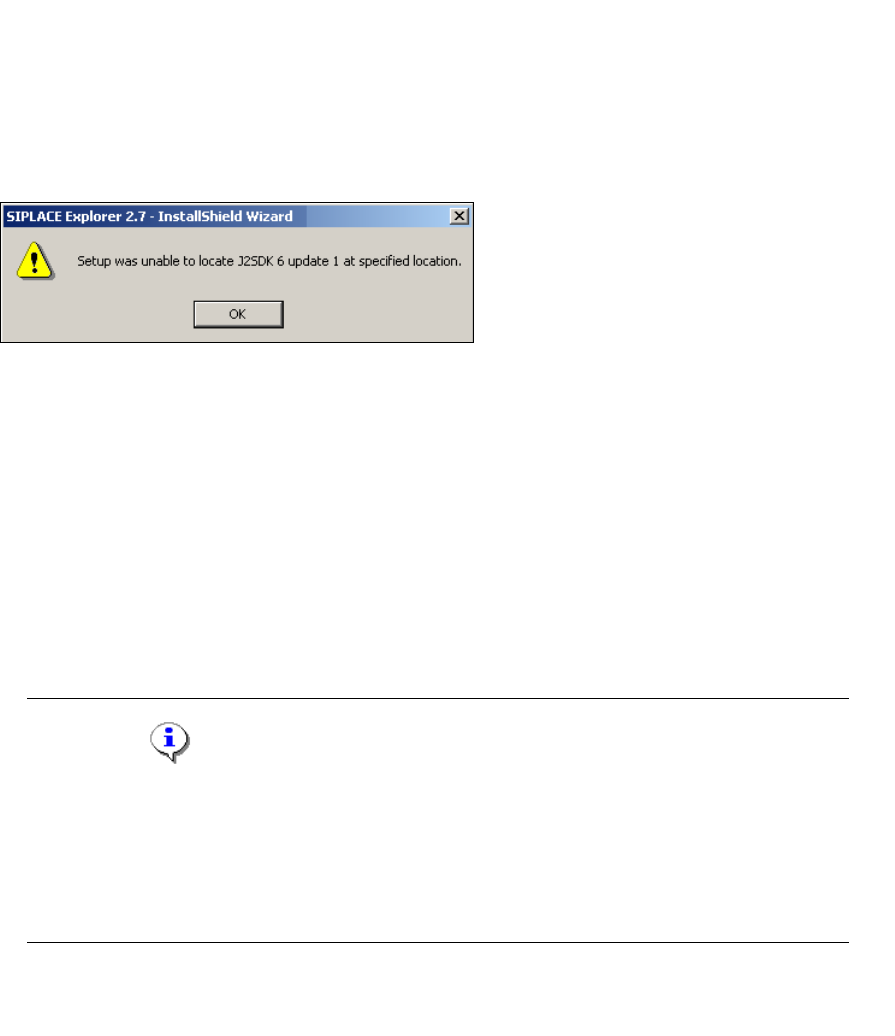
→ Wenn beim Installationsversuch J2SE 6 Update 1 nicht gefunden wird, erscheint auf Ihrem
Bildschirm das Fenster Locate J2SDK (Finden).
3
Abb. 3 - 4 SIPLACE Explorer Setup - JAVA 2SDK finden
Installations- und Konfigurationsanleitung SIPLACE Explorer 3 Installation des SIPLACE Explorer
Ausgabe 03/2010 DE 3.1 Erstinstallation von SIPLACE Explorer 2.7
31
→ In diesem Fall können Sie entweder den Pfad des Ordners J2SE Runtime Environment 6
Update 1 direkt im Textfeld eingeben oder die Schaltfläche Browse (Durchsuchen) anklicken
und mit Hilfe des Dialogfensters Open File (Datei öffnen) den Ordner J2SE Runtime
Environment 6 Update 1 suchen.
→ Wenn Sie den Ordner nicht korrekt angegeben haben, in dem J2SE Runtime Environment 6
Update 1 installiert ist, erhalten Sie nachfolgende Meldung.
3
Abb. 3 - 5 SIPLACE Explorer Setup - J2SE kann nicht gefunden werden
→ Klicken Sie OK, um zum vorangegangenen Dialogfenster zurückzukehren. SIPLACE Explorer
erfordert vor der Installation von SIPLACE Explorer, dass J2SE Runtime Environment 6
Update 1 installiert wurde.
→ An dieser Stelle können Sie entweder den J2SE Runtime Environment 6 Update 1 Ordner
nochmals eingeben oder Cancel (Abbrechen) anklicken, um die Installation des SIPLACE
Explorer abzubrechen.
→ Haben Sie Cancel (Abbrechen) gewählt, installieren Sie die auf der Support Media DVD
enthaltene Version von J2SE Runtime Environment 6 Update 1. Beginnen Sie anschließend
die Installation des SIPLACE Explorer erneut.
HINWEIS
Wenn auf Ihrem System die von Sun Microsystems unter http://java.sun.com/j2se erhältliche
J2 Runtime Umgebung (und nicht J2SE Runtime Environment 6 Update 1) installiert ist,
funktioniert die von SIPLACE Explorer Website Builder erstellte Website nicht einwandfrei,
da diese auf JSP basiert, was wiederum J2SE Runtime Environment 6 Update 1
voraussetzt. 3
→ Die Installation von SIPLACE Explorer 2.7 wird nach Lokalisierung von J2SE Runtime
Environment 6 Update 1 fortgesetzt. Das Dialogfenster Customer Information wird geöffnet.