00197443-02_IM_707_1_DE_EN.pdf - 第28页
Station S oftware 70 7.1 / Ins tallation Man ual Ausgabe 05/2014 E dition 28 5.4 Insta lling the SIPLA CE S oft w are (S tation Soft w are 70 7 . 1) NOTICE The instal lation req uires ap prox. 80 m inutes. ► Switch on th…
Station Software 707.1 / Installation Manual Ausgabe 05/2014 Edition
27
5.3 Performing BIOS Update/Settings on the Machine Computer and
Vision Computer
The image files for the BIOS update/BIOS settings and the corresponding installation instruction
(readme file) are available on the V1.0 BIOS CD that can be ordered via the service technician or
downloaded from the SIPLACE Software Download Center.
Station Software 707.1 / Installation Manual Ausgabe 05/2014 Edition
28
5.4 Installing the SIPLACE Software (Station Software 707.1)
NOTICE
The installation requires approx. 80 minutes.
► Switch on the SIPLACE placement machine.
► Change to the service desktop.
► Open Windows Task Manager.
► Select Logoff in the Users tab.
► Log in as Administrator (under Windows XP) or as ASM_Admin (under Windows 7).
► Insert the installation DVD in the drive.
► Open the Explorer and start setup.exe under drive E: by double clicking it.
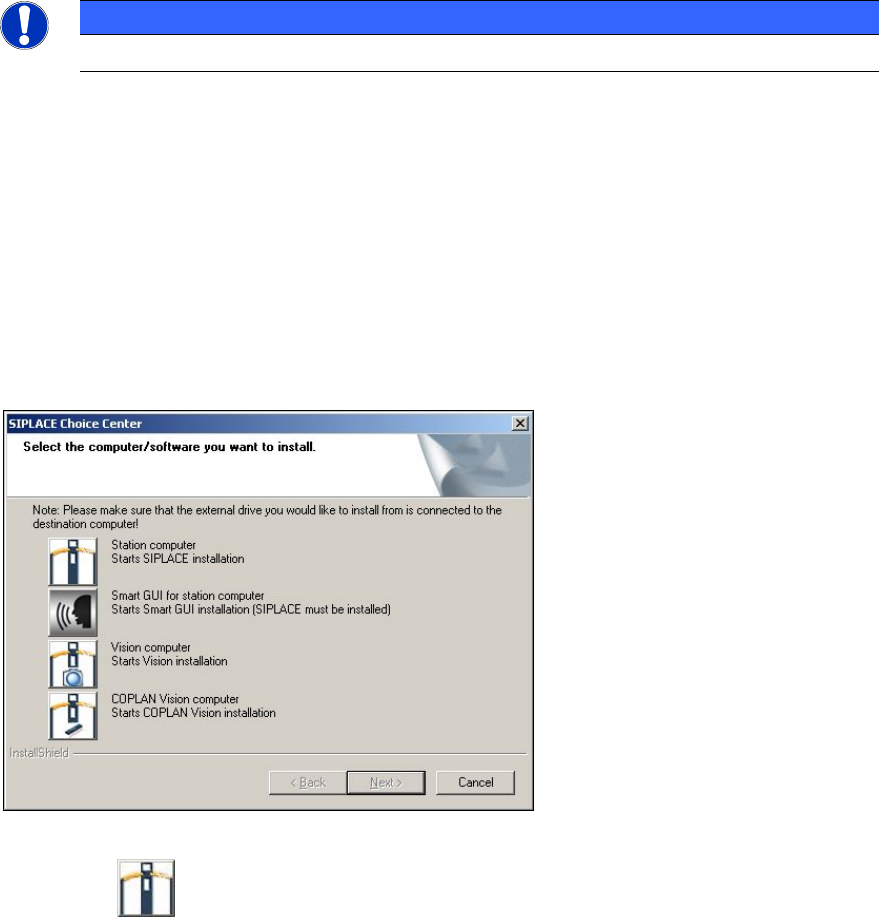
The SIPLACE Choice Center dialog box is opened.
Figure 5-5: "SIPLACE Choice Center" dialog box
► Click the Station computer button.
Station Software 707.1 / Installation Manual Ausgabe 05/2014 Edition
29
5.4.1 Additional dialogs under Windows Embedded Standard 7
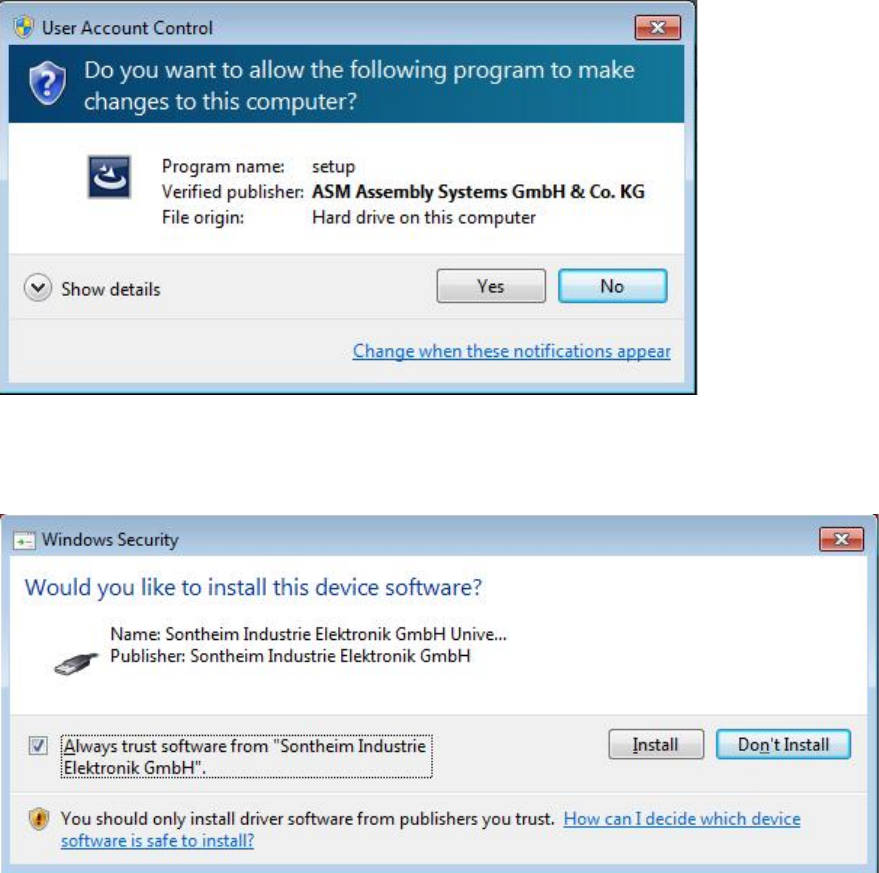
If Windows Embedded Standard 7 is installed as operating system and User Account Control is
enabled, the following dialog windows are additionally displayed.
Figure 5-6: User Account Control
► Click the Yes button to allow the SIPLACE Software installation.
If a Sontheim device is connected, the following dialog is displayed.
Figure 5-7: Installing driver software for Sontheim device, part 1
► Activate the Always trust software from "Sonheim Industrie Elektronik GmbH" field.
► Click the Install button to install the corresponding driver software.