00197443-02_IM_707_1_DE_EN.pdf - 第35页
Station S oftware 70 7.1 / Ins tallation Man ual Ausgabe 05/2014 E dition 35 5.4.8 Finalizing the I nsta llation NOTICE The st atus only lists t he program s that hav e just been installed. If, for ins tance, the current…
Station Software 707.1 / Installation Manual Ausgabe 05/2014 Edition
34
NOTICE
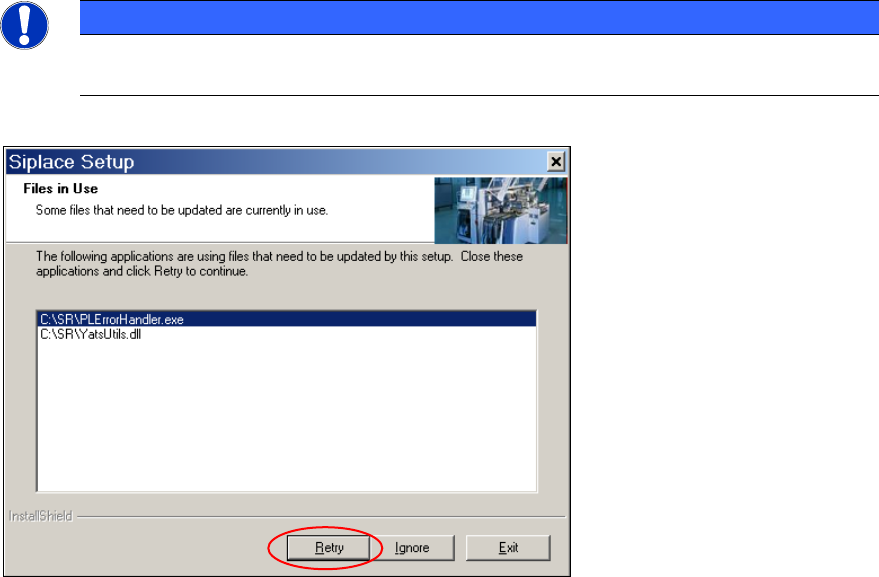
The following screen only appears if applications are open which use files which must be
updated during installation of SIPLACE.
Figure 5-16: Open applications
► Close the applications or processes listed here by using Windows Task Manager and then click
the Retry button.
The installation program now installs additional programs on the machine computer.
Station Software 707.1 / Installation Manual Ausgabe 05/2014 Edition
35
5.4.8 Finalizing the Installation
NOTICE
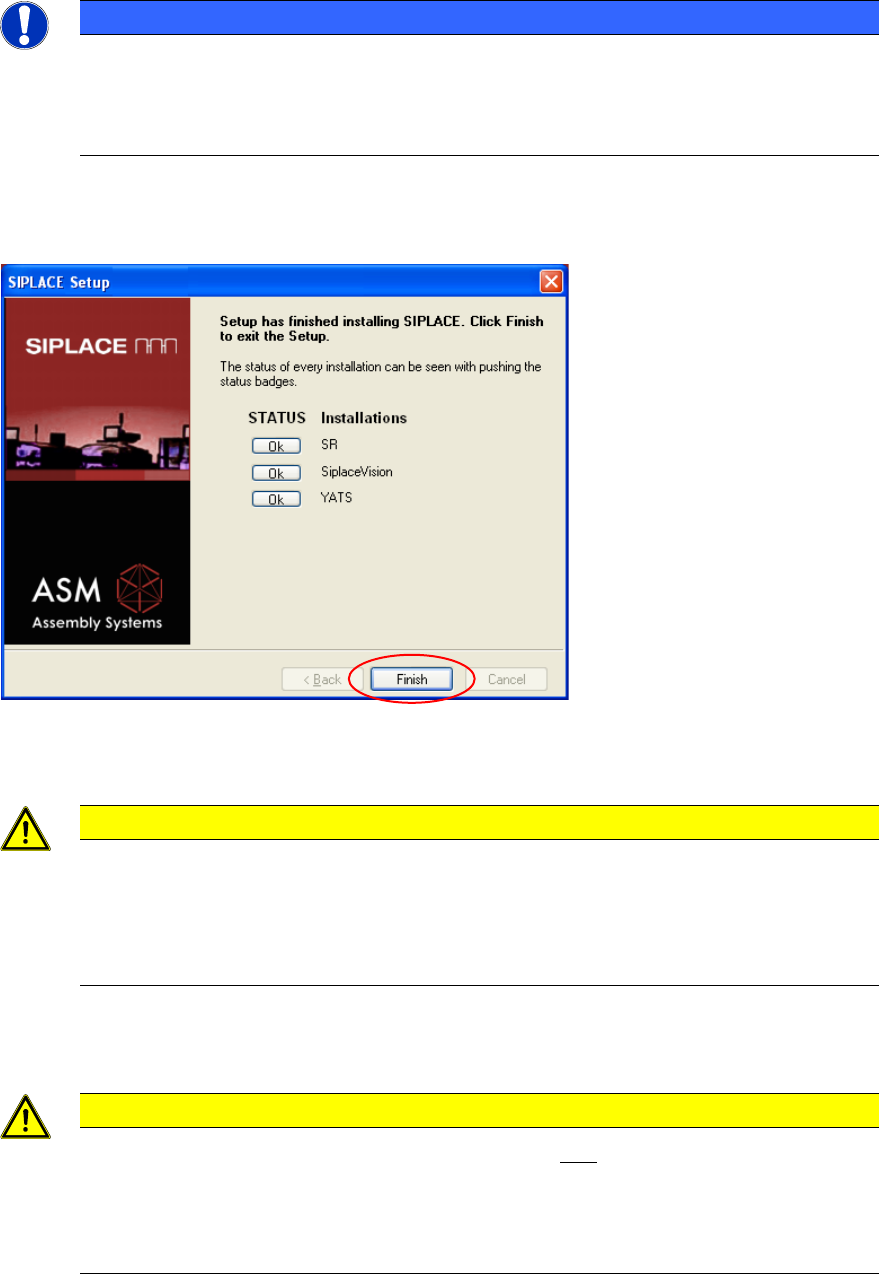
The status only lists the programs that have just been installed. If, for instance, the
current version of SIPLACE Vision was already installed, it is not listed here.
If errors occurred during installation, the status is indicated by the Error button being
displayed next to the program name instead of the Ok button.
► If you wish to read the log of the installation of any program, click the Ok (or Error) button next
to the name of the program. The Notepad is started and displays the appropriate file.
Figure 5-17: Finalizing the installation
► Click the Finish button.
CAUTION
► Wait a few seconds after you have clicked the Finish button, before you shut down
and switch off the computer / the machine!
As some installation steps are not performed until the end of the installation by the
InstallShield, the installation might otherwise be incomplete, what may cause
problems during further installations.
► Optionally, you can now install the SIPLACE Smart GUI.
CAUTION
In two-computer operation the Vision computer must also be installed (see chapter 6)
before you shut down the machine computer, as the station will otherwise not boot
correctly due to version conflicts.
In one-computer operation the Vision computer software is automatically installed during
the station software installation.
Station Software 707.1 / Installation Manual Ausgabe 05/2014 Edition
36
5.5 Installing SIPLACE Smart GUI
The SIPLACE Smart GUI can optionally be installed after the station software has been installed. If
the station software has not been installed first, a corresponding error message is displayed.
► Download the SIPLACE Smart GUI installing program from the SIPLACE Software Download
Center.
► Start SmartGUI.exe by double clicking it.
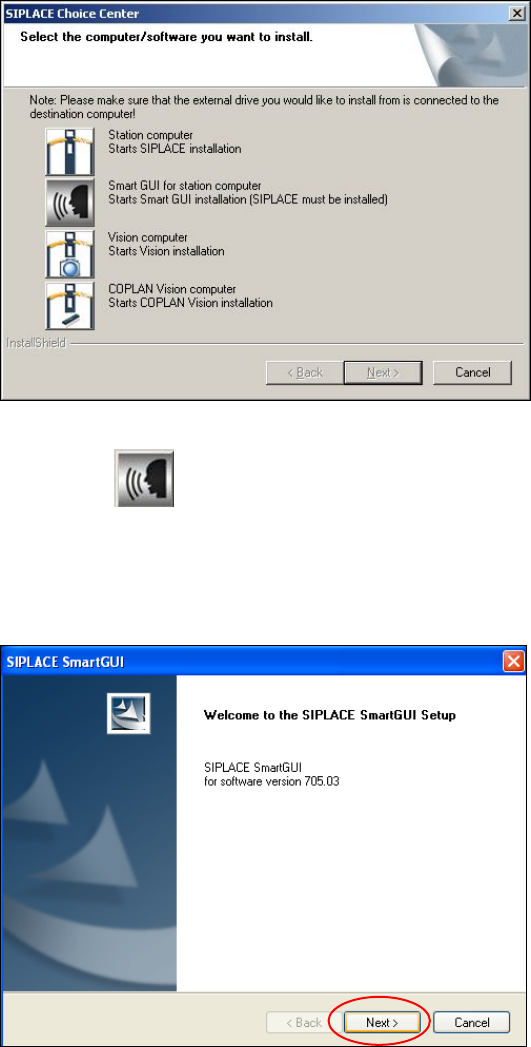
The SIPLACE Choice Center dialog box is opened.
Figure 5-18: "SIPLACE Choice Center" dialog box
► Click the Smart GUI for station computer button.
Installation of the SIPLACE Smart GUI continues with the welcome screen.
5.5.1 Welcome Screen
Figure 5-19: Welcome screen
► Click the Next button.