00192791-02.pdf - 第57页
User Manual 2 Ceramic Substrate Centering Unit Software Vers ion SR.502.xx 01/01 Iss ue 2.7 Sc reen "Conveyor Functions" 57 )XQFWLRQVIRU7 HV WLQJWKH&HUD PLF6XEVW UDWH &HQWHULQJ8QLW NOTE The…
2 Ceramic Substrate Centering Unit User Manual SIPLACE HS-50
2.7 Screen "Conveyor Functions" Software Version SR.502.xx 01/01 Issue
56
6FUHHQ&RQY H\RU)XQFWLRQV
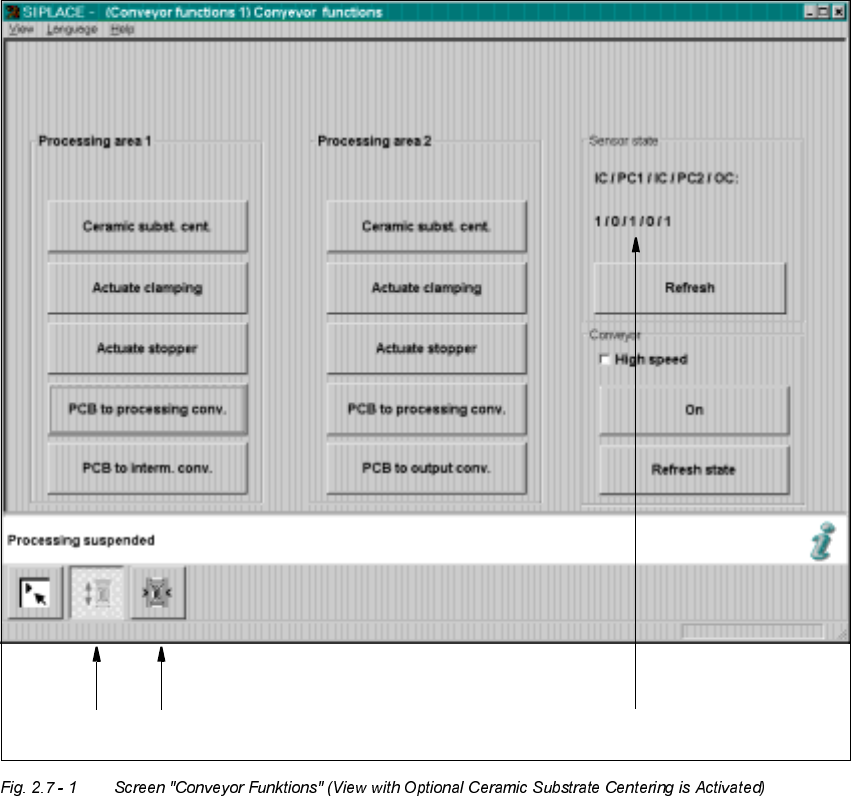
The "Conveyor functions" (also named "Conveyor functions") are used for checking and adjusting
the functional modules of the PCB conveyor system / of the mechanical ceramic substrate cen-
tering unit.
.H\
(1) Functions for PCB conveyor
(2) Functions to adjust the width of the PCB conveyor
(3) Functions to display the state of the ultrasonic senors
12
3

User Manual 2 Ceramic Substrate Centering Unit
Software Version SR.502.xx 01/01 Issue 2.7 Screen "Conveyor Functions"
57
)XQFWLRQVIRU7HV WLQJWKH&HUD PLF6XEVW UDWH &HQWHULQJ8QLW
NOTE
The function "Ceramic substrate centering" is activated if the optional "Mechanical ceramic sub-
strate centering unit" is installed and is entered in the machine options (activation: see Section 2.8).
With the help of this function which can be found in the fields "Processing area 1" and "Process-
ing area 2", it is possible to check the function open/close the substrate centering unit
ZL WKRXW
VXEVWUDWH
Å Click on the button
&HUDPLFVXEVWUD WHFHQWHULQJ
in the field "Processing area 1".
The ceramic substrate centering unit is opened.
Å Once again, click on the button
&HUDPLFVXEVWUDWH FHQWHULQJ
in the field "Processing area 1".
The ceramic substrate centering unit is closed.
Å Proceed in a like manner for "Processing area 2".
For a trial run with substrate (e.g., after adjusting the substrate size) a substrate of the appropri-
ate size (as set on the substrate centering unit) is placed on the input conveyor. The steps taken
are as follows:
Å Place the substrate on the input conveyor.
Å Click on the button
3&%WRSURFHVVLQJFRQYH\RU
in the field "Processing area 1". The ce-
ramic substrate will be transported to processing conveyor 1.
The lifting table moves upward and the ceramic substrate centering unit closes; the substrate
is centered in X-direction.
Å Click on the button
3&%WRLQWHUPHGLDWHFRQYH\ RU
in the field
"Processing area 2".
The ceramic substrate centering unit opens and the lifting table moves downward.
The ceramic substrate is transported to the intermediate conveyor.
Å Click on the button
3&%WRSURFHVVLQJFRQYH\RU
in the field "Processing area 2". The ce-
ramic substrate is transported to processing conveyor 2.
The lifting table moves upward and the ceramic substrate centering unit is closed; the sub-
strate is centered in X-direction.
Å Click on the button
3&%WRRXWSXWFRQYH\RU
in the field "Processing area 2".
The ceramic substrate centering unit opens and the lifting table moves downward.
The ceramic substrate is transported to the output conveyor.
2 Ceramic Substrate Centering Unit User Manual SIPLACE HS-50
2.7 Screen "Conveyor Functions" Software Version SR.502.xx 01/01 Issue
58
$FWLYDWHWKH&ODPSLQJ
With the help of this function, which may be found in the fields "Processing area 1"and "Processing
area 2", you can check the function of the PCB clamping (lifting table moves upward / downward)
in the processing conveyors in question.
When the mechanical ceramic substrate centering unit has been installed and activated this
function is only possible if the unit is "open", i. e., inductive proximity switch of the ceramic sub-
strate centering unit ist signalling "1".
For the test of the clamping, it is not necessary to have a PCB in the conveyor (input). However if
a PCB was transported to the processing area, the clamping unit will open in response to the initial
activation.
:LWKRXW
a PCB the steps taken are as follows:
Å Click on the button"
$FWLY DWHWKHFODPSLQJ
in the field "Processing area 1".
The PCB clamping closes (lifting table moves upward).
Å Once again, click on the button "
$FWLY DWHWKHF ODPSLQJ
.
The clamping opens (lifting table moves downward).
Å In "Processing area 2" check the PCB clamping in the same manner.