00197458-01_UG_EDM_V2.2_en.pdf - 第32页
EDM V2.2 / U ser Guid e Ausgabe 10/2013 E dition 32 Fig ure 4- 22 : Extended Different Editor ► Use < to m erge a sin gle change . ► Use < < Al l to m erge all changes . ► Use the Undo and Redo buttons to undo /…
EDM V2.2 / User Guide Ausgabe 10/2013 Edition
31
Additionally to the description of the change, information is displayed about the change type (e.g.
action name, action icon, list of the changed objects) and the name of the application that triggered
the change notification. The well-known columns for change date, comment and comment category
have been kept and the columns with the different user names (EDM, SPI, Windows) have been
merged. The other columns that referred to the low level SPI events (new and old value, changed
attribute, etc.) have been removed; the information is now displayed in the Description column. If
necessary, the format of the length entries displayed in the notifications may be adjusted with the
marked icon (9) in the footer.
At the bottom to the right in the display range there are icons with which you can customize the
view of the displayed information.
● With the column selection button (4) you may change the order, size and visibility of the
displayed columns.
● With the user selection button (5) you define for which user you wish to display the change
notifications (SIPLACE, Windows; EDM).
● With the detailing level button (6) you define how detailed the describing text will be displayed
(compact, normal, enhanced).
The describing text is always completely displayed in the tooltip.
The content of the display range at the bottom (7) depends on the selected tab (8).
Messages
Displays the state messages of the current session.
Info
Displays the content of the description for the change notification that is selected above.
SPI Notifications
Displays the change notification that is selected above in the "old" Format.
4.4.1 Extended Difference Editor
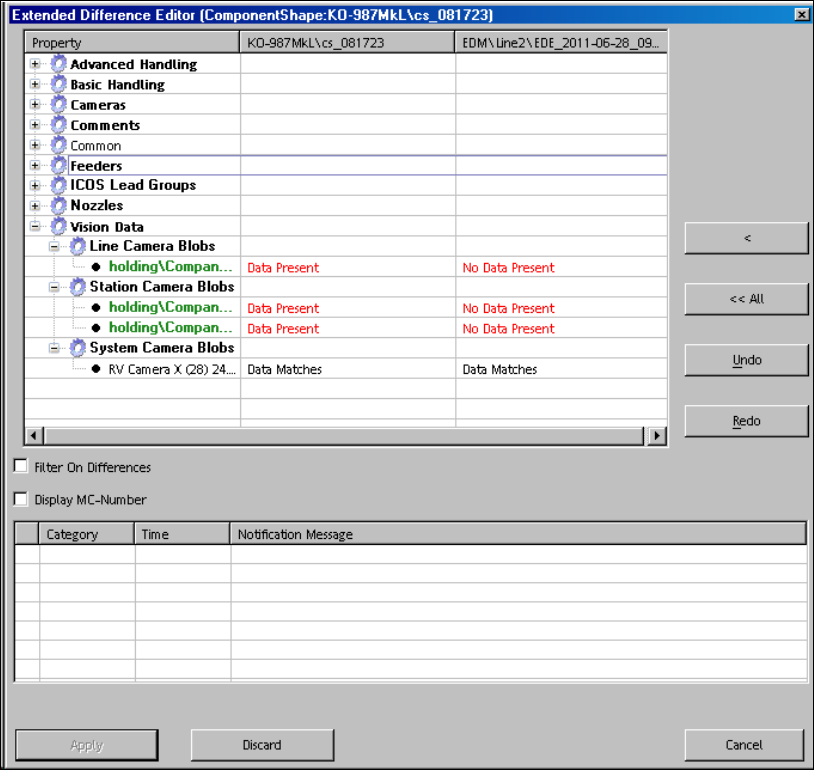
The Extended Difference Editor (EDE) is used to merge changes per attribute. The EDE is started
as follows.
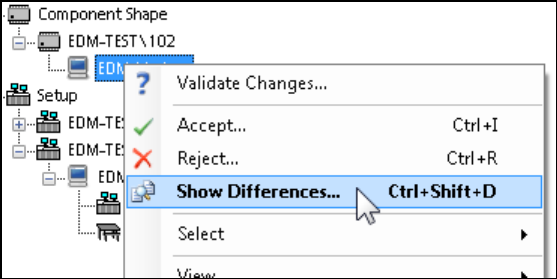
Figure 4-21: Starting Extended Difference Editor
► Double-click or click with the right-hand mouse button on a changed object.
► Select the Show Differences… entry in the context menu.
The EDE is displayed.
EDM V2.2 / User Guide Ausgabe 10/2013 Edition
32
Figure 4-22: Extended Different Editor
► Use < to merge a single change.
► Use << All to merge all changes.
► Use the Undo and Redo buttons to undo / redo the merges made with the other buttons.
4.4.2 Handling Changed Line Vision Data
The selective acceptance of changed line Vision data for assigned SIPLACE Pro lines has been
optimized as follows:
Notifications with changed line Vision data and a list of the assigned SIPLACE Pro lines are
transferred from the Line Server to the Clearing Pool. The list of the assigned SIPLACE Pro lines is
passed to the Extended Difference Editor (EDE) in SIPLACE Pro.
By double-clicking or clicking with the right-hand mouse button on an object and selecting the
Validate Changes… entry in the context menu, the EDE is started and displays all differences in
the line data.
EDM V2.2 / User Guide Ausgabe 10/2013 Edition
33
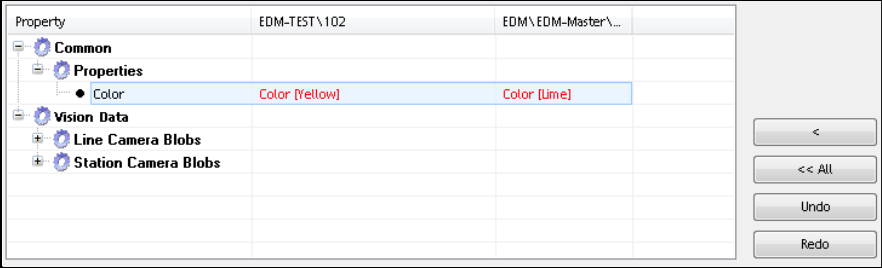
Figure 4-23: Displaying differences in the line data
The master version is displayed on the left side and the client version on the right side and the
assigned SIPLACE Pro lines are highlighted. The data preparation engineer accepts the changed
line Vision data for all assigned SIPLACE Pro lines by clicking the <<All button.
The differences for line data of non-assigned SIPLACE Pro lines can be accepted with the <
button.
4.4.3 Selecting Multiple Objects
The Clearing Pool supports the selection of multiple objects to be accepted or rejected for import.
Multiple objects on the same level may be selected as follows:
► Select the first object with Left mouse click.
► Select the second object with Shift + Left mouse click.
If multiple objects from different tree nodes shall be selected, each of them has to be selected
individually with Ctrl + Left mouse click.