00197458-01_UG_EDM_V2.2_en.pdf - 第46页
EDM V2.2 / U ser Guid e Ausgabe 10/2013 E dition 46 The lef t - hand side of the GU I shows a list of all c onfiguratio n sets. T he context m enu mak es availab le some edit functional ity (New se t, duplic ate…). By se…
EDM V2.2 / User Guide Ausgabe 10/2013 Edition
45
5 Configuring SIPLACE EDM
This chapter describes how to configure SIPLACE EDM.
Additionally, some basic configuration settings can be adapted after installation. These settings can
be found in the EDM Installation Manual, item no. [00197457-xx].
5.1 EDM Configuration Manager
The EDM Configuration Manager is the central tool to control an EDM environment. The user
changes settings and options that are then transferred to the Client computers.
After changing a setting, the user applies it with the Save button. If changes were detected, a
dialog is shown to confirm the immediate transfer to the affected EDM Client computers.
5.1.1 Regular Expressions for Search Patterns, Rules and Roles
In several edit fields, regular expressions are used instead of (case-sensitive) string patterns.
Some edit fields provide a Regexp check box to activate regular expression evaluation on this field;
others use regular expressions by default (e.g. the Name Pattern section of the notification rules).
EDM uses the standard regular expressions of the .NET Framework. A reference guide is available
on Microsoft®’s MSDN online library (http://msdn.microsoft.com/en-us/library/az24scfc.aspx).
5.1.2 Configuration Sets
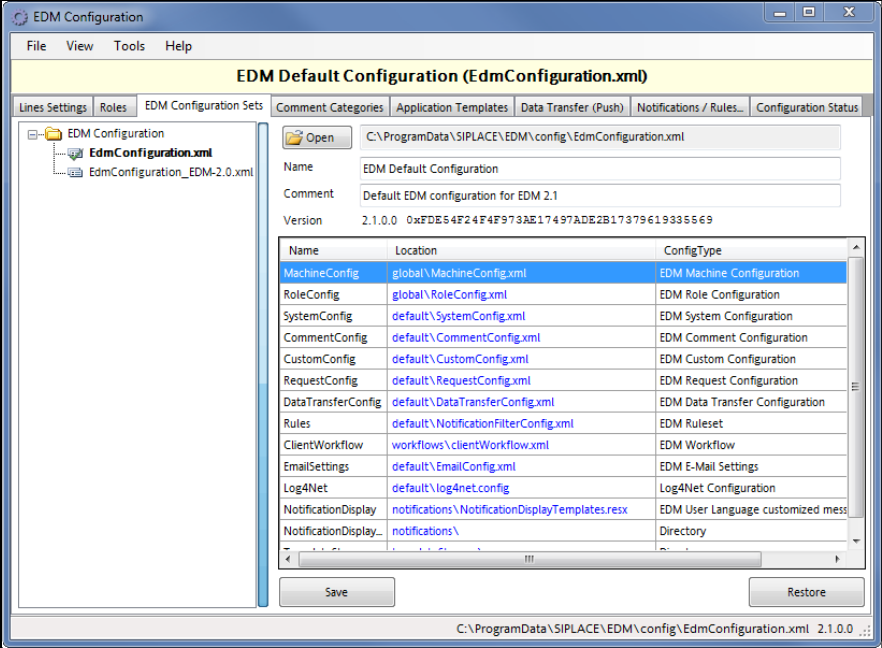
Figure 5-1: Configuration Sets
EDM V2.2 / User Guide Ausgabe 10/2013 Edition
46
The left-hand side of the GUI shows a list of all configuration sets. The context menu makes
available some edit functionality (New set, duplicate…).
By selecting an EDM Configuration Set, all subsequent operations refer to this Configuration Set.
The grid on the right-hand side shows the name of the configuration item, together with the location
of the associated configuration file (on the configuration server). The checksums serve as “unique”
version identifier e.g. to detect changed configuration items.
5.1.3 Lines Settings
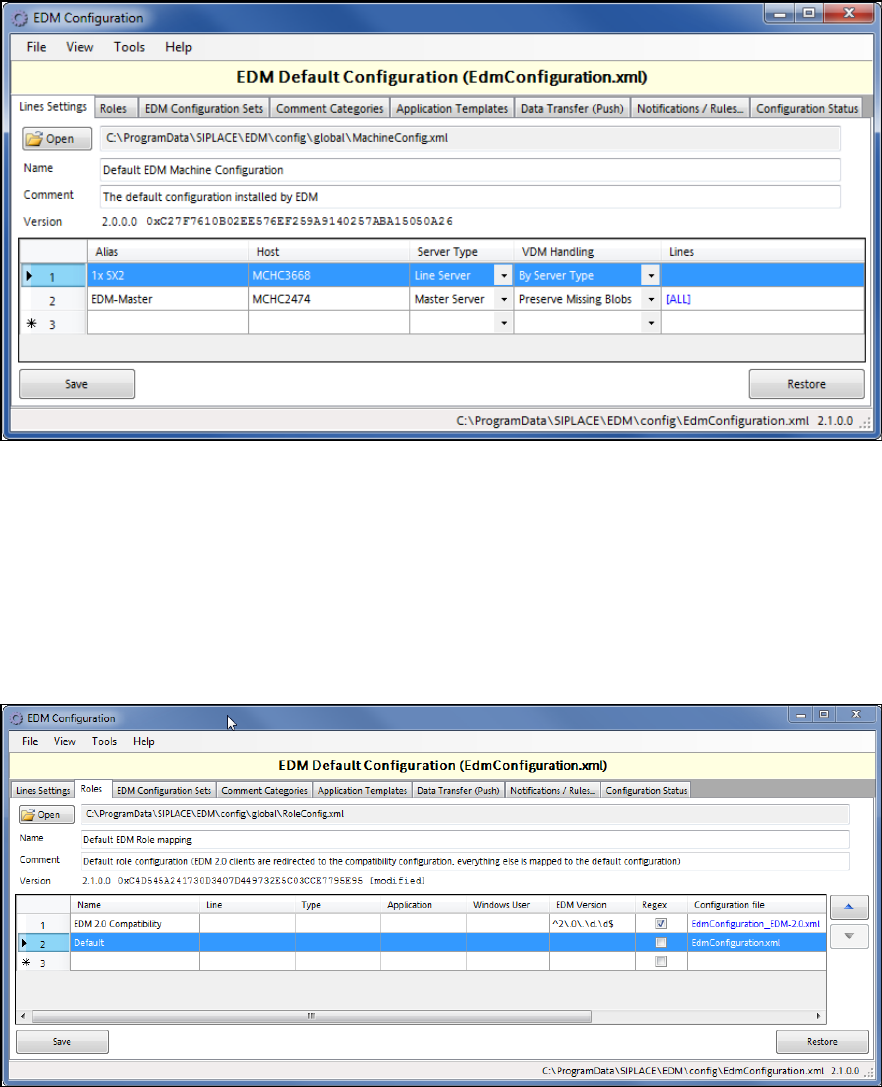
The Lines Settings tab provides an overview over the EDM network and shows each registered
computer, together with its associated role.
Figure 5-2: Line Settings
This dialog is an editor to the basic line data given during the setup (see EDM Installation Manual).
In addition, the behavior of the EDM VisionDataManager may be changed in the VDM Handling
column. For detailed information on these settings, see section 6.2.6.29.
5.1.4 Roles
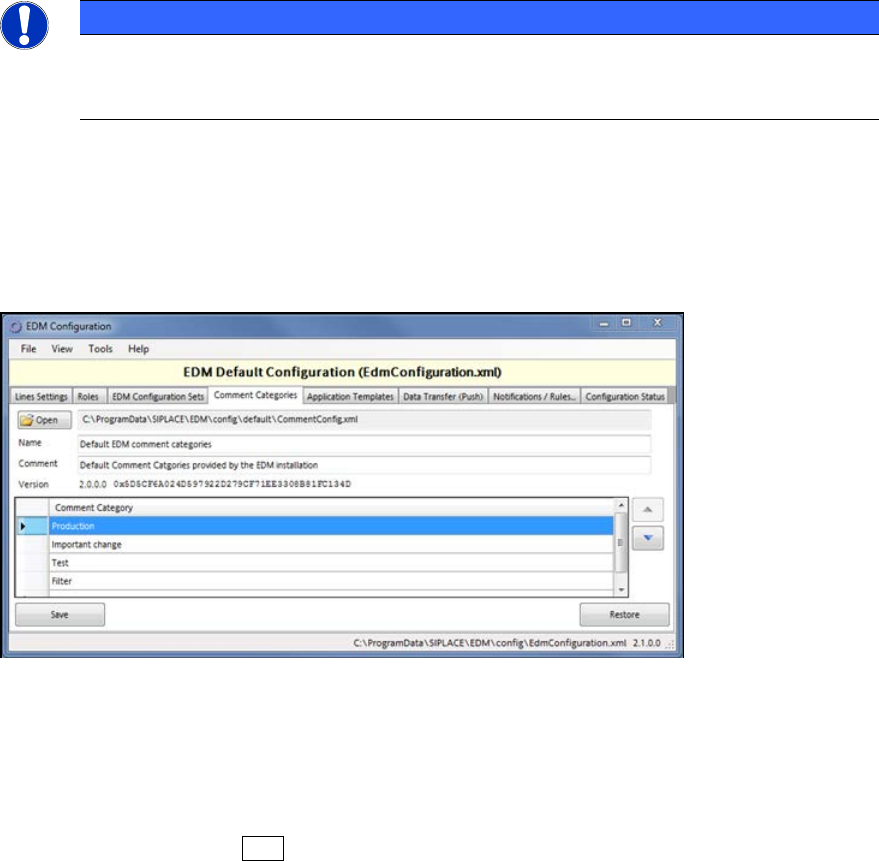
The Roles tab defines which configuration set shall be sent to the EDM Clients.
Figure 5-3: Configuration of EDM roles
EDM V2.2 / User Guide Ausgabe 10/2013 Edition
47
This dialog may be useful if e.g. one of the EDM Line computers ("NPI-Line") has a special role
(NPI) which requires different filter settings. In this case:
► Create a new configuration set in the EDM Configuration Sets tab.
► Click on the location item of the configuration item that should be different from the standard
settings and duplicate the file using the context ("right mouse button") menu entry Save linked
configuration as…).
► In the Roles tab, create an entry that points to the newly created configuration set and give the
Line (alias) name, Windows User or EDM Version to which the setting shall refer.
The first entry that matches the conditions (Line name or current Windows user) determines the
configuration set, which is sent to this EDM Client.
The Default role entry as the last entry in the Roles grid applies to all EDM Clients that do not
match the conditions of any previous entry.
NOTICE
By default, EDM 2.x contains a role entry that ensures that EDM Computers running
EDM version 2.0 will receive a valid, compatible configuration set. To be effective, this
role definition should always stay on the top of the list.
5.1.5 Comment Categories
The Comment Categories tab contains a set of default comment categories and predefined
comments.
Figure 5-4: Comment Categories
These comment categories are presented to a user on the EDM Clients in the Comment dialog
box that appears due to changes of SIPLACE Pro data.
► Double-click on an existing entry to change the category name.
► Double-click on the last line of the grid to add a new category.
► Select a line and press DEL to remove the selected entry.
► Change the order of the categories with the help of the arrow buttons next to the grid.