00197458-01_UG_EDM_V2.2_en.pdf - 第49页
EDM V2.2 / U ser Guid e Ausgabe 10/2013 E dition 49 5.1.6 A pplic ation Templa tes The appl ication tem plates depic t the sta tic part of the custom er proc ess that is rel ated to the d ata. The y primaril y define the…
EDM V2.2 / User Guide Ausgabe 10/2013 Edition
48
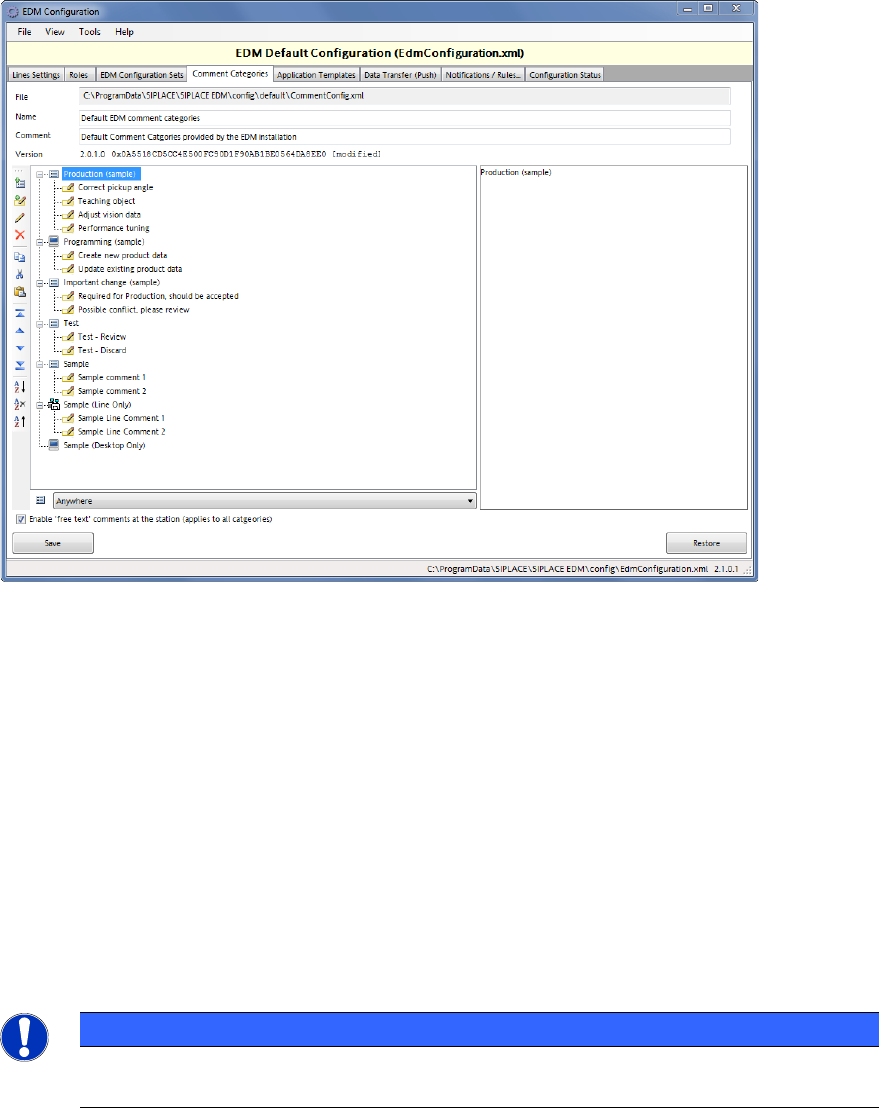
The Comment dialog box may also be displayed at the station on which the SIPLACE Pro changes
are made. In this case, predefined comments have to be defined for each category.
Figure 5-5: Editing predefined comments for a category
The list of predefined comments can be changed and extended in the same way as the categories.
A corresponding warning is displayed if a comment category has no predefined comments. If a
comment category has no predefined comments and the comment dialog should be displayed at
the station, EDM will automatically insert the name of the category as the only predefined
comment. This ensures that the list of comment categories is consistent between line server and
station. Categories with the same name or duplicate predefined comments within a category are
not allowed.
In addition to using predefined comments at the station, it is also possible to activate the option to
enter free text comments at the station.
If the Enable 'free text' comments at the station option is activated in the Comment Categories
tab, the user at the station may enter any comment at the station (see section 4.2.1.1 for details on
this feature). The setting is saved in the Comment Configuration file. Thus, it can be set
differently for different Line Servers by using the Roles configuration feature.
NOTICE
Predefined comments may contain line breaks but category names should not contain
any while the Editor enforces this.
It is possible to limit the visibility of a comment category to either Station Only or Line Server
Only. The default is not to limit the display.
EDM V2.2 / User Guide Ausgabe 10/2013 Edition
49
5.1.6 Application Templates
The application templates depict the static part of the customer process that is related to the data.
They primarily define the object types to be transferred and whether or not they will be overwritten
on the EDM line during push or pull operation.
5.1.6.1 General Settings
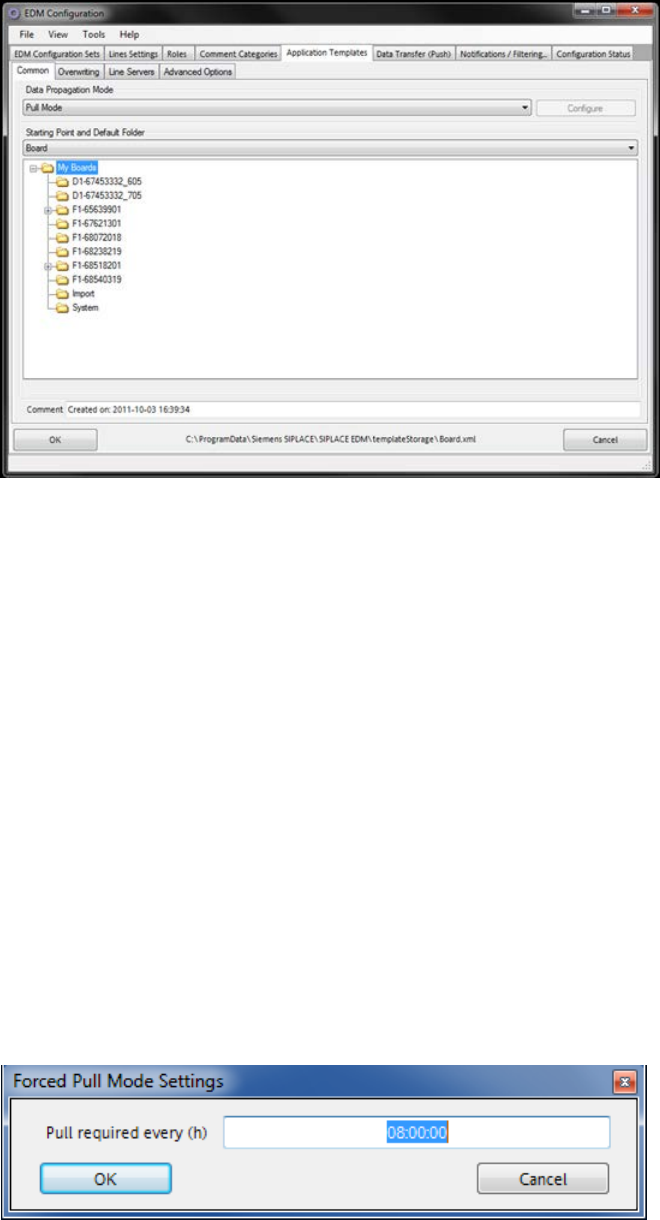
Figure 5-6: General settings for application templates
The general settings include:
● Type of data transfer. Currently, you can only select Pull Mode, Push Mode or Forced Pull
Mode.
● Starting Point specifies the object type for which this template can be valid. A template can
only be valid for one object type at a time. However, it is possible to define more than one
template for an object type.
● Objects found in the Default folder and all its subfolders can be subsequently specified by the
line engineer for pulling and pushing from the master.
● An optional comment.
Pull mode and push mode
● No additional settings can be specified for these types of data transfer between the Master
Server and Client computers.
Forced pull mode
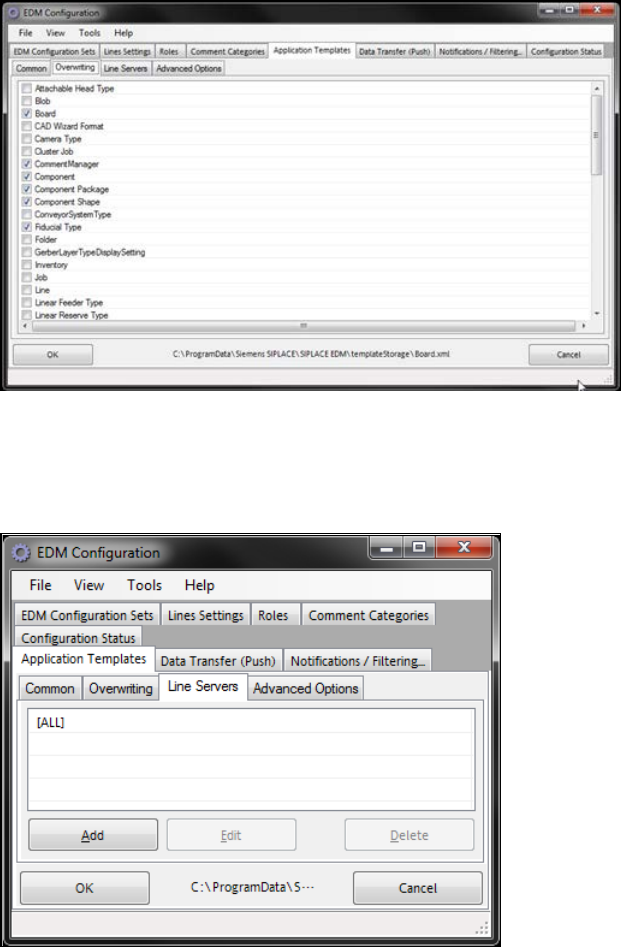
● For this type of data transfer, the time after which the data preparation engineer will be notified
that no new data has been pulled for the line must be specified via Configure. The time is
specified in hours.
Figure 5-7: Forced pull mode configuration
EDM V2.2 / User Guide Ausgabe 10/2013 Edition
50
5.1.6.2 Overwriting
Figure 5-8: Settings for overwriting object types
You can select the object types to be overwritten when the data is imported to the line here.
5.1.6.3 Line Server
Figure 5-9: Line servers
Here you specify the list of Line Servers for which the application template has to be applied.
● (A list of) Line alias name(s) (as defined in the Lines Settings tab, see section 5.1.3) make the
template visible to the specified EDM line(s).
● [All] (default value) makes EDM present the template to all line servers.