OM-1683-001_w.pdf - 第29页
12 OM-1683 6.1 Collection of PCB Support Pins and Setup Operation of Conveyor Width (1) Display the "SPR T -PINS CNVR Set-up" window using the following icon procedure. (2) Select the conveyor in the lane where…
11
OM-1683
6. "SPRT-PINS" Window
This window is used when the support pin change work for each conveyor is
to be performed.
Reference
Refer to "4. "SPRT-PINS" Window" in Chapter 6, Volume 2, in the
SIGMA-G5 main machine instruction manual for the information other
than for dual transfer.
[1]
--
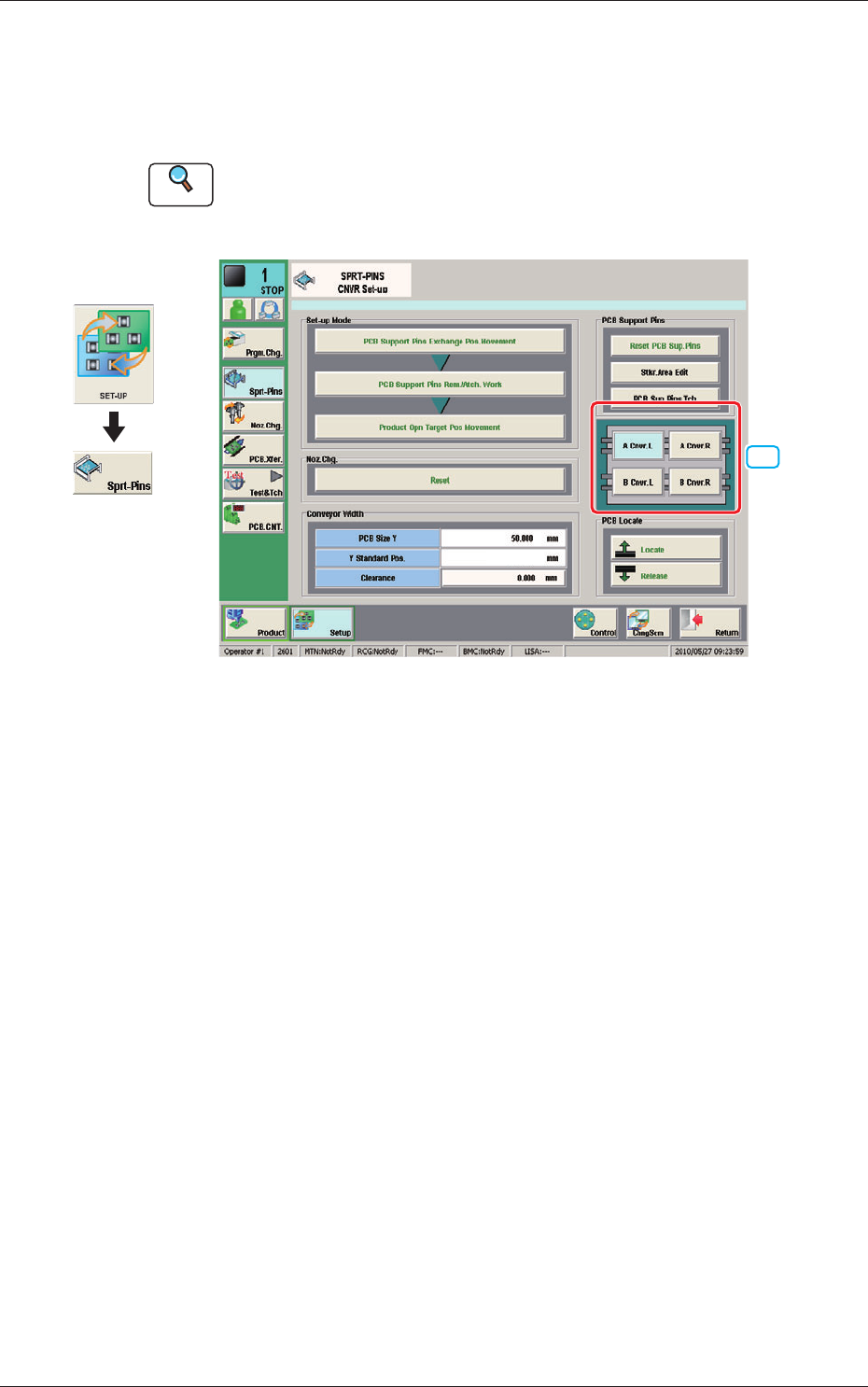
Fig. 10 SPRT-PINS
[1] PCB Locate Section Select Button
Using these buttons, the PCB positioning section is selected on the side of
set-up operation for each conveyor.
[A Cnvr. L] Button
:
When selected, the PCB positioning section L on the
side of the lane A is selected.
[B Cnvr. L] Button
:
When selected, the PCB positioning section L on the
side of the lane B is selected.
[A Cnvr. R] Button
:
When selected, the PCB positioning section R on the
side of the lane A is selected.
[B Cnvr. R] Button
:
When selected, the PCB positioning section R on the
side of the lane B is selected.
Graphic
Development
1103-001
6. "SPRT-PINS" Window
12
OM-1683
6.1 Collection of PCB Support Pins and Setup Operation of
Conveyor Width
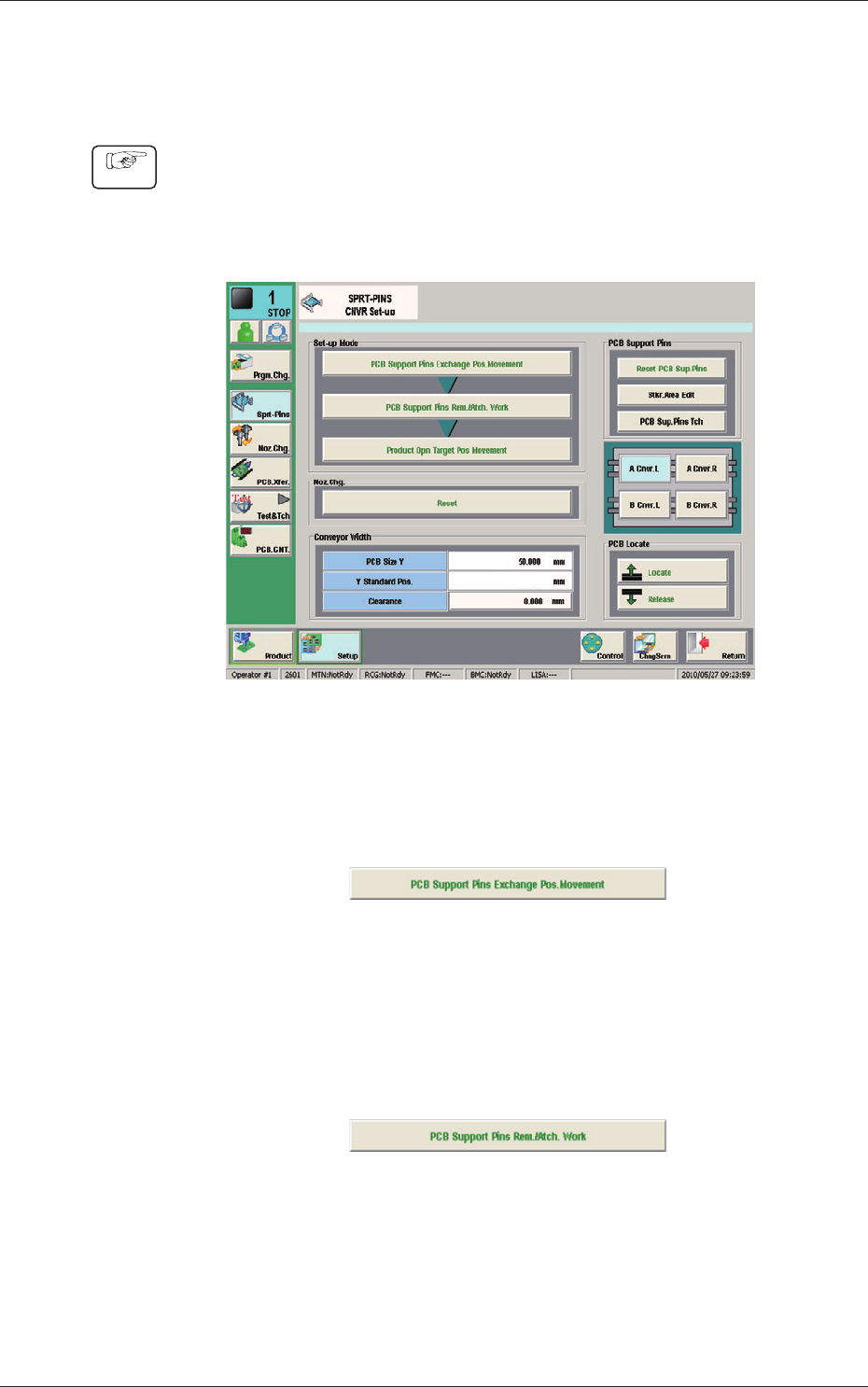
(1) Display the "SPRT-PINS CNVR Set-up" window using the following icon
procedure.
(2) Select the conveyor in the lane where the operation is
performed.
--
Fig. 11
(3) Press the [PCB Support Pins Exchange Pos. Movement] button.
After that, press the [START] button on the operation panel in 10 sec.
(The machine retracts the head and maximizes the conveyor width.)
Fig. 12
(4) Press the [PCB Support Pins Rem./Atch. Work] button and within 10
seconds, press the [START] button on the operation panel.
(The PCB support pins are arranged onto the positions specied in the
pattern program).
Fig. 13
(5) Press the [Product Opn Target Pos.Movement] switch and within 10 seconds,
press the [START] button on the operation panel.
The support pins are moved based on the pattern program where the
conveyor width has been selected.
Procedure
1103-001
6.1 Collection of PCB Support Pins and Setup Operation of Conveyor Width
13
OM-1683
7. "PCB XFER" Window
This window enables the operator to move the PCB on each block on each
lane on the conveyor to the next block.
Reference
Refer to "6. "PCB XFER" Window" in Chapter 6, Volume 2, in the
SIGMA-G5 main machine instruction manual for the information other
than for dual transfer.
[1]
[2] [2]
[2] [2]
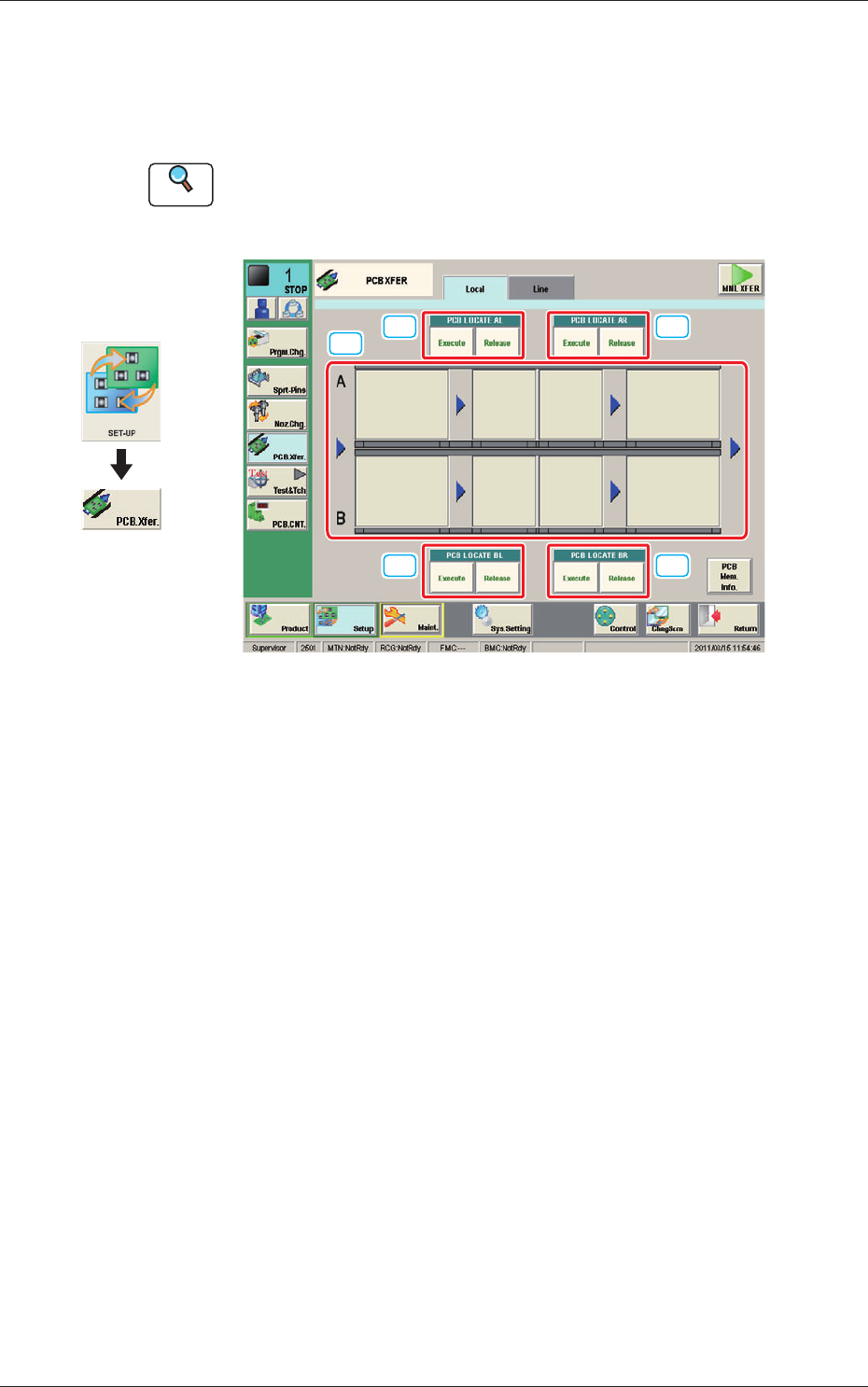
Fig. 14 PCB XFER
[1] Conveyor Image Display Pane
Each block in the graphic image of the conveyor is provided with a button
function.
When the [START] button on the operation panel is pressed in 10 seconds
after a conveyor block button, the PCB is transferred to the block position.
[2] PCB LOCA
TE (PCB LOCATE AL, AR, BL, BR)
Using these buttons, the PCB positioning is performed for each lane and
each block.
When the [START] button on the operation panel is pressed in 10 seconds
after the [Execute] button, the backup base of the selected stage moves up
and the PCB is positioned.
When the [START] button on the operation panel is pressed in 10 seconds
after the [Release] button, the backup base moves down and the PCB
positioning is released.
Graphic
Development
1103-001
7. "PCB XFER" Window