00197222-04_IM_PCB_Barcode_V2_0_SP4_de_en.pdf - 第12页
PCB Barco de V2.0 S P4 / Ins tallation Manual Ausgabe 03/2013 E dition 12 4.1.3 SX1/S X2 - a nd DX1 /DX 2 -S eries P lacement M achines ► Plug the gr een US B dongle into the em pty USB interfac e on the box PC (1) . ► P…
PCB Barcode V2.0 SP4 / Installation Manual Ausgabe 03/2013 Edition
11
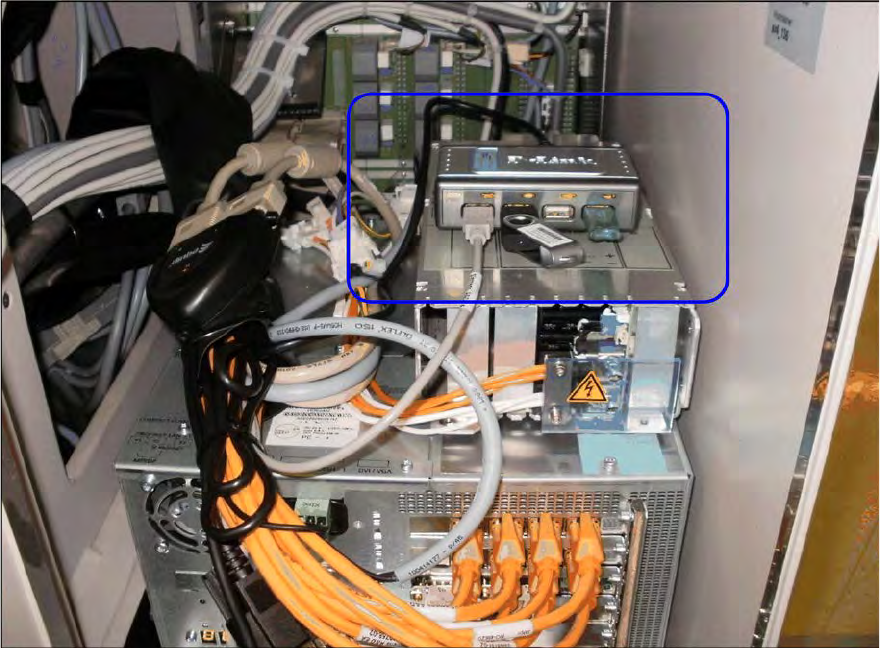
The following picture displays the installed PCB Barcode hardware on an X-series placement
machine in one-computer operation.
Figure 4-1: Installed PCB Barcode hardware on an X-series placement machine
► Install the PCB Barcode software as described in section 4.2.
4.1.2 X-series Placement Machines in Two-Computer Operation
► Plug the green USB dongle and the gray USB stick into the empty USB interfaces on the box
PC of the station computer.
► Plug the green USB dongle and the gray USB stick into the empty USB interfaces on the box
PC of the Vision computer.
► Install the PCB Barcode software as described in section 4.2.
PCB Barcode V2.0 SP4 / Installation Manual Ausgabe 03/2013 Edition
12
4.1.3 SX1/SX2- and DX1/DX2-Series Placement Machines
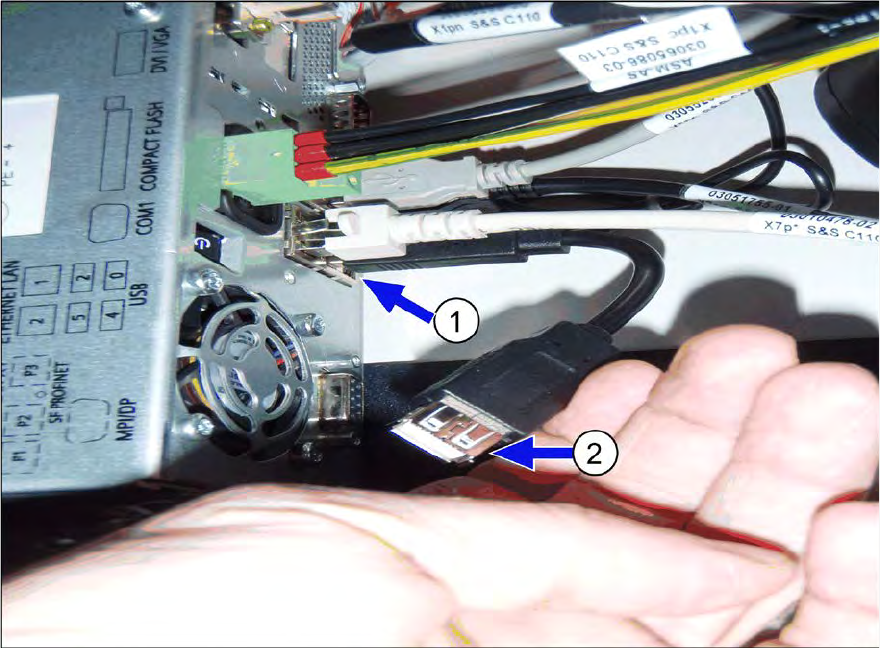
► Plug the green USB dongle into the empty USB interface on the box PC (1).
► Plug the gray USB stick into the extension of the keyboard interface on the box PC (2).
Figure 4-2: Installing PCB Barcode hardware on SX1/SX2 and DX1/DX2 placement machines
► Install the PCB Barcode software as described in section 4.2.
4.1.4 SX4- and DX4-Series Placement Machines
The installation of the PCB Barcode hardware on the SX4- and DX4-series placement machines is
performed in the same way as on the X-series placement machines in one-computer operation,
see section 4.1.1.
PCB Barcode V2.0 SP4 / Installation Manual Ausgabe 03/2013 Edition
13
4.2 Installing PCB Barcode Software
The required drivers and licenses are available on the gray USB stick.
► Switch to the operating system level on the station computer.
► Log in as administrator.
► Open Windows Explorer.
► Change to the Windows7 or WindowsXP directory on the USB stick drive.
► Start the Install.bat batch file from the respective Windows directory.
NOTICE
If necessary, the installation file may be started several times.
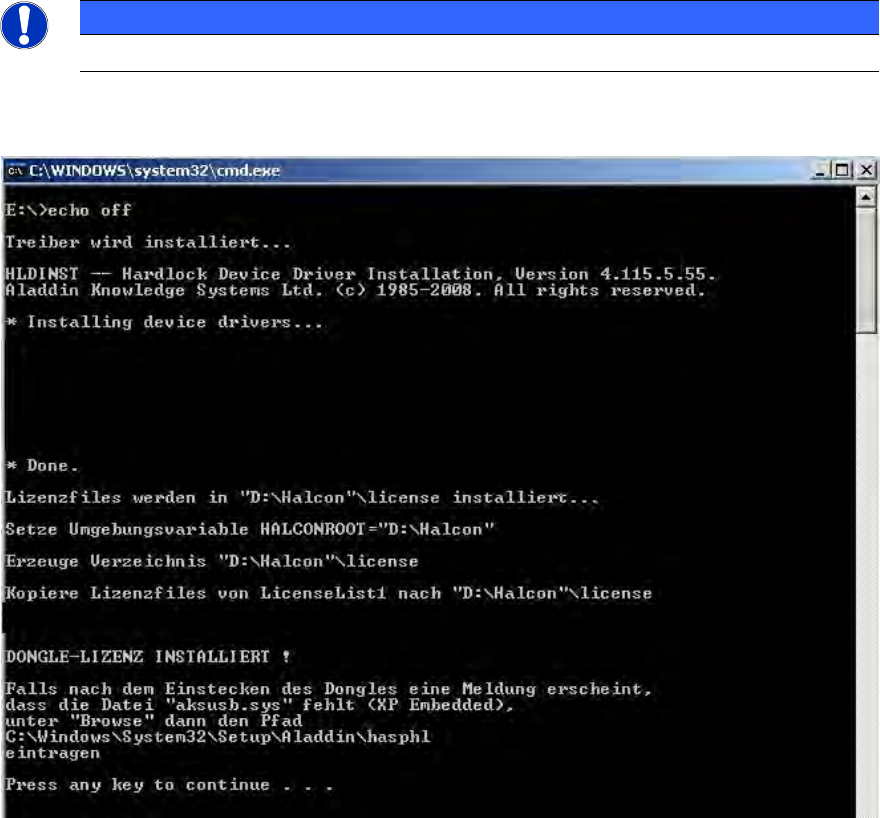
The following window is displayed on the screen during installation (example Windows XP).
Figure 4-3: Installation of drivers and licenses