00197222-04_IM_PCB_Barcode_V2_0_SP4_de_en.pdf - 第18页
PCB Barco de V2.0 S P4 / Ins tallation Manual Ausgabe 03/2013 E dition 18 ► Open the Environmen t Variables in the A dvan ced tab. Figure 4-7: Opening E nvironment Variables The HALCONROOT variabl e with the D: \ H alcon…
PCB Barcode V2.0 SP4 / Installation Manual Ausgabe 03/2013 Edition
17
The dongle is not deteted
If the dongle is not detected, the path to the license file is possibly not set.
► Switch to the operating system level.
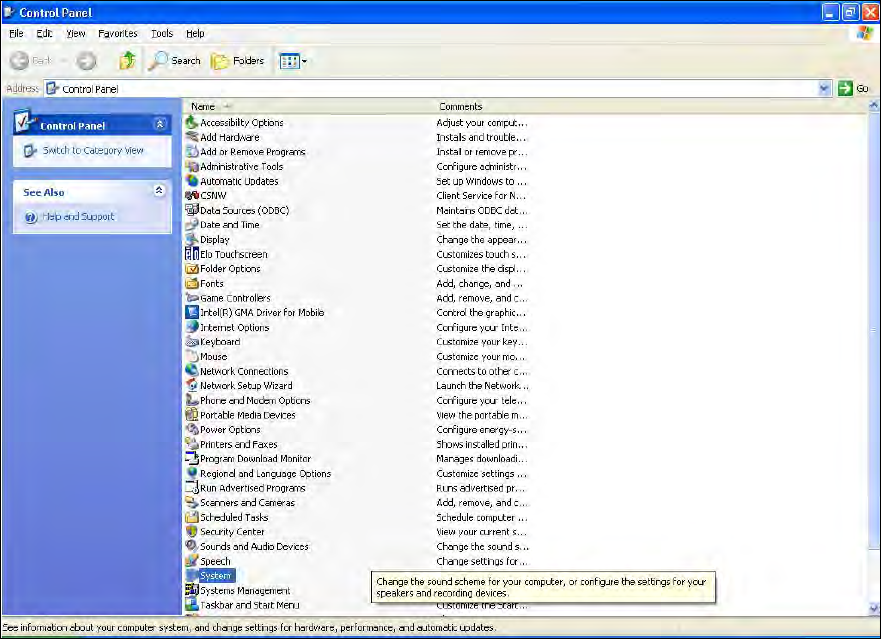
► Öpen the Control Panel under Start - Settings.
► Click on System, to open the system properties.
Figure 4-6: Control Panel - System
PCB Barcode V2.0 SP4 / Installation Manual Ausgabe 03/2013 Edition
18
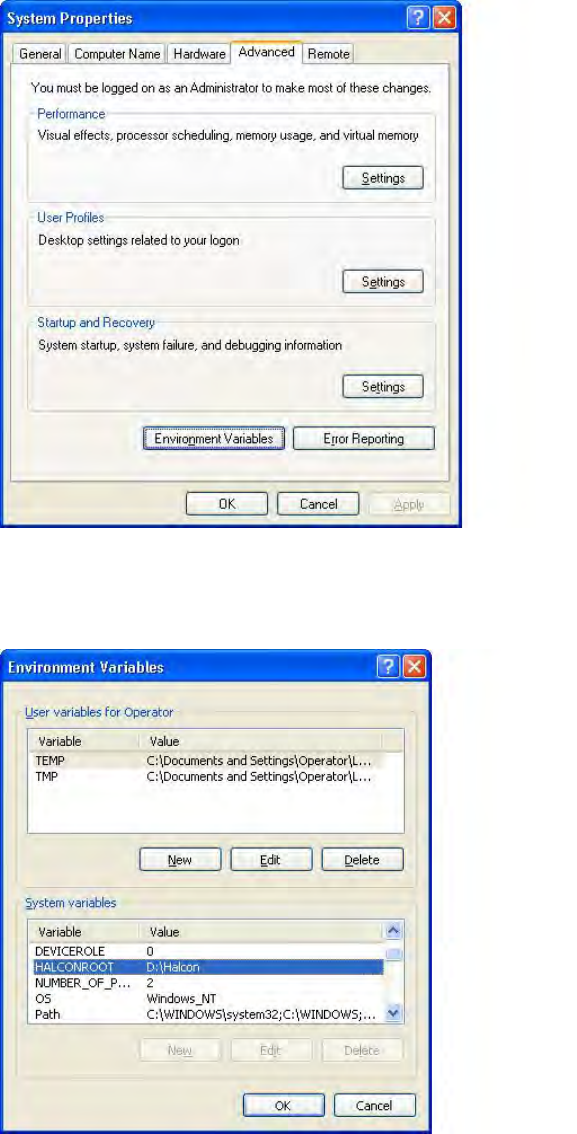
► Open the Environment Variables in the Advanced tab.
Figure 4-7: Opening Environment Variables
The HALCONROOT variable with the D:\Halcon path should be listed in the lower window under
System variables.
Figure 4-8: System variables
► If not, repeat the installation.
PCB Barcode V2.0 SP4 / Installation Manual Ausgabe 03/2013 Edition
19
5 Testing PCB Barcode
You can test the PCB Barcode with SIPLACE Pro and the station software.
In SIPLACE Pro:
► Create a new board in the Board Editor.
► Create a new fiducial of the type PCB Barcode in the Fiducial Editor and enter dimensions
and tolerances.
► Create at least one component for the board in the Component Editor.
► Assign the component and the barcode fiducial to the board in the Board Editor.
► Define the placement program for the station.
More information about the single steps can be found in the "Getting Started with SIPLACE Pro"
manual and in the online help to SIPLACE Pro.
In the station software:
After the placement program has been downloaded to the station:
► Teach the barcode under Teaching fiducials in the Board view.
More information about this can be found in the online helps to the station software and SIPLACE
Vision.