00197222-04_IM_PCB_Barcode_V2_0_SP4_de_en.pdf - 第17页
PCB Barco de V2.0 S P4 / Ins tallation Manual Ausgabe 03/2013 E dition 17 The dongle is not de teted If the do ngle is not detecte d, the pat h to the l icense fil e is possibl y not set. ► Switch to t he opera ti ng sys…
PCB Barcode V2.0 SP4 / Installation Manual Ausgabe 03/2013 Edition
16
4.4 Troubleshooting
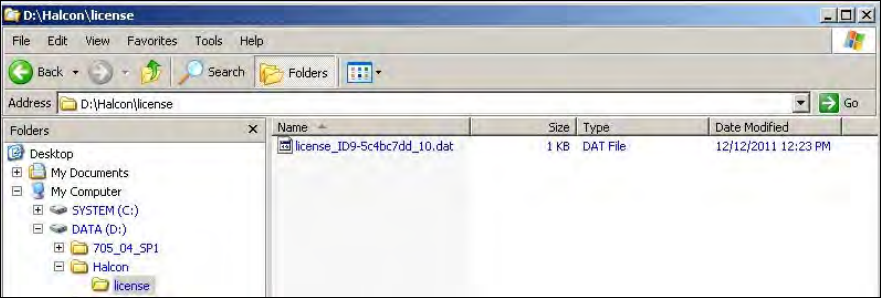
The licenses are not automatically copied to the D:\Halcon\license directory
► Copy the suitable license file manually from the USB stick directory into the above mentioned
directory. The file has to correspond to the dongle ID on the green USB dongle. As of the 706.0
station software version, the dongle ID may be read out as described in section 4.3.
Figure 4-5: License file
The indicator on the USB dongle does not light up in red
► Check the USB cable and the USB ports.
The aksusb.sys file is missing
The first time the dongle is used it might happen that a Windows dialog appears under Windows
XP Embedded, displaying a message that the aksusb.sys file is missing. In this case:
► Click on the Browse button and select the C:\Windows\System32\Setup\Aladdin\hasphl path.
PCB Barcode V2.0 SP4 / Installation Manual Ausgabe 03/2013 Edition
17
The dongle is not deteted
If the dongle is not detected, the path to the license file is possibly not set.
► Switch to the operating system level.
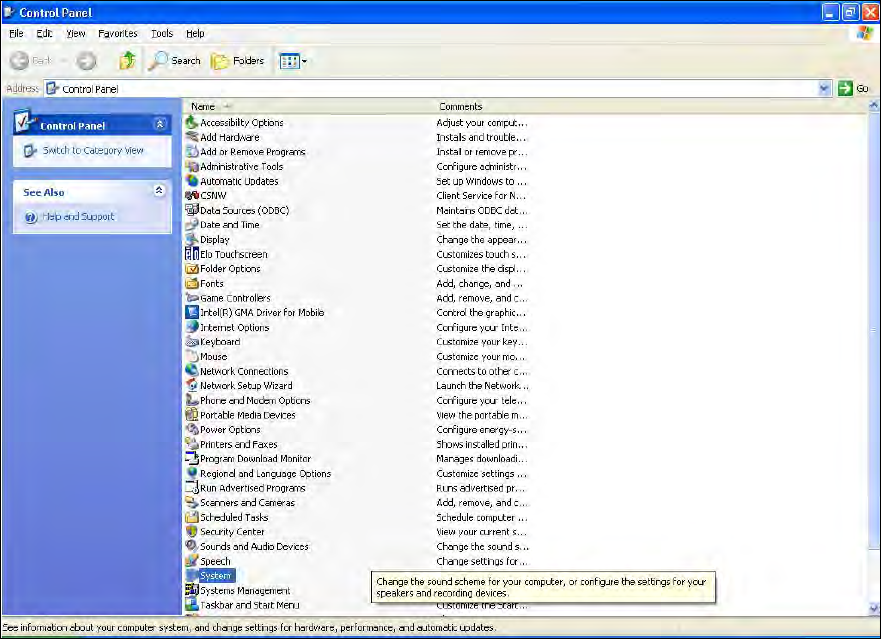
► Öpen the Control Panel under Start - Settings.
► Click on System, to open the system properties.
Figure 4-6: Control Panel - System
PCB Barcode V2.0 SP4 / Installation Manual Ausgabe 03/2013 Edition
18
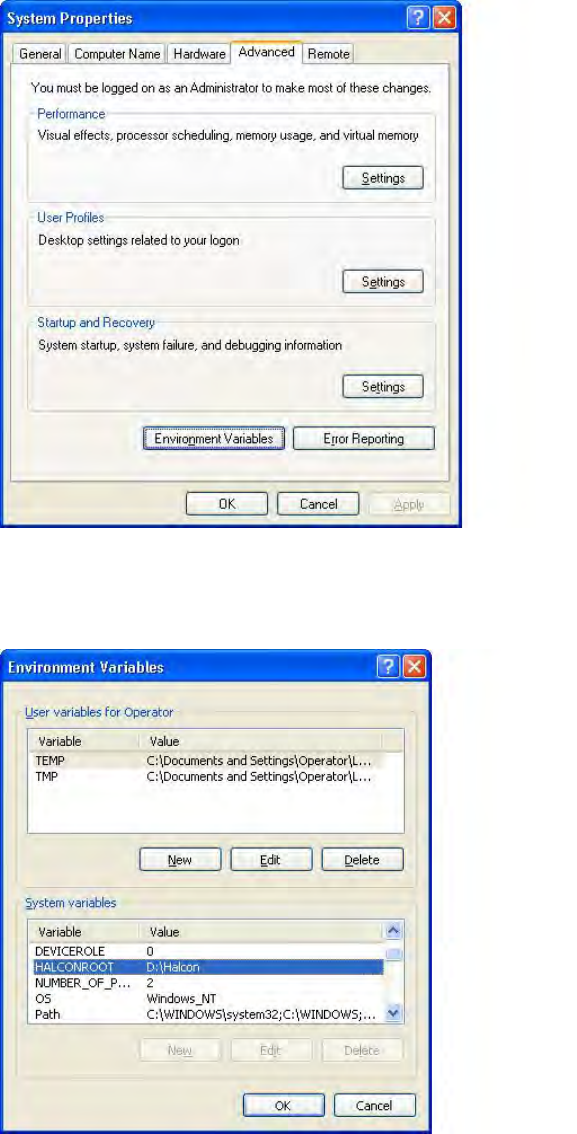
► Open the Environment Variables in the Advanced tab.
Figure 4-7: Opening Environment Variables
The HALCONROOT variable with the D:\Halcon path should be listed in the lower window under
System variables.
Figure 4-8: System variables
► If not, repeat the installation.