00197222-04_IM_PCB_Barcode_V2_0_SP4_de_en.pdf - 第15页
PCB Barco de V2.0 S P4 / Ins tallation Manual Ausgabe 03/2013 E dition 15 4.3 Reading out Dongle ID As of the 7 06.0 stat ion sof tware vers ion, the do ngle ID can be read out. For this, t he readme.tx t and lmhos tid.e…
PCB Barcode V2.0 SP4 / Installation Manual Ausgabe 03/2013 Edition
14
Additional steps in two-computer operation
► Connect to the Vision computer via remote access.
► Log in as administrator.
► Perform the installation as described above on the Vision computer as well.
After finishing the installation procedure, the license files are automatically copied to the
D:\Halcon\license directory.
Shortly after, the indicator on the USB dongle lights up in red. This means that the USB dongle has
been detected by the system.
► Remove the gray USB stick and hand it over to the customer.
► Shut down the station computer and in two-computer operation the Vision computer as well.
► Reboot the computer(s).
PCB Barcode V2.0 SP4 / Installation Manual Ausgabe 03/2013 Edition
15
4.3 Reading out Dongle ID
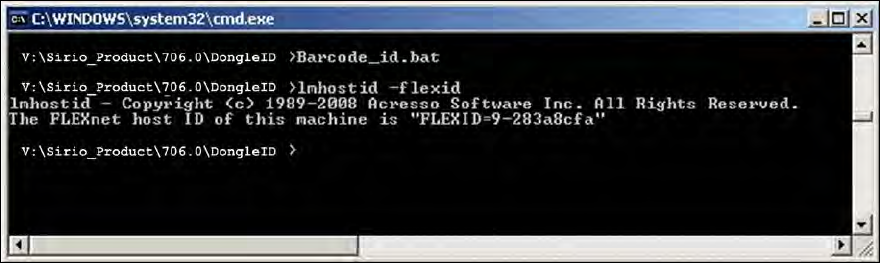
As of the 706.0 station software version, the dongle ID can be read out. For this, the readme.txt
and lmhostid.exe files are available in the DongleID directory on the gray USB stick and on the
product CD of the station software as well. Proceed as follows to find out the dongle ID:
► Open a command interpreter (cmd) in the DongleID directory.
► Start the lmhostid.exe file by running the lmhostid –flexid command.
The dongle ID is displayed (in the following sample: "FLEXID=9-283a8cfa").
Figure 4-4: Reading out dongle ID
PCB Barcode V2.0 SP4 / Installation Manual Ausgabe 03/2013 Edition
16
4.4 Troubleshooting
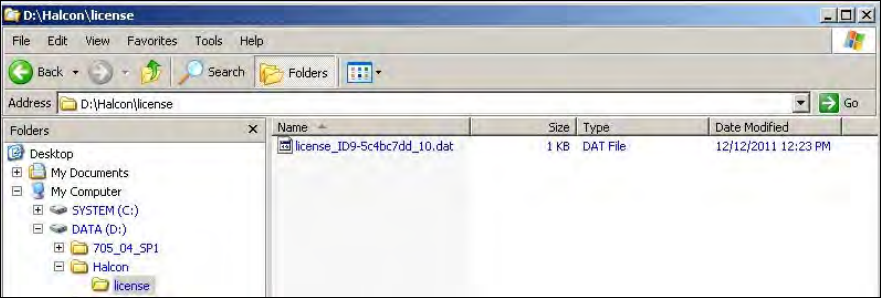
The licenses are not automatically copied to the D:\Halcon\license directory
► Copy the suitable license file manually from the USB stick directory into the above mentioned
directory. The file has to correspond to the dongle ID on the green USB dongle. As of the 706.0
station software version, the dongle ID may be read out as described in section 4.3.
Figure 4-5: License file
The indicator on the USB dongle does not light up in red
► Check the USB cable and the USB ports.
The aksusb.sys file is missing
The first time the dongle is used it might happen that a Windows dialog appears under Windows
XP Embedded, displaying a message that the aksusb.sys file is missing. In this case:
► Click on the Browse button and select the C:\Windows\System32\Setup\Aladdin\hasphl path.