TM6419.PickupMACS.pdf - 第21页
SMT Software Engineering Group IM Operations Y AMAHA MOT OR CO., L TD. MDOC-SOFT50177 21/28 (4) [Mark database overview] dialog o pens. Press the [New] button. (5) The [Registration new mark into databa s e] d…
SMT Software Engineering Group
IM Operations YAMAHA MOTOR CO., LTD.
MDOC-SOFT50177
20/28
6. Notice for update
This section describes about notice when you start this machine after updating.
When updating the software, please be sure to read this section.
6.1. Setting method of Feeder MACS mark data
6.2
. Setting method of Nozzle MACS mark data
6.3.
Using with Pick Position Correct
6.1. Setting method of Feeder MACS mark data
As described on [4.1.3. Mark data of Feeder MACS], to execute Feeder MACS, you need to
register the special mark data into the database, and set the database number.
Please use the board data enclosed in the installation CD of V3.41STD R1.000 or later. Setting
method is as follows.
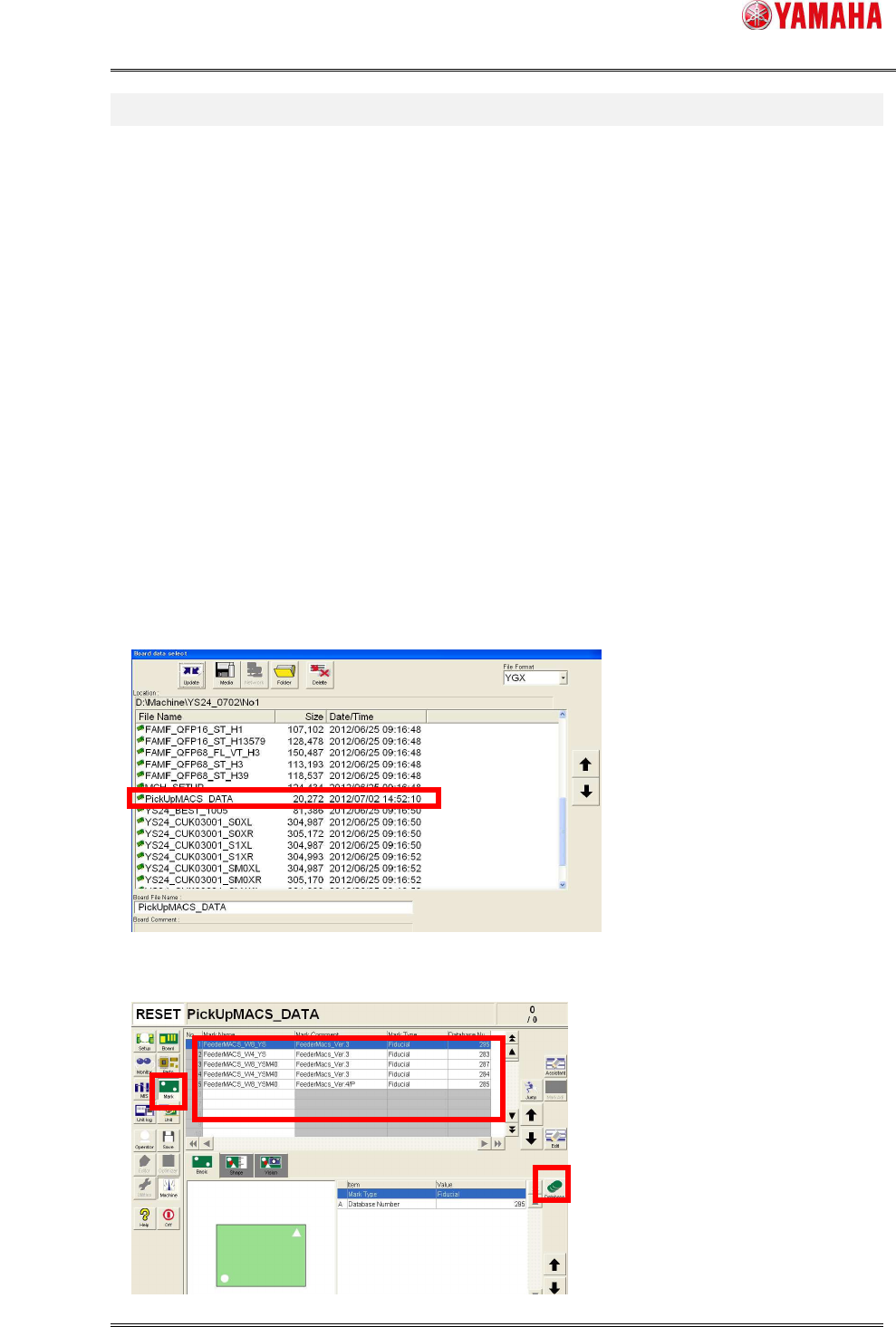
(1) Copy [PickUpMACS_DATA.ygx] from the installation CD to the [No1] folder of the target
machine.
(2) Read board data [PickUpMACS_DATA.ygx] on the [Setup] screen. Sometimes a board
data read error occurs, but ignore it.
(3) Press the [Mark] button. Select mark data named [Feeder MACS]. And press the
[Database] button.
*4
SMT Software Engineering Group
IM Operations YAMAHA MOTOR CO., LTD.
MDOC-SOFT50177
21/28
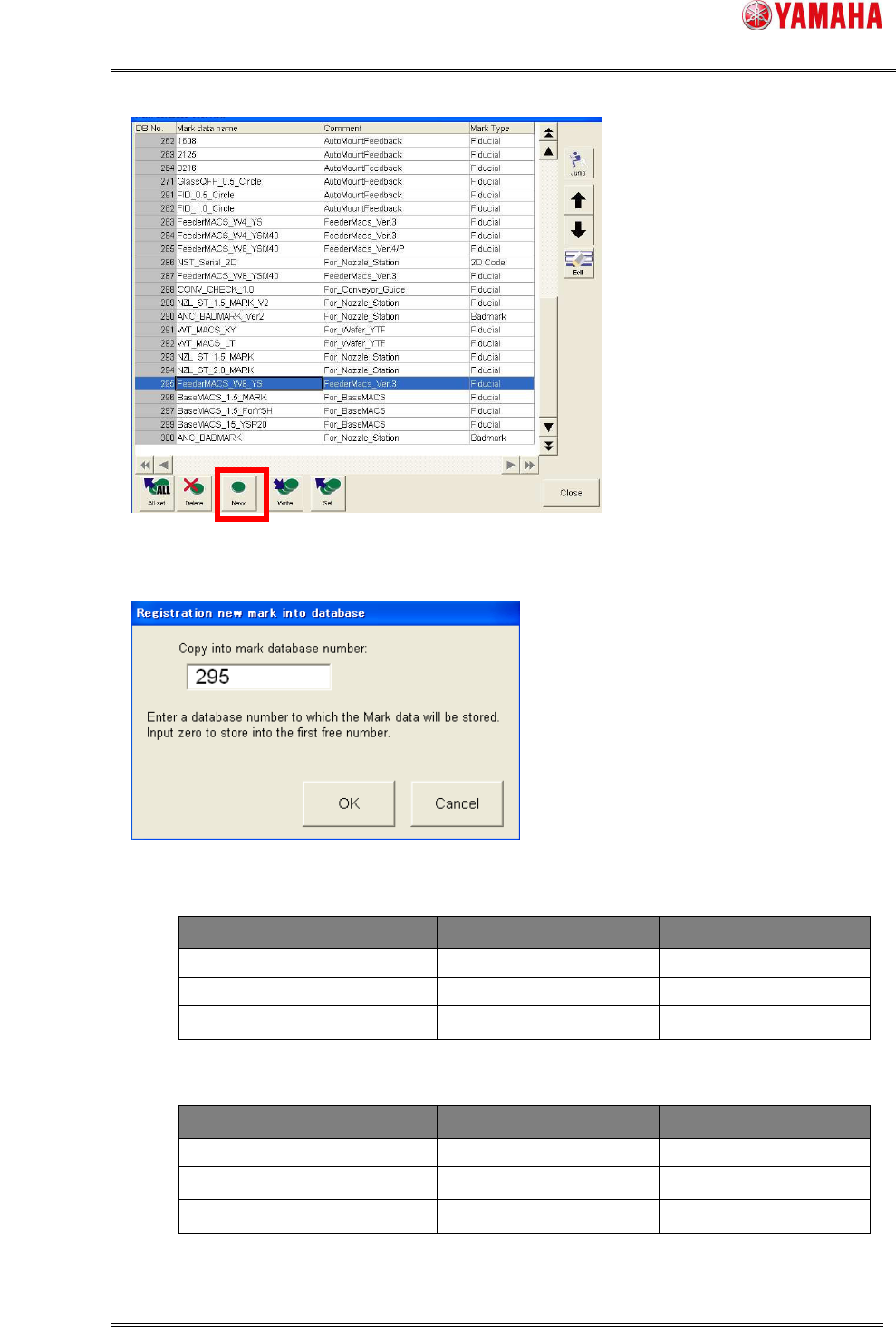
(4) [Mark database overview] dialog opens. Press the [New] button.
(5) The [Registration new mark into database] dialog opens.
Input a mark database number, then press [OK].
Database number is as below.
■ YS/YSM20
Mark Name Mark Comment Database Number
FeederMACS_W8_YSM40 FeederMACS_Ver.*/P 285
FeederMACS_W8_YS FeederMACS_Ver.* 295
FeederMACS_W4_YS FeederMACS_Ver.* 283
■ YSM40
Mark Name Mark Comment Database Number
FeederMACS_W8_YSM40 FeederMACS_Ver.* 287
FeederMACS_W4_YSM40 FeederMACS_Ver.* 284
FeederMACS_W8_YSM40 FeederMACS_Ver.*/P 285
*4
*6
SMT Software Engineering Group
IM Operations YAMAHA MOTOR CO., LTD.
MDOC-SOFT50177
22/28
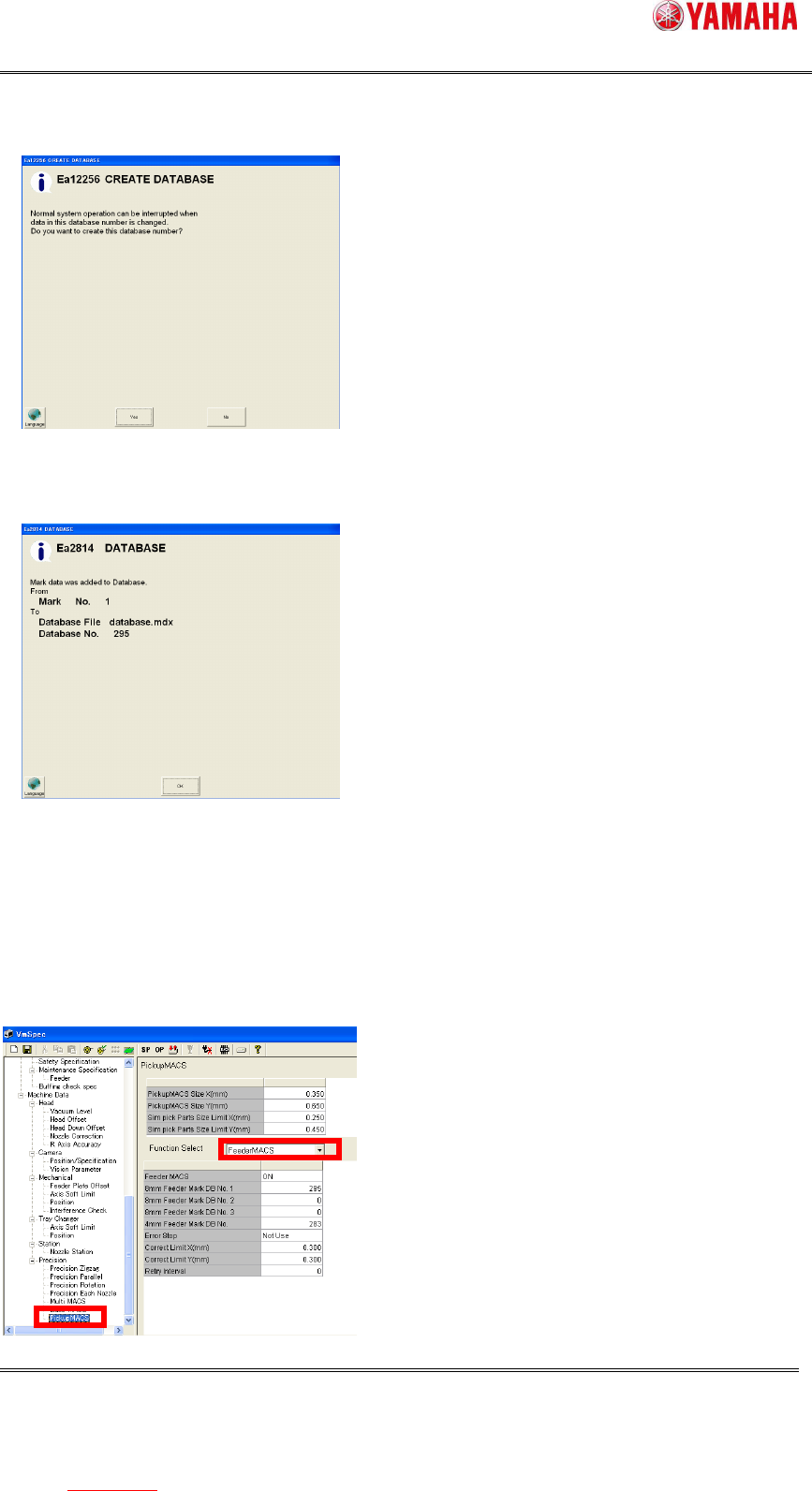
(6) Above number is input, the following message is displayed, and press the [Yes] button.
If this message appears when you select other than 295, please change the number.
(7) Dialog showing the data registration completed. Press the [OK] button.
(8) Check that the mark data exists on [Mark database overview]. If yes, the registration to
the mark database is completed.
(9) Next, reflect the registered mark database to the setting of Feeder MACS. Press the
[Machine] button and open the machine setup dialog.
(10) Select [Machine] - [Setting] - [Machine Data] - [Precision] - [Pickup MACS]. Select
“Feeder MACS” from the combo box.