00196715-01_IM_SSW_704_DE_EN.pdf - 第29页
Installation Manual, Station Software Version 704.01 04/2010 Edition 5.3 Prep arations for installing the sof tware 5.3.1 Requirements Requirements for installing the SIPLACE software and the Vision computer software: - …
Installation Manual, Station Software Version 704.01 04/2010 Edition
28 of 60
5.2 Performing automatic BIOS update/settings on the machine computer
and Vision computer
The image files for the automatic BIOS update/BIOS settings and the corresponding installation instruction
(readme file) are available on the V1.0 BIOS CD that can be ordered for download via the service
technician or SecuFEx.

Installation Manual, Station Software Version 704.01 04/2010 Edition
5.3 Preparations for installing the software
5.3.1 Requirements
Requirements for installing the SIPLACE software and the Vision computer software:
- The Windows XP embedded operating system with Service Pack 2 must be installed on the
machine computer and in two-computer operation on the Vision computer (see "Installation Manual
Operating System Windows XP Embedded SP2 for 70x", item number 00196737-xx)
Or
- The Windows XP Professional operating system with Service Pack 3 and all current hotfixes
(SIPLACE Hotfix CD) must be installed on the machine computer and in two-computer operation on the
Vision computer (see the Installation Manual for the Windows XP operating system, item number
00196151-xx).
Note:
The Windows XP Embedded operating system is only used for new installations. On
upgrading to station software version 704 or higher, there will be no operating system
change from Windows XP Professional to Windows XP Embedded.
Under Windows XP Professional the default Windows display settings have to be changed and the
touchscreen has to be calibrated. Under Windows XP Embedded only the touchscreen has to be
calibrated. You must be logged on as the Administrator
in order to be able to carry out this work.
29 of 60
Installation Manual, Station Software Version 704.01 04/2010 Edition
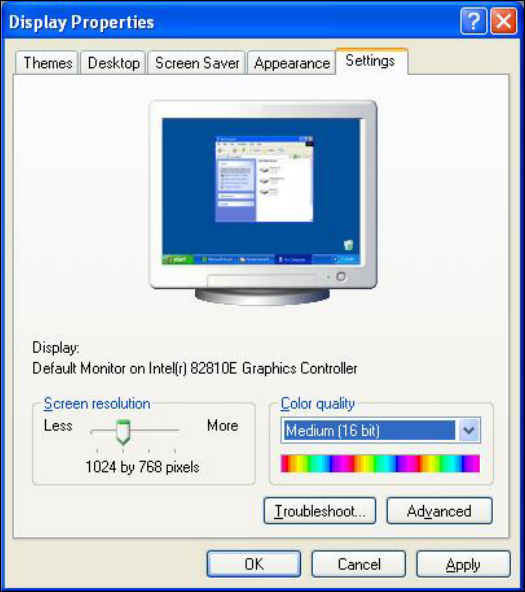
5.3.2 Changing the display settings
→ Choose Start Æ Settings Æ Control Panel Æ Display.
→ Click the Settings tab.
→ Set the "Screen resolution" slider to "1024 by 768 pixels".
Fig. 5-1: Screen settings
→ Confirm the settings by clicking OK.
5.3.3 Calibrating the touchscreen
5.3.3.1 Calibrating the touchscreen for the X-Series
→ Choose Start Æ Settings Æ TouchWare to start the TouchWare Properties program.
30 of 60