00196715-01_IM_SSW_704_DE_EN.pdf - 第52页
Installation Manual, Station Software Version 704.01 04/2010 Edition 7.8 S toring calibration dat a in the EEPROM In order to use the fast head exchange feature, the head specific calibration data has to be stored in the…
Installation Manual, Station Software Version 704.01 04/2010 Edition
7.7 Necessary calibration steps
After upgrading from station software 701.xx and first booting of the station software, some calibration
steps are required.
Requirements:
- The eSW versions have been updated.
- The reference run has been sucessfully performed.
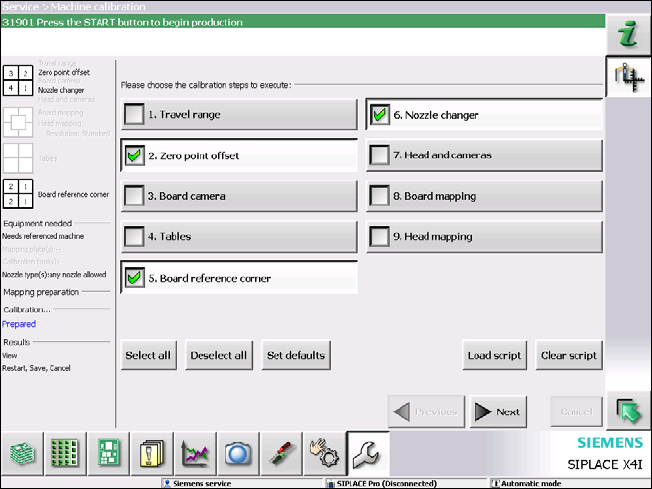
- A calibration nozzle (1235) has to be available on every placement head at segment 1.
Fig. 7-8: Required calibration steps
→ Select the calibration steps that are highlighted in the figure and click on Next.
→ Select all possible components in the following input masks (all conveyor lanes, all gantries, all nozzle
changers).
51 of 60
Installation Manual, Station Software Version 704.01 04/2010 Edition
7.8 Storing calibration data in the EEPROM
In order to use the fast head exchange feature, the head specific calibration data has to be stored in the
EEPROM after upgrading from station software 701.xx. For placement heads with no head specific
calibration data stored within the EEPROM, the available data on the station computer will be stored in the
EEPROM of the respective placement head as follows.
Requirement:
- The eSW versions have been updated.
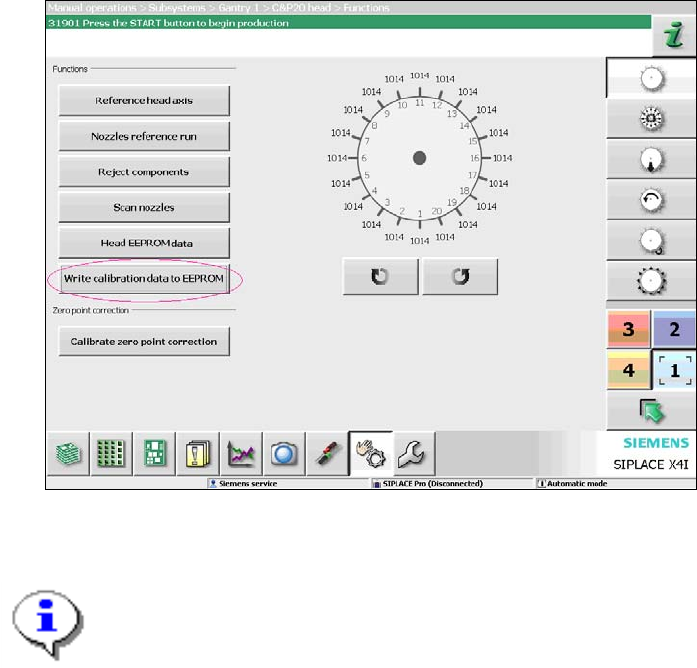
Abb. 7-9: Storing calibration data in the EEPROM
→ Perform the highlighted function for each placement head.
Note:
After the storing calibration data step, the message "37200 Changed heads detected"
should disappear. Otherwise you will have to reboot the machine. If the message still is
displayed after rebooting, please inform the Siemens Service.
52 of 60
Installation Manual, Station Software Version 704.01 04/2010 Edition
8 Uninstalling the SIPLACE software
Note:
You must be logged in as administrator to uninstall the software.
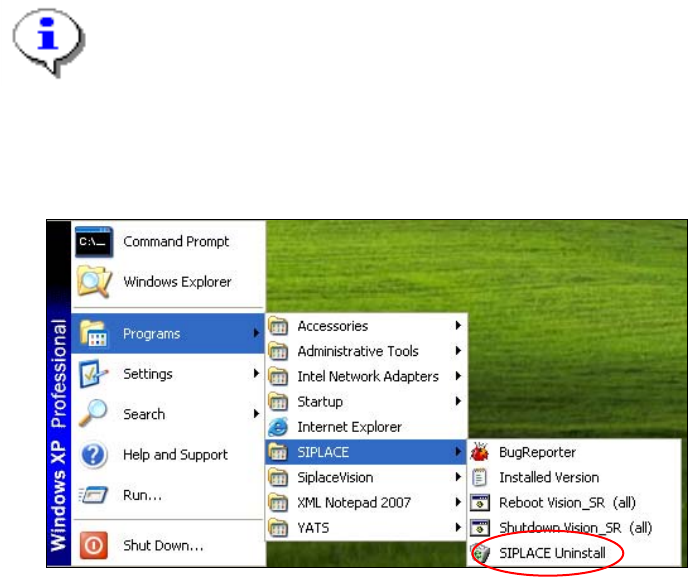
→ Open the Start menu and choose Programs Æ SIPLACE Æ SIPLACE Uninstall.
Fig. 8-1: Starting uninstallation (alternative 1)
Or:
→ Open the Start menu and choose Settings Æ Control Panel.
→ Double-click Add/Remove Programs.
53 of 60