00196500-05_IM_SSW_703_03_DE EN.pdf - 第27页
Installation Manual, Station Software Version 703.03 01/2011 Edition 5.2.3 Calibrating the touchscreen → Select Start Æ Settings Æ Control Panel Æ Elo to go to EloTouchscreen Properti es : Fig. 5-2: Elo Touchscreen prope…
Installation Manual, Station Software Version 703.03 01/2011 Edition
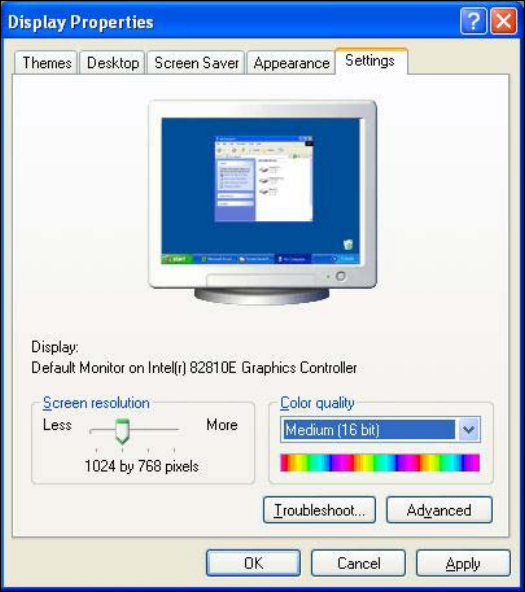
5.2.2 Changing the display settings
→ Choose Start Æ Settings Æ Control Panel Æ Display.
→ Click the Settings tab.
→ Set the "Screen resolution" slider to "1024 by 768 pixels".
Fig. 5-1: Screen settings
→ Confirm the settings by clicking OK.
26 of 54
Installation Manual, Station Software Version 703.03 01/2011 Edition
5.2.3 Calibrating the touchscreen
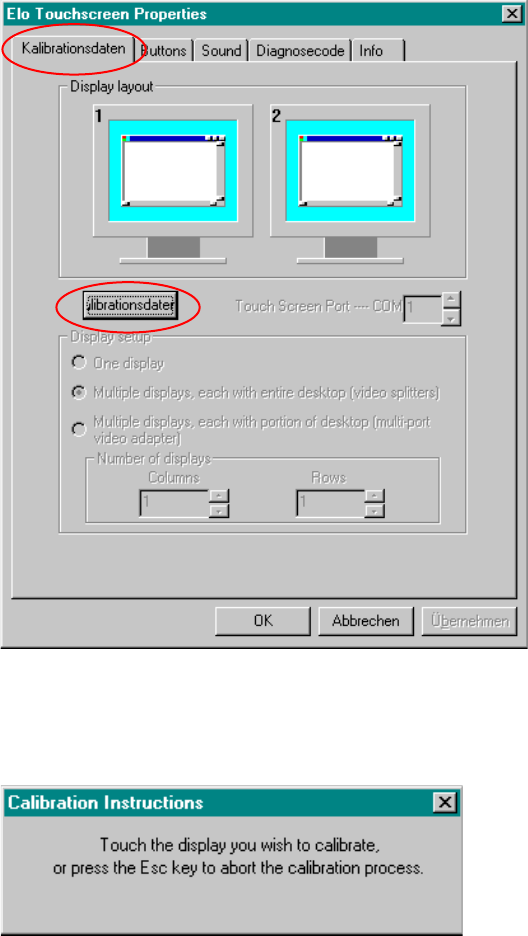
→ Select Start Æ Settings Æ Control Panel Æ Elo to go to EloTouchscreen Properties:
Fig. 5-2: Elo Touchscreen properties
→ Click the Kalibrationsdaten tab.
→ Then click the Kalibrationsdaten button. The following message then appears:
Fig. 5-3: Selection window for the screen to be calibrated
→ Touch the display you wish to calibrate.
A new screen is displayed on which you can perform a calibration.
→ Repeat this procedure for the second screen as well.
→ Click the OK button to accept the data.
27 of 54
Installation Manual, Station Software Version 703.03 01/2011 Edition
28 of 54
5.3 Performing automatic BIOS update/settings on the machine computer
and Vision computer
The image files for the automatic BIOS update/BIOS settings and the corresponding installation instruction
(readme file) are available on the V1.0 BIOS CD, that can be ordered for download via the service
technician or SecuFEx.