00197392-02_IM_OIS_SIS_11.2_DE_EN.pdf - 第12页
SIPLAC E OI S V11. 2 / Ins tallatio n Manual Ausgabe 05/2014 Edit ion 12 Error me ssages and w arnings If som e prerequisi tes are fai ling f or th e installat ion, cor respond ing error m es sages and warnings will b e …
SIPLACE OIS V11.2 / Installation Manual Ausgabe 05/2014 Edition
11
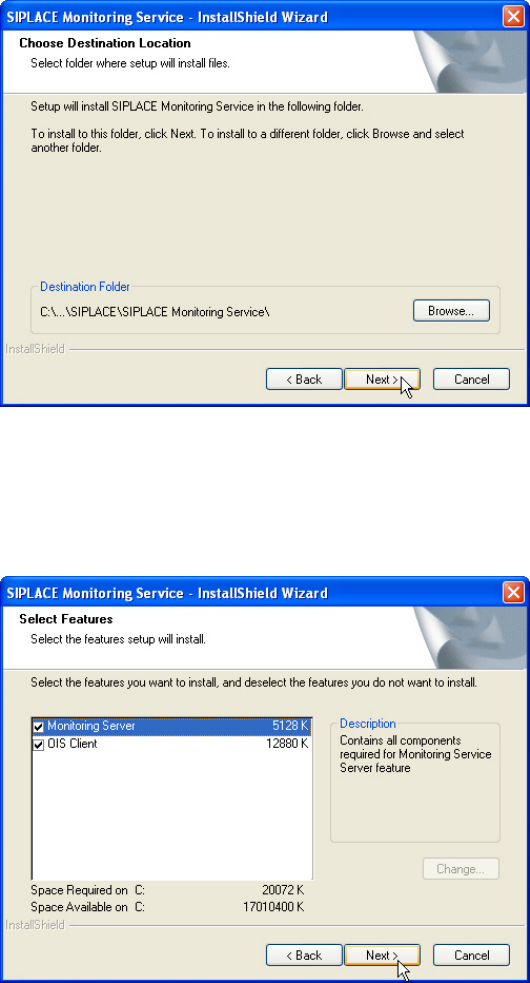
The following dialog box is opened.
Figure 3-6: Choosing destination location
► Click Browse... if you want to choose a different installation directory.
► Click Next >.
The following dialog box is opened.
Figure 3-7: Selecting features
Here you can select to install Monitoring Service only or OIS Client only or both features. The
further installation steps depend on the feature to be installed. In this installation sample both
features are selected to be installed.
► Check the Monitoring Server and OIS Client entries.
► Click Next >.
SIPLACE OIS V11.2 / Installation Manual Ausgabe 05/2014 Edition
12
Error messages and warnings
If some prerequisites are failing for the installation, corresponding error messages and warnings
will be displayed.
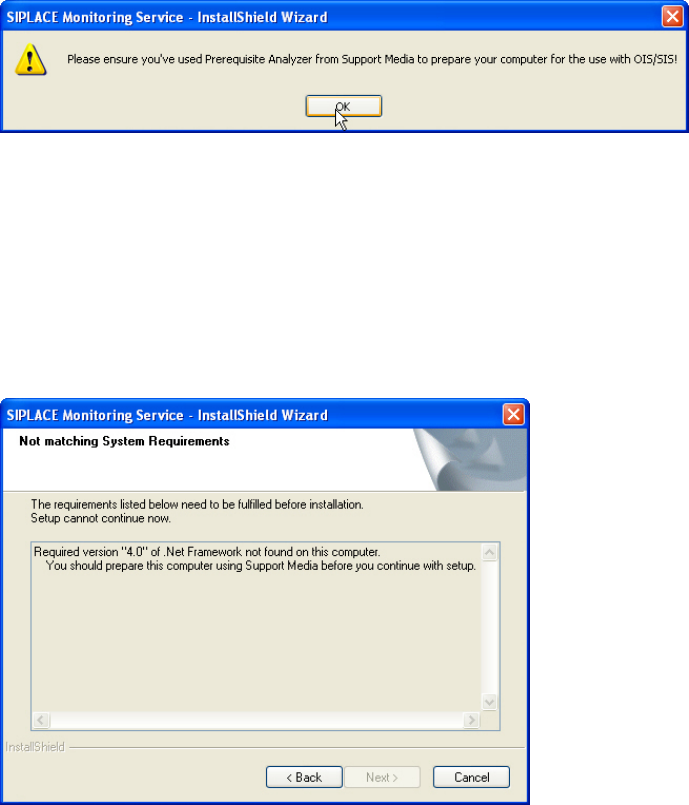
The following error messages are displayed by Monitoring Server if the Support Media for OIS
has not been performed.
Figure 3-8: Support Media not performed
► Click OK to confirm the error message.
► Click Cancel to cancel the installation.
► Prepare the system with the Prerequisite Analyzer of Support Media for OIS/SIS.
► Restart the installation.
The following error message displays that the required version of .Net Framework has not been
installed.
Figure 3-9: System requirements not matching
► Click Cancel to cancel the installation.
► Prepare the system with Support Media.
► Restart the installation.
SIPLACE OIS V11.2 / Installation Manual Ausgabe 05/2014 Edition
13
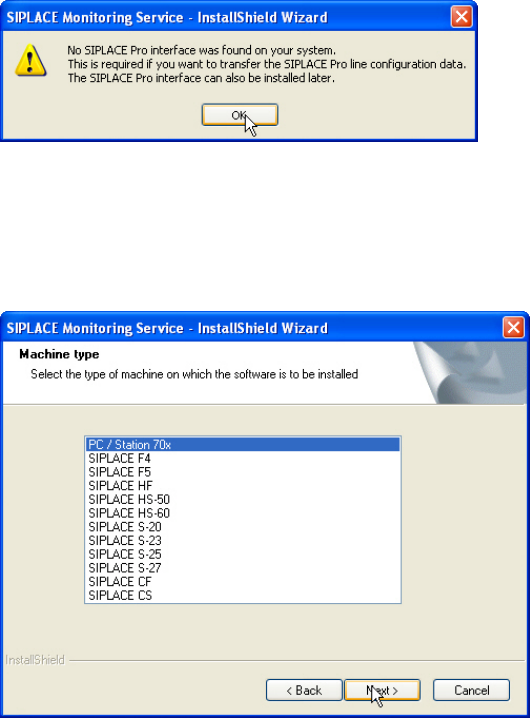
This warning is displayed by Monitoring Server if SIPLACE Pro has not been installed. However,
SIPLACE Pro can be installed later.
Figure 3-10: SIPLACE Pro not installed
► Click OK to confirm the warning.
► Click Next >, to continue the installation.
The following dialog box is opened.
Figure 3-11: Selecting machine type
► Select the machine type on which OIS Client is to be installed.
► Select the Personal Computer type for machines with station software version 70x.
► Click Next >.