00197392-02_IM_OIS_SIS_11.2_DE_EN.pdf - 第17页
SIPLAC E OI S V11. 2 / Ins tallatio n Manual Ausgabe 05/2014 Edit ion 17 The f ollowing di alog box is open ed. Figure 3- 18 : Connection to database ► Select a database ins tance . The instal lation r outine m ust log i…
SIPLACE OIS V11.2 / Installation Manual Ausgabe 05/2014 Edition
16
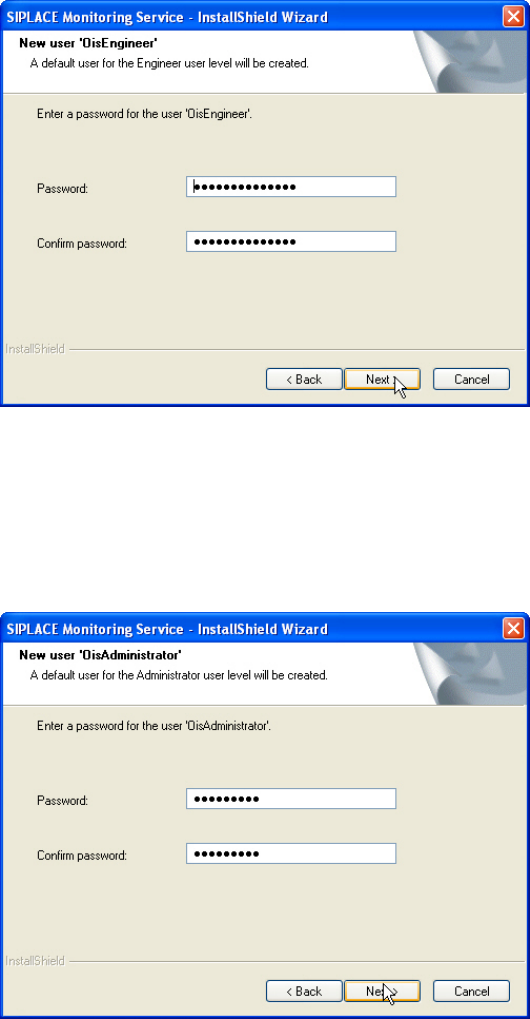
Figure 3-16: Defining a password for OisEngineer
► Enter the password for the OisEngineer.
The default password is "SmallSiplace.1".
► Enter the password again to confirm.
► Click Next >.
Figure 3-17: Defining a password for OISAdministrator
► Enter the password for the OisAdministrator.
The default password is "Siplace.1".
► Enter the password again to confirm.
► Click Next >.
SIPLACE OIS V11.2 / Installation Manual Ausgabe 05/2014 Edition
17
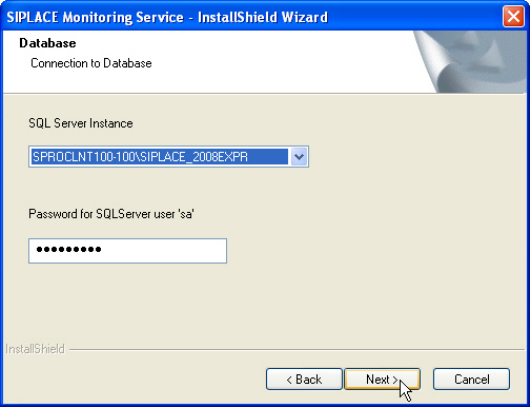
The following dialog box is opened.
Figure 3-18: Connection to database
► Select a database instance.
The installation routine must log in to the SQL Server as system administrator (sa) in order to set
up or update the database schema.
► Enter the system administrator password.
► Click Next >.
SIPLACE OIS V11.2 / Installation Manual Ausgabe 05/2014 Edition
18
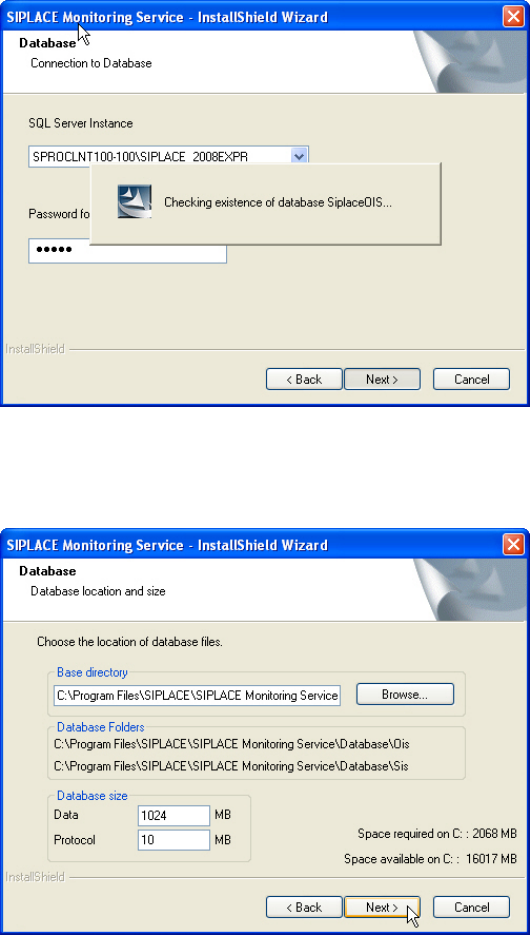
The following dialog box is opened.
Figure 3-19: Checking database instance
Information is gathered on the selected database instance (takes appr. 15-30 seconds). Thereafter
the following dialog box is opened.
Figure 3-20: Entering database size
► Click Browse... if you want to select another installation directory for the database.
The Database\OIS and Database\SIS sub directories are created.
► Enter the starting file size for the database files.
The default values are generally acceptable, and the files are allowed to grow as your database
expands.
► Click Next >.